1. Introduction
This manual provides instructions for the proper use and handling of the Brother BT5000Y Yellow Ink Bottle. This ink bottle is designed for use with compatible Brother DCP, HL, and MFC series inkjet printers, offering a yield of approximately 5,000 pages. Adhering to these instructions will help ensure optimal print quality and prolong the life of your printer.
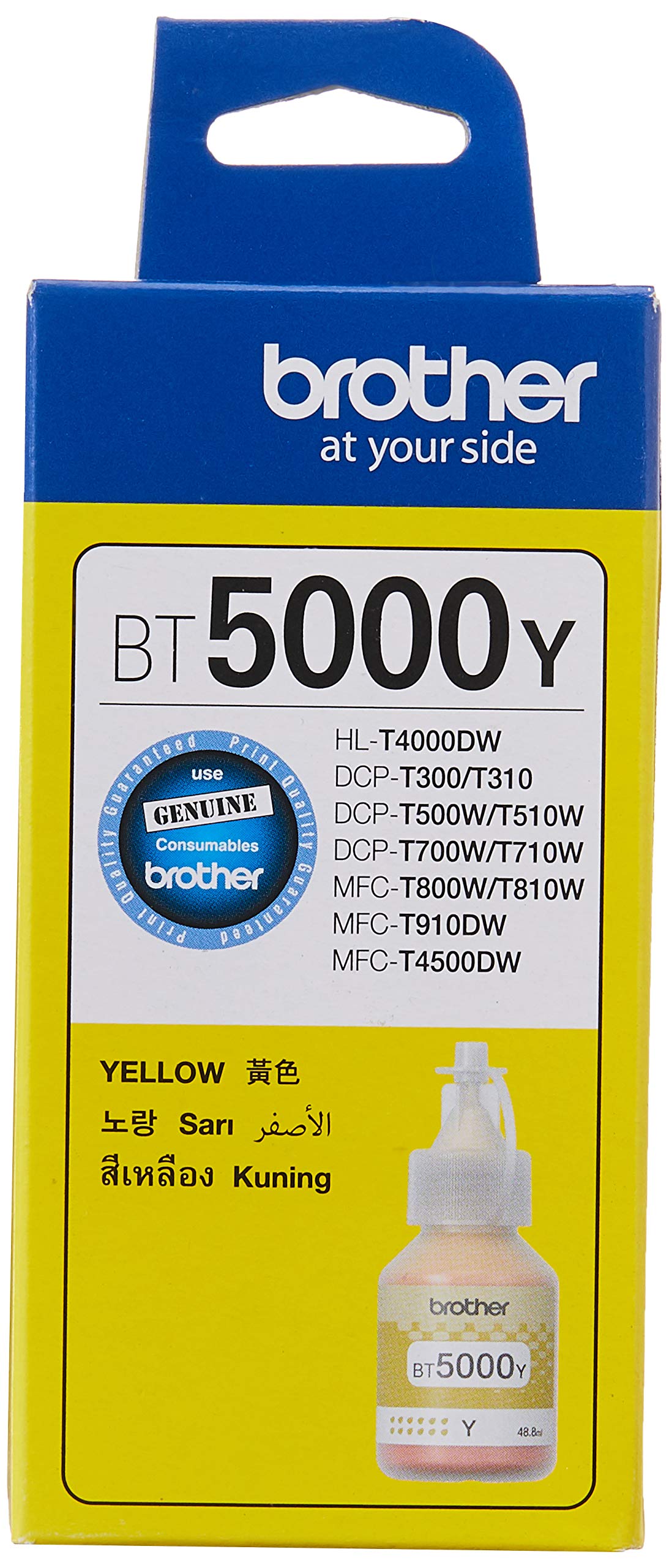
Image 1: Brother BT5000Y Yellow Ink Bottle. This image displays the yellow ink bottle, which is the subject of this manual.
2. Safety Information
Please read and follow these safety precautions to prevent injury or damage to your product and printer:
- Keep ink bottles out of reach of children.
- Do not ingest ink. If swallowed, seek medical attention immediately.
- Avoid contact with eyes. If ink gets into eyes, flush immediately with water and seek medical attention.
- Avoid prolonged contact with skin. Wash hands thoroughly after handling ink.
- Store ink bottles upright in a cool, dark place, away from direct sunlight and extreme temperatures.
- Do not attempt to disassemble or modify the ink bottle.
- Use only genuine Brother ink bottles to ensure optimal performance and prevent damage to your printer.

Image 2: Back of Brother Ink Bottle Packaging. This image shows the rear of the ink bottle packaging, highlighting the "Use Genuine" seal and manufacturer details.
3. Package Contents
The Brother BT5000Y Yellow Ink Bottle package typically includes:
- One (1) Brother BT5000Y Yellow Ink Bottle (48.8ml)
4. Setup and Installation
Follow these steps to refill the yellow ink tank in your compatible Brother inkjet printer.
4.1. Preparing the Printer
- Ensure your printer is powered on.
- Open the ink tank cover on your printer. This cover typically provides access to the individual ink tanks.
- Locate the yellow ink tank. It is usually labeled with a "Y" for Yellow.
- Carefully open the cap of the yellow ink tank.
4.2. Refilling the Ink Tank
- Unscrew the cap from the Brother BT5000Y Yellow Ink Bottle.
- Insert the nozzle of the ink bottle firmly into the yellow ink tank's refill port. The bottle is designed to fit securely and prevent spills.
- Allow the ink to drain completely into the tank. Do not squeeze the bottle. The ink will stop flowing automatically once the tank is full.
- Once the ink has stopped flowing, carefully remove the ink bottle from the tank.
- Replace the cap on the yellow ink tank securely.
- Close the ink tank cover on your printer.

Image 3: Brother Ink Bottle Nozzle. This image shows the design of the ink bottle's nozzle, which facilitates spill-free refilling into compatible Brother ink tanks.
5. Operating Instructions
After refilling the ink tank, your printer is ready for use. The printer's internal system will automatically detect the new ink level. If you experience any issues with print quality, refer to your printer's user manual for instructions on performing print head cleaning or alignment.
6. Maintenance
- Always keep the ink bottle cap securely closed when not in use to prevent ink from drying out or contamination.
- Store unused ink bottles in their original packaging until needed.
- Do not expose ink bottles to extreme temperatures or direct sunlight.
- Ensure the printer's ink tank caps are properly closed after refilling to prevent evaporation and maintain print quality.
7. Troubleshooting
If you encounter issues related to ink, consider the following:
- Low Ink Warning: If your printer displays a low ink warning after refilling, ensure the ink tank cap was properly closed and the ink bottle was fully drained. Some printers may require a few print cycles to recalibrate ink levels.
- Poor Print Quality (Yellow): If yellow prints appear faded or streaky, check if the yellow ink tank is sufficiently filled. If the tank is full, refer to your printer's manual for instructions on performing a print head cleaning or nozzle check.
- Ink Spills: In case of an ink spill, wipe immediately with a damp cloth. For stubborn stains, use a mild detergent.
- Printer Not Recognizing Ink: Ensure you are using a genuine Brother ink bottle. If the issue persists, consult your printer's user manual or Brother customer support.
8. Specifications
| Model Name | BT5000Y |
| Brand | Brother |
| Ink Colour | Yellow |
| Page Yield | Up to 5,000 pages (based on Brother Original Methodology with test patterns ISO/IEC 24712) |
| Compatible Devices | DCP-T500W, DCP-T700W, MFC-T800W, DCP-T510W, DCP-T710W, MFC-T810W, MFC-T910DW, HL-T4000DW, MFC-T4500DW, DCP-T220, DCP-T520W, DCP-820DW, MFC-T920DW |
| Ink Base | Water |
| Number of Items | 1 Ink Bottle |
| Manufacturer | Brother |
| ASIN | B0719423KP |
| UPC | 4977766748155 |
9. Warranty Information
For detailed warranty information regarding your Brother BT5000Y Yellow Ink Bottle, please refer to the warranty documentation included with your Brother printer or visit the official Brother website. Using non-genuine ink may void your printer's warranty.
10. Customer Support
If you require further assistance or have questions not covered in this manual, please contact Brother customer support or visit their official website:
- Official Brother Website: www.brother.com/original
- Visit the Brother Store on Amazon: Brother Store