
VIGORWORK AF1313
VIGORWORK 1 Din Car Stereo Bluetooth Car Audio MP3 Recorder User Manual
Model: AF1313
Introduction
Welcome to your new VIGORWORK 1 Din Car Stereo. This manual provides detailed instructions for the installation, operation, and maintenance of your car audio system. Please read it thoroughly before use to ensure proper functionality and safety.
Safety Information
- Ensure proper installation by a qualified professional to prevent electrical damage or injury.
- Do not operate the device in a manner that distracts you from driving.
- Avoid exposing the unit to extreme temperatures, direct sunlight, or moisture.
- Disconnect the car battery before installation or maintenance.
- Use only the specified voltage (12V DC) for operation.
Package Contents
The package should contain the following items:
- 1x VIGORWORK 1 Din Car Stereo Unit (Model AF1313)
- 1x Remote Control
- 1x Power Cable (ISO Connector)
- 1x User Manual (English)
- 2x Fixed Iron Pieces (Installation Keys)

Image: Display of product accessories, including the car stereo unit, remote control, power cables, and installation keys.
Setup and Installation
This section outlines the general steps for installing your car stereo. Professional installation is recommended to ensure correct wiring and prevent damage.
Wiring Diagram
Refer to the wiring diagram located on the top of the unit or in the included manual for correct connections. Ensure all wires are connected to their corresponding terminals (power, ground, speakers, antenna).

Image: Rear view of the car stereo unit with the wiring diagram label visible.
Physical Installation
- Ensure the vehicle's ignition is off and disconnect the negative terminal of the car battery.
- Remove the existing car stereo from the dashboard.
- Connect the wiring harness from the new stereo to the vehicle's wiring. Ensure all connections are secure and correctly matched (power, ground, speakers, antenna).
- Slide the new stereo unit into the dashboard opening until it clicks into place. Use the provided fixed iron pieces if necessary to secure it.
- Reconnect the car battery.
- Turn on the ignition and test the stereo's functions.
Operating Instructions
Basic Controls
The front panel features a rotary electronic volume control, mode button, band button, and various playback controls for easy access to functions.

Image: Front panel of the car stereo, showing the main controls and display.
Power On/Off
- Press the power button (often integrated with the volume knob) to turn the unit on or off.
- The clock display will be shown when the unit is powered off.
Volume Control
- Rotate the volume knob clockwise to increase volume, and counter-clockwise to decrease.
Mode Selection
- Press the "MODE" button to cycle through available audio sources: FM Radio, Bluetooth, USB, SD, and AUX.
FM Radio Operation
- Press the "BAND" button to select between FM1, FM2, or FM3 bands.
- Press the "AMS" button for automatic station search and storage.
- Use the seek buttons (e.g., >>| or |<<) to manually tune or scan for stations.
- The unit supports storing up to 18 preset stations.
Image: The car stereo displaying an FM radio frequency.
Bluetooth Connectivity
This unit supports Bluetooth for hands-free calling and audio streaming from compatible devices.
- Ensure Bluetooth is enabled on your mobile device.
- Select "BT" mode on the car stereo. The display will show "BT PAIRING" or a similar indicator.
- Search for available devices on your phone and select "CAR BT" or "VIGORWORK" (or similar name).
- Once successfully paired, you can make/receive calls and stream music wirelessly.

Image: Visual representation of Bluetooth connectivity for hands-free calls and music playback.
USB/SD Card Playback
Insert a USB drive or SD card into the respective slot. The unit will automatically switch to USB/SD mode and begin playback of compatible audio files (MP3, WMA, WAV).
- Supports pause, preview, repeat, random play, and 10 tracks up/down selections.
- Supports folder playback function.

Image: Illustration of the SD card function for playing music files.
AUX Input
Connect external audio devices (e.g., smartphone, MP3 player) to the front AUX input using a 3.5mm audio cable. Select "AUX" mode on the stereo to play audio from the connected device.

Image: Visual guide for using the AUX input to connect external audio devices.
Charging Function
The USB port can provide 5V charging for mobile devices. Please note that this is not a professional charger and may not support all devices or fast charging capabilities.

Image: Illustration of the USB charging function for mobile phones.
Equalizer (EQ) Function
Press the "EQ" button to cycle through preset equalizer modes such as Jazz, Rock, Pop, and Classical. You can also adjust bass, treble, left/right balance, and front/back fade settings to customize your audio experience.
Remote Control
The included remote control allows for convenient operation of various functions from a distance, including power, volume, mode selection, and track control.
Image: The car stereo unit displayed alongside its remote control.
Maintenance
- Clean the front panel with a soft, dry cloth. Do not use abrasive cleaners, solvents, or harsh chemicals, as these can damage the surface.
- Keep USB and SD card slots free of dust and debris to ensure proper connection and functionality.
- Ensure proper ventilation around the unit to prevent overheating.
Troubleshooting
If you encounter any issues with your car stereo, please refer to the following table for common problems and their solutions.
| Problem | Possible Cause | Solution |
|---|---|---|
| No Power | Incorrect wiring; Blown fuse; Vehicle battery low | Check wiring connections; Replace fuse; Charge/check car battery |
| No Sound | Volume too low; Mute activated; Speaker wiring incorrect | Increase volume; Deactivate mute; Check speaker connections |
| Poor FM Reception | Antenna not connected; Weak signal area | Ensure antenna is connected; Try a different location; Consider an external antenna booster |
| Bluetooth Not Connecting | Bluetooth not enabled on device; Incorrect pairing mode; Device too far | Enable Bluetooth on phone; Ensure stereo is in BT pairing mode; Move device closer |
| USB/SD Not Playing | Unsupported file format; Corrupted files; USB/SD card faulty | Ensure files are MP3/WMA/WAV; Reformat/replace USB/SD card; Try a different card |
| Remote Control Not Working | Battery depleted; Obstruction; Remote not pointed at sensor | Replace battery; Remove obstructions; Point remote directly at unit |
Specifications
| Brand | VIGORWORK |
| Model | AF1313 |
| Tuner Technology | FM |
| Compatible Devices | Speaker |
| Special Features | Equalizer, Hands-Free Calling |
| Audio Output Mode | Stereo |
| Speaker Surround Sound Channel Configuration | 2 |
| Output Wattage | 25 Watts |
| Connector Type | Bluetooth, 3.5mm Jack |
| Media Format | WAV, WMA |
| Product Dimensions | 12.5 x 17.8 x 5 cm; 400 g |
| ASIN | B07193ZG75 |
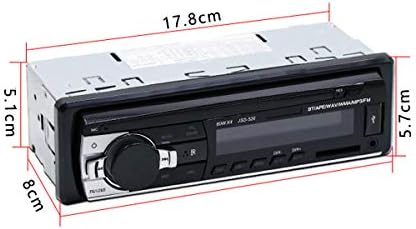
Image: Diagram showing the physical dimensions of the car stereo unit.
Warranty and Support
This VIGORWORK product is covered by a standard manufacturer's warranty. For specific warranty details, please refer to the documentation included with your purchase or contact VIGORWORK customer support.
For technical assistance, troubleshooting, or further inquiries, please visit the VIGORWORK official website or contact their customer service department through the contact information provided with your product.
Ask a question about this manual
Ask about setup, troubleshooting, compatibility, parts, safety, or missing instructions. Manuals+ will review the question and use this page’s manual context to help answer it.