
1. Introduction
The COUGAR GX-S 750W is an 80-PLUS Gold certified power supply unit (PSU) designed for reliable and efficient power delivery to your personal computer. Its compact design ensures compatibility with various PC cases, while advanced features like fan curve tuning and DC-DC power conversion technology contribute to stable voltage outputs and reduced noise levels. This manual provides essential information for the safe installation, operation, and maintenance of your GX-S 750W PSU.
2. Safety Information
Please read and understand all safety instructions before installing or operating the power supply unit. Failure to comply with these instructions may result in electric shock, fire, or damage to the product and connected components.
- Always disconnect the AC power cord from the wall outlet before installing, removing, or cleaning the PSU.
- Do not open the PSU casing. High voltage components inside pose a risk of electric shock, even when the unit is unplugged.
- Ensure the PSU is properly grounded.
- This product is intended for indoor use only. Do not expose the PSU to water, moisture, or high humidity.
- Install the PSU in a well-ventilated area, away from heat sources and direct sunlight.
- Use only the cables provided with the power supply.
- Do not force connectors. Ensure correct orientation before plugging in cables.
3. Package Contents
Verify that all items are present in the package:
- COUGAR GX-S 750W Power Supply Unit
- AC Power Cord
- Modular and Fixed Cables (24-pin ATX, 4+4-pin CPU, 6+2-pin PCIe, SATA, Molex)
- Mounting Screws
- User Manual
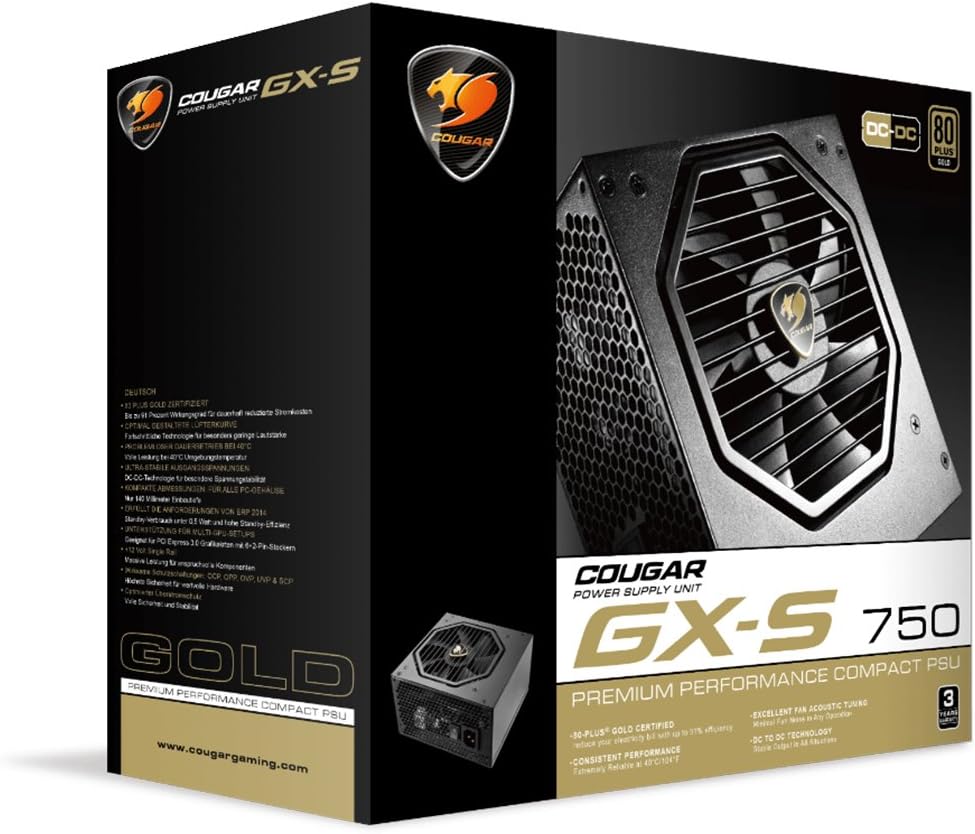
Image 3.1: COUGAR GX-S 750W Power Supply packaging. The image shows the retail box for the COUGAR GX-S 750W PSU, highlighting its 80 PLUS Gold certification and compact design.
4. Setup and Installation
Follow these steps to install your COUGAR GX-S 750W Power Supply:
- Preparation: Ensure your computer is completely powered off and unplugged from the wall outlet. Open your PC case to access the PSU mounting area.
- Mounting the PSU: Carefully place the GX-S 750W PSU into the designated PSU bay in your PC case. Align the screw holes on the PSU with those on the case. Secure the PSU using the provided mounting screws. Ensure the PSU fan is oriented correctly for optimal airflow (typically facing downwards if there's a vent, or upwards if not).
- Connecting Motherboard Power: Connect the 24-pin ATX power cable from the PSU to the corresponding 24-pin connector on your motherboard. Ensure it clicks securely into place.
- Connecting CPU Power: Connect the 4+4-pin EPS (CPU) power cable to the CPU power connector on your motherboard. This is usually located near the CPU socket. If your motherboard requires an 8-pin connector, combine the two 4-pin halves.
- Connecting PCIe Power (Graphics Cards): If you have a dedicated graphics card, connect the 6+2-pin PCIe power cables from the PSU to your graphics card(s). Some high-end graphics cards may require multiple PCIe power connectors.
- Connecting SATA/Molex Power: Connect SATA power cables to your storage drives (HDDs, SSDs) and optical drives. Use Molex connectors for any other peripherals that require them (e.g., case fans, fan controllers).
- Cable Management: Route all cables neatly to improve airflow and aesthetics within your PC case. Use cable ties or straps if necessary.
- Final Check: Double-check all connections to ensure they are secure and correctly seated. Close your PC case.
- Power On: Connect the AC power cord to the PSU and then to a wall outlet. Flip the power switch on the back of the PSU to the 'ON' position. You can now power on your computer.

Image 4.1: COUGAR GX-S 750W Power Supply. This image displays the top-down view of the COUGAR GX-S 750W PSU, showing the fan grille, power input, and power switch, along with various cable connections.

Image 4.2: COUGAR GX-S 750W Power Supply side view. This image shows a side view of the COUGAR GX-S 750W PSU, illustrating the compact form factor and the exit point for fixed cables.
5. Operating Instructions
The COUGAR GX-S 750W PSU is designed for continuous operation within its specified limits. Once installed, its operation is largely automatic, managing power delivery to your system components.
- Efficiency: The 80-PLUS Gold certification ensures high power efficiency (up to 91%), reducing electricity consumption and heat generation.
- Cooling: The PSU features an optimized fan curve tuning designed to minimize noise levels while maintaining effective cooling for internal components. The fan will adjust its speed based on the PSU's temperature and load.
- Stable Power: DC-DC power conversion technology provides stable and reliable voltage outputs to all connected components, crucial for system stability and longevity.
- Environmental Conditions: The PSU is designed to operate reliably even at ambient temperatures up to 40°C (104°F). Ensure adequate ventilation around your PC to prevent overheating.
6. Maintenance
Proper maintenance helps ensure the longevity and optimal performance of your COUGAR GX-S 750W PSU.
- Dust Removal: Periodically clean the exterior of the PSU and its fan grille to prevent dust buildup, which can impede airflow and reduce cooling efficiency. Use compressed air or a soft brush. Always disconnect the PSU from power before cleaning.
- Avoid Liquids: Never spray cleaning liquids directly onto the PSU. Use a slightly damp cloth for external cleaning only.
- Cable Connections: Occasionally check that all power cables are securely connected to the PSU and your components. Loose connections can lead to instability or damage.
7. Troubleshooting
If you encounter issues with your COUGAR GX-S 750W PSU, refer to the following troubleshooting steps:
- System Does Not Power On:
- Ensure the AC power cord is securely plugged into both the PSU and the wall outlet.
- Check that the power switch on the back of the PSU is in the 'ON' position.
- Verify that the 24-pin ATX and 4+4-pin CPU power cables are correctly connected to the motherboard.
- Test the wall outlet with another device to confirm it has power.
- System Powers On but Shuts Down Immediately:
- This could indicate a short circuit or an overloaded component. Disconnect all non-essential components (e.g., extra drives, graphics card) and try powering on. Reconnect one by one to identify the problematic component.
- Ensure all components are compatible with the PSU's wattage.
- Excessive Fan Noise:
- Check for dust buildup on the fan grille and clean if necessary (after disconnecting power).
- Ensure the PSU is securely mounted and not vibrating against the case.
- High fan speed can be normal under heavy system load. Monitor system temperatures.
- System Instability/Crashes:
- Ensure all power connectors are firmly seated.
- Verify that your system's power requirements do not exceed the PSU's 750W capacity.
- This could also be related to other components (RAM, CPU, GPU). Test components individually if possible.
If these steps do not resolve the issue, please contact COUGAR customer support for further assistance.
8. Specifications
| Feature | Specification |
|---|---|
| Brand | COUGAR |
| Model Number | GXS750 |
| Output Wattage | 750 Watts |
| 80 PLUS Certification | Gold |
| Cooling Method | Air |
| Item Dimensions (L x W x H) | 5.9 x 3.4 x 5.5 inches (150 x 86 x 140 mm) |
| Item Weight | 88.15 Ounces (approx. 2.5 kg) |
| Compatible Devices | Personal Computer |
| Connector Type | PCI Express |
| UPC | 871520007974 |
9. Warranty and Support
The COUGAR GX-S 750W Power Supply Unit comes with a 5-year warranty from the date of purchase, covering defects in materials and workmanship under normal use.
For technical support, warranty claims, or further inquiries, please visit the official COUGAR website or contact their customer service department. Keep your proof of purchase for warranty validation.
COUGAR Official Website: www.cougargaming.com


