
1. Introduction
This manual provides detailed instructions for the proper setup, operation, and maintenance of your Zastone XPX-ZT-BKTK USB Programming Cable. This cable is designed to facilitate communication between your computer and compatible two-way radios for programming purposes. Please read this manual thoroughly before use to ensure optimal performance and avoid potential issues.
2. Product Overview
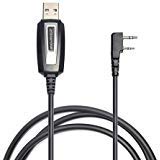
Figure 1: Zastone XPX-ZT-BKTK USB Programming Cable. This image displays the USB connector on one end and the two-pin radio connector on the other, connected by a black cable.
The Zastone XPX-ZT-BKTK USB Programming Cable is an interface device that connects your computer's USB port to the programming port of various two-way radios. It enables users to program radio frequencies, settings, and other parameters using compatible software.
3. Compatibility
This programming cable is compatible with a range of two-way radios, including but not limited to:
- BAOFENG: UV-5R, BF-888S, UV-82, B5, B6
- Zastone: ZT-889G, V180, MINI8, A9, V3000 (TC-K12), V18, L2000
- Other models such as X6, V77, V8, V9, A19 (compatibility may vary, refer to radio manufacturer's specifications)
Note: Always ensure your radio model is listed as compatible before attempting to use the cable.
4. Setup Instructions
- Install Programming Software: Obtain the appropriate programming software for your specific radio model from the radio manufacturer's official website or the provided installation disc (if applicable). Install it on your computer.
- Connect Cable to Computer: Plug the USB end of the programming cable into an available USB port on your computer.
- Driver Installation: In most modern operating systems, the necessary drivers for this cable are plug-and-play and will install automatically. If prompted, allow the system to install drivers. If automatic installation fails, refer to the radio manufacturer's website for specific driver downloads.
- Connect Cable to Radio: Ensure your radio is turned off. Carefully insert the two-pin connector of the programming cable into the programming port of your two-way radio. Ensure a secure connection.
- Power On Radio: Turn on your two-way radio.
- Verify Connection: Open the programming software on your computer. Navigate to the communication port settings (often labeled "COM Port" or "Port"). Select the COM port assigned to the USB programming cable. This can usually be found in your computer's Device Manager under "Ports (COM & LPT)".
Important: Incorrect driver installation or COM port selection can prevent the software from communicating with the radio.
5. Operating Instructions
Once the cable is set up and recognized by your computer and programming software, you can proceed with programming your radio:
- Read Data from Radio: In the programming software, locate the option to "Read from Radio" or "Download from Radio." This will transfer the radio's current settings to the software.
- Modify Settings: Adjust frequencies, channel names, squelch levels, power settings, and other parameters as needed within the software interface.
- Write Data to Radio: After making all desired changes, select the option to "Write to Radio" or "Upload to Radio." Confirm the action when prompted.
- Disconnect: Once the writing process is complete and confirmed by the software, turn off your radio, then carefully disconnect the programming cable.
- Test Radio: Turn on your radio and test the newly programmed settings to ensure they function as intended.
Always save your radio's original configuration file before making significant changes. This allows for restoration if needed.
6. Maintenance
- Store the cable in a dry, cool place away from direct sunlight and extreme temperatures.
- Avoid bending or kinking the cable excessively, as this can damage internal wires.
- Keep connectors clean and free of dust or debris. Use a soft, dry cloth for cleaning.
- Do not pull the cable by the cord; always grasp the connector when plugging or unplugging.
7. Troubleshooting
| Problem | Possible Cause | Solution |
|---|---|---|
| Cable not recognized by computer. | Missing or incorrect drivers. Faulty USB port. |
|
| Programming software cannot connect to radio. | Incorrect COM port selected. Radio not powered on or connected properly. Incompatible software. |
|
| Error during read/write operation. | Loose connection. Radio power issue. Software glitch. |
|
8. Specifications
- Model: XPX-ZT-BKTK
- Connector Type: USB (Type A) to 2-Pin Radio Connector
- Cable Type: USB
- Special Features: Tangle-Free design
- Compatibility: Refer to Section 3 for a list of compatible radio models.
- Package Dimensions: Approximately 19.56 x 16.51 x 2.29 cm
- Weight: Approximately 68 g
9. Warranty and Support
For warranty information and technical support, please refer to the documentation provided with your purchase or contact Zastone customer service directly. Keep your purchase receipt as proof of purchase.
Manufacturer: Zastone