
1. Product Overview
The Homtime C1-PRO is a versatile music alarm clock designed to enhance your daily routine. It features a Bluetooth speaker for audio playback, dual USB ports for charging devices, a personalized alarm ring function, a built-in thermometer, and a 3-level dimmable display for optimal visibility.

Figure 1: Homtime C1-PRO with icons illustrating key features such as snooze, dual USB charging, melody alarm, time/alarm knob, Bluetooth, and thermometer.
Key Features:
- Bluetooth Speaker: Connect wirelessly to play audio from your devices.
- Dual USB Charging Ports: Conveniently charge two devices simultaneously.
- Personalized Alarm Ring: Customize your alarm sound using a MicroSD card.
- Digital Thermometer: Displays ambient room temperature.
- 3-Level Dimmable Display: Adjust screen brightness for comfort.
- Snooze Function: Temporarily pause the alarm.

Figure 2: Front panel controls and display elements, including time, alarm clock indicator, snooze on/off, Bluetooth on/off, temperature, and USB charging ports.
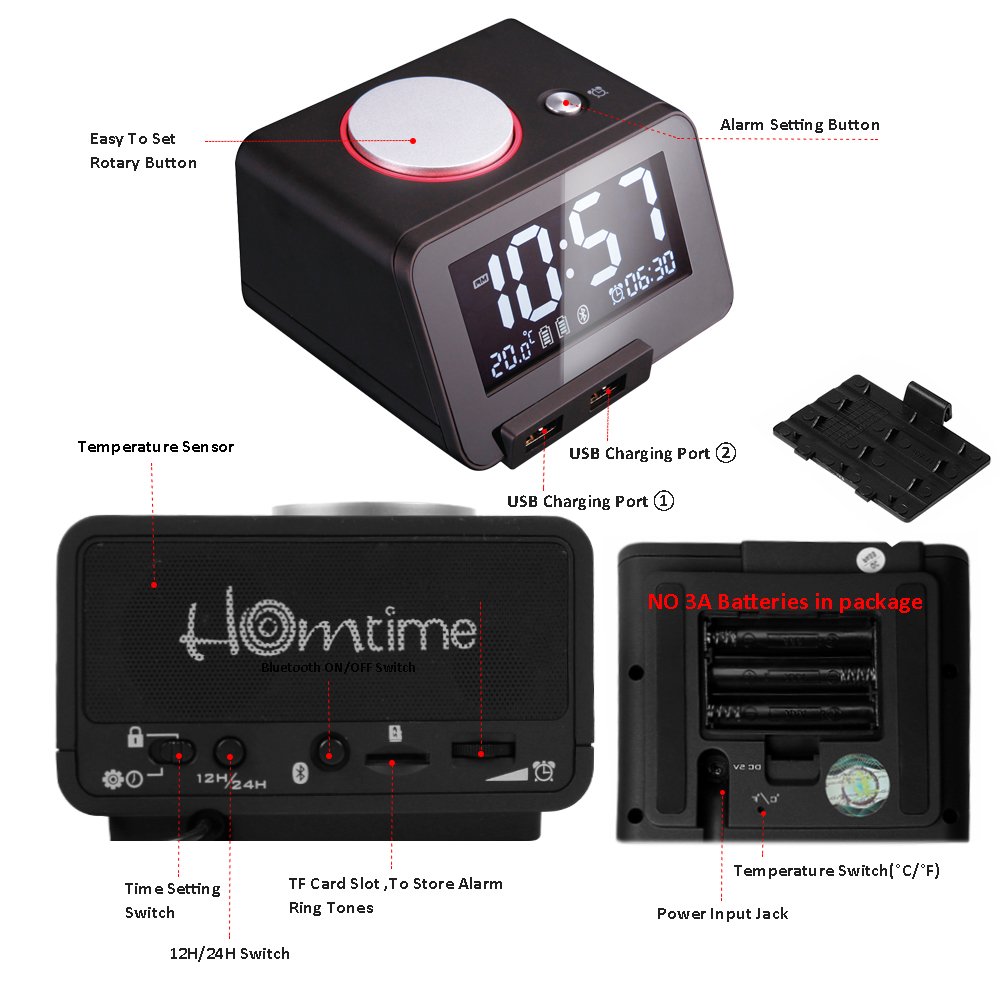
Figure 3: Rear panel controls, including the alarm set button, rotary dial for speaker volume, time set switch, time mode switch (12HR/24HR), Bluetooth on/off switch, MicroSD card slot for alarm personalization, and alarm volume control dial.

Figure 4: Bottom panel details, showing the temperature sensor, USB charging ports, power input jack, battery compartment for 3A batteries (not included), and temperature switch (°C/°F).
2. Setup
2.1 Power Connection
- Connect the provided power adapter to the "Power Input Jack" located on the bottom of the unit (refer to Figure 4).
- Plug the adapter into a standard wall outlet. The display will illuminate.
2.2 Battery Backup Installation (Optional)
The C1-PRO uses 3A batteries (not included) for backup power to retain time and alarm settings during a power outage. These batteries do not power the main functions of the clock.
- Locate the battery compartment on the bottom of the unit (refer to Figure 4).
- Open the battery compartment cover.
- Insert the required 3A batteries, ensuring correct polarity (+/-).
- Close the battery compartment cover securely.
2.3 Initial Settings
- Time Format (12HR/24HR): Locate the "Time Mode Switch (12HR/24HR)" on the rear panel (refer to Figure 3). Slide the switch to your preferred time format.
- Temperature Unit (°C/°F): Locate the "Temperature Switch (°C/°F)" on the bottom panel (refer to Figure 4). Slide the switch to select Celsius or Fahrenheit.
3. Operating Instructions
3.1 Setting the Time
- Locate the "Time Set Switch" on the rear panel (refer to Figure 3).
- Slide the switch to the "SET" position. The hour digits will begin to flash.
- Rotate the "Knob for time and alarm-setting" (top center, refer to Figure 1) to adjust the hour.
- Press the knob once to switch to minute adjustment. The minute digits will flash.
- Rotate the knob to adjust the minutes.
- Press the knob again or slide the "Time Set Switch" back to "LOCK" to confirm and exit time setting mode.
3.2 Setting the Alarm
- Press the "Alarm Set Button" on the rear panel (refer to Figure 3). The alarm time will appear on the display, and the hour digits will flash.
- Rotate the "Knob for time and alarm-setting" to adjust the alarm hour.
- Press the knob once to switch to minute adjustment. The minute digits will flash.
- Rotate the knob to adjust the alarm minutes.
- Press the knob again to confirm the alarm time. The alarm icon will appear on the display, indicating the alarm is active.
- To deactivate the alarm, press the "Alarm Set Button" again. The alarm icon will disappear.
3.3 Personalized Alarm Ring (MicroSD Card)
You can use your own audio files as an alarm sound by inserting a MicroSD card.
- Insert a MicroSD card containing your desired MP3 audio files into the "MicroSD Card Slot for Alarm Personalization" on the rear panel (refer to Figure 3).
- When setting the alarm, after confirming the time, the clock will automatically use the first compatible audio file on the MicroSD card as the alarm sound.
- Ensure the audio files are in a supported format (e.g., MP3).
3.4 Snooze Function
When the alarm sounds, press the large "Snooze/Dimmer Button" on the top of the unit (the large silver button, refer to Figure 1). The alarm will pause for approximately 9 minutes and then sound again. This can typically be repeated multiple times.
3.5 Bluetooth Speaker Operation
- Locate the "Bluetooth ON/OFF Switch" on the rear panel (refer to Figure 3). Slide it to the "ON" position.
- The Bluetooth icon on the display will flash, indicating it is in pairing mode.
- On your mobile device, enable Bluetooth and search for available devices.
- Select "Homtime C1-PRO" from the list to pair. Once paired, the Bluetooth icon on the clock's display will stop flashing and remain solid.
- You can now play audio from your device through the C1-PRO speaker.
- Adjust the speaker volume using the "Rotary Dial for Speaker Volume Control" on the rear panel (refer to Figure 3).
- To disconnect, turn off Bluetooth on your device or slide the "Bluetooth ON/OFF Switch" on the clock to "OFF".
3.6 USB Charging
The C1-PRO features two USB charging ports on the front of the unit (refer to Figure 2). Connect your USB charging cables to these ports to charge compatible devices such as smartphones or tablets.
- Ensure the clock is connected to power for the USB charging function to operate.
- The charging output is standard for most mobile devices.
3.7 Display Brightness Adjustment
The display has 3 levels of brightness. To adjust, press the "Snooze/Dimmer Button" (large silver button on top, refer to Figure 1) when the alarm is not sounding. Each press will cycle through the brightness levels.
3.8 Alarm Volume Control
Adjust the alarm volume using the "Alarm Volume Control Dial" located on the rear panel (refer to Figure 3).
4. Maintenance
- Cleaning: Use a soft, dry cloth to clean the surface of the clock. Do not use liquid cleaners or abrasive materials.
- Storage: If storing the device for an extended period, disconnect it from power and remove the backup batteries. Store in a cool, dry place.
- Battery Replacement: Replace backup batteries annually or when the clock fails to retain settings during a power interruption.
5. Troubleshooting
| Problem | Possible Cause | Solution |
|---|---|---|
| Clock display is off or not working. | No power connection. | Ensure the power adapter is securely plugged into the clock and a working wall outlet. |
| Alarm does not sound. | Alarm is not activated; volume is too low; MicroSD card issue. | Verify the alarm icon is displayed. Adjust the alarm volume dial. If using MicroSD, ensure the card is inserted correctly and contains compatible audio files. |
| Bluetooth not pairing. | Bluetooth switch off; device too far; already paired with another device. | Ensure the Bluetooth switch on the clock is ON and flashing. Move your device closer. Disconnect from other Bluetooth devices. |
| USB charging not working. | Clock not powered; faulty cable/device. | Ensure the clock is connected to its power adapter. Try a different USB cable or device to rule out external issues. |
| Time/settings lost after power outage. | Backup batteries not installed or depleted. | Install fresh 3A backup batteries (refer to Section 2.2). |
6. Specifications
| Feature | Detail |
|---|---|
| Brand | Homtime |
| Model | C1-PRO |
| Colour | Black |
| Display Type | Digital |
| Special Features | Alarm, USB Charging, Bluetooth, Thermometer, Dimmable Display |
| Power Source | Electrical (with battery backup) |
| Frame Material | Plastic |
| Connectivity Technology | Bluetooth |
| Product Dimensions (LxWxH) | 10.92 x 10.92 x 6.35 cm (approx. 4.3 x 4.3 x 2.5 inches) |
| Item Weight | 259 g (approx. 0.57 lbs) |
| Battery Type (Backup) | 3A (not included) |
7. Warranty and Support
For warranty information and customer support, please refer to the documentation included with your purchase or visit the official Homtime website. Keep your proof of purchase for any warranty claims.
