
1. Introduction
The FOINNEX VGA to HDMI Adapter with Audio is designed to convert analog VGA signals from a source device to digital HDMI output. This allows older computers, laptops, or other devices with a VGA port to connect to modern displays such as HDTVs, monitors, or projectors that only have HDMI inputs. The adapter also supports audio synchronization, providing both video and audio through the HDMI output.
Important Note: This adapter is uni-directional. It converts signals ONLY from VGA to HDMI. It will NOT convert signals from HDMI to VGA.
2. Key Features
- Uni-Directional Conversion: Converts VGA (source) to HDMI (display) only.
- Audio and Video Synchronization: Supports simultaneous transmission of video and audio.
- High Resolution Support: Supports resolutions up to 1080P at 60Hz.
- Plug and Play: No driver installation required for most operating systems.
- External Power Required: Micro USB cable must be connected to a 5V power source for operation.
- Wide Compatibility: Compatible with Windows 7/8/10, Linux OS, and Mac OS.
3. Package Contents
Please ensure all items are present upon unpacking:
- FOINNEX VGA to HDMI Adapter with Audio
- 3.5mm Audio Cable
- Micro USB Power Cable
Note: An HDMI cable is required for connection to a display device and is sold separately.
4. Setup Instructions
Follow these steps to connect your VGA source device to an HDMI display:
- Connect the VGA Interface: Insert the VGA connector of the adapter into the VGA output port of your laptop, computer, or TV box. Secure the connection by tightening the screws on the VGA connector.
- Connect USB Power: Plug the Micro USB power cable into the adapter's 'Power In' port and connect the other end to a 5V 1A USB power source (e.g., a computer USB port or a USB wall adapter). This step is crucial for the adapter to function correctly.
- Connect Audio Cable: Insert the 3.5mm audio cable into the audio output jack of your source device (e.g., headphone jack on a laptop) and connect the other end to the 'Audio In' port on the adapter.
- Connect HDMI Cable: Connect one end of an HDMI cable (not included) to the 'HDMI Out' port on the adapter. Connect the other end of the HDMI cable to an available HDMI input port on your display device (TV, monitor, or projector).
- Select HDMI Input: On your display device, use the remote control or menu buttons to select the corresponding HDMI input source to which the adapter is connected.
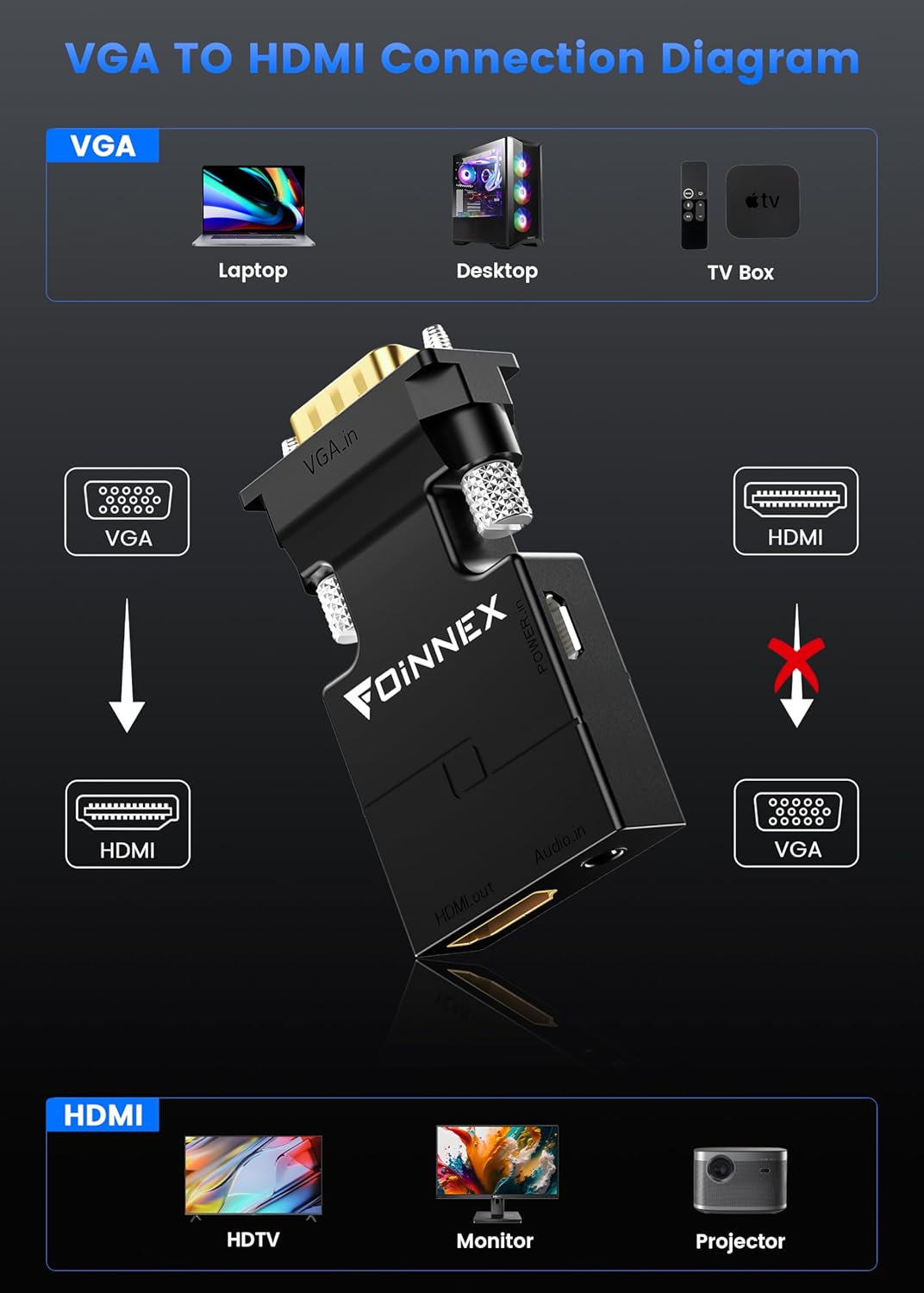
Figure 1: Diagram illustrating the uni-directional connection from VGA source devices to HDMI display devices.
Video 1: Step-by-step guide on connecting the FOINNEX VGA to HDMI adapter to a laptop and TV, including power and audio connections.
5. Operating the Adapter
Once connected, your display device should automatically detect the signal from the adapter. If not, ensure the correct HDMI input is selected on your display.
Display Modes
When connecting to a computer or laptop, you can configure the display mode:
- Mirror Mode: Duplicates your computer's screen onto the external display.
- Extend Mode: Extends your computer's desktop, allowing you to have different content on each screen.
These settings are typically adjusted through your operating system's display settings (e.g., Display Settings on Windows, System Preferences > Displays on macOS).

Figure 2: Illustration of Mirror Mode and Extended Mode when using the adapter with a laptop and external monitor.
6. Troubleshooting
- No Display/Signal:
- Ensure the Micro USB power cable is connected to a 5V 1A power source. The adapter requires external power to function.
- Verify that the VGA connector is securely fastened to your source device.
- Confirm that the HDMI cable is properly connected to both the adapter and the display.
- Check that the correct HDMI input source is selected on your TV or monitor.
- Restart your source device (laptop/computer) and display device.
- No Audio:
- Ensure the 3.5mm audio cable is securely connected to both the source device's audio output and the adapter's 'Audio In' port.
- Check your computer's audio settings to ensure audio is being output through the 3.5mm jack.
- Verify that the volume on both your source device and display device is not muted and is set to an audible level.
- Poor Video Quality/Flickering:
- Ensure the VGA connection is tight and free from interference.
- The quality of the output is dependent on the quality of the original VGA signal.
- Try a different HDMI cable if possible.
- Adapter Not Working (HDMI to VGA):
- This adapter is strictly uni-directional (VGA to HDMI). It cannot convert HDMI signals to VGA. Attempting to use it in reverse will not work.
7. Specifications
| Model Number | VH-UA02 |
| Product Dimensions | 15.99 x 8.99 x 1 inches |
| Item Weight | 0.529 ounces |
| Connector Type | VGA Male to HDMI Female |
| Max Resolution | 1080P @ 60Hz |
| Audio Support | Yes, via 3.5mm audio jack |
| Power Input | Micro USB (5V 1A recommended) |
| Compatible Devices | Laptops/computers with VGA output, monitors/TVs/projectors with HDMI input |
8. Warranty and Support
Warranty Information
This product is covered by a standard return policy, allowing for refund or replacement within 30 days of purchase. Please refer to your retailer's specific return policy for detailed terms and conditions.
Customer Support
For any questions, technical assistance, or support regarding your FOINNEX VGA to HDMI Adapter, please contact your point of purchase or visit the official FOINNEX website for contact information.


