
EinCar a-BR.AN395GNN1
Eincar Android 6.0 Car Stereo User Manual
Model: a-BR.AN395GNN1
Product Overview
The Eincar Android 6.0 Car Stereo is a versatile in-car entertainment and navigation system designed for a seamless driving experience. It features a 6.2-inch digital capacitive touchscreen, a 1.6GHz Quad-core CPU, 1GB RAM, and 16GB ROM, running on Android 6.0 Marshmallow. This unit supports a wide range of functionalities including GPS navigation, Bluetooth for hands-free calling and music streaming, Wi-Fi connectivity, USB and SD card media playback, and phone mirroring.
Key features include:
- Android 6.0 Marshmallow Operating System with Quad Core CPU and 16GB internal storage.
- 6.2-inch Digital Capacitive Touchscreen for high-definition display and responsive interaction.
- Built-in Wi-Fi for internet access and app downloads from Google Play Store.
- Integrated GPS for online and offline navigation with 3D maps and voice guidance.
- Bluetooth for hands-free calling and audio streaming, supporting both built-in and external microphones.
- Support for USB and SD card media playback, including 1080P HD video.
- Phone Mirroring function for both Android and iPhone devices.
- Compatibility with external OBD2 scanners for vehicle diagnostics (additional device required).
- Support for front and rear camera input for enhanced safety.
- Customizable startup logo, dynamic background, and multi-color button illumination.
- Steering wheel control compatibility for convenient operation.

Image: The Eincar car stereo displaying its Android 6.0 interface with various application icons such as Facebook, Gmail, GPS Test Plus, Maps, Music, and Radio.
Setup and Installation
This section provides instructions for the physical installation and initial setup of your Eincar car stereo.
1. Unpacking and Component Check
Carefully unpack all components from the box. Ensure all items listed below are present:
- Eincar Car Stereo Unit
- ISO Cable (Plug and Play)
- External Microphone
- GPS Antenna
- AV Cable
- Install Brackets (Pair)
- User's Manual (this document)
- Wiring Diagrams
- Warranty Card
- Certificate

Image: A diagram showing the dimensions of the Eincar car stereo unit and an illustration of all included accessories, such as the ISO cable, external microphone, GPS antenna, AV cable, installation brackets, user manual, wiring diagrams, warranty card, and certificate.
2. Physical Installation
The unit is a standard 2 DIN size. Before installation, compare the stereo with your car's central console to ensure compatibility. Refer to the included Wiring Diagrams for detailed connection instructions.
- Mounting: Use the provided install brackets to secure the unit in your car's dashboard.
- Power Connection: Connect the ISO Cable to your vehicle's wiring harness. Ensure proper polarity.
- Antenna Connections:
- Connect the GPS Antenna to the designated port on the back of the unit. Position the antenna in a location with clear sky view for optimal signal reception.
- Connect your car's FM/AM radio antenna.
- External Microphone: Plug in the external microphone for clearer hands-free calls. Position it near the driver for best audio pickup.
- USB/SD Connections: If applicable, connect any external USB cables or insert SD cards into their respective slots.
- Camera Input (Optional): If installing front or rear cameras, connect them to the designated CAM-IN RCA ports. The unit supports automatic switching to the rear camera when reversing.
- Audio Output (Optional): Connect external amplifiers or subwoofers to the audio output RCA ports if desired.
3. Initial Power On and Basic Settings
After physical installation, turn on your vehicle's ignition to power on the unit.
- Language and Time: Navigate to "System Settings" to set your preferred language and synchronize the time via network or manually.
- Wi-Fi Connection:
- Go to "Settings" > "Wi-Fi".
- Turn on Wi-Fi and search for available networks.
- Select your desired network and enter the password to connect.

Image: The car stereo screen illustrating Wi-Fi connectivity and the option to connect via 3G/4G dongle for internet access.
For 3G/4G connectivity, an external USB 3G/4G Dongle and a local Internet SIM card are required (not included). Connect the dongle to a USB port on the unit.
- GPS Setup: The unit supports online and offline navigation apps. While a map isn't pre-installed, you can download your preferred navigation application from the Google Play Store.
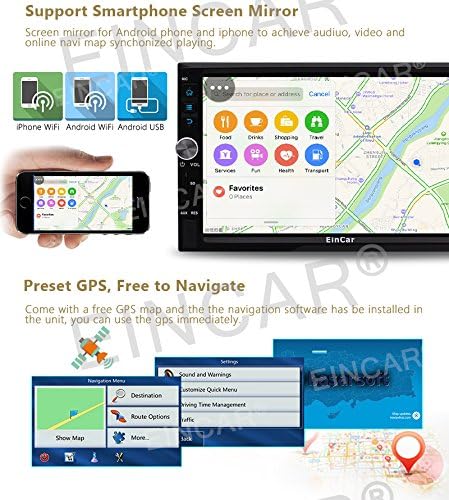
Image: The car stereo displaying a GPS navigation map and an illustration of smartphone screen mirroring functionality.
- Steering Wheel Control: If your vehicle supports steering wheel controls, navigate to "System Settings" > "Steering Wheel Control" to configure the buttons. Follow the on-screen prompts to map each function.

Image: A composite image showing various user interface elements of the Eincar car stereo, including the radio tuner, car logo selection, wallpaper settings, steering wheel control configuration, illuminating light button options, and system settings menu.
- Customize Startup Logo/Wallpaper: You can personalize the unit by setting a custom startup logo or changing the screen background image through the system settings.
Operating Instructions
This section details the various functions and how to operate your Eincar car stereo.
1. Basic Navigation and Controls
The unit features a capacitive touchscreen for intuitive control. Physical buttons and knobs are also available for common functions.
- Volume Knob: Rotate to adjust volume. Press to mute/unmute.
- Power Button: Press and hold to turn the unit on/off. Short press to toggle screen on/off.
- Home Button: Returns to the main Android home screen.
- Back Button: Navigates back to the previous screen or menu.
- Apps/Widgets: Access installed applications and widgets from the main interface.
2. GPS Navigation
The unit supports various navigation applications. Once a navigation app is installed (e.g., Google Maps, iGO), launch it from the app menu.
- Enter your destination using the on-screen keyboard.
- Select your preferred route.
- Follow voice guidance and on-screen directions.
- The unit supports dual zone function, allowing radio/Bluetooth/USB/SD playback while navigating.
3. Bluetooth Functions
Connect your smartphone via Bluetooth for hands-free calling and music streaming.
- Pairing:
- Enable Bluetooth on your smartphone and on the car stereo (via the Bluetooth app).
- Search for available devices on your phone and select "EinCar" (or similar device name).
- Confirm the pairing code on both devices.
- Hands-Free Calling: Once paired, you can dial numbers, answer calls, and view call history directly from the stereo's screen. The unit supports built-in and external microphones for clear calls.
- Bluetooth Music: Stream audio from your paired smartphone to the car stereo. Control playback (play/pause, skip tracks) from the stereo or your phone.

Image: The car stereo displaying its 9-band equalizer settings for sound customization and the Bluetooth interface for hands-free calling, including a dial pad and contact synchronization.
4. Media Playback
The unit supports various media sources:
- USB/SD Card: Insert a USB drive or SD card (up to 32GB, some models support up to 64GB) containing audio or video files. The unit supports formats like RMVB, AVI, MOV, RM, FLV, MKV for video, and MP3, MP4, WMA, WAV, APE, FLAC, MPC for audio.
- DVD/CD Player: Insert a DVD or CD into the disc slot for playback.
- AM/FM Radio: Access the radio tuner application. The unit has 3*6 FM and 2*6 AM stations preset capability. Use the scan function to find local stations.
- Online Video/Streaming: With Wi-Fi connected, you can access online video platforms or stream content through installed apps.

Image: The car stereo displaying video playback from a USB/SD card, along with illustrations of USB and Micro SD card inputs, and the dual zone function allowing simultaneous navigation and media playback.
5. Phone Mirroring (Easy Connection)
Mirror your smartphone screen onto the 6.2-inch display. This feature supports both Android phones and iPhones.
- Launch the "Easy Connection" or "Phone Mirror" app on the stereo.
- Follow the on-screen instructions to connect your phone via USB or Wi-Fi.
- Once connected, your phone's screen will be displayed on the stereo, allowing for audio and video synchronization.
6. Camera Input
The unit supports both front and rear camera inputs. When a rear camera is connected, the display will automatically switch to the rear view when the vehicle is put into reverse.
- Ensure cameras are properly connected to the RCA ports.
- Access the camera view manually through the dedicated camera app if available, or it will activate automatically for the rear camera.
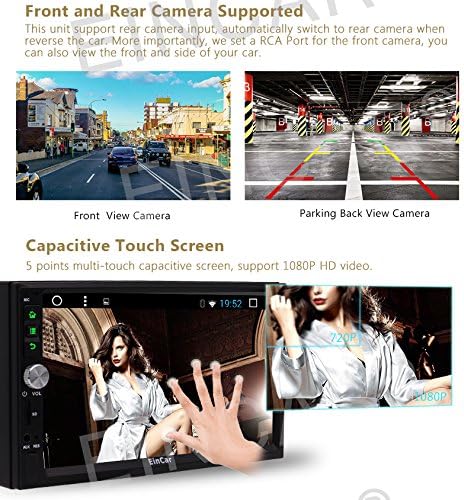
Image: A split image showing examples of a front view camera display and a parking back view camera display on the car stereo, along with an illustration demonstrating the multi-touch capacitive screen functionality.
7. OBD2 (On-Board Diagnostics)
The unit is compatible with most Bluetooth type OBD2 scanners (sold separately). This allows you to monitor real-time data and trouble codes from your vehicle's computer.
- Connect your Bluetooth OBD2 scanner to your vehicle's OBD-II port.
- Pair the OBD2 scanner with the car stereo via Bluetooth.
- Launch a compatible application like "Torque" (if not pre-installed, you may obtain the APK file from the manufacturer).
- View vehicle data and diagnostic information through the app.
Maintenance
Proper maintenance ensures the longevity and optimal performance of your Eincar car stereo.
- Cleaning the Screen: Use a soft, lint-free cloth to gently wipe the touchscreen. For stubborn smudges, slightly dampen the cloth with water or a screen-safe cleaner. Avoid abrasive materials or harsh chemicals.
- General Cleaning: Keep the unit and surrounding area free from dust and debris. Use a soft brush or compressed air to clean vents and button crevices.
- Software Updates: Periodically check for software updates from the manufacturer's official website or through the unit's system settings (if an update feature is available). Updates can improve performance and add new features.
- Avoid Extreme Temperatures: Do not expose the unit to extreme heat or cold for prolonged periods, as this can affect electronic components.
- Protect from Liquids: Prevent any liquids from entering the unit, as this can cause severe damage.
Troubleshooting
This section addresses common issues you might encounter and provides solutions.
| Problem | Possible Cause | Solution |
|---|---|---|
| Unit does not power on. | No power supply; Blown fuse; Incorrect wiring. | Check vehicle's ignition; Inspect the unit's fuse and replace if necessary; Verify all power and ground wires are correctly connected according to the wiring diagram. |
| No sound from speakers. | Volume too low; Mute activated; Incorrect speaker wiring; Amplifier issue (if external). | Increase volume; Check if mute is active; Verify speaker connections; Check external amplifier power and connections. |
| GPS signal weak or no signal. | GPS antenna not properly connected or obstructed; Poor satellite visibility. | Ensure GPS antenna is securely connected; Relocate antenna to a position with clear sky view (e.g., dashboard, outside); Try again in an open area. |
| Bluetooth device cannot pair. | Bluetooth not enabled on unit or phone; Device too far; Incorrect pairing process. | Ensure Bluetooth is enabled on both devices; Keep devices within close range; Restart both devices and try pairing again; Check pairing instructions in the manual. |
| Wi-Fi connection unstable or not connecting. | Incorrect password; Weak signal; Router issues. | Verify Wi-Fi password; Move closer to the Wi-Fi hotspot; Restart the Wi-Fi router/hotspot; Try connecting to a different network. |
| Touchscreen unresponsive. | Temporary software glitch; Screen calibration issue. | Restart the unit by turning off the vehicle ignition and turning it back on; If issue persists, perform a system reset (refer to system settings, note this may erase data). |
| Apps crashing or slow performance. | Too many apps running; Low storage; Software bug. | Close unused apps; Clear cache for problematic apps; Free up storage space; Check for system software updates. |
If the problem persists after trying these solutions, please contact customer support.
Specifications
| Feature | Detail |
|---|---|
| Product Model Number | a-BR.AN395GNN1 |
| Operating System | Android 6.0 Marshmallow |
| CPU | 1.6GHz Quad Core |
| RAM | 1GB |
| ROM (Internal Storage) | 16GB |
| Screen Size | 6.2 inches |
| Display Type | Digital Capacitive Touchscreen (LCD) |
| Resolution | High Definition (supports 1080P HD video) |
| Connectivity | Bluetooth, USB, Wi-Fi |
| Media Type Support | SD Card, USB Drive (up to 32GB/64GB), DVD, CD |
| Audio Output | Support Subwoofer/Audio Output (Optional) |
| Internet Connectivity | Built-in Wi-Fi, supports external USB 3G/4G Dongle (Optional) |
| Camera Input | Supports Front and Rear Camera (CAM-IN) |
| OBD2 Compatibility | Most Bluetooth type OBD2 scanners (Optional) |
| Special Features | Phone Mirroring, Steering Wheel Control, Customizable Startup Logo/Wallpaper, Multi-color Button Light, Dual Zone Function |
Warranty Information
Your Eincar car stereo comes with a warranty. Please refer to the included Warranty Card for specific terms, conditions, and duration of the warranty period. Keep your proof of purchase for warranty claims.
The warranty typically covers manufacturing defects and malfunctions under normal use. It does not cover damage caused by improper installation, misuse, accidents, unauthorized repairs, or natural disasters.
Customer Support
For technical assistance, troubleshooting beyond this manual, or warranty inquiries, please contact Eincar customer support.
Before contacting support, please have the following information ready:
- Product Model Number: a-BR.AN395GNN1
- Date of Purchase
- Detailed description of the issue
- Any troubleshooting steps you have already attempted
Contact information for support can typically be found on the manufacturer's official website or on the warranty card included with your product.
Ask a question about this manual
Ask about setup, troubleshooting, compatibility, parts, safety, or missing instructions. Manuals+ will review the question and use this page’s manual context to help answer it.