
1. Introduction
This manual provides essential information for the installation, operation, and maintenance of your XFX Radeon RX 580 GTS XXX Edition graphics card. Please read this document thoroughly before proceeding with installation or use.

Figure 1: XFX Radeon RX 580 GTS XXX Edition Graphics Card and Retail Packaging
The image displays the XFX Radeon RX 580 GTS XXX Edition graphics card alongside its retail box. The card features a black shroud with two fans, and the box highlights key features such as 'Radeon RX 580' and 'GTS'.
1.1. Product Overview
The XFX Radeon RX 580 GTS XXX Edition is a high-performance graphics card designed for gaming and multimedia applications. It features the Polaris architecture with 4th generation GCN graphics cores, a new display engine, and multimedia cores, all built on FinFET 14 process technology. Key features include 8GB GDDR5 memory, VR Ready capabilities, and a Dual BIOS for versatile performance options.
1.2. What's in the Box
- XFX Radeon RX 580 GTS XXX Edition Graphics Card
- 8-pin to 6-pin power cable (1)
- Quick Installation Guide (this document)
2. Setup and Installation
2.1. Physical Installation
- Power Off System: Ensure your computer is completely powered off and unplugged from the wall outlet.
- Open PC Case: Remove the side panel of your computer case to access the motherboard.
- Locate PCIe Slot: Identify an available PCI Express x16 slot on your motherboard.
- Remove Slot Cover: Remove the metal slot cover(s) corresponding to the PCIe slot.
- Insert Graphics Card: Carefully align the graphics card with the PCIe slot and press down firmly until it is securely seated. Ensure the retention clip on the motherboard clicks into place.
- Secure Card: Fasten the graphics card to the PC case using the screw(s) from the removed slot cover.
- Connect Power: Connect the 8-pin power cable (or the provided 8-pin to 6-pin adapter if your power supply only has 6-pin connectors) from your power supply to the graphics card. The card requires a minimum 500-watt power supply.
- Close PC Case: Replace the side panel of your computer case.
- Connect Display: Connect your monitor(s) to the graphics card's display outputs (3x DisplayPort, HDMI, DVI).
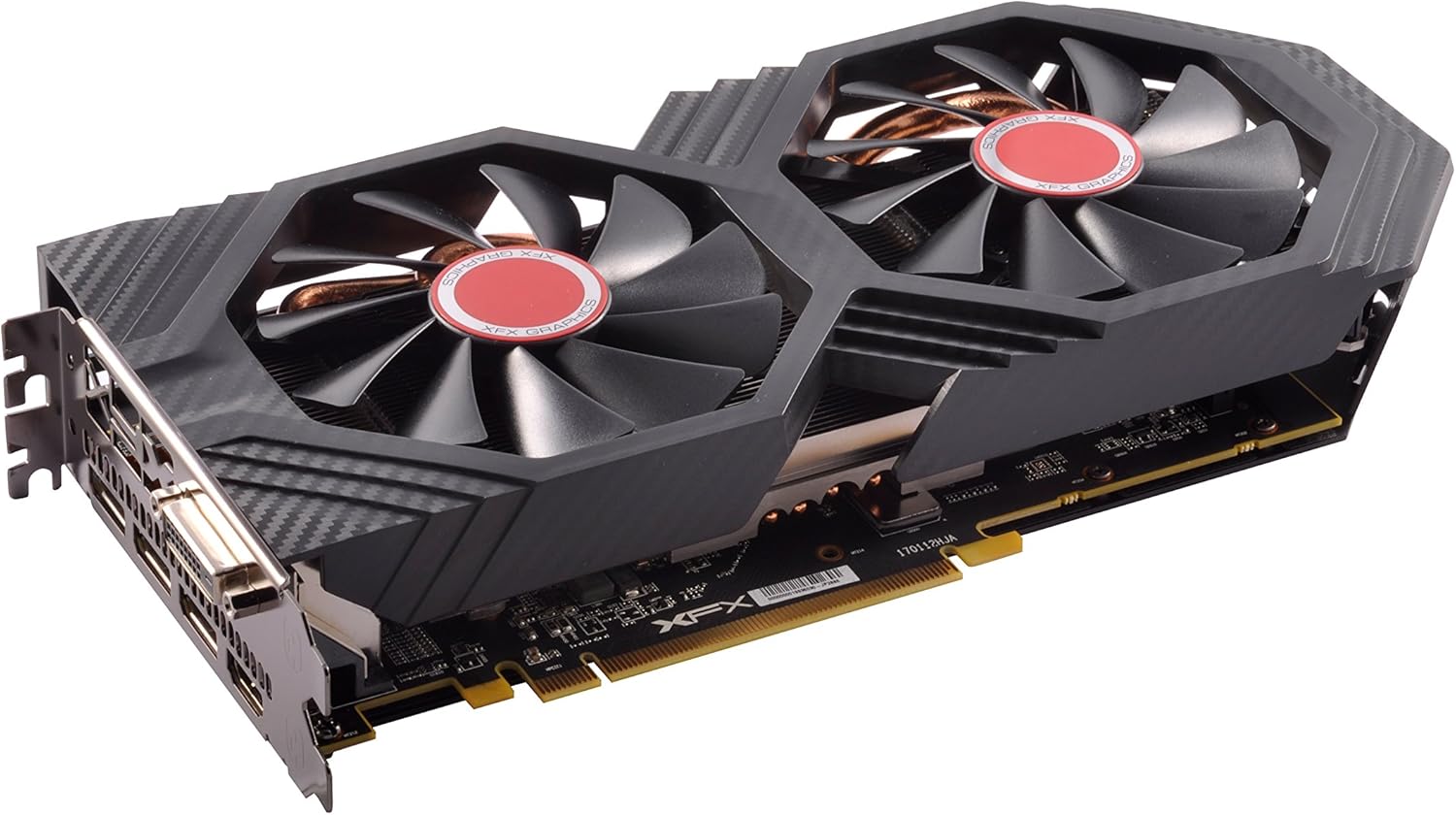
Figure 2: Top-down view of the XFX Radeon RX 580 graphics card, showing the dual fan design and heatsink.
This image provides a top-down perspective of the graphics card, highlighting its dual fan cooling system and the intricate heatsink fins beneath the fans.

Figure 3: Rear view of the XFX Radeon RX 580 graphics card, detailing the available display output ports.
The rear of the graphics card is shown, clearly displaying the various output ports including DisplayPort, HDMI, and DVI, which are used to connect to monitors.
2.2. Driver Installation
After physical installation, power on your computer. Windows will typically install a basic display driver. For optimal performance and access to all features, download and install the latest AMD Radeon Software drivers from the official AMD website. Follow the on-screen instructions for a clean installation.
Video 1: XFX Radeon RX 580 GTS XXX Edition Overview. This video provides a general overview of the XFX Radeon RX 580 GTS XXX Edition graphics card, showcasing its design and features relevant to installation and usage.
3. Operating Your Graphics Card
3.1. Dual BIOS Functionality
The XFX Radeon RX 580 GTS XXX Edition features a Dual BIOS switch, offering flexibility for different use cases:
- Gaming BIOS: Optimized for gaming performance. This is the default setting for most users.
- Mining BIOS: Pre-tuned for increased cryptocurrency mining hashrates. To switch, power down your system, locate the small switch on the card, flip it to the desired setting, and then power on.
3.2. Radeon CHILL Technology
Radeon Chill is an intelligent power-saving feature that dynamically regulates framerate based on your in-game movement. This technology is designed to:
- Save Power: Reduces power consumption during less intense gameplay moments.
- Lower Temperature: Contributes to cooler GPU operating temperatures.
- Increase GPU Life: By reducing heat and power draw, it can extend the lifespan of the graphics card.
During peak gameplay, Radeon Chill delivers the full framerate potential. As movement decreases, it reduces the framerate, enabling high performance when needed and saving power during exploration. This feature can be configured via the AMD Radeon Software.


Figure 4: Visual representations of 'True Clock' and 'OC+' features, indicating the card's clock speed capabilities.
These graphics highlight the card's factory overclocked settings, including a 'True Clock' of 1366 MHz and an 'OC+' boost up to 1386 MHz, indicating enhanced performance.
4. Maintenance
4.1. Cooling System
Your XFX Radeon RX 580 GTS XXX Edition is equipped with advanced cooling features to ensure stable performance and longevity:
- High Performance Unibody Heatsink: The XFX RX RS series features a unibody VRM heatsink construction that enables direct heat transfer to the primary heatsink and heat pipes. This design enhances thermal efficiency by 40%.
- XFX Exclusive Ultra Low Noise XL Inductors: Traditional inductors can produce a buzzing noise. XFX's premium quality XL Inductors use multiple layers to completely and securely seal the inductors, nearly eliminating noise.

Figure 5: Close-up view of the Unibody VRM Heatsink, illustrating the integrated cooling solution for critical components.
This image provides a detailed look at the Unibody VRM Heatsink, showcasing its design for efficient heat dissipation from the voltage regulator modules.
4.2. General Care
To maintain optimal performance and extend the life of your graphics card:
- Keep your PC case clean and free of dust. Regularly clean dust filters and fans.
- Ensure adequate airflow within your PC case.
- Avoid exposing the card to extreme temperatures or humidity.
5. Troubleshooting
5.1. Screen Flickering or Instability
If you experience screen flickering or instability, especially under heavy load or at higher resolutions (e.g., 1440p), it may be related to power delivery. AMD GPUs, particularly the Polaris line, can sometimes benefit from adjusting power limits:
- Access Radeon Software: Open the AMD Radeon Software.
- Navigate to Performance: Go to the 'Performance' tab, then 'Tuning' or 'WattMan'.
- Adjust Power Limit: Increase the 'Power Limit' setting to around +20% or more. This can prevent the card from throttling due to power limitations.
- Monitor Temperatures: Use monitoring software (e.g., HWMonitor) to keep an eye on GPU temperatures after adjusting the power limit. Adjust fan speed curves as needed to maintain safe operating temperatures.
Note: Ensure your power supply can handle the increased power draw. A 550W power supply is generally sufficient for this card with an i5 6600k, but individual system configurations may vary.
5.2. General Performance Issues
- Ensure all drivers are up to date.
- Check for proper seating of the graphics card in the PCIe slot and secure power connections.
- Verify that your monitor cables are securely connected.
- If issues persist, consult the AMD support website or XFX customer support.
6. Specifications
| Feature | Specification |
|---|---|
| Brand | XFX |
| Series | RX-580P8DFD6 |
| Item Model Number | RX-580P8DFD6 |
| Graphics Coprocessor | Radeon RX 500 RX 580 |
| Chipset Brand | AMD |
| Graphics Card RAM Size | 8 GB GDDR5 |
| Memory Speed | 1386 MHz (Boost OC: 8.1GHz) |
| Max Screen Resolution | 4096x2160 |
| Video Output Interface | 3x DisplayPort, HDMI, DVI |
| Item Weight | 2.5 pounds |
| Product Dimensions | 10.63 x 1.57 x 4.88 inches |
| Minimum Power Requirement | 500 Watts |
7. Warranty and Support
7.1. Warranty Information
XFX provides a 3-year limited warranty on components for this graphics card. Please retain your proof of purchase for warranty claims.
7.2. Technical Support
For technical assistance, driver downloads, or further troubleshooting, please visit the official XFX support website. XFX offers a US-based technical support team to assist with product-related inquiries.
XFX Support Website: www.xfxforce.com/support