
Luxul ABR-4500
LUXUL Epic 4 Gigabit Router (ABR-4500) User Manual
Model: ABR-4500
1. Introduction
This manual provides comprehensive instructions for the installation, operation, and maintenance of your LUXUL Epic 4 Gigabit Router, model ABR-4500. Please read this manual thoroughly before using the device to ensure proper functionality and to maximize its performance. Keep this manual for future reference.
2. Product Overview
2.1 Front Panel
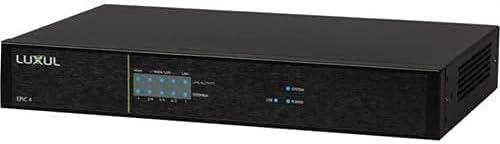
Figure 1: Front view of the LUXUL Epic 4 Gigabit Router (ABR-4500). This image displays the front panel of the router, featuring the LUXUL logo on the left, followed by LED indicators for system status and network activity. The indicators typically show power status, system health, and activity for the WAN and LAN ports.
The front panel of the ABR-4500 router features LED indicators that provide visual feedback on the device's operational status. These indicators typically include:
- System LED: Indicates the overall status of the router.
- Power LED: Shows if the device is powered on.
- WAN/LAN LEDs: Display activity and link status for the respective network ports.
2.2 Rear Panel

Figure 2: Rear view of the LUXUL Epic 4 Gigabit Router (ABR-4500). This image shows the rear panel with various ports and controls. From left to right, it includes a USB 3.0 port, multiple WAN/LAN Gigabit Ethernet ports, a reset button, a power input, and a power switch.
The rear panel provides all necessary connectivity options:
- USB 3.0 Port: For connecting external storage or other compatible devices.
- WAN Ports (1-4): Gigabit Ethernet ports for connecting to the internet service provider (ISP) or other WAN sources.
- LAN Ports (1-4): Gigabit Ethernet ports for connecting local network devices.
- Reset Button: Used to restore factory default settings.
- Power Input: Connector for the power adapter.
- Power Switch: To turn the device on or off.
3. Package Contents
Verify that all items are present in your package:
- LUXUL Epic 4 Gigabit Router (ABR-4500)
- Power Cable
- Quick Installation Guide (not included in this manual)
4. Setup
Follow these steps to set up your LUXUL ABR-4500 router:
- Power Connection: Connect the power cable to the router's power input port and then plug the other end into a power outlet.
- Internet Connection (WAN): Connect your modem or internet service provider's (ISP) device to one of the WAN ports on the router using an Ethernet cable.
- Local Network Connection (LAN): Connect your computers or other network devices to the LAN ports using Ethernet cables.
- Power On: Press the power switch on the rear panel to turn on the router.
- Indicator Check: Wait for the System and WAN/LAN LEDs on the front panel to stabilize, indicating a successful connection and boot-up.
- Initial Configuration: Access the router's web-based management interface from a connected computer by opening a web browser and entering the default IP address (refer to the Quick Installation Guide or product documentation for the specific IP address and login credentials).
5. Operating Instructions
Once the router is set up, you can manage its functions through the web-based interface.
5.1 Accessing the Web Interface
- Ensure your computer is connected to the router via an Ethernet cable or Wi-Fi.
- Open a web browser (e.g., Chrome, Firefox, Edge).
- Enter the router's default IP address (e.g., 192.168.0.1 or 192.168.1.1) into the address bar and press Enter.
- Enter your username and password when prompted. (Default credentials are often found in the Quick Installation Guide or on a label on the router).
5.2 Key Features and Settings
- Network Settings: Configure WAN connection types (DHCP, Static IP, PPPoE), LAN IP address, and subnet mask.
- Wireless Settings: Set up Wi-Fi network names (SSIDs), passwords, security protocols (WPA2/WPA3), and channel settings.
- Firewall: Manage security rules, port forwarding, and parental controls.
- QoS (Quality of Service): Prioritize network traffic for specific applications or devices.
- System Tools: Update firmware, backup/restore configurations, and view system logs.
6. Maintenance
Regular maintenance ensures optimal performance and longevity of your router.
- Firmware Updates: Periodically check the Luxul website for firmware updates. Updating firmware can improve performance, add new features, and fix security vulnerabilities.
- Physical Cleaning: Keep the router in a clean, dust-free environment. Gently clean the exterior with a soft, dry cloth. Do not use liquid cleaners.
- Ventilation: Ensure the router has adequate ventilation to prevent overheating. Do not block ventilation openings.
- Password Security: Regularly change your router's administrative password and Wi-Fi passwords to enhance security.
- Rebooting: If you experience network issues, a simple reboot (power cycling the router) can often resolve minor problems.
7. Troubleshooting
This section addresses common issues you might encounter.
- No Internet Connection:
- Check if the modem is working correctly.
- Verify that the Ethernet cable from the modem is securely connected to the router's WAN port.
- Reboot both the modem and the router.
- Check WAN settings in the router's web interface.
- Slow Network Speed:
- Ensure your internet plan supports the expected speeds.
- Check for interference if using Wi-Fi.
- Limit the number of devices actively using bandwidth.
- Update router firmware.
- Cannot Access Router Web Interface:
- Ensure your device is connected to the router.
- Verify the correct IP address is being used.
- Try clearing your browser's cache or using a different browser.
- If you forgot the password, you may need to perform a factory reset using the reset button (this will erase all custom settings).
8. Specifications
| Feature | Detail |
|---|---|
| Brand | Luxul |
| Model Name | ABR-4500 |
| Wireless Type | 802.11ac |
| Frequency Band Class | Dual-Band |
| Operating System | ProWatch+ |
| Item Weight | 4.35 pounds |
| Product Dimensions (LxWxH) | 1 x 1 x 1 inches |
| Connectivity Technology | Bluetooth |
| Antenna Type | Internal |
| Compatible Devices | Personal Computer |
| Date First Available | April 5, 2017 |
Note: The LUXUL Epic 4 Gigabit Router (ABR-4500) is primarily a wired router. Specifications such as "Wireless Type: 802.11ac", "Frequency Band Class: Dual-Band", "Connectivity Technology: Bluetooth", and "Antenna Type: Internal" may refer to capabilities when integrated into a larger Luxul system with compatible wireless access points or other devices, and not necessarily to integrated wireless functionality within the ABR-4500 unit itself. The listed product dimensions (1x1x1 inches) appear to be placeholder values and may not reflect the actual physical size of the device. Please refer to official Luxul documentation for the most accurate and complete specifications.
9. Warranty and Support
For warranty information and technical support, please refer to the official Luxul website or contact your authorized Luxul dealer. Luxul typically provides warranty and support for products purchased through authorized channels. It is recommended to retain your proof of purchase for warranty claims.
Note: Products purchased from unauthorized resellers may not be eligible for manufacturer warranty or support. Always verify the seller's authorization status to ensure full product support.
Related documentsABR-4500


Ask a question about this manual
Ask about setup, troubleshooting, compatibility, parts, safety, or missing instructions. Manuals+ will review the question and use this page’s manual context to help answer it.