
1. Introduction
This manual provides detailed instructions for the UGREEN 2.5" Hard Drive Enclosure, designed to connect 2.5-inch SATA SSDs and HDDs to your computer or other compatible devices via USB 3.0. This enclosure supports UASP (USB Attached SCSI Protocol) for enhanced data transfer speeds and accommodates drives up to 6TB. Please read this manual thoroughly before use to ensure proper installation and operation.

Image 1.1: UGREEN 2.5" Hard Drive Enclosure and USB 3.0 Cable.
2. Package Contents
Verify that all items are present in the package:
- 1 x UGREEN 2.5 Inch Hard Drive Enclosure
- 1 x Micro USB 3.0 to USB 3.0 A Cable
- 1 x User Manual (this document)
3. Specifications
| Model | MPA-6957303838486 |
| Material | Plastic |
| Color | Black |
| Compatible Drive Type | 2.5-inch SATA I/II/III SSD & HDD (7mm/9.5mm thickness) |
| Max Storage Capacity | Up to 6 TB |
| Hardware Interface | USB 3.0 (Micro-B) |
| Data Transfer Rate | Up to 5 Gbps (USB 3.0) |
| Supported Protocols | UASP, TRIM |
| Product Dimensions | 5.04 x 3.23 x 0.55 inches (128 x 82 x 14 mm) |
| Item Weight | 4.6 ounces (130 grams) |
| Compatible Platforms | Windows, macOS, Linux, Chrome OS |
| Compatible Devices | PC, Laptop, PS4/PS3, Xbox One, Router |
4. Setup Instructions
Follow these steps to install your 2.5-inch SATA hard drive or SSD into the UGREEN enclosure:
- Open the Enclosure: Gently slide and pull the back cover of the enclosure to open it.
- Insert the Drive: Align your 2.5-inch SATA SSD or HDD with the SATA connector inside the enclosure. Push the drive firmly until it is securely seated. Ensure any screws on your hard drive are removed before insertion, as they may prevent proper fit.
- Close the Enclosure: Slide the cover back onto the enclosure until it clicks into place, ensuring a secure fit.
- Connect to Device: Use the provided USB 3.0 cable to connect the enclosure to a USB port on your computer or other compatible device.

Image 4.1: Tool-free installation process for the hard drive enclosure.

Image 4.2: Visual guide for tool-free installation.
The enclosure features soft EVA foam internally to protect your hard disk from shocks and scratches during use and transport.

Image 4.3: Internal EVA foam for drive protection.
5. Operating Instructions
Once connected, the UGREEN Hard Drive Enclosure operates as a plug-and-play device. No additional drivers are typically required for most operating systems.
5.1. Data Transfer
Connect the enclosure to a USB 3.0 port on your computer for optimal performance. The USB 3.0 interface supports data transfer speeds up to 5Gbps, significantly faster than USB 2.0.

Image 5.1: Speed comparison between USB 3.0 and USB 2.0.

Image 5.2: Fast file transfer capabilities.
5.2. UASP Support
The SATA interface supports the UASP accelerated transmission protocol, which can be up to 70% faster than traditional USB 3.0 when connected to a UASP-supported computer and operating system.
5.3. LED Indicator
A blue LED indicator on the enclosure illuminates when connected and flashes during data activity.
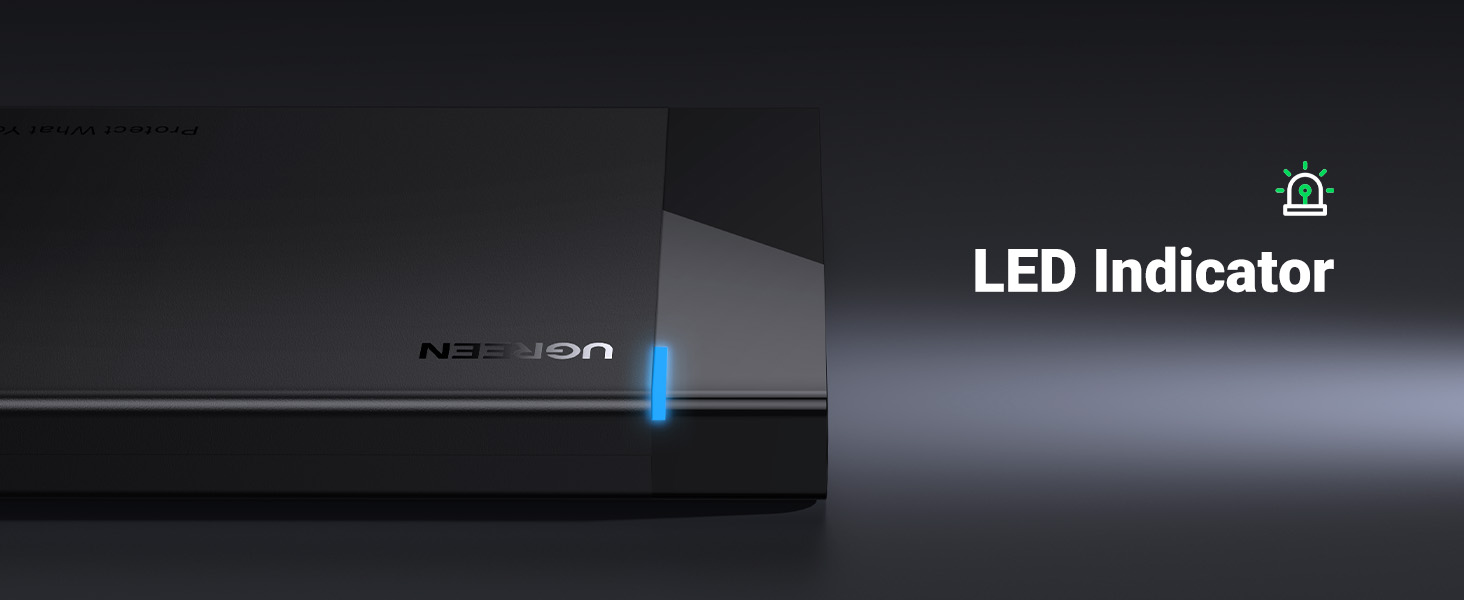
Image 5.3: LED indicator for power and activity.
5.4. Auto Sleep Mode
The enclosure features an auto sleep mode that activates after 3 minutes of inactivity to conserve power and extend drive lifespan.
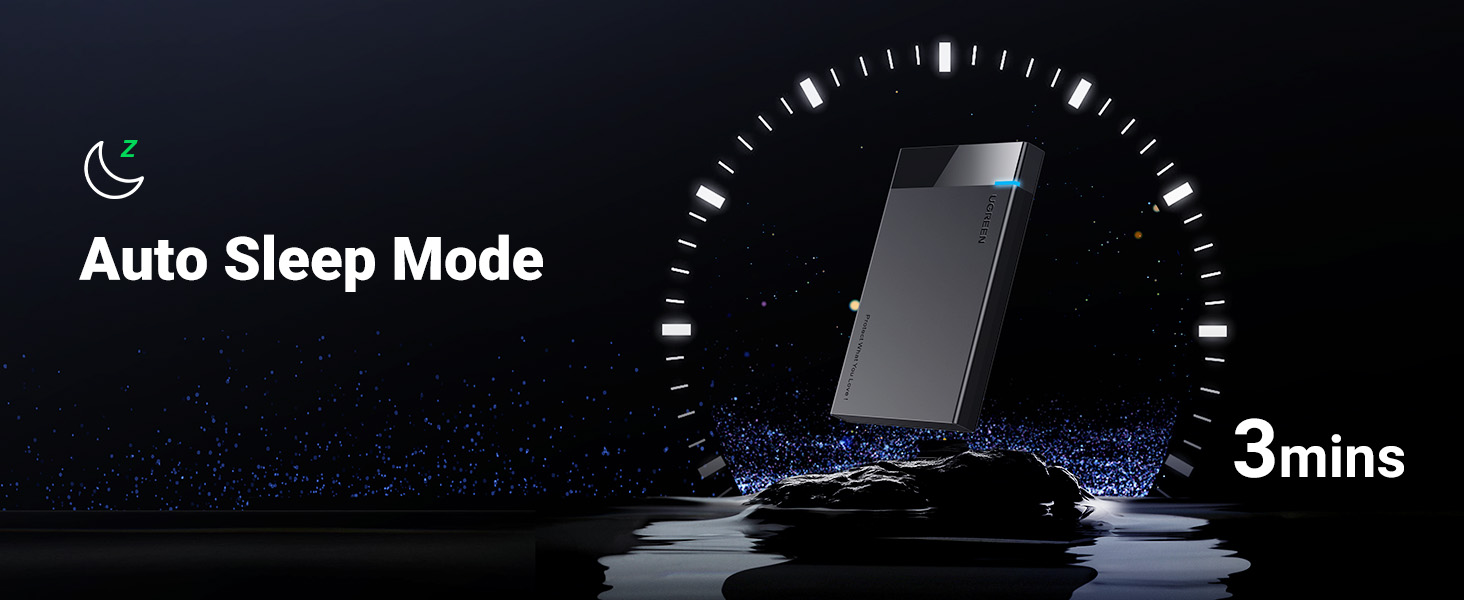
Image 5.4: Auto sleep mode feature.
6. Maintenance
To ensure the longevity and optimal performance of your UGREEN Hard Drive Enclosure:
- Cleaning: Use a soft, dry cloth to clean the exterior of the enclosure. Avoid liquid cleaners or abrasive materials.
- Handling: Handle the enclosure with care. Avoid dropping it or subjecting it to strong impacts, as this can damage the internal drive or the enclosure itself.
- Storage: Store the enclosure in a cool, dry place away from direct sunlight and extreme temperatures.
- Disconnection: Always safely eject the drive from your operating system before physically disconnecting the enclosure to prevent data corruption.
7. Troubleshooting
If you encounter issues with your UGREEN Hard Drive Enclosure, consider the following:
- Drive Not Detected:
- Ensure the hard drive is securely seated within the enclosure.
- Try connecting the enclosure to a different USB port on your computer.
- Test with a different USB cable if available.
- For new drives, ensure the drive is initialized, partitioned, and formatted in your operating system's Disk Management (Windows) or Disk Utility (macOS).
- Verify that the drive itself is functional by testing it in another enclosure or directly connecting it to a computer if possible.
- Slow Transfer Speeds:
- Ensure you are connected to a USB 3.0 port (typically blue inside).
- Confirm your computer's USB controller supports UASP for optimal performance.
- Check if other USB devices are consuming significant bandwidth.
- Intermittent Connection:
- Ensure the USB cable is firmly connected at both ends.
- Avoid bending or stressing the USB cable.
For more detailed troubleshooting, please refer to the official UGREEN Troubleshooting Guide (PDF): Download Troubleshooting Guide
8. Compatibility
The UGREEN 2.5" Hard Drive Enclosure offers broad compatibility:
- Operating Systems: Supports Windows, macOS 8.0 and above, Linux, and Chrome OS.
- Devices: Compatible with PCs, laptops, PlayStation 4/3, Xbox One, and routers for storage expansion.
- Drives: Designed for 2.5-inch SATA I/II/III SSDs and HDDs with 7mm or 9.5mm thickness. Not compatible with IDE drives.

Image 8.1: Universal compatibility with various devices and systems.

Image 8.2: Supported drive types and interfaces.
9. Warranty and Support
UGREEN products are designed and manufactured to high-quality standards. For warranty information, technical support, or customer service inquiries, please refer to the official UGREEN website or contact their customer support directly. Keep your purchase receipt for warranty claims.