
Introduction
The HyperGear Marathon Sport Wireless Bluetooth Earphones are engineered to provide a high-fidelity audio experience for active individuals. Designed for comfort and durability, these earphones offer wireless connectivity, clear sound, and convenient hands-free calling, making them suitable for various activities from intense workouts to casual listening.
Package Contents
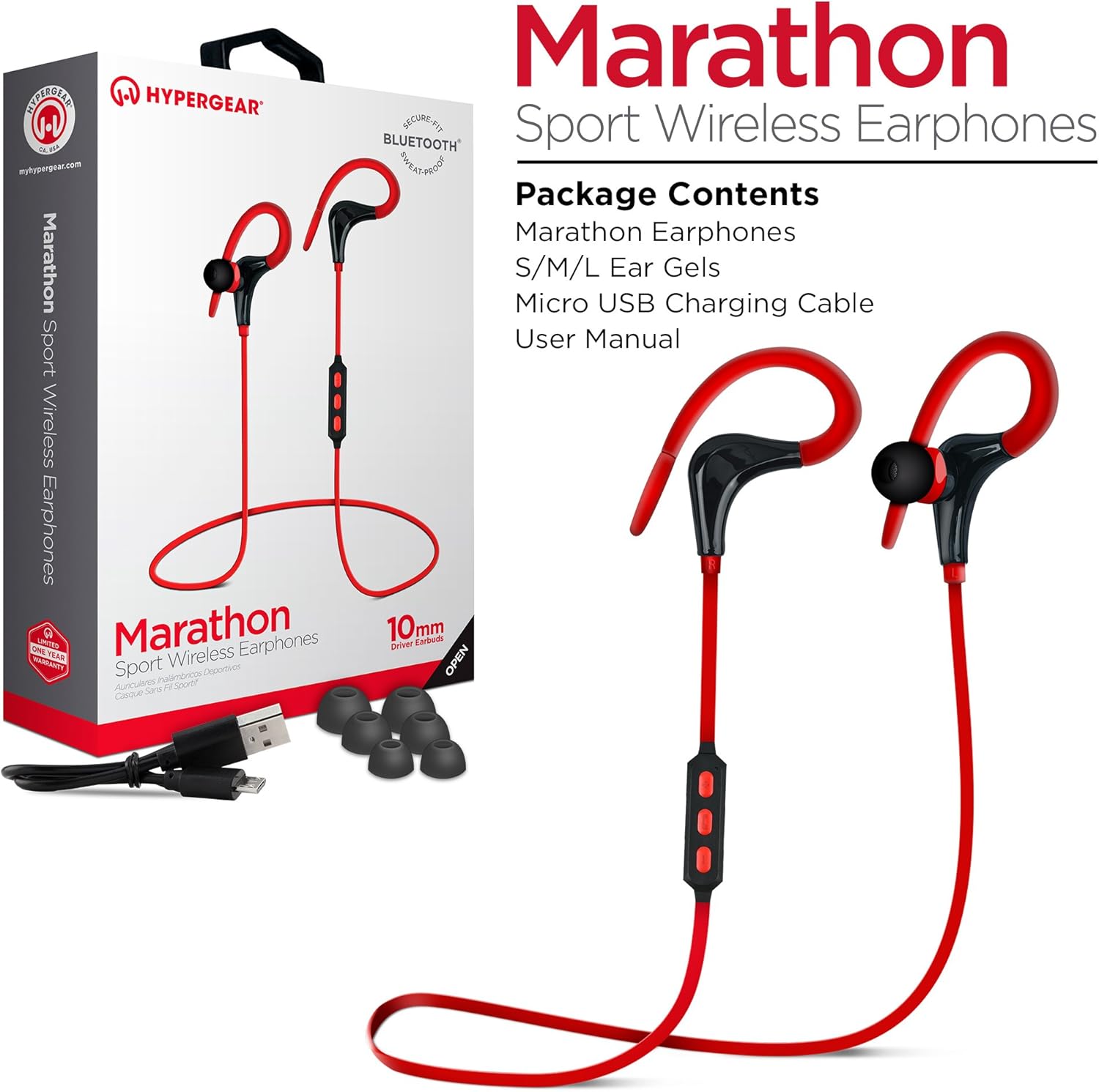
This image displays the retail packaging for the HyperGear Marathon Sport Wireless Earphones, showing the earphones themselves, a Micro USB charging cable, and various sizes of ear gels. The box highlights features such as 'Secure Fit' and 'Bluetooth'.
Please check the box for the following items:
- HyperGear Marathon Sport Wireless Earphones
- S/M/L Ear Gels (various sizes for optimal fit)
- Micro USB Charging Cable
- User Manual (this document)
Setup
1. Charging the Earphones
Before first use, fully charge your earphones. The battery provides up to 5 hours of average life on a single charge.
- Locate the Micro USB charging port on the earphones' in-line control module.
- Connect the provided Micro USB cable to the charging port.
- Plug the other end of the USB cable into a compatible USB power source (e.g., computer USB port, USB wall adapter).
- The LED indicator will show charging status (refer to the LED indicator section for details). Once fully charged, the LED will change color or turn off.
2. Pairing with a Bluetooth Device

This image illustrates the wireless freedom of the HyperGear Marathon Sport Earphones, depicting them wirelessly connected via Bluetooth to a smartphone, tablet, and desktop computer, emphasizing their universal compatibility.
The earphones use Bluetooth 4.1 technology for reliable wireless transmission up to 33 feet (10 meters).
- Ensure the earphones are charged and turned off.
- Press and hold the Multi-function button (usually the center button on the in-line control) for approximately 5-7 seconds until the LED indicator flashes red and blue alternately, indicating pairing mode.
- On your Bluetooth-enabled device (smartphone, tablet, etc.), go to the Bluetooth settings and turn Bluetooth on.
- Search for available devices. You should see "HyperGear Marathon" or a similar name appear in the list.
- Select "HyperGear Marathon" to connect. Once successfully paired, the LED indicator on the earphones will typically flash blue slowly or turn solid blue.
- If prompted for a passcode, enter "0000".
The earphones will automatically attempt to reconnect to the last paired device when powered on.
Operating Instructions
Controls Overview

This image highlights the in-line control module of the HyperGear Marathon Sport Earphones, positioned next to a smartphone displaying a music player. It emphasizes the convenience of hands-free music and call management.
The in-line control module allows you to manage music playback and calls.
| Button/Action | Function |
|---|---|
| Multi-function Button (Center) |
|
| Volume Up (+) |
|
| Volume Down (-) |
|
Wearing the Earphones

This image shows a person cycling outdoors while wearing the HyperGear Marathon Sport Earphones, demonstrating the secure behind-the-ear hook design that keeps the earphones in place during active movement.

This image depicts a person running, wearing the HyperGear Marathon Sport Earphones. It highlights the ergonomic ear gels and sweatproof design, emphasizing their suitability for active lifestyles and secure fit during exercise.
The Marathon earphones feature a behind-the-ear hook design and ergonomic ear gels for a secure and comfortable fit, even during strenuous activities.
- Select the ear gel size that provides the best seal and comfort for your ears. Three sizes (S/M/L) are included.
- Place the earbud into your ear canal.
- Gently loop the ear hook over the top and behind your ear, adjusting it until it feels secure and comfortable.
Audio Quality

This image showcases the High-Fidelity Stereo Sound feature of the HyperGear Marathon Sport Earphones, highlighting the 10mm Neodymium Drivers that deliver powerful bass and clear highs for an authentic listening experience.
Equipped with powerful 10mm Neodymium Drivers, these earphones deliver high-fidelity stereo sound with robust bass and clear high frequencies for an immersive audio experience.
Maintenance
Proper care will extend the life of your HyperGear Marathon earphones.
- Cleaning: Use a soft, dry cloth to wipe the earphones. For ear gels, remove them and clean with a mild soap solution if necessary, then rinse and dry thoroughly before reattaching. Do not use harsh chemicals or abrasive materials.
- Storage: When not in use, store the earphones in a cool, dry place, away from direct sunlight and extreme temperatures.
- Water Resistance: The earphones are sweatproof and water-resistant, but they are not waterproof. Do not submerge them in water or expose them to heavy rain. Dry them thoroughly if they get wet from sweat or light splashes.
- Charging: Avoid overcharging. Disconnect the charging cable once the earphones are fully charged.
Troubleshooting
| Problem | Possible Cause | Solution |
|---|---|---|
| Earphones won't turn on | Low battery | Charge the earphones fully. |
| Cannot pair with device | Earphones not in pairing mode; Bluetooth off on device; Device too far | Ensure earphones are in pairing mode (flashing red/blue). Turn on Bluetooth on your device. Move device closer to earphones (within 33 ft/10m). Forget previous pairings on your device and try again. |
| No sound or low volume | Volume too low; Earphones not connected; Incorrect audio output selected on device | Increase volume on both earphones and connected device. Reconnect earphones. Check audio output settings on your device. |
| Sound cutting in/out | Interference; Device too far; Obstructions | Move closer to the connected device. Avoid strong electromagnetic interference. Ensure no physical obstructions between earphones and device. |
| Microphone not working | Incorrect settings on device; Earphones not properly connected | Check microphone input settings on your device. Ensure earphones are fully connected and selected as the audio input device. |
Specifications

This is a clear, full-view image of the HyperGear Marathon Sport Wireless Bluetooth Earphones in red, showcasing their design with ear hooks and the in-line control module.
| Feature | Detail |
|---|---|
| Model | HYG-14077 |
| Connectivity | Bluetooth 4.1 |
| Wireless Range | Up to 33 ft (10 meters) |
| Driver Size | 10mm Neodymium Drivers |
| Battery Life | Up to 5 hours (average use) |
| Microphone | Built-In, Noise Cancelling |
| Water Resistance | Sweatproof / Water Resistant |
| Weight | 9 g |
| Material | Plastic |
| Dimensions | 32 x 3.3 x 2.49 cm |
| Compatibility | Universal (Apple, Android, tablets, wearables, gaming devices) |
Warranty and Support
HyperGear products are designed with quality and reliability in mind. For warranty information and customer support, please refer to the official HyperGear website or contact their customer service directly.
- Official Website: www.hypergear.com (Please note: This is a placeholder URL. Refer to your product packaging or HyperGear's official documentation for the correct support website.)
- Customer Service: Contact information can typically be found on the manufacturer's website or product packaging.
Please retain your proof of purchase for warranty claims.


