1. Introduction
The Sonoff TH16 is an advanced WiFi Smart Switch designed for DIY smart home applications. It offers real-time temperature and humidity monitoring capabilities, allowing users to automate their home appliances based on environmental conditions. Compatible with popular voice assistants like Amazon Alexa and Google Assistant, and supporting IFTTT, the TH16 provides versatile control and smart scene integration for enhanced home automation.
2. Product Overview & Features
The Sonoff TH16 integrates seamlessly into your smart home ecosystem, offering a range of features for intelligent control and monitoring:
- Remote Control: Control connected devices from anywhere via the eWeLink app.
- Temperature & Humidity Monitoring: Real-time environmental data with compatible sensors (sold separately).
- Smart Schedules: Set single, repeat, countdown, or loop timers for automated operation.
- Smart Scenes: Create custom automation rules based on temperature, humidity, or other device states.
- Voice Control: Compatible with Amazon Alexa and Google Assistant for hands-free operation.
- IFTTT Integration: Connect with other smart devices and services for expanded automation possibilities.
- Sync Status: View real-time device status in the eWeLink app.
- Universal DIY: Suitable for various household appliances with basic electrical knowledge.

Image: Overview of Sonoff TH16 features including remote control, temperature and humidity monitoring, smart schedules, and smart scenes.

Image: Screenshots of the eWeLink app demonstrating Auto Mode (setting temperature thresholds) and Manual Mode (instant on/off control).

Image: The Sonoff TH16 device on a table, with a smartphone displaying real-time temperature and humidity readings from the app.

Image: Illustrations showing compatibility with Amazon Alexa and Google Assistant for voice control of the device.

Image: Diagrams illustrating how the Sonoff TH16 works with IFTTT (If This Then That) for advanced automation.

Image: A smartphone screen displaying timer and schedule options within the eWeLink app, with visual cues for 15, 30, and 60-minute intervals.

Image: A user interacting with the eWeLink app to create a smart scene, allowing one Sonoff device to trigger another or group multiple devices.

Image: A smartphone screen displaying the ON/OFF sync status of the Sonoff TH16 within the eWeLink app.

Image: The Sonoff TH16 connected to a table lamp, illustrating its universal DIY compatibility with household appliances.
Official Product Video: Smart Scene & Linkage
Video: This video demonstrates the eWeLink app's 'Scene' and 'Linkage' features, showing how to create automated actions and link different smart devices. It illustrates how to set conditions (e.g., temperature thresholds) to trigger actions on other devices, such as turning a fan on or off.
3. Specifications
| Specification | Value |
|---|---|
| Model Number | SFF-TH16 |
| Operation Mode | Automatic |
| Current Rating | 16 Amps, 10 Amps |
| Operating Voltage | 170-250 Volts (AC) |
| Wattage | 4000 Watts (Max) |
| Connectivity Protocol | Wi-Fi (2.4GHz 802.11 b/g/n) |
| Control Method | Voice, App |
| Dimensions (L x W x H) | 4.49 x 2.01 x 1.26 inches |
| Item Weight | 2.82 ounces |
| Material | ABS V0 (Fire-retardant) |
| Color | White |
4. Setup
4.1. Download the eWeLink App
The Sonoff TH16 is controlled via the eWeLink app. Download the app from your device's app store:
4.2. Device Pairing
- Ensure your Sonoff TH16 is powered on and within range of your 2.4GHz Wi-Fi network.
- Open the eWeLink app and log in or register a new account.
- Tap the "+" icon at the bottom of the app interface to add a new device.
- Follow the on-screen instructions to put the TH16 into pairing mode (usually by pressing and holding the pairing button on the device until the Wi-Fi indicator blinks rapidly).
- Select the correct pairing method in the app and enter your Wi-Fi network credentials.
- Wait for the device to connect. Once connected, you can rename the device and assign it to a room.
5. Installation / Wiring
WARNING: Electrical installation should only be performed by qualified personnel. Ensure power is disconnected before wiring to prevent electric shock.
The Sonoff TH16 has clearly marked input and output terminals. Refer to the diagram below for proper wiring:
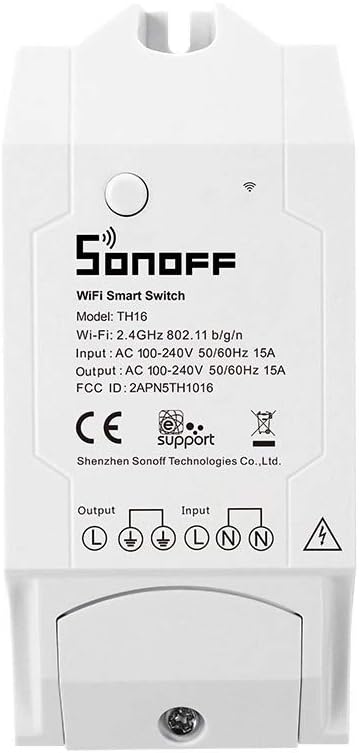
Image: Front view of the Sonoff TH16 device, clearly showing the input (L, N) and output (L, N) terminals, along with the ground symbol (E) and product specifications.
- Input: Connect your main power supply (AC 100-240V) to the 'Input' terminals. 'L' is for Live/Line, 'N' is for Neutral.
- Output: Connect the appliance you wish to control to the 'Output' terminals. 'L' is for Live/Line, 'N' is for Neutral.
- Ground (E): Connect the ground wire to the 'E' (Earth) terminal for safety.
- Ensure all connections are secure and insulated.
6. Operating Instructions
6.1. Basic On/Off Control
Once paired, you can manually turn the device on or off directly from the eWeLink app by tapping the power icon next to the device name.
6.2. Temperature & Humidity Automation (Auto Mode)
If a compatible temperature/humidity sensor (e.g., AM2301, DS18B20) is connected, you can set the TH16 to 'Auto Mode'. In this mode, the switch will automatically turn on or off based on preset temperature or humidity thresholds. For example, you can configure it to turn on a fan when the temperature exceeds 25°C or turn on a humidifier when humidity drops below 30%.
6.3. Smart Scenes
Create custom smart scenes to automate multiple devices or trigger actions based on specific conditions:
- In the eWeLink app, navigate to the 'Scene' section.
- Tap 'Add Scene' and define a condition (e.g., 'When temperature exceeds X', 'When humidity drops below Y', or 'Click to execute' for manual trigger).
- Define the action(s) to be performed (e.g., 'Turn on device A', 'Turn off device B').
- Save your scene.
6.4. Timers & Schedules
Set precise timers for your devices:
- Single Timer: For one-time on/off events.
- Repeat Timer: For daily or weekly recurring schedules.
- Countdown Timer: To turn off/on after a set duration.
- Loop Timer: For repetitive on/off cycles.
6.5. Voice Control
Integrate your Sonoff TH16 with Amazon Alexa or Google Assistant by linking your eWeLink account in their respective apps. Once linked, you can use voice commands like:
- "Alexa, turn on [device name]."
- "Hey Google, turn off [device name]."
- "Alexa, what's the temperature in [room name]?" (Requires connected sensor)
7. Maintenance
- Keep the device clean and free from dust. Use a dry cloth for cleaning.
- Avoid exposing the device to extreme temperatures, humidity, or direct sunlight.
- Regularly check wiring connections to ensure they remain secure.
- Ensure the device is installed in a well-ventilated area to prevent overheating.
8. Troubleshooting
- Device Offline: Check your Wi-Fi router and network connection. Ensure the TH16 is within Wi-Fi range. Try re-pairing the device if the issue persists.
- Cannot Pair: Ensure your Wi-Fi network is 2.4GHz. Check Wi-Fi password accuracy. Try resetting the device to factory settings (refer to the official PDF manual for specific reset procedures).
- Inaccurate Readings: Ensure the temperature/humidity sensor is properly connected and not exposed to direct heat sources or drafts that could skew readings.
- Automation Not Working: Double-check your smart scene or timer settings in the eWeLink app. Ensure all conditions and actions are correctly configured.
- Device Not Responding: Verify the power supply to the TH16. If the device has a physical button, try pressing it to see if it responds.
9. Warranty and Support
For detailed warranty information, technical support, and advanced troubleshooting, please refer to the official user manual provided by SONOFF. A comprehensive PDF version of the user manual is available for download:
Download Official User Manual (PDF)
You can also visit the official SONOFF website or contact their customer support for further assistance.


