
1. Product Overview
The ADATA XPG EX500 is a tool-free external enclosure designed to convert any 2.5-inch SATA III hard disk drive (HDD) or solid state drive (SSD) into a portable storage solution. It supports USB 3.1 connectivity, offering fast data transfer speeds, and is backward compatible with USB 2.0 and USB 3.0. Its robust, shock-resistant design provides protection for your valuable data.
Key Features:
- Suitable for 2.5-inch SSD and 2.5-inch Hard Disk Drive
- Tool-less design for quick installation process
- Plug and Play functionality
- Shock resistant construction
- USB 3.1 connectivity (backward compatible with USB 3.0 and USB 2.0)
2. Package Contents
Please verify that all items are present in your package:
- XPG EX500 External Enclosure
- USB 3.1 Cable
- User Manual (this document)
3. Setup Instructions
Installing a 2.5-inch Drive:
The XPG EX500 features a tool-free design for easy installation of your 2.5-inch SATA HDD or SSD.
- Open the Enclosure: Gently slide the top cover of the XPG EX500 enclosure in the direction indicated by the arrows until it detaches.
- Insert the Drive: Align your 2.5-inch SATA HDD or SSD with the SATA connector inside the enclosure. Carefully push the drive into the connector until it is firmly seated. Ensure the drive is oriented correctly.
- Close the Enclosure: Place the top cover back onto the enclosure, aligning the tabs. Slide the cover until it clicks securely into place.
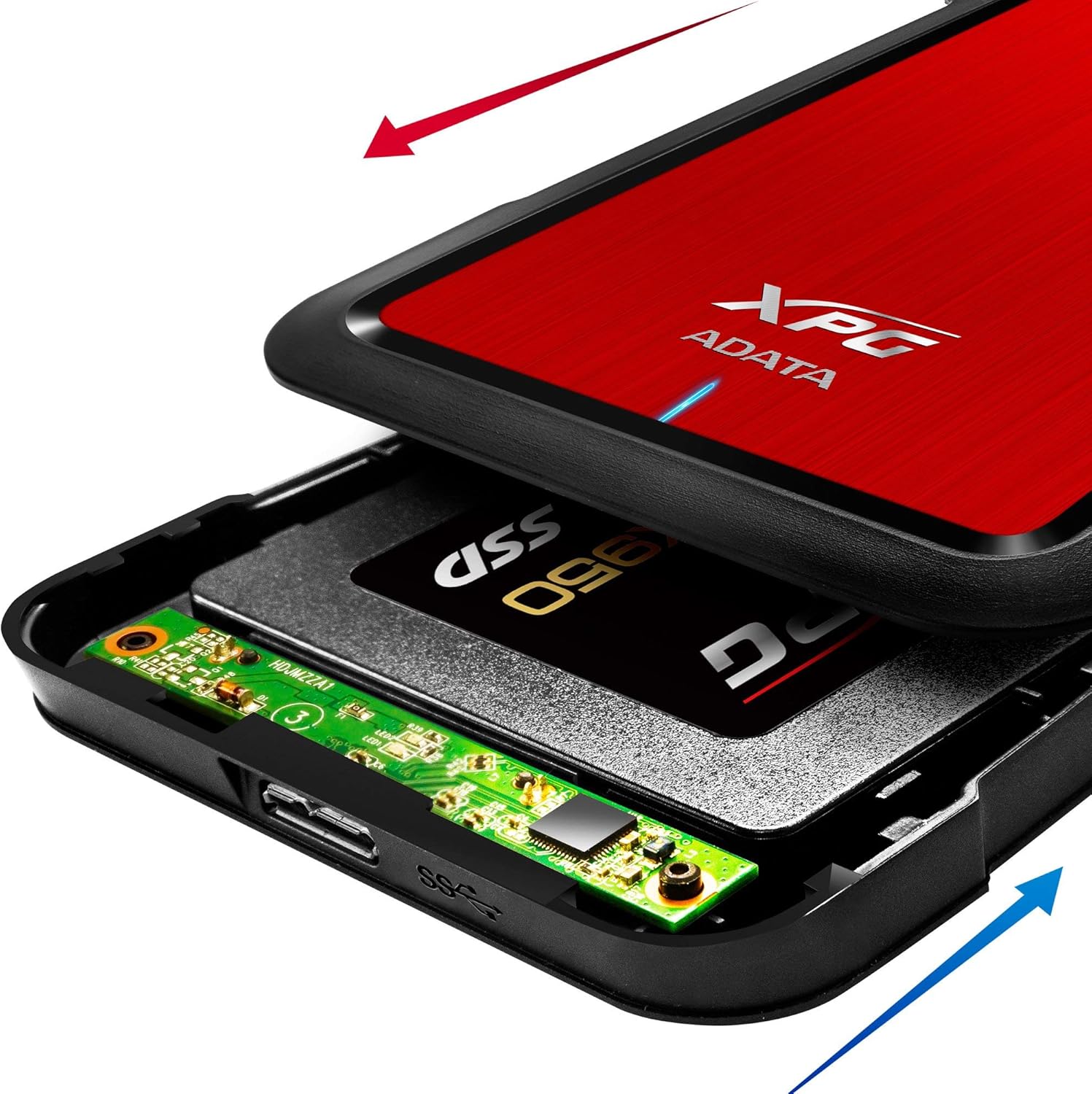
Image: The XPG EX500 enclosure shown open, with a solid state drive (SSD) being inserted into the internal SATA connector. Red and blue arrows indicate the sliding motion for opening and closing the cover.
4. Operating Instructions
Connecting to a Device:
Once your drive is installed, connect the XPG EX500 to your computer or gaming console.
- Connect USB Cable: Plug one end of the provided USB 3.1 cable into the USB port on the XPG EX500 enclosure.
- Connect to Host Device: Plug the other end of the USB cable into an available USB port on your PC, notebook, Mac, PlayStation 4, Xbox 360, or Xbox One. For optimal performance, use a USB 3.1 (or USB 3.0) port.
- Plug and Play: The enclosure is plug-and-play. Your operating system should automatically detect the drive. If it's a new drive, you may need to initialize and format it through your operating system's disk management tools before use.
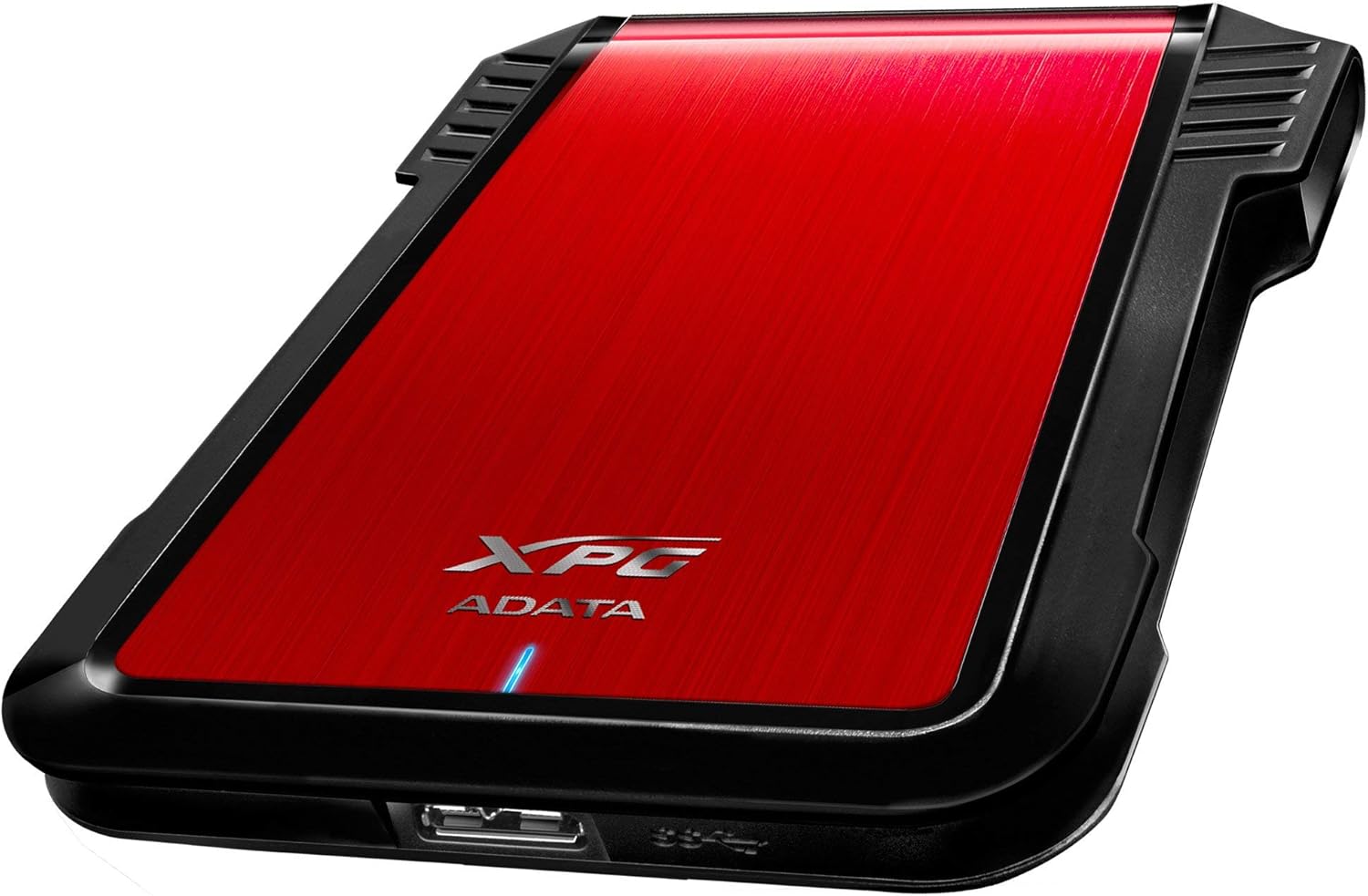
Image: A side view of the XPG EX500 external enclosure, highlighting the USB 3.1 port for connecting to a host device.
Data Transfer:
The XPG EX500 supports USB 3.1, providing high-speed data transfer. Actual speeds may vary depending on the connected device, the drive installed, and the type of data being transferred.
5. Maintenance
To ensure the longevity and optimal performance of your XPG EX500 enclosure:
- Cleaning: Use a soft, dry cloth to clean the exterior of the enclosure. Avoid using liquid cleaners or solvents.
- Handling: While the enclosure is shock-resistant, avoid dropping it or subjecting it to severe impacts, as this can still damage the internal drive.
- Environment: Store and operate the enclosure in a dry environment, away from extreme temperatures, direct sunlight, and humidity.
- Disconnection: Always safely eject the drive from your operating system before disconnecting the USB cable to prevent data corruption.
6. Troubleshooting
If you encounter issues with your XPG EX500, please refer to the following common solutions:
- Drive Not Detected:
- Ensure the USB cable is securely connected to both the enclosure and the host device.
- Try connecting to a different USB port on your computer.
- Verify that the 2.5-inch drive is properly seated within the enclosure's SATA connector.
- If it's a new drive, check your operating system's Disk Management (Windows) or Disk Utility (macOS) to see if the drive needs to be initialized and formatted.
- Slow Data Transfer Speeds:
- Ensure you are connected to a USB 3.1 or USB 3.0 port on your host device. USB 2.0 ports will result in significantly slower speeds.
- Check the condition of the USB cable. Try using a different USB 3.1 compatible cable if available.
- The performance of the internal drive itself can affect transfer speeds.
- Enclosure Feels Warm:
- It is normal for the enclosure to feel warm during extended use, especially during heavy data transfers. Ensure adequate airflow around the device.
7. Specifications
| Feature | Specification |
|---|---|
| Model Number | AEX500U3-CRD |
| Compatible Drives | 2.5-inch SATA HDD/SSD |
| Interface | USB 3.1 (backward compatible with USB 3.0, USB 2.0) |
| Data Transfer Rate | Up to 1 Gigabits Per Second (USB 3.1 theoretical max) |
| Compatible Devices | PC, Notebook, Mac, PlayStation 4, Xbox 360, Xbox One |
| Material | Plastic |
| Product Dimensions | 4.92 x 3.54 x 0.67 inches (125 x 90 x 17 mm) |
| Item Weight | 2.43 ounces (0.07 Kilograms) |
8. Warranty Information
The ADATA XPG EX500 External Enclosure comes with a 1-year limited warranty from the date of purchase. This warranty covers manufacturing defects and workmanship under normal use. It does not cover damage caused by misuse, accident, unauthorized modification, or external causes.
Please retain your proof of purchase for warranty claims. For detailed warranty terms and conditions, refer to the official ADATA website or contact customer support.
9. Support
For further assistance, technical support, or to download the latest drivers and firmware (if applicable), please visit the official ADATA website:
You may also contact ADATA customer service directly through the contact information provided on their website.


