
1. Product Overview
The GeoVision GV-EFD4700-0F is an indoor, fixed, mini-sized network camera designed for day and night surveillance. It features an automatic IR-cut filter and integrated IR LEDs to ensure clear imaging in various lighting conditions. This model offers an entry-level surveillance solution with essential features and high image quality.
Key features include:
- 1/3" progressive scan super low lux CMOS sensor for minimal illumination at 0.02 lux.
- Dual streams supporting H.265, H.264, and MJPEG codecs.
- Video resolutions up to 20 fps at 2592 x 1520, 25 fps at 2560 x 1440, and 30 fps at 2048 x 1520.
- Intelligent IR with a distance of up to 15 meters (50 ft).
- Wide Dynamic Range Pro (WDR Pro) for clear images in high-contrast scenes.
- 3D noise reduction for improved image clarity.
- Built-in microphone for audio monitoring.
- 2-axis mechanism (pan / tilt) for flexible positioning.
- Power options: DC 12V or Power over Ethernet (PoE IEEE 802.3af).
2. Package Contents
Please verify that all items are present and in good condition upon opening the package:
- GeoVision GV-EFD4700-0F Mini Fixed IP Dome Camera
- Mounting Screw Kit
- Installation Template
- Quick Start Guide / Instruction Manual (this document)
3. Safety Information
Read these instructions carefully before installation and operation. Keep this manual for future reference.
- Power Source: Use only the specified power adapter (DC 12V) or a compliant PoE (IEEE 802.3af) switch. Incorrect voltage may damage the device.
- Installation: Ensure the camera is securely mounted to prevent it from falling. Installation should be performed by qualified personnel if necessary.
- Environment: This camera is designed for indoor use. Do not expose it to water, moisture, or extreme temperatures.
- Cleaning: Disconnect power before cleaning. Use a soft, dry cloth. Do not use liquid or aerosol cleaners.
- Servicing: Do not attempt to service this product yourself. Refer all servicing to qualified service personnel.
4. Setup and Installation
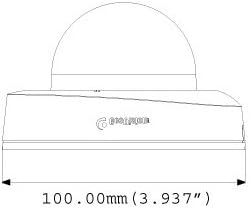
4.1 Physical Dimensions
Understand the camera's dimensions for proper placement and mounting.

4.2 Mounting Options
The GV-EFD4700-0F supports both ceiling and wall-surface mounting.


4.3 Installation Steps
- Select Location: Choose a suitable indoor location for optimal surveillance coverage.
- Prepare Surface: Use the provided installation template to mark drilling points on the ceiling or wall.
- Drill Holes: Drill pilot holes according to the template. Insert wall anchors if necessary.
- Secure Camera: Attach the camera base to the mounting surface using the supplied screws.
- Connect Cables: Connect the Ethernet cable for network and PoE, or a DC 12V power adapter and a separate Ethernet cable.
- Adjust Angle: Loosen the adjustment screws to pan and tilt the camera lens to the desired viewing angle. Tighten screws once adjusted.
4.4 Initial Configuration
After physical installation and power connection, access the camera's web interface for initial setup:
- Network Connection: Ensure the camera is connected to your network. It will typically obtain an IP address via DHCP.
- Discover Camera: Use GeoVision's IP Device Utility software or a network scanner to find the camera's IP address.
- Access Web Interface: Open a web browser and enter the camera's IP address.
- Login: Enter the default username and password (refer to the Quick Start Guide or GeoVision documentation for default credentials). Change these immediately for security.
- Basic Settings: Configure network settings, date/time, video resolution, and recording preferences.
5. Operating the Camera
5.1 Live View and Recording
Once configured, you can access the live video feed through the web interface or compatible NVR/VMS software. The camera supports continuous recording, scheduled recording, and event-triggered recording (e.g., motion detection).
- H.265 Compression: Utilizes H.265 video codec for efficient storage and reduced network bandwidth while maintaining high image quality.
- WDR Pro: Wide Dynamic Range Pro enhances image visibility in scenes with both very bright and very dark areas.
- IR Functionality: The built-in IR LEDs automatically activate in low-light conditions, providing clear black and white images up to 15 meters.
5.2 Motion Detection and Alerts
Configure motion detection zones and sensitivity within the camera's web interface. The camera can be set to trigger recordings, send email alerts, or notify your VMS upon detecting motion.
5.3 Audio Monitoring
The integrated microphone allows for audio monitoring of the surveillance area. Audio settings can be adjusted via the web interface.
6. Maintenance
6.1 Cleaning
Regularly clean the camera lens and housing to ensure optimal image quality. Use a soft, lint-free cloth. For stubborn dirt, a slightly damp cloth with mild detergent can be used, followed by a dry cloth. Avoid abrasive cleaners or solvents.
6.2 Firmware Updates
Periodically check the GeoVision website for firmware updates. Firmware updates can provide new features, performance improvements, and security enhancements. Follow the instructions provided with the firmware update package carefully to avoid damaging the device.
7. Troubleshooting
If you encounter issues with your GV-EFD4700-0F camera, refer to the following common problems and solutions:
- No Power:
- Check if the power adapter is securely connected and providing 12V DC.
- If using PoE, ensure the Ethernet cable is connected to a PoE-enabled switch or injector and that the switch port is active.
- No Video Feed:
- Verify network connectivity. Ping the camera's IP address.
- Ensure the camera's IP address, subnet mask, and gateway settings are correct.
- Check if the video stream settings (e.g., resolution, frame rate) are compatible with your viewing software or NVR.
- Restart the camera by disconnecting and reconnecting power.
- Poor Image Quality:
- Clean the camera lens.
- Check for obstructions in the camera's field of view.
- Adjust WDR Pro settings in the web interface for high-contrast scenes.
- Ensure sufficient lighting for optimal color images; IR will provide black and white in low light.
- Cannot Access Web Interface:
- Confirm the camera's IP address is correct.
- Ensure your computer is on the same network segment as the camera.
- Try a different web browser.
- Temporarily disable any firewall software on your computer.
If problems persist, contact GeoVision technical support.
8. Specifications
| Feature | Detail |
|---|---|
| Model Name | GV-EFD4700-0F |
| Image Sensor | 1/3" progressive scan super low lux CMOS |
| Effective Still Resolution | 4 MP |
| Minimum Illumination | 0.02 lux |
| Video Compression | H.265, H.264, MJPEG |
| Max. Frame Rate | 30 fps at 2048 x 1520 |
| IR Distance | Up to 15 m (50 ft) |
| Lens | 2.8mm (Fixed) |
| Dynamic Range | WDR Pro |
| Noise Reduction | 3D Noise Reduction |
| Audio | Built-in microphone |
| Pan/Tilt Mechanism | 2-axis |
| Power Input | DC 12V / PoE (IEEE 802.3af) |
| Connectivity Technology | Wired (Ethernet), Wi-Fi (for certain functions/protocols) |
| Indoor/Outdoor Usage | Indoor |
| Dimensions (Item) | 3.9 x 3.9 x 2.4 inches (100 x 100 x 60.8 mm) |
| Weight (Item) | 5.28 ounces |
| Color | White |
| Manufacturer | USA Vision Systems |
9. Warranty Information
GeoVision products typically come with a limited manufacturer's warranty. Specific warranty terms, conditions, and duration may vary by region and retailer. Please refer to the warranty card included with your purchase or visit the official GeoVision website for detailed warranty information and registration procedures. Keep your proof of purchase for warranty claims.
10. Support
For technical assistance, product inquiries, or further support, please utilize the following resources:
- GeoVision Official Website: Visit www.geovision.com.tw for product documentation, FAQs, software downloads, and support contact information.
- Technical Support: Contact GeoVision's technical support team through their website or the contact details provided in your product's packaging.
- Online Resources: Explore online forums and communities for user-generated tips and solutions.


