1. Introduction
The Unitek USB C 3-Slot SD Card Reader is a versatile device designed for efficient data transfer from various memory cards to your USB Type-C (or Thunderbolt 3 Port) enabled computer or tablet. This manual provides essential information for setting up, operating, and maintaining your card reader.
2. Key Features
- USB C Connectivity: Designed for USB Type-C and Thunderbolt 3 devices.
- 3-Slot Design: Supports simultaneous reading and writing of SD, Micro SD (TF), and CompactFlash (CF) cards.
- High-Speed Data Transfer: Utilizes USB 3.0 technology for speeds up to 5Gbps.
- Wide Card Compatibility: Supports SDHC, SDXC, Micro SD, Micro SDHC (UHS-I), Micro SDXC (UHS-I), and CF Type I/MD/MMC cards up to 2 TB.
- Plug & Play: No external drivers required for installation.
- LED Indicator: Verifies USB bus power and active data file transfer.
- Durable Design: Aluminum alloy casing for enhanced durability and portability.
3. Setup Guide
3.1 Package Contents
- 1 x Unitek USB C 3-Slot SD Card Reader (Model Y-9324BGY)
- 1 x User's Manual
3.2 Connecting the Card Reader
- Identify the USB-C Connector: Ensure your device has a USB Type-C or Thunderbolt 3 port. The card reader features a USB-C connector.
- Insert Memory Cards: Gently insert your SD, Micro SD, or CF cards into their respective slots on the card reader. Ensure they are fully seated.
- Connect to Device: Plug the USB-C connector of the card reader into a compatible port on your computer or tablet. The LED indicator on the card reader will illuminate, signifying power and readiness for data transfer.

Image: The Unitek USB C SD Card Reader with its USB-C connector. This image helps users identify the correct port type for connection.

Image: A diagram illustrating the three distinct card slots on the Unitek reader: TF/Micro SD, SD, and CF Card, indicating their compatibility.
Video: This video demonstrates the physical connection of the Unitek USB C Card Reader to a device and the insertion of various memory cards into its slots.
4. Operating Instructions
4.1 Data Transfer
Once connected, your operating system should automatically detect the card reader and the inserted memory cards. They will appear as removable drives. You can then drag and drop files between your device and the memory cards, or between different memory cards inserted into the reader simultaneously.
- Simultaneous Reading: The card reader supports reading data from all three card slots concurrently, allowing for efficient multi-card workflows.
- LED Activity Indicator: A built-in LED light indicates when the device is powered and actively transferring data.
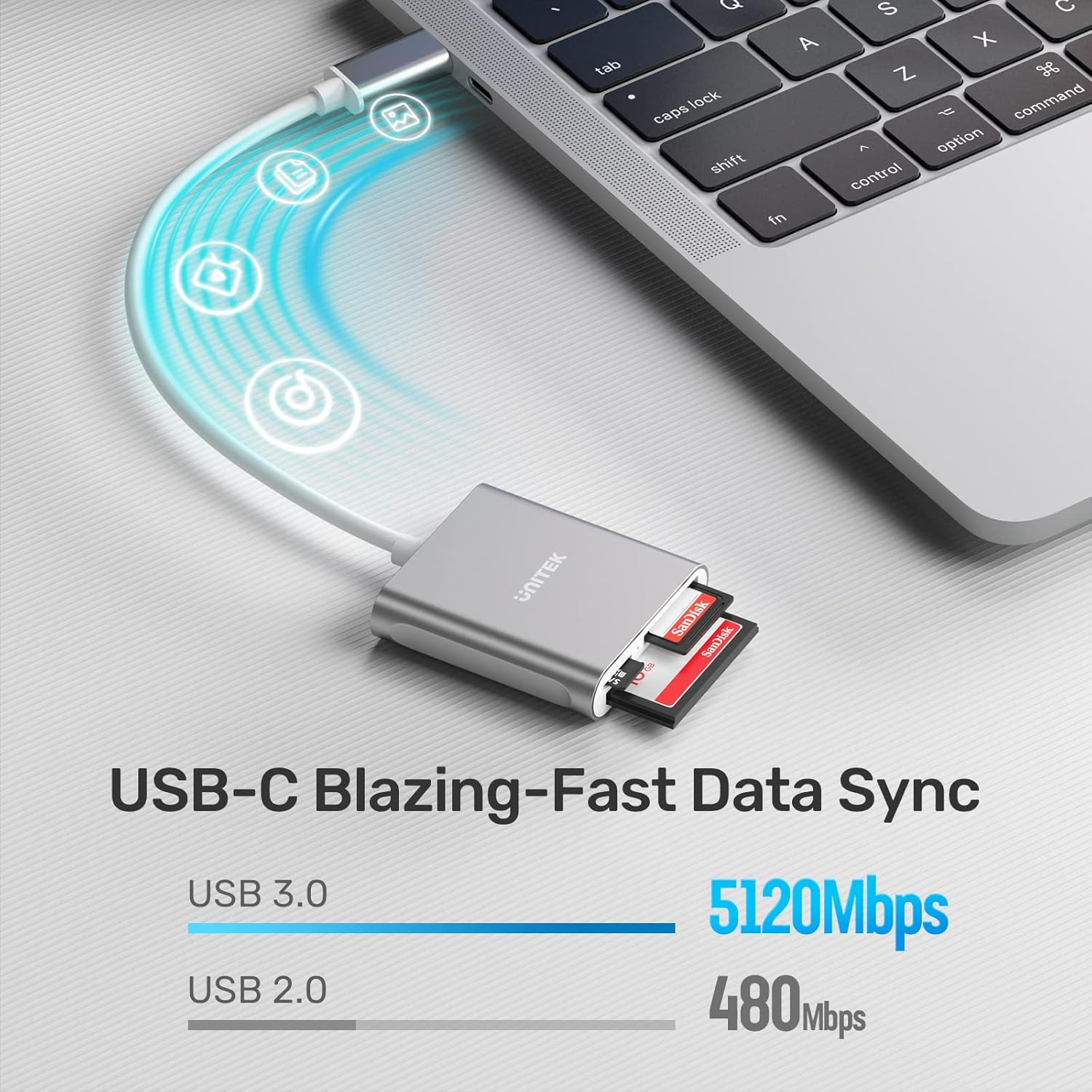
Image: A visual comparison highlighting the high-speed data transfer capabilities of USB 3.0 (5120Mbps) supported by the Unitek card reader, significantly faster than USB 2.0 (480Mbps).
Video: This video demonstrates the Unitek USB 3.0 SD Memory Card Reader in action, showing how it reads and transfers data from various card types like CF, SD, and Micro SD.
4.2 Safe Removal
Always safely eject the memory cards or the card reader from your operating system before physically disconnecting to prevent data corruption.
5. Compatibility
The Unitek USB C 3-Slot SD Card Reader is compatible with a wide range of devices and operating systems:
- Devices: USB Type-C enabled laptops, tablets, and smartphones including: MacBook Pro (2016-2019), MacBook (2015-2017), iPad Pro 2018, Surface Book 2, Samsung Galaxy S8/S9/S10/Note 8/Note 9, Pixelbook, Dell XPS 13/15, Galaxy Book.
- Operating Systems: Mac OS X, Windows 10, Android, Linux.
- Note: Thunderbolt 3 uses the same port type as USB-C, making it compatible. However, Thunderbolt 1 & 2 are not compatible.

Image: This image visually confirms the wide compatibility of the Unitek card reader with various devices (smartphones, laptops, tablets) and operating systems (Windows, Android, macOS, Linux).
6. Maintenance
- Keep the card reader clean and free from dust and debris. Use a soft, dry cloth for cleaning.
- Avoid exposing the device to extreme temperatures or humidity.
- Do not attempt to disassemble or repair the device yourself.
7. Troubleshooting
7.1 Device Not Recognized
- Ensure the card reader is securely plugged into a functional USB-C port on your device.
- Verify that your operating system is up to date.
- Try connecting the card reader to a different USB-C port or another compatible device to rule out port issues.
- Restart your computer or tablet.
7.2 Memory Card Not Detected
- Ensure the memory card is correctly and fully inserted into its designated slot.
- Check if the memory card is damaged or corrupted. Try it in another device if possible.
- Verify that the memory card format is supported by your operating system.
7.3 Slow Data Transfer
- Ensure both your device's USB-C port and the card reader support USB 3.0 (or higher) for optimal speeds.
- The speed of the memory card itself can affect transfer rates. Use high-speed cards for faster performance.
- Avoid running multiple data-intensive applications during transfer.
8. Specifications
| Attribute | Detail |
|---|---|
| Brand | Unitek |
| Model Number | Y-9324BGY |
| Connectivity Technology | USB Type C (USB 3.0) |
| Media Type Supported | CompactFlash, MMC, SD Card, SDHC, SDXC, UHS-I, microSD, microSDHC, microSDXC |
| Operating System Compatibility | Mac OS X, Windows 10, Android, Linux |
| Item Weight | 1.59 ounces |
| Product Dimensions (LxWxH) | 2.4 x 2.3 x 0.6 inches |
| Cable Length | 30 CM (1 foot) |
| Color | USB C Silver |
9. Warranty Information
Warranty details for your Unitek USB C 3-Slot SD Card Reader are typically included with your product packaging or can be found on the official Unitek website. Please refer to these resources for specific terms and conditions.
10. Customer Support
For further assistance, technical support, or inquiries regarding your Unitek product, please visit the official Unitek website or contact their customer service department. You can often find FAQs, driver downloads, and contact information on their support pages.
Official Unitek Website: Unitek Store on Amazon


