
Introduction
This manual provides comprehensive instructions for the use and maintenance of your ZdalaMit replacement remote control. This remote is designed to be compatible with various Sharp TV models, offering a direct replacement without the need for complex programming.
Compatible Sharp TV models include: LC32HT2, LC32HT2U, LC32HT3, LC32HT3U, LC37HT3, LC37HT3U, LC42D64, LC42HT3, LC42HT3U, LC46D64, LC46D64U, LC46D64UA, LC46D64UB, LC52D64, LC52D64U, LC65D64, LC65D64U, SVD-3312, LC-32GP2, LC-32GP2U, SVD-2897, LC26DA5U, LC32DA5U, LC37DB5U, LC40C32U, LC40C37U, LC40C45U, LC37D40U, LC45D40U, LC60C46U, LC-32HT2U, LC-32HT3U, LC-37HT3U, LC-42D64U, LC-42HT3U, LC-46D64U, LC-52D64U, LC-65D64U, LC32GA4X, LC37GA4X, 37HT3U, 42D64U, 46D64U, 52D64U, 65D6, LC-32D5U, LC-26D5U, LC-37D5U.
Setup
This replacement remote control requires no programming or pairing. Simply install the batteries, and it will be ready for immediate use with your compatible Sharp TV.
Battery Installation
- Locate the battery compartment on the back of the remote control.
- Slide open the battery compartment cover.
- Insert two (2) 1.5V AAA alkaline batteries, ensuring the correct polarity (+ and -) as indicated inside the compartment.
- Close the battery compartment cover securely.
Note: Batteries are not included with the remote control.
Operating Instructions
Familiarize yourself with the various buttons and their functions as illustrated below and described in the following sections.
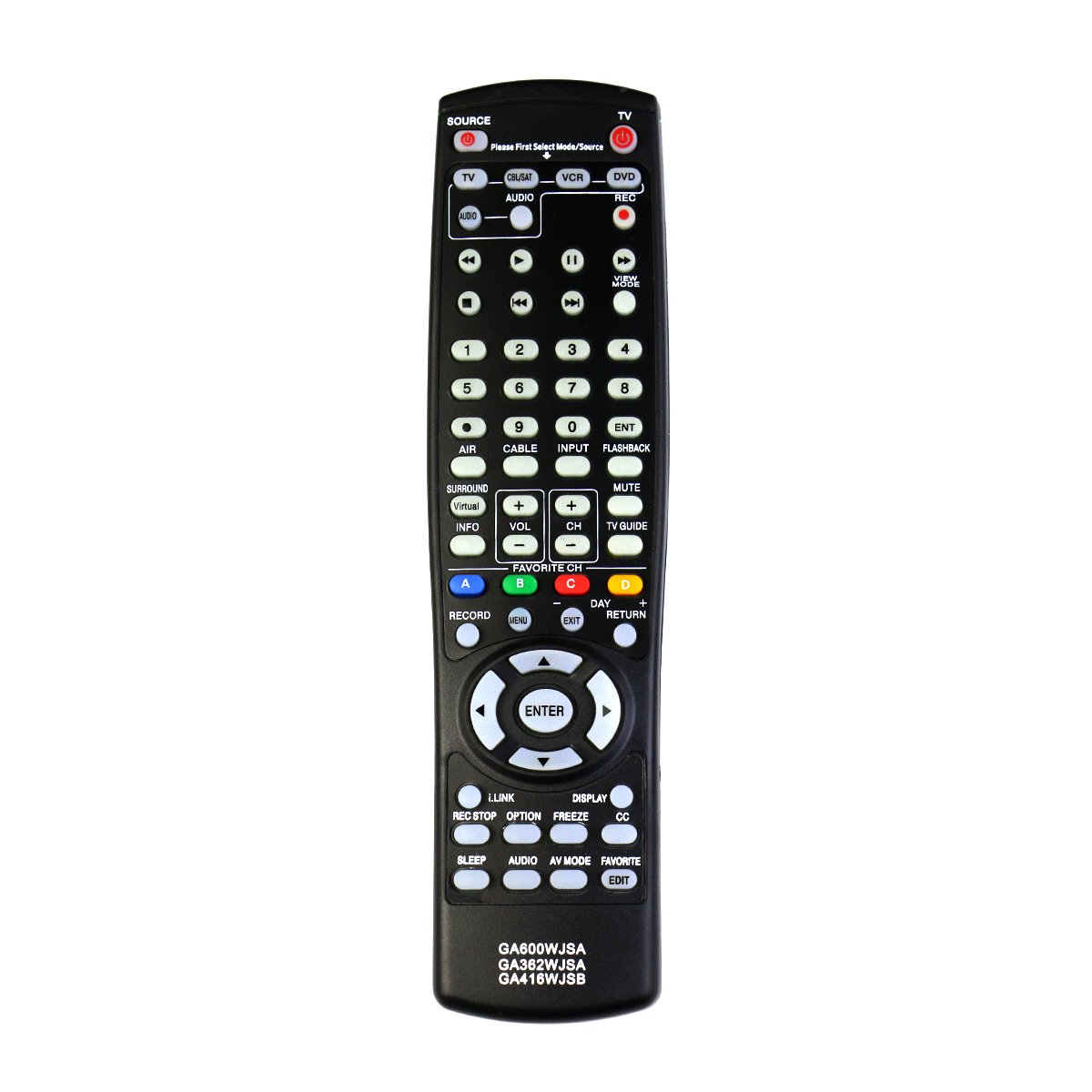
This image displays the full layout of the black replacement remote control. It features various buttons for TV operation, including power, source selection, numerical keypad, channel and volume controls, navigation buttons, and special function keys.
Power and Source Control
- TV (Power): Turns the television on or off.
- SOURCE: Cycles through available input sources (e.g., HDMI, Component).
- TV / CBL/SAT / VCR / DVD / AUDIO: Dedicated buttons to select the corresponding input mode. The "Please First Select Mode/Source" text indicates that you should press one of these mode buttons before using other functions specific to that mode.
Playback and Recording Controls
- REC: Initiates recording (if connected to a compatible recording device).
- Rewind / Fast Forward / Play / Pause / Stop: Standard media playback controls.
- VIEW MODE: Changes the viewing mode or aspect ratio.
- REC STOP: Stops recording.
Numerical Keypad and Channel/Volume
- 0-9: Used to directly enter channel numbers or other numerical inputs.
- ENT: Confirms numerical input.
- AIR / CABLE: Selects between antenna (air) and cable TV input.
- INPUT: Cycles through input sources (similar to SOURCE).
- FLASHBACK: Switches between the current and previously viewed channel.
- VOL (+/-): Increases or decreases the volume level.
- CH (+/-): Changes the television channel up or down.
- MUTE: Silences the television audio.
Navigation and Menu Controls
- INFO: Displays on-screen information about the current program or input.
- TV GUIDE: Accesses the electronic program guide (if available).
- MENU: Opens the television's main menu.
- EXIT: Closes the current menu or on-screen display.
- Navigation Arrows (Up, Down, Left, Right): Used to navigate through menus and options.
- ENTER: Confirms a selection within menus.
Special Functions
- SURROUND / Virtual: Activates or deactivates surround sound or virtual surround features.
- FAVORITE CH (A, B, C, D): Accesses pre-set favorite channels.
- DAY (+/-) / RETURN: Navigates through days in the TV guide or returns to a previous screen.
- i.LINK: Function related to i.LINK (FireWire) connectivity.
- DISPLAY: Toggles on-screen display information.
- OPTION: Accesses additional options for the current function.
- FREEZE: Freezes the current image on screen.
- CC (Closed Caption): Toggles closed captions on or off.
- SLEEP: Sets a sleep timer for the television.
- AUDIO: Adjusts audio settings or selects audio tracks.
- AV MODE: Changes the audio/video mode (e.g., Standard, Movie, Game).
- FAVORITE / EDIT: Manages favorite settings or enters edit mode.
Maintenance
Battery Replacement
Replace batteries when the remote control's response becomes sluggish or stops working. Always replace both batteries simultaneously with new 1.5V AAA alkaline batteries. Do not mix old and new batteries, or different types of batteries.
Cleaning
To clean the remote control, wipe it gently with a soft, dry cloth. Do not use liquid cleaners, sprays, or abrasive materials, as these can damage the remote's surface or internal components.
Troubleshooting
| Problem | Possible Cause | Solution |
|---|---|---|
| Remote control not working. | Dead or incorrectly inserted batteries. | Replace batteries with new ones, ensuring correct polarity. |
| Remote control works intermittently. | Low battery power or obstruction between remote and TV. | Replace batteries. Ensure a clear line of sight to the TV's IR receiver. |
| Certain buttons do not respond. | Button malfunction or specific TV model incompatibility for that function. | Ensure the remote is pointed directly at the TV. If the issue persists for a specific button, it might not be supported by your TV model or the remote may be faulty. |
Specifications
- Model Numbers: GA600WJSA, GA362WJSA, GA416WJSB
- Power Supply: 2 x 1.5V AAA Alkaline Batteries (not included)
- Dimensions: Approximately 8 x 2 x 1 inches
- Item Weight: Approximately 1.41 ounces
- Color: Black
- Special Feature: Pre-Programmed (No programming or pairing needed)
- Compatible Devices: Sharp Televisions (various models as listed in Introduction)
Warranty and Support
For any queries or assistance, please refer to the seller's return policy or contact the point of purchase. Specific warranty details are typically provided by the seller at the time of purchase.
If you have any questions regarding the compatibility or functionality of this remote control, please contact the manufacturer or seller for support.