
1. Introduction
The deleyCON SCART to HDMI Converter (Model MK1846) is designed to convert analog SCART signals (PAL/NTSC/SECAM) into a digital Full HD 720p or 1080p HDMI output. It also features an additional HDMI input for signal source flexibility. An integrated audio extractor provides analog audio via a 3.5mm jack and digital audio via a coaxial (S/PDIF) output. This manual provides detailed instructions for setting up and operating your converter.
2. Product Overview
The deleyCON SCART to HDMI Converter features multiple input and output ports, along with control buttons for easy operation.
2.1 Front Panel

Image Description: This image displays the front panel of the deleyCON converter. From left to right, it shows a red 'POWER' LED indicator, an 'HDMI OUTPUT' port, a 3.5mm 'AUDIO' jack, a 'COAXIAL' (S/PDIF) audio output, and three small buttons labeled 'SCART/HD', '720P/1080P', and 'PAL/NTSC'.
- POWER LED: Indicates the device is powered on.
- HDMI OUTPUT: Connects to your display device (TV, monitor, projector).
- AUDIO (3.5mm Jack): Analog audio output for headphones or stereo systems.
- COAXIAL (S/PDIF): Digital audio output for compatible audio receivers.
- SCART/HD Button: Toggles between SCART input and HDMI input.
- 720P/1080P Button: Selects the HDMI output resolution (720p or 1080p).
- PAL/NTSC Button: Selects the video format (50Hz for PAL, 60Hz for NTSC).
2.2 Rear Panel

Image Description: This image shows the rear panel of the deleyCON converter. From left to right, it features an 'HDMI INPUT' port, a 'SCART INPUT' port, and a '5V/DC' power input jack.
- HDMI INPUT: Connects to an HDMI source device.
- SCART INPUT: Connects to a SCART source device.
- 5V/DC: Power input for the included 5V DC adapter.
2.3 Combined View

Image Description: This image provides a combined top-down view, illustrating both the front and rear panels of the deleyCON converter simultaneously, highlighting all input, output, and control elements.
3. Setup Instructions
Follow these steps to connect your deleyCON SCART to HDMI Converter.
- Connect Source Device:
- For SCART sources: Connect a SCART cable from your source device (e.g., DVD player, game console) to the SCART INPUT port on the converter. Ensure the connection is firm.
- For HDMI sources: Alternatively, connect an HDMI cable from an HDMI source device to the HDMI INPUT port on the converter.
- Connect Display Device: Connect an HDMI cable from the HDMI OUTPUT port on the converter to your display device (e.g., TV, monitor, projector).
- Connect Audio (Optional): For audio extraction, connect a 3.5mm audio cable to the AUDIO jack or a coaxial cable to the COAXIAL (S/PDIF) port, then connect to your audio receiver or headphones.
- Connect Power: Connect the included 5V DC power adapter to the 5V/DC port on the converter and plug it into a power outlet. The red POWER LED will illuminate.
3.1 Connection Diagram

Image Description: This diagram shows the versatility of the converter. It illustrates multiple source devices (Blu-ray player, PlayStation, DVD player) connecting to the converter via HDMI or SCART, and the converter then outputting to a TV, headphones, and a speaker system.
3.2 SCART Setup Example

Image Description: This image demonstrates a typical SCART connection. A DVD player is connected to the converter's SCART input, and the converter's HDMI output is connected to a television.
3.3 HDMI Setup Example with Audio Extraction
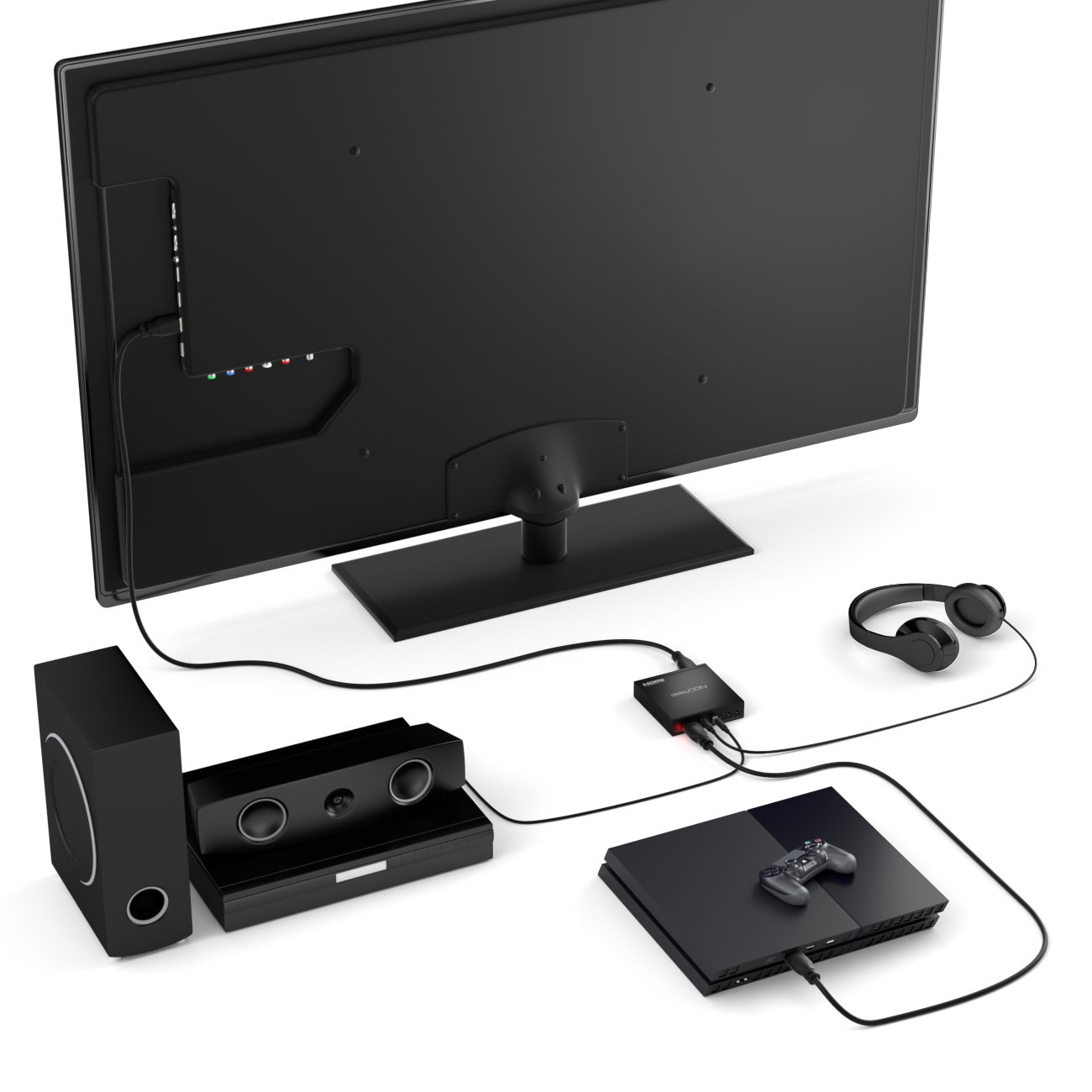
Image Description: This image illustrates an HDMI setup with audio extraction. A game console is connected to the converter's HDMI input. The converter's HDMI output goes to a TV, while its audio outputs are connected to a subwoofer/speaker system and headphones.
4. Operating Instructions
Once connected, operate the converter using the front panel buttons.
- Power On: Ensure all connections are secure and the power adapter is plugged in. The red POWER LED should be illuminated.
- Input Selection: Use the SCART/HD button on the converter to switch between the SCART input and the HDMI input.
- Video Format Selection: Use the PAL/NTSC button to select the appropriate video format (50Hz for PAL, 60Hz for NTSC) if automatic detection is not optimal for your source.
- Output Resolution Selection: Use the 720P/1080P button to select the desired output resolution (720p or 1080p Full HD). The converter will automatically save the selected output resolution.
- Audio Output: Audio will be output simultaneously via the HDMI cable, the 3.5mm audio jack, and the coaxial S/PDIF port.
5. Maintenance
To ensure the longevity and optimal performance of your deleyCON converter, follow these maintenance guidelines:
- Keep the device in a dry environment, away from direct sunlight, high humidity, and extreme temperatures.
- Clean the device with a soft, dry cloth. Do not use liquid cleaners, abrasive materials, or solvents, as these can damage the casing or internal components.
- Ensure proper ventilation around the device to prevent overheating. Do not block any ventilation openings.
- Disconnect the power adapter when the device is not in use for extended periods.
6. Troubleshooting
If you encounter issues with your deleyCON converter, please refer to the following troubleshooting steps:
6.1 No Picture or Sound
- Check Connections: Verify that all cables (SCART, HDMI, audio, power) are securely connected to both the converter and your source/display devices.
- Power Verification: Ensure the power adapter is functioning correctly and the red POWER LED on the converter is illuminated.
- Display Input: Confirm that your display device (TV, monitor) is set to the correct HDMI input channel.
- Converter Input Selection: Use the SCART/HD button on the converter to cycle through the input sources.
- Resolution/Format: Experiment with different output resolutions (720p/1080p) and video formats (PAL/NTSC) using the respective buttons on the converter.
- SCART Cable Firmness: If using SCART, ensure the SCART cable is firmly connected. Loose connections can cause image artifacts or a complete loss of signal.
6.2 Poor Picture Quality
- Source Quality: The quality of the output signal is directly dependent on the quality of the input signal. Older analog sources (e.g., VHS tapes) may naturally have lower resolution and visual artifacts.
- Video Format: Ensure the correct video format (PAL/NTSC) is selected on the converter to match your source.
- Output Resolution: Try adjusting the output resolution (720p/1080p) to see if it improves clarity on your specific display.
- Source Device Settings: Some older SCART source devices (e.g., certain game consoles) may have internal settings for video output (e.g., RGB vs. Composite). Adjusting these on the source device might improve image quality.
6.3 No Audio from Extractor Ports
- Audio Cable Connections: Verify that audio cables are correctly connected to the 3.5mm jack or coaxial port on the converter and to your audio system or headphones.
- Volume Levels: Check the volume levels on your connected audio system or headphones.
- Audio Input Selection: Ensure your audio receiver is set to the correct input for the coaxial or analog audio connection.
7. Specifications
Detailed technical specifications for the deleyCON SCART to HDMI Converter (Model MK1846).
- Inputs: 1x SCART, 1x HDMI
- Outputs: 1x HDMI, 1x S/PDIF (Coaxial), 1x 3.5mm Jack
- SCART Input Formats: PAL / NTSC / SECAM
- HDMI Output Resolutions: Supports 480p - 1080p (24 / 25 / 50 / 60Hz), 480i - 1080i (24 / 25 / 50 / 60 Hz), and 3D. The device also lists support for 4K x 2K @30Hz, though its primary function for SCART conversion is 720p/1080p scaling.
- HDMI Bandwidth: 340 MHz / 10.2 Gbps
- Power Supply: 5V DC (Power adapter included)
- Dimensions (Device): Approximately 28mm x 13mm x 51mm (Height x Width x Depth)
- Automatic Features: Automatic detection of RGB (50/60Hz), automatic detection of composite video (PAL/NTSC), automatic storage of output resolution.
8. Package Contents
The following items are included in your deleyCON SCART to HDMI Converter package:
- deleyCON SCART to HDMI Converter (Model MK1846)
- 5V DC Power Adapter
- Illustrated User Manual (this document)

Image Description: This image displays the deleyCON converter alongside its compact 5V DC power adapter, illustrating the main components included in the package.
9. Warranty and Support
For warranty information, technical support, or any questions regarding your deleyCON SCART to HDMI Converter, please refer to the documentation provided with your purchase or contact deleyCON customer service directly. Contact details can typically be found on the manufacturer's official website or on the product packaging.