
NETGEAR AC815S
Contents
NETGEAR Unite Explore AC815S Mobile WiFi Hotspot User Manual
Model: AC815S
Introduction
This manual provides detailed instructions for setting up, operating, and maintaining your NETGEAR Unite Explore AC815S Mobile WiFi Hotspot. Please read this guide thoroughly to ensure optimal performance and safe use of your device.
Package Contents
Verify that all items are present in your package:
- NETGEAR Unite Explore AC815S Mobile Hotspot
- Removable W-9 4340 Lithium Ion Battery
- Wall/USB Charger
- USB Battery Boost Cable
- USB Charge Cable
- Quick Start Guide
- Waterproof Back Door

Image: Contents of the NETGEAR Unite Explore AC815S package, including the hotspot device, battery, charger, USB cables, and quick start guide.
Setup
1. SIM Card Installation
- Ensure the device is powered off.
- Remove the back cover of the hotspot.
- Insert a micro-sized SIM card into the designated SIM card slot. Ensure the SIM card is correctly oriented as indicated by the diagram near the slot.
- Replace the back cover, ensuring it is securely fastened, especially the waterproof back door.
Note: This device requires a micro-sized SIM card. An unlock code may be provided on the box label for network changes.
2. Battery Installation and Charging
- With the back cover removed, align the removable W-9 4340 Lithium Ion Battery with the battery compartment contacts.
- Gently press the battery into place until it is seated firmly.
- Connect the USB charge cable to the hotspot's USB 3.0 port and the other end to the wall/USB charger.
- Plug the charger into a power outlet. The device will begin charging.
- Allow the device to charge fully before first use. A full charge provides approximately 22 hours of continuous streaming.
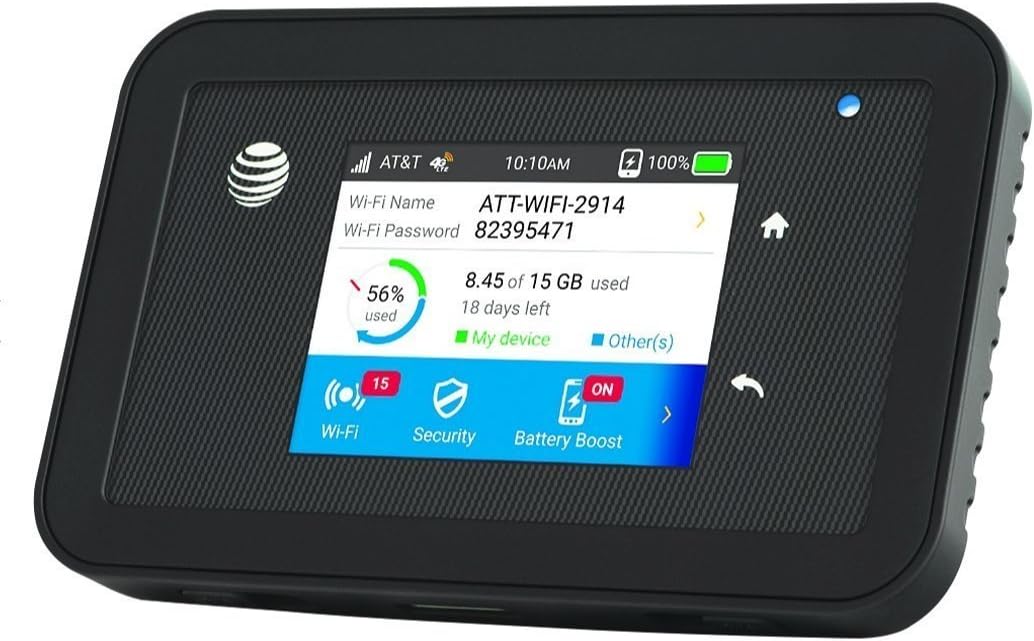
Image: The NETGEAR Unite Explore AC815S device displaying its main screen with Wi-Fi name, password, data usage, and battery status.
Operating Instructions
1. Powering On/Off
- To Power On: Press and hold the power button located on the side of the device until the screen illuminates.
- To Power Off: Press and hold the power button until a power-off prompt appears on the screen, then confirm.

Image: Side view of the NETGEAR Unite Explore AC815S, highlighting the power button for device control.
2. Connecting Devices to Wi-Fi
- Ensure the hotspot is powered on.
- On your Wi-Fi enabled device (laptop, smartphone, tablet), search for available Wi-Fi networks.
- Select the Wi-Fi network name (SSID) displayed on the hotspot's screen (e.g., "ATT-WIFI-2914").
- Enter the Wi-Fi password shown on the hotspot's screen when prompted.
- Your device should now be connected to the internet. The hotspot supports up to 15 connected devices simultaneously.
3. Accessing the Web Interface
For advanced settings and management, access the hotspot's web interface:
- Connect your device to the hotspot's Wi-Fi network.
- Open a web browser and navigate to http://192.168.1.1 or http://attwifimanager/.
- Log in using the default password, which is typically "attadmin" (check the label under the battery for specific credentials).
4. Using Battery Boost
The hotspot can also function as a power bank to charge other devices:
- Connect the USB Battery Boost Cable to the hotspot's USB 3.0 port.
- Connect the other end of the cable to the device you wish to charge.
- Ensure the "Battery Boost" feature is enabled on the hotspot's screen or web interface.
Maintenance
1. Battery Care
- To prolong battery life, avoid exposing the device to extreme temperatures.
- If the device will not be used for an extended period, store it with a partial charge (around 50%).
- Use only the original NETGEAR battery and charger provided with the device.
2. Cleaning the Device
- Wipe the device with a soft, dry, lint-free cloth.
- Do not use liquid cleaners or aerosol sprays directly on the device.
- Ensure all ports are free from dust and debris.
Troubleshooting
| Problem | Possible Cause | Solution |
|---|---|---|
| No internet connection | No active SIM card, out of data, poor signal, incorrect APN settings. |
|
| Device not charging | Faulty cable/charger, dirty charging port, battery issue. |
|
| Wi-Fi connection drops frequently | Interference, too many connected devices, device too far from hotspot. |
|
For further assistance, refer to the full user manual available on the NETGEAR support website or contact customer support.
Specifications
| Feature | Detail |
|---|---|
| Model Name | Unite Explore (AC815S) |
| Product Dimensions | 4.5 x 2.8 x 0.8 inches |
| Item Weight | 6.2 ounces |
| Battery | Removable 4300mAh Lithium Polymer (W-9), up to 22 hours of continuous streaming |
| SIM Card Type | Micro SIM (3FF) |
| Wireless Communication Standard | 802.11a/b/g/n/ac |
| Frequency Band Class | Dual-Band (2.4GHz and 5GHz simultaneous) |
| Connectivity Technologies | 3G, 4G, Wi-Fi, LTE, 5G (listed in product data, but primarily 4G LTE Cat.9) |
| LTE Bands Supported | 1, 2, 3, 4, 5, 7, 12, 17, 29, 30 (with enhanced backhaul) |
| Antenna Connectors | 2x MIMO TS-9 (Left is Primary) |
| Max Download Speed | Up to 450Mbps (Category 9 LTE) |
| Max Connected Devices | Up to 15 |
| Operating System | Custom Embedded Operating System |
| Special Features | Access Point Mode, Battery Boost, Rugged (water resistant, protected from drops/shocks) |

Image: A detailed list of technical specifications for the NETGEAR Unite Explore AC815S, including battery life, supported networks, and dimensions.

Image: Bottom view of the NETGEAR Unite Explore AC815S, showing the two TS-9 antenna connectors and the USB port.
Warranty and Support
For warranty information and technical support, please visit the official NETGEAR support website or refer to the documentation included with your product. Keep your purchase receipt for warranty claims.
Important Note: Unlocked devices are compatible with GSM carriers that use SIM cards (e.g., AT&T, T-Mobile, H20, Straight Talk). This device will not work with CDMA carriers such as Sprint, Verizon, Boost, or Virgin. Always verify network compatibility with your service provider before purchase.
Ask a question about this manual
Ask about setup, troubleshooting, compatibility, parts, safety, or missing instructions. Manuals+ will review the question and use this page’s manual context to help answer it.