
1. Introduction
Thank you for purchasing the Cable Matters USB C to HDMI Adapter. This manual provides essential information for the proper setup, operation, and maintenance of your device. This adapter allows you to connect a laptop, tablet, or smartphone with a USB Type-C port (supporting DisplayPort Alternate Mode) to an HDMI-enabled display, such as a monitor, projector, or TV, while also providing power delivery to your source device.
2. Safety Information
Please read and follow these safety guidelines to ensure safe and optimal use of the adapter:
- Keep the adapter away from water, moisture, and extreme temperatures.
- Do not attempt to disassemble or modify the adapter. This will void the warranty and may cause damage.
- Use only compatible power adapters for power delivery functionality. Ensure the power adapter meets the required wattage (up to 60W).
- Avoid dropping or subjecting the adapter to strong impacts.
- Ensure proper ventilation around the adapter during use.
- Disconnect the adapter from all devices before cleaning.
3. Package Contents
The package should contain the following items:
- 1 x Cable Matters USB C to HDMI Adapter (Model: 201028-BLK)
If any items are missing or damaged, please contact Cable Matters customer support.
4. Product Overview
The Cable Matters USB C to HDMI Adapter is designed for seamless connectivity and high-performance display output.

Front view of the Cable Matters USB C to HDMI Adapter, showing the USB-C connector, the main adapter body with a power LED, and the HDMI output port.

Close-up view highlighting the adapter's premium construction, including the power LED indicator and the gold-plated USB-C connector for reliable signal transmission.
Key Features:
- USB-C to HDMI Connectivity: Connects USB Type-C enabled devices to HDMI displays.
- 4K@60Hz Video Resolution: Supports ultra-high-definition video output for crisp, clear visuals.
- 60W Power Delivery: Provides up to 60 watts of power to charge your laptop or smartphone while connected.
- High Precision Audio: Supports audio formats such as LPCM, DTS, and Digital Dolby.
- Low-Profile Design: Compact and portable, ideal for travel and on-the-go use.
- Secure Connection: Designed for a snug and secure connection to both your device and the HDMI display.
- DisplayPort Alternate Mode (Alt Mode) Required: Ensures video output over USB-C.
5. Setup Instructions
Follow these steps to set up your Cable Matters USB C to HDMI Adapter:
- Connect to Display: Plug one end of an HDMI cable (not included) into the HDMI port on your monitor, TV, or projector.
- Connect to Adapter: Plug the other end of the HDMI cable into the HDMI port on the Cable Matters USB C to HDMI Adapter.
- Connect to Source Device: Plug the USB-C connector of the adapter into the USB Type-C port of your laptop, tablet, or smartphone. Ensure your device's USB-C port supports DisplayPort Alternate Mode for video output.
- (Optional) Connect Power: If you wish to charge your source device simultaneously, connect a USB-C power adapter (not included) to the USB-C Power Delivery port on the adapter.
- Select Input: On your display, select the correct HDMI input source.
- Configure Display Settings: Your device should automatically detect the external display. If not, adjust your display settings (e.g., resolution, refresh rate, display mode - duplicate/extend) in your operating system's display preferences. For Windows, you may need to update drivers from your computer manufacturer for proper functionality.
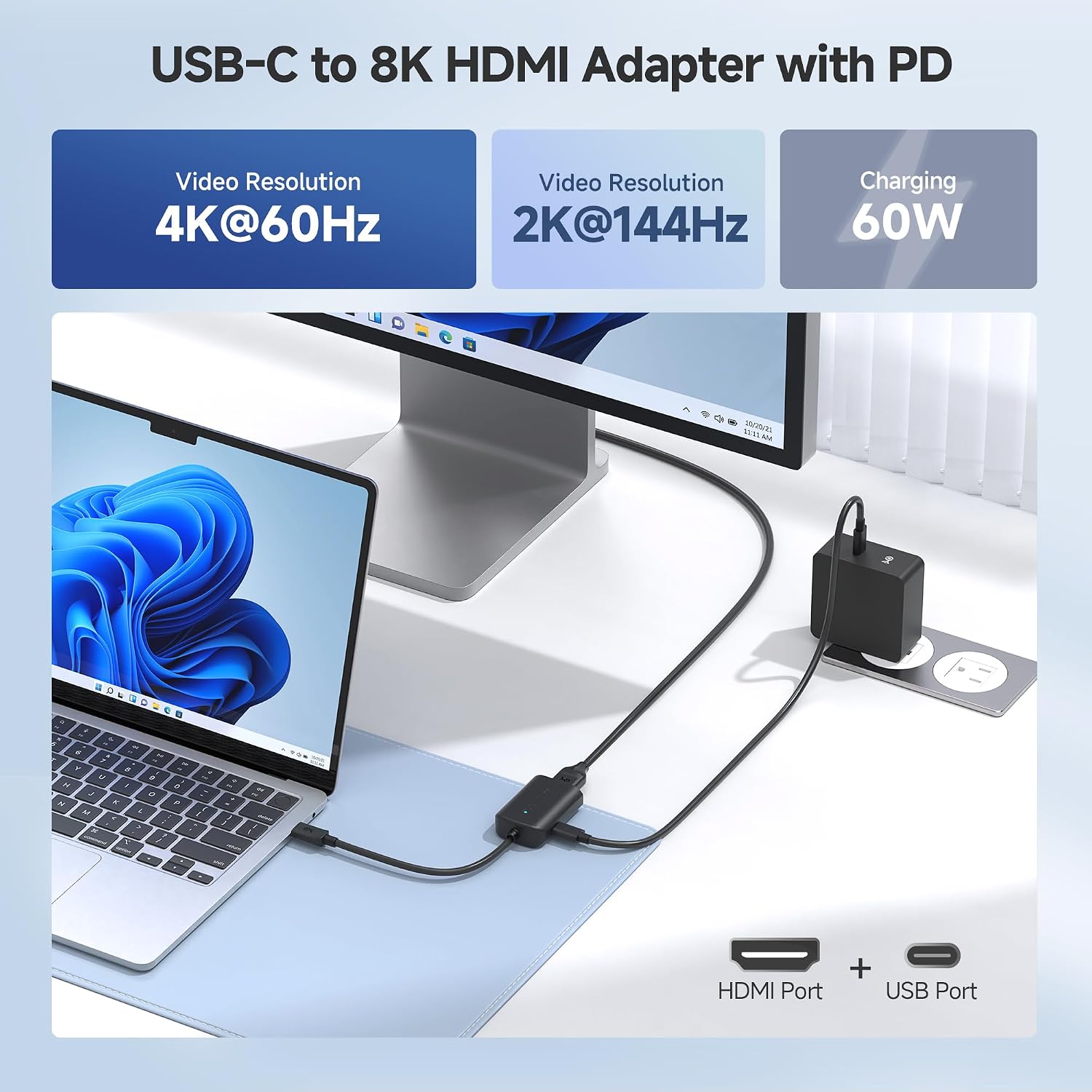
Diagram illustrating the connection of the USB-C to HDMI adapter to a laptop and a monitor, showing support for 4K@60Hz video and 60W charging.

Image showing how to connect a USB-C power adapter to the adapter's power delivery port to charge the laptop while using the display output.
6. Operating the Adapter
Video Output:
Once connected, the adapter will transmit video and audio from your USB-C source device to the HDMI display. The maximum supported resolution is 4K (3840x2160) at 60Hz. Ensure your HDMI cable and display also support these specifications for optimal performance.

Illustration demonstrating the 18Gbps bandwidth capability, supporting 4K resolution for high-quality video transmission.

Image showcasing high frame-rate performance, specifically 2K@144Hz, for a smoother gaming or viewing experience compared to 2K@60Hz.

Visual representation of enhanced visual experience with Dynamic HDR and 12-bit color support, ideal for productive work and creative tasks.
Power Delivery (PD):
The adapter supports USB Power Delivery up to 60W. This allows you to charge your source device (laptop, tablet, or phone) through the adapter's USB-C PD port while simultaneously using the HDMI video output. This feature is particularly useful for devices with a limited number of USB-C ports.
Note: The adapter is bus-powered and does not require an external power source to function for video output alone. Power delivery is only needed if you wish to charge your source device.
7. Compatibility
This adapter is designed to work with a wide range of devices that support DisplayPort Alternate Mode over USB-C, Thunderbolt 3, Thunderbolt 4, or USB4.

Diagram illustrating wide compatibility with various USB-C source devices (MacBook, Windows Laptop, Chromebook, Phone, iPad) and HDMI target devices (Monitor, Projector, TV). Note: Not compatible with Nintendo Switch.

Visual guide to compatibility, showing that the USB-C port must support Thunderbolt 3/4/5, DP Alt Mode, or USB4 (20Gbps & 40Gbps) for video output. Incompatible with data transfer only or charging only USB-C ports.
Compatible Source Devices (Partial List):
- Apple: MacBook Pro (2016 and later), MacBook Air (2018 and later), iMac (2017 and later), iMac Pro, Mac mini (2018 and later), iPad Pro (2018 and later), iPad Air (4th Gen and later).
- Dell: XPS 12 9250, XPS 13 9350/9360/9365, XPS 15 9550/9560, Latitude series (e.g., 5480/5580/7275/7280/7370/7480/7520/7720/E5570), Precision series (e.g., 3520/15 3510/5510/M7510, 17 M7710), Alienware 13/15/17.
- HP: Elite X2 1012 G1/G2, Z1 Workstation G3, Spectre 13.3/x360, EliteBook 1040 G4/X360 G2/X 360 1020 G2/Folio G1, ZBook 17/15/Studio, Envy 27 All-in-One.
- Lenovo: Legion Y720, IdeaPad Y900, Miix 720, ThinkPad P50/70, T470/470S/570, X270, X1 Carbon.
- Samsung: Galaxy S8/S8+, S9/S9+, S10/S10+/S10e, S20/S20+/S20 Ultra, Note 8, Note 9, Note 10/Note 10+. (DeX mode requires Android 9 Pie (One UI) or later).
- Other devices with a USB-C port supporting DisplayPort Alternate Mode.
Incompatible Devices:
- Devices with USB-C ports that only support data transfer or charging, but not DisplayPort Alternate Mode.
- Nintendo Switch.
8. Troubleshooting
If you encounter issues with your adapter, please refer to the following common problems and solutions:
| Problem | Possible Cause | Solution |
|---|---|---|
| No video output / Display not detected |
|
|
| Flickering screen or unstable video |
|
|
| No audio |
|
|
| Device not charging via PD port |
|
|
9. Specifications
| Feature | Detail |
|---|---|
| Model Number | 201028-BLK |
| Input Connector | USB Type-C Male |
| Output Connector | HDMI Female |
| Power Delivery Port | USB Type-C Female (up to 60W) |
| Max Resolution | 4K (3840x2160) @ 60Hz |
| Supported Audio | LPCM, DTS, Digital Dolby |
| Bandwidth | 18 Gbps |
| Color | Black |
| Item Weight | 1.58 ounces |
| Dimensions | 4.6 x 2.7 x 0.7 inches (Package) |
| Country of Origin | China |
10. Maintenance
To ensure the longevity and optimal performance of your adapter, follow these maintenance guidelines:
- Cleaning: Use a soft, dry cloth to clean the adapter. Do not use liquid cleaners or aerosol sprays.
- Storage: Store the adapter in a cool, dry place when not in use. Avoid extreme temperatures and direct sunlight.
- Handling: Always grasp the connector ends when plugging or unplugging the adapter. Avoid pulling on the cable itself, as this can damage internal wiring.
- Protection: Protect the adapter from physical damage, such as drops or crushing.
11. Warranty and Support
Cable Matters products are backed by a limited warranty. For specific warranty terms and conditions, please refer to the warranty information provided with your purchase or visit the official Cable Matters website.
For technical support, troubleshooting assistance, or to inquire about warranty claims, please contact Cable Matters customer support through their official website or the contact information provided in your product packaging.
You can also refer to the official User Guide PDF for additional information: Cable Matters USB C to HDMI Adapter User Guide (PDF)