
1. Introduction
The GW Security VD5050IPC is a high-performance 5-megapixel IP camera designed for both indoor and outdoor surveillance. It features Power over Ethernet (PoE) for simplified installation, a 2.8-12mm manual varifocal lens for adjustable viewing angles, and advanced night vision capabilities up to 120 feet. This camera delivers clear, high-resolution video for effective monitoring.
Key Features:
- 5-Megapixel (2592x1920) Super HD Video Resolution
- 2.8-12mm Manual Zoom Varifocal HD Lens with IR-CUT
- Power over Ethernet (PoE) for single-cable installation
- 42 Infrared LEDs for up to 120ft Night Vision
- Weatherproof and Vandal-Proof Housing (IP67 rated)
- Motion Detection and Email Alert capabilities
- Support for remote mobile and PC viewing
- H.265 Video Format for efficient storage
2. Package Contents
Please check the package contents upon receipt to ensure all items are present and undamaged.
- GW Security VD5050IPC IP Camera
- Mounting Screw Kit
- Hex Wrench (for lens adjustment)
- Quick Start Guide (refer to this manual for full details)
3. Safety Information
- Ensure proper power supply (PoE) to avoid damage.
- Do not attempt to disassemble or modify the camera.
- Avoid pointing the camera directly at strong light sources for extended periods.
- Install the camera in a secure location to prevent tampering.
4. Setup and Installation
4.1 Physical Installation
The VD5050IPC camera is designed for versatile mounting on ceilings or walls. Choose a location that provides the desired field of view and is within reach of your network cable.
- Mark the drilling points using the camera's base as a template.
- Drill pilot holes and insert wall anchors if necessary.
- Secure the camera base to the mounting surface using the provided screws.
- Adjust the camera's angle and orientation as needed.

Image: Front-side view of the GW Security VD5050IPC IP Camera, showing its bullet form factor and mounting arm.
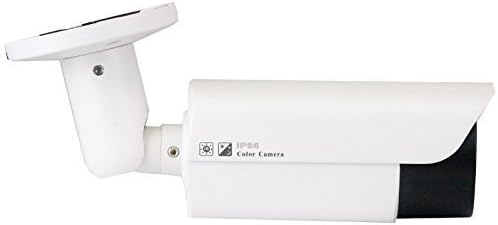
Image: Side view of the GW Security VD5050IPC IP Camera, illustrating its weatherproof housing.
4.2 Cable Connection (PoE)
The camera supports Power over Ethernet (PoE), allowing both power and data transmission through a single Ethernet cable. Connect a standard Ethernet cable from your PoE-enabled switch or NVR to the camera's Ethernet port.

Image: Close-up of the Ethernet (RJ45) connector, which also supports Power over Ethernet (PoE).
4.3 Varifocal Lens Adjustment
The VD5050IPC features a manual varifocal lens (2.8-12mm) that allows you to adjust the zoom level and focus. This adjustment is performed physically on the camera using the provided hex wrench. It is not remotely controllable.
- Loosen the small screws on the underside of the camera's front housing using the hex wrench to access the adjustment points.
- Carefully turn the 'Zoom' adjustment screw to achieve the desired field of view (between 2.8mm and 12mm).
- Turn the 'Focus' adjustment screw until the image appears sharp and clear.
- Tighten the small screws to secure the adjustments.

Image: Internal view of the camera's lens assembly, highlighting the manual zoom and focus adjustment screws.

Image: Visual comparison demonstrating the change in field of view and zoom level at different varifocal settings (2.8mm, 3.6mm, 6mm, 8mm, 10mm, 12mm).
4.4 Network and Software Setup
After physical installation, connect the camera to your network. The camera's initial IP address may need to be discovered using a dedicated utility provided by GW Security or your NVR system. Refer to your NVR's manual for adding IP cameras.
- PC Software: Use the GW Security client software for Windows or Mac to manage and view your camera.
- Mobile App: Download the official GW Security mobile application for iOS or Android devices for remote viewing and control.
- Web Browser: Access the camera's web interface for advanced settings. Ensure your browser is compatible with the camera's web plugin.
5. Operating Instructions
5.1 Live View and Recording
Access the live video feed through the GW Security PC software, mobile app, or NVR interface. Configure recording schedules and methods (continuous, motion-triggered) via the software settings.
5.2 Motion Detection and Alerts
The camera supports configurable motion detection zones and sensitivity. When motion is detected, the camera can trigger recordings, send email alerts, or push notifications to your mobile device.
5.3 Image Settings
Adjust various image parameters such as brightness, contrast, saturation, and sharpness through the camera's software interface to optimize video quality for your environment. On-Screen Display (OSD) settings can also be customized.
5.4 Night Vision
The camera automatically switches to night vision mode in low-light conditions, utilizing its 42 IR LEDs to provide clear black-and-white video up to 120 feet. The IR-CUT filter ensures accurate color reproduction during the day.

Image: Close-up view of the camera's front, showing the central lens surrounded by 42 infrared LEDs for night vision.
6. Maintenance
6.1 Cleaning
Regularly clean the camera lens and housing to ensure optimal performance. Use a soft, damp cloth for the housing and a lens cleaning cloth for the lens. Avoid abrasive cleaners.
6.2 Firmware Updates
Periodically check the GW Security website for available firmware updates. Keeping your camera's firmware updated ensures optimal performance, security, and access to new features.
7. Troubleshooting
- No Power: Verify the Ethernet cable is securely connected to a PoE-enabled port or injector.
- No Video: Check network connectivity, ensure the camera's IP address is correct, and confirm it's added to your NVR/software.
- Poor Image Quality: Ensure the lens is clean. Re-adjust the manual focus and zoom using the hex wrench. Check lighting conditions and camera settings.
- Motion Detection Not Working: Review motion detection zone settings and sensitivity in the software. Ensure recording or alert actions are configured.
- Cannot Access Web Interface: Confirm network connection. Ensure you are using a compatible web browser and any required plugins are installed.
For further assistance, please contact GW Security technical support.
8. Specifications
| Feature | Specification |
|---|---|
| Model Number | VD5050IPC |
| Image Sensor | 5.0 Megapixel 1/3" CMOS |
| Max Resolution | 2592 x 1920 (5MP) |
| Video Resolutions | 5MP (2592x1920) @ 15 FPS, 3MP (2048x1536) @ 30 FPS, 2MP (1920x1080) @ 30 FPS |
| Lens | 2.8-12mm Manual Varifocal HD Lens |
| Focus Type | Manual Focus |
| Zoom Type | Optical (Manual Varifocal), Digital Zoom |
| Night Vision Range | Up to 120 feet (42 IR LEDs) |
| Connectivity | Wired Ethernet (PoE) |
| Power Source | PoE (Power over Ethernet) or AC/DC (adapter not included) |
| Wattage | 8 watts |
| Video Compression | H.265 |
| Weather Resistance | IP67 Waterproof |
| Operating Environment | Indoor/Outdoor |
| Dimensions (L x W x H) | 5 x 5 x 5 inches (approximate) |
| Weight | 2.51 pounds (1.14 kg) |
| Control Method | App, PC Software, NVR |

Image: Chart comparing different video resolutions, including HD 5MP (2592x1920), HD 1080P (1920x1080), and HD 720P (1280x720), illustrating the increased detail with higher pixel counts.
9. Warranty and Support
9.1 Warranty Information
GW Security products typically come with a limited warranty. Please refer to the warranty card included with your product or visit the official GW Security website for specific warranty terms and conditions.
9.2 Technical Support
For technical assistance, installation guidance, or troubleshooting, please contact GW Security's support team.
- Operating Hours: Monday - Friday, 9:00 AM - 5:30 PM PST
- Contact Information: Refer to the GW Security website or product packaging for the most current contact details.

Image: A team of GW Security technical support staff ready to assist customers.


