1. Introduction and System Overview
The KERUI W18 is a comprehensive wireless security alarm system designed for DIY installation in homes and apartments. It integrates 2.4G WiFi and GSM capabilities, allowing for flexible control and monitoring via a smartphone application, auto-dialing, and SMS alerts. This system provides robust protection by detecting intrusions and notifying you promptly.
Key features include:
- Support for GSM SIM card (not provided) and 2.4GHz WiFi connection for remote control via app.
- Ability to set up to 6 emergency call numbers for automatic dialing upon alarm activation.
- 10-second automatic message recording for alarm context.
- Wireless compatibility with up to 99 detectors and remote controls.
- Remote arming, disarming, monitoring, and announcement via telephone/SMS.
- APP control and administration for both iOS and Android devices.

Figure 1.1: Overview of the KERUI W18 Alarm System and its included components.
2. Package Contents
Please verify that all items listed below are included in your package:
- 1 x Alarm Panel (Main Unit)
- 1 x Wireless PIR Motion Sensor
- 1 x Wireless Door Sensor
- 2 x Wireless Remote Controls
- 1 x Wired Siren
- 1 x UK Adapter for Alarm Panel
- 1 x English Manual (this document)
Note: A GSM SIM card is not included and must be purchased separately if you intend to use the GSM features.
3. Setup Instructions
3.1 Power Connection
Connect the provided UK adapter to the alarm panel's power input port and then plug it into a standard wall outlet. Ensure the panel powers on.
3.2 GSM SIM Card Installation
If you plan to use the GSM features (auto-dialing, SMS alerts), insert a standard GSM SIM card with credit into the designated SIM card slot on the alarm panel. The system supports GSM 850/900/1800/1900MHz frequencies. Compatible networks include O2, Vodafone, and T-mobile Pay as You Go SIM cards, or any other backward compatible 4G SIM card operating on these frequencies.
3.3 WiFi Settings and APP Control
The system operates on 2.4GHz WiFi networks only (5GHz WiFi is not supported). To control the system via your smartphone, download the free iOS/Android "W18" or "Tuya Smart" app.
- Search for "Tuya Smart" in the App Store (iOS) or Google Play (Android), or scan the QR codes provided in the app section to download and install the application on your smartphone.
- Ensure your phone is connected to a 2.4GHz WiFi network (802.11b/g/n).
- On the alarm panel, navigate to [WiFi Settings] and then press button 1 [WiFi Config].
- In the application, select your WiFi network and enter its password. The password should not include any special characters.

Figure 3.1: Connecting the KERUI W18 Alarm System, including power, SIM card, and siren.

Figure 3.2: KERUI W18 App interface and QR codes for downloading the application.
3.4 Pairing Wireless Accessories
The system supports wireless 1527 series accessories. Refer to the alarm panel's on-screen menu or the app for instructions on how to pair the wireless PIR motion sensor, door sensor, and remote controls. Typically, this involves putting the panel into pairing mode and then triggering the sensor or pressing a button on the remote control.
4. Operating Instructions
4.1 Arming and Disarming the System
The KERUI W18 system can be armed and disarmed using several methods:
- Remote Control: Use the provided wireless remote controls to arm or disarm the system. Be aware that the buttons on the remote control can be sensitive.
- Alarm Panel: Directly input your code on the alarm panel's keypad.
- Smartphone App: Use the "W18" or "Tuya Smart" app to remotely arm or disarm the system from anywhere with an internet connection. The app also allows for scheduled arming/disarming times.
- SMS/Call: If a GSM SIM card is installed, you can send specific SMS commands or make a call to the system to arm or disarm it.
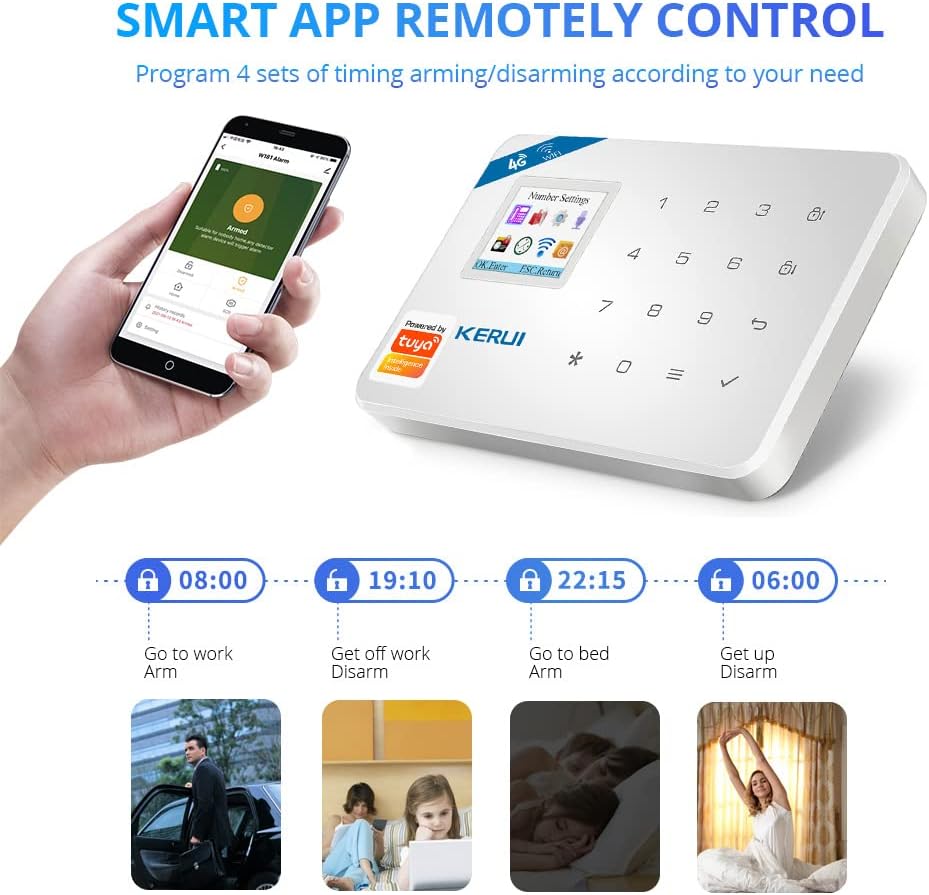
Figure 4.1: Smart APP Remotely Control for timed arming/disarming.
4.2 Alarm Activation and Notifications
When a detector (e.g., door sensor, PIR motion sensor) is triggered while the system is armed, the alarm will activate. The wired siren will sound loudly (over 120dB) to deter intruders and alert occupants.
Simultaneously, the system will:
- Automatically dial up to 6 preset phone numbers.
- Send SMS text messages to notify you which zone has a security breach.
- Provide a 10-second automatic message recording (if configured) to inform the recipient of the alarm location and zone.
- Send push notifications to the smartphone app.

Figure 4.2: How the KERUI W18 Alarm System operates from trigger to notification.
4.3 Two-Way Audio Functions
The alarm panel supports two-way intercom functionality. This allows you to check the panel status remotely via a phone call and communicate through the panel. The app also enables you to play a voice message through the host panel to deter intruders.

Figure 4.3: Two-way audio communication via the KERUI W18 alarm panel.
4.4 Emergency (SOS) Function
In an emergency, pressing the dedicated emergency alarm button on the remote control will trigger all alarms and send emergency calls and messages to your preset contacts, ensuring timely assistance.

Figure 4.4: Diverse applications of the KERUI W18 system, including emergency use.
5. Maintenance
5.1 Battery Replacement
The wireless PIR motion sensor, door sensor, and remote controls are battery-powered. It is recommended to check the battery status periodically. Replace batteries when low to ensure continuous operation. The system uses AAA batteries (included for initial setup).
5.2 General Care
Keep the alarm panel and sensors clean by wiping them with a soft, dry cloth. Avoid using abrasive cleaners or solvents. Ensure the sensors are not obstructed and have a clear line of sight for optimal performance.
6. Troubleshooting
- WiFi Connection Issues: Ensure your router is broadcasting a 2.4GHz WiFi signal. The system does not support 5GHz WiFi. Verify the WiFi password entered is correct and does not contain special characters.
- GSM SIM Card Not Working: Check if the SIM card has credit and is active. Ensure it is a standard GSM SIM card operating on the supported frequencies (850/900/1800/1900MHz).
- Sensors Not Triggering Alarm: Verify that the sensors are properly paired with the alarm panel. Check the battery levels of the sensors and replace if necessary. Ensure sensors are installed within the effective wireless range of the main panel.
- Remote Control Sensitivity: The remote control buttons can be sensitive. Exercise care when handling to avoid accidental arming or triggering of the panic function.
- Siren Not Sounding: Check the wired connection of the siren to the alarm panel. Ensure the siren is not damaged.
For additional troubleshooting and usage information, you can search for "The way of using W18 Home Alarm system kit" on YouTube.
7. Specifications
| Feature | Specification |
|---|---|
| Model Number | W18 |
| Brand | KERUI |
| Product Dimensions | 16 x 0.8 x 10 cm |
| Item Weight | 300 g |
| Power Source | AC/DC |
| Voltage | 1.5 Volts |
| Sound Level (Siren) | 120 dB |
| Installation Method | Wireless DIY |
| Compatible Devices | Smartphone (iOS/Android) |
| WiFi Support | 2.4GHz (802.11b/g/n) |
| GSM Support | 850/900/1800/1900MHz |
| Batteries Required | 5 AAA batteries (included for initial setup) |
8. Warranty and Support
For any usage questions or technical support, please contact the seller or manufacturer directly. We aim to reply within 24 hours to assist you with any issues you may encounter.
Specific warranty details are not provided in this manual. Please refer to your purchase documentation or contact the seller for warranty information.