
Fanvil X3S
Fanvil X3S SIP Phone User Manual
Model: X3S
Product Overview
The Fanvil X3S is a 2-line color screen SIP phone designed for efficient communication in office environments. It features an extra-large 320 x 240 2.4-inch color LCD for enhanced visual information and user experience. This model supports HD Voice and offers dual 10/100 Mbps network ports. It is suitable for various network setups and supports secure communication protocols.
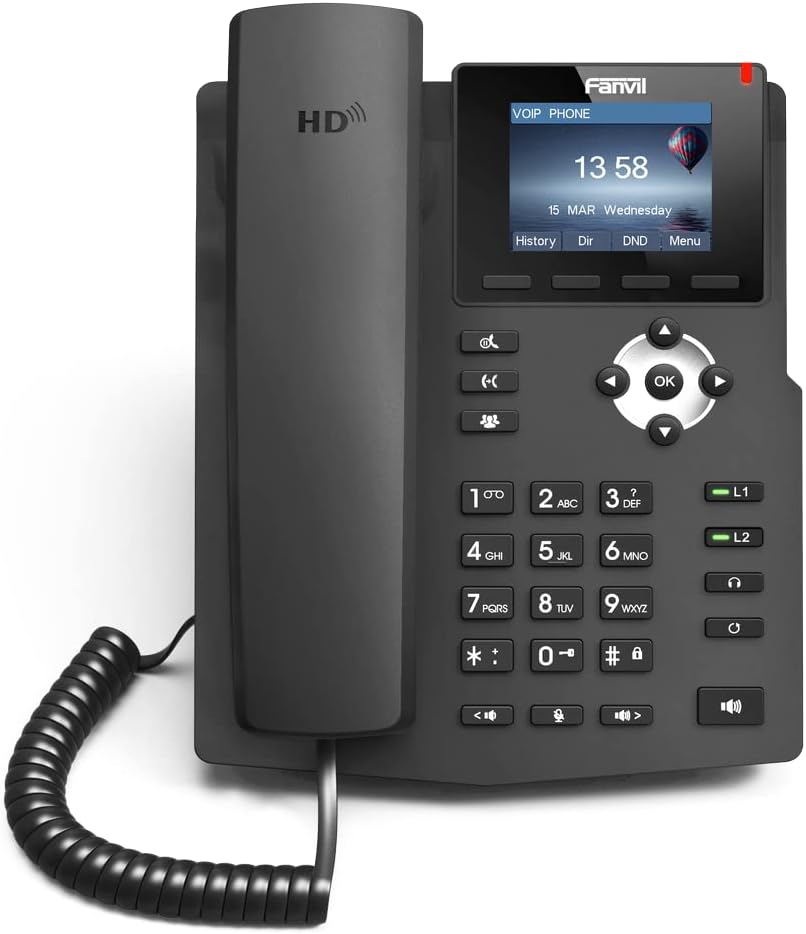
Image: Front view of the Fanvil X3S SIP Phone, showing the handset, keypad, navigation buttons, and color display screen. The screen displays time and date, with menu options below.
Package Contents
Before proceeding with installation, verify that all items are present in the package:
- Fanvil X3S SIP Phone Unit
- Handset
- Handset Cord
- Ethernet Cable
- Power Adapter (for non-PoE models)
- Desk Stand
- Quick Installation Guide
Setup and Installation
1. Assembling the Phone
- Attach the desk stand to the main unit by aligning the tabs and sliding it into place until it clicks.
- Connect the coiled handset cord to the handset and the designated handset port on the phone base.
2. Connecting to Network and Power
- Network Connection: Connect one end of the Ethernet cable to the LAN port on the phone and the other end to a network switch or router.
- Power Connection:
- If using the included power adapter: Connect the power adapter to the power port on the phone and then plug it into an electrical outlet.
- Note: This model (X3S) does not support Power over Ethernet (PoE). A power adapter is required.
3. Initial Configuration
Upon first boot, the phone will attempt to obtain an IP address via DHCP. You may need to access the phone's web interface or use the phone's menu for SIP account registration and further network settings. Refer to your VoIP service provider's instructions for specific SIP account details.
Operating Instructions
Basic Call Functions
- Making a Call: Lift the handset, dial the number, and press the Dial soft key or the # key. Alternatively, dial the number and then lift the handset.
- Answering a Call: Lift the handset or press the Speaker button.
- Ending a Call: Replace the handset or press the End Call soft key.
- Redial: Press the Redial soft key to call the last dialed number.
Advanced Features
- Hold: During a call, press the Hold soft key. Press it again to resume the call.
- Transfer: During a call, press the Transfer soft key, dial the new number, and then press Transfer again (blind transfer) or wait for the party to answer before pressing Transfer (attended transfer).
- Mute: Press the Mute button to mute your microphone during a call. Press again to unmute.
- Speakerphone: Press the Speaker button to toggle speakerphone mode.
- Volume Adjustment: Use the Volume buttons during a call to adjust handset, headset, or speaker volume.
- BLF (Busy Lamp Field) Buttons: The X3S features 2 BLF buttons. These can be configured to monitor the status of other extensions (busy, ringing, available) and allow for quick dialing or call pickup. Configuration is typically done via the phone's web interface.
Maintenance
Proper maintenance ensures the longevity and optimal performance of your Fanvil X3S SIP Phone.
- Cleaning: Use a soft, dry cloth to clean the phone's surface. For stubborn marks, a slightly damp cloth with mild, non-abrasive cleaner can be used. Avoid using harsh chemicals, solvents, or abrasive materials.
- Environment: Keep the phone in a dry environment, away from direct sunlight, excessive heat, and moisture. Ensure proper ventilation around the device.
- Cables: Periodically check all connected cables (handset cord, Ethernet, power) for any signs of damage or loose connections.
- Software Updates: Regularly check the Fanvil official website for firmware updates. Keeping the firmware updated can improve performance, add new features, and address security vulnerabilities. Firmware updates are typically performed via the phone's web interface.
Troubleshooting
| Problem | Possible Cause | Solution |
|---|---|---|
| Phone does not power on. | No power connection; faulty power adapter. | Ensure power adapter is securely connected to the phone and a working electrical outlet. Test outlet with another device. |
| No dial tone. | Network connection issue; SIP account not registered. | Check Ethernet cable connection. Verify network connectivity. Ensure SIP account is correctly configured and registered (check phone display for registration status). Restart the phone. |
| Cannot make or receive calls. | SIP account not registered; network firewall issues; incorrect dial plan. | Confirm SIP account registration. Check network firewall settings (ports 5060 UDP/TCP, RTP ports). Consult your VoIP service provider for dial plan or network specific issues. |
| Poor audio quality (echo, static). | Network congestion; faulty handset/headset; environmental interference. | Check network bandwidth. Try a different handset or headset. Ensure phone is not near strong electromagnetic interference sources. |
| Display is blank or frozen. | Software error; power issue. | Unplug the power adapter, wait 10 seconds, then plug it back in to restart the phone. If issue persists, contact support. |
Specifications
| Feature | Detail |
|---|---|
| Model | Fanvil X3S |
| SIP Lines | 2 |
| Display | 2.4-inch (320x240) Color LCD |
| HD Voice | Supported |
| BLF Buttons | 2 |
| Network Ports | Dual 10/100 Mbps Ethernet |
| PoE Support | No (External Power Adapter Required) |
| Installation Options | Desktop / Wall-mount |
| Dimensions (L x W x H) | 2.52 x 8.82 x 10.98 inches (6.4 x 22.4 x 27.9 cm) |
| Item Weight | 1.65 pounds (0.75 kg) |
| Manufacturer | Fanvil |
Warranty and Support
For warranty information, please refer to the warranty card included with your product or visit the official Fanvil website. Warranty terms and conditions may vary by region.
For technical support, firmware updates, and additional resources, please visit the Fanvil support portal:
Fanvil Official Support Website
When contacting support, please have your product model (X3S) and serial number ready.
Related documentsX3S


Ask a question about this manual
Ask about setup, troubleshooting, compatibility, parts, safety, or missing instructions. Manuals+ will review the question and use this page’s manual context to help answer it.