
PROZOR 192Khz 2.0CH
Contents
PROZOR 192KHz 2.0CH Digital to Analog Audio Converter User Manual
Model: 192KHz 2.0CH
Introduction
This manual provides detailed instructions for the PROZOR 192KHz 2.0CH Digital to Analog Audio Converter. This device converts digital audio signals from coaxial or Toslink optical inputs into analog stereo L/R RCA and 3.5mm jack outputs. It features a volume control knob for convenient audio adjustment. Please read this manual thoroughly before use to ensure proper operation and to maximize your audio experience.
Package Contents
- PROZOR 192KHz 2.0CH Digital to Analog Audio Converter
- Optical Cable (1 meter)
- USB Power Cable
- User Manual

Image: Contents of the PROZOR DAC Converter package, showing the main unit, optical cable, USB power cable, and the instruction manual.
Product Features
- Digital to Analog Conversion: Converts coaxial or Toslink optical digital audio signals to analog stereo L/R RCA and 3.5mm jack audio.
- High Sampling Rate Support: Supports sampling rates at 32 kHz, 44.1 kHz, 48 kHz, 96 kHz, and up to 192 kHz/24-bit.
- Volume Control: Integrated volume knob allows for fine adjustment of the output audio level.
- Enhanced Audio Quality: Features a PROZOR magnetic loop power cable, aluminum alloy case, and 24K gold-plated interfaces to minimize interference and ensure pure, clear sound transmission.
- Wide Compatibility: Ideal for use with TV Boxes, HDTVs, Blu-ray DVD players, PS3, PS4, gaming consoles, home cinema systems, and AV amplifiers.
Product Diagram

Image: Detailed view of the PROZOR DAC Converter's front and rear panels, highlighting the gold-plated input and output ports, DC 5V power input, power indicator, optical input, coaxial input, 3.5mm headphone jack, RCA L/R outputs, and volume control knob.
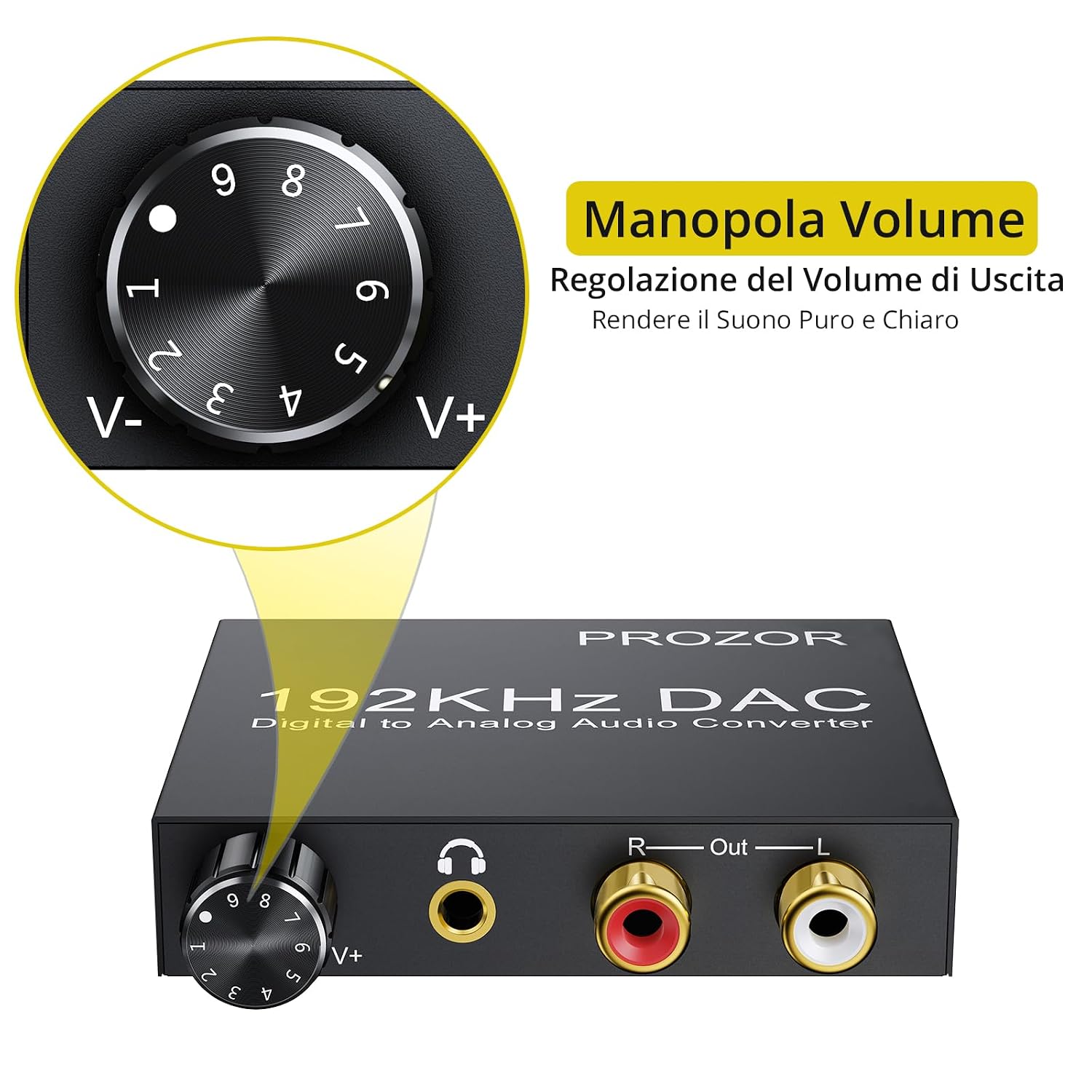
Image: Close-up of the volume control knob on the PROZOR DAC Converter, indicating its function to adjust output volume for clear sound.
Setup Instructions
- Connect Audio Source: Connect your digital audio source (e.g., TV, PS3, Blu-ray player) to the DAC converter's Optical (Toslink) or Coaxial input port using the appropriate cable.
- Connect Audio Output: Connect your analog audio receiving device (e.g., amplifier, speakers, headphones) to the DAC converter's RCA L/R output ports or the 3.5mm Jack output port.
- Connect Power: Connect the provided USB power cable to the DAC converter's DC 5V input port and then to a 5V power adapter (not included) or a USB port on your device (e.g., TV, game console). The power indicator light will illuminate.
- Power On Devices: Ensure all connected devices, including the DAC converter, are powered on.
- Configure Audio Source: Set your audio source's digital audio output format to PCM/LPCM. The converter does not support Dolby, DTS, or other 5.1 channel surround sound formats.

Image: The PROZOR DAC Converter shown connected to a source device via an optical cable and outputting analog audio via RCA cables.

Image: An application diagram showing how the PROZOR DAC Converter connects various digital sources like TV Box, Blu-ray DVD, PS4, and HDTV to analog output devices such as RCA audio output systems and 3.5mm jack headphones.
Operating Instructions
- After completing the setup, ensure your audio source is playing digital audio.
- Adjust the volume using the volume control knob on the front of the PROZOR DAC converter to your desired listening level. Turn clockwise to increase volume (V+) and counter-clockwise to decrease volume (V-).
- If using an amplifier or active speakers, you may also need to adjust their volume controls.
Troubleshooting
- No Sound:
- Ensure all cables (optical/coaxial, RCA/3.5mm, USB power) are securely connected.
- Verify the power indicator light on the DAC converter is on.
- Check that your audio source's digital output format is set to PCM/LPCM. The converter does not support Dolby/DTS.
- Increase the volume on the DAC converter and your connected audio output device.
- Try a different optical/coaxial cable or USB power source.
- Distorted Sound:
- Ensure the volume is not set too high on either the DAC converter or the receiving audio device, which can cause clipping.
- Check for loose connections.
- Ensure the audio source is outputting a clean digital signal.
- Intermittent Sound:
- Check all cable connections for looseness.
- Ensure the power supply is stable.
Specifications
| Brand | PROZOR |
| Model | 192KHz 2.0CH |
| Input Ports | 1 x Toslink (Optical), 1 x Coaxial |
| Output Ports | 2 x RCA (L/R), 1 x 3.5mm Jack |
| Sampling Rate | 32KHz, 44.1KHz, 48KHz, 96KHz, 192KHz/24-bit |
| Max Power Voltage | 6 Volt (DC) |
| Min Power Voltage | 5 Volt (DC) |
| Mounting Type | Cable |
| Number of Pins | 5 |

Image: Dimensions of the PROZOR DAC Converter, showing its compact size: 7.0 cm (2.75 in) in length, 6.1 cm (2.40 in) in width, and 1.5 cm (0.59 in) in height.
Maintenance
- Keep the device in a dry environment, away from moisture and extreme temperatures.
- Clean the device with a soft, dry cloth. Do not use liquid cleaners or aerosols.
- Avoid dropping or subjecting the device to strong impacts.
- Ensure proper ventilation around the device to prevent overheating.
Warranty and Support
For warranty information or technical support, please refer to the specific warranty card included with your product or contact PROZOR customer service through the retailer where you purchased the product. You can also visit the official PROZOR website for further assistance and contact details.
For online support, please visit the PROZOR Store on Amazon.
Documents and downloads
Ask a question about this manual
Ask about setup, troubleshooting, compatibility, parts, safety, or missing instructions. Manuals+ will review the question and use this page’s manual context to help answer it.