
1. Introduction
The EVGA GeForce GTX 1080 Ti Founders Edition is a high-performance graphics card designed for demanding gaming and professional applications. Based on the NVIDIA Pascal architecture, it features 11GB of GDDR5X memory and advanced technologies for an immersive visual experience.

Figure 1: EVGA GeForce GTX 1080 Ti Founders Edition Graphics Card.
2. What's in the Box
Verify that all the following items are included in your product package:
- EVGA GTX 1080 Ti FOUNDERS EDITION GAMING Graphics Card
- Driver CD
- Installation Guide
- 6Pin(2) to 8 Pin Adapter
- EVGA Gaming Poster
- Powered by EVGA Case Badge
- EVGA Enthusiast Built Sticker

Figure 2: Packaging contents for the EVGA GeForce GTX 1080 Ti.
3. Setup and Installation
Before beginning installation, ensure your computer is powered off and unplugged from the wall outlet. It is recommended to wear an anti-static wrist strap to prevent electrostatic discharge (ESD) damage.
3.1 System Requirements
- PCI Express graphics slot required
- Microsoft Windows 10/11 64-bit or Linux 64-bit operating system required
- One 8-pin power connector required
- 450W system power supply required
3.2 Hardware Installation
- Prepare your system: Power down your computer and unplug all cables. Open your computer case to access the motherboard.
- Locate the PCIe slot: Find an available PCI Express x16 slot on your motherboard. This is typically the longest slot.
- Remove expansion slot covers: Remove the necessary expansion slot covers from the back of your computer case to accommodate the graphics card's output ports.
- Insert the graphics card: Carefully align the graphics card with the PCIe slot and press down firmly until it is securely seated. Ensure the retention clip on the PCIe slot locks into place.
- Secure the card: Use screws to fasten the graphics card to the computer case's expansion slot bracket.
- Connect power cables: Connect the required 8-pin PCIe power connector from your power supply to the graphics card. If your power supply only has 6-pin connectors, use the provided 6-pin to 8-pin adapter.
- Close the case: Once the card is securely installed and powered, close your computer case.

Figure 3: Graphics card with power connectors visible.
4. Operating Instructions
4.1 Driver Installation
- Power on your computer: Connect your monitor to one of the graphics card's output ports (DisplayPort or HDMI).
- Install drivers: Insert the provided Driver CD into your optical drive and follow the on-screen instructions. Alternatively, download the latest drivers from the official EVGA or NVIDIA website for optimal performance and compatibility.
- Restart your system: After driver installation is complete, restart your computer.
4.2 Display Connections
The EVGA GeForce GTX 1080 Ti Founders Edition supports multiple display outputs for a versatile setup. Connect your monitor(s) using the available ports:
- DisplayPort 1.4: For high-resolution and high-refresh-rate displays.
- HDMI 2.0b: For connecting to TVs and monitors with HDMI input.

Figure 4: Available display output ports on the graphics card.
4.3 EVGA Precision XOC Software
Utilize the EVGA Precision XOC software for advanced control over your graphics card. This software allows for:
- Overclocking: Fine-tune clock speeds and memory for enhanced performance.
- Fan Control: Customize fan curves for optimal cooling and noise levels.
- OSD Support: Monitor critical system information directly on your screen during gameplay.
- LED Control: Adjust the integrated LED lighting effects.
5. Maintenance
Proper maintenance ensures the longevity and optimal performance of your graphics card.
- Keep it clean: Regularly clean dust from the fans and heatsink using compressed air. Ensure the computer is powered off and unplugged before cleaning.
- Driver updates: Keep your graphics drivers updated to the latest version from the official NVIDIA or EVGA website. Driver updates often include performance improvements, bug fixes, and compatibility enhancements.
- Monitor temperatures: Use monitoring software (like EVGA Precision XOC) to keep an eye on your GPU temperatures, especially during heavy loads. Ensure temperatures remain within safe operating limits.
- Ensure proper airflow: Make sure your computer case has adequate airflow to prevent heat buildup. Clear any obstructions around the graphics card.
6. Troubleshooting
If you encounter issues with your graphics card, try the following troubleshooting steps:
- No display/Black screen:
- Ensure the monitor cable is securely connected to the graphics card and the monitor.
- Verify the graphics card is fully seated in the PCIe slot.
- Check that all necessary power cables are connected to the graphics card.
- Try connecting to a different display output port or using a different cable.
- Driver issues:
- Perform a clean installation of the latest graphics drivers. Uninstall existing drivers using DDU (Display Driver Uninstaller) in Safe Mode, then install the new drivers.
- Overheating:
- Clean dust from the heatsink and fans.
- Ensure proper airflow within your computer case.
- Adjust fan curves using EVGA Precision XOC to increase cooling.
- Performance issues:
- Ensure your system meets the minimum requirements for the games/applications you are running.
- Update your graphics drivers.
- Check for background applications consuming system resources.
7. Specifications
| Feature | Detail |
|---|---|
| Brand | EVGA |
| Model Number | 11G-P4-6390-KR |
| Graphics Coprocessor | NVIDIA GP102 |
| Card Description | GeForce GTX 1080 Ti |
| Graphics Card RAM Size | 11 GB GDDR5X |
| Real Base Clock | 1480 MHz |
| Real Boost Clock | 1582 MHz |
| Memory Speed | 11000 MHz |
| Max Screen Resolution | 7680x4320 |
| Video Output Interface | DisplayPort 1.4 and HDMI 2.0b |
| Item Weight | 3 pounds |
| Product Dimensions (LxWxH) | 10.5 x 1.5 x 4.38 inches |
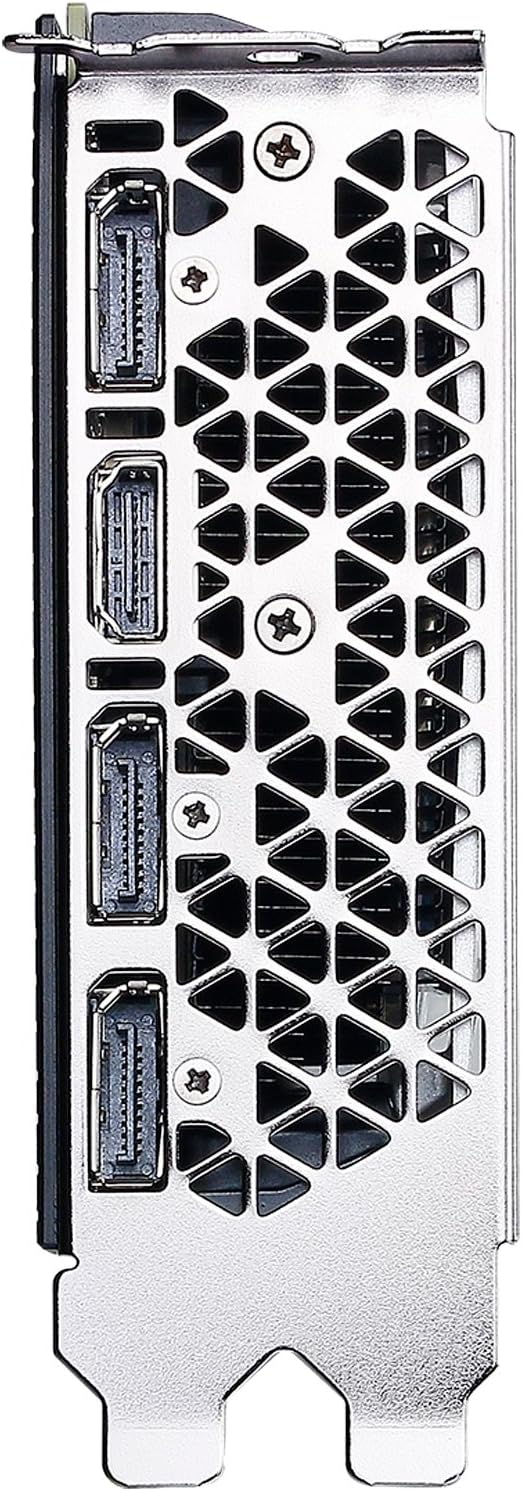
Figure 5: Top view of the EVGA GeForce GTX 1080 Ti.
8. Warranty and Support
EVGA products typically come with a manufacturer's warranty. Please refer to the official EVGA website or your product registration for specific warranty terms and conditions.
For technical support, driver downloads, and product registration, visit the official EVGA support page: www.evga.com.
Legal Disclaimer: A 20% restock fee may apply for returns.


