
Introduction
This manual provides detailed instructions for the setup, operation, and maintenance of your Intex Wi-Fi HD Camera, model IT-101. Please read this manual thoroughly before using the device to ensure proper functionality and safety.
Product Overview
The Intex Wi-Fi HD Camera IT-101 is a compact security camera designed for monitoring. It features HD video resolution, night vision capabilities, and Wi-Fi connectivity for remote access.
Key Features:
- HD Video Resolution: Captures video at 1280x720 pixels (720p) with a frame rate of 25 frames per second.
- Wide Lens View: Features a 77-degree lens view angle for broader coverage.
- Night Vision: Equipped with Infrared LED illumination for clear night vision up to 10 meters.
- SD Card Support: Supports up to 64GB SD card for local storage.
- Wireless Connectivity: Connects via Wi-Fi for remote monitoring through mobile or computer applications.
- Compatibility: Supports Android and iOS operating systems.
Package Contents:
- Intex Wi-Fi HD Camera IT-101
- Power Adapter (DC 5V/1A)
- User Manual (this document)
- Mounting Accessories (if included)
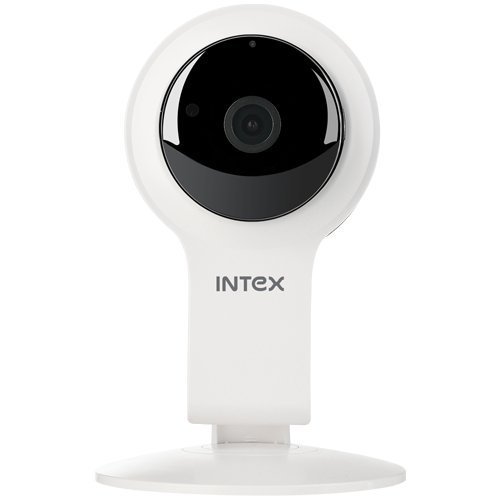
Figure 1: Front view of the Intex Wi-Fi HD Camera IT-101. This image shows the camera lens and the main body of the device.
Setup
1. Powering On the Camera:
- Connect the provided DC 5V/1A power adapter to the camera's power input port.
- Plug the power adapter into a standard electrical outlet.
- The camera will power on, and an indicator light will illuminate (refer to the camera's physical indicators for specific light behavior).
2. Installing an SD Card (Optional):
To enable local video recording, an SD card (up to 64GB) can be installed.
- Locate the SD card slot on the camera (consult the camera's physical design for exact location).
- Gently insert the SD card into the slot with the contacts facing the correct direction until it clicks into place.
- To remove, press the SD card inward until it springs out.
3. Connecting to Wi-Fi and Mobile App:
The camera requires a mobile application for initial setup and remote viewing. The specific app name is not provided in the product details, please refer to the packaging or a quick start guide for the correct app to download from your device's app store (Android/iOS).
- Download and install the designated mobile application on your smartphone or tablet.
- Open the application and create an account or log in if you already have one.
- Follow the in-app instructions to add a new device. This typically involves scanning a QR code on the camera or manually entering its device ID.
- Connect the camera to your home Wi-Fi network through the app. Ensure your Wi-Fi network is 2.4GHz, as 5GHz networks may not be supported.
- Once connected, the camera's indicator light will change (e.g., solid blue), and you should see the live feed in the app.
Operating Instructions
Live View:
Access the live video feed from your camera through the mobile application. This allows real-time monitoring of the camera's view.
Recording:
- Manual Recording: Most applications offer a manual record button to start and stop video recording directly to your phone or the installed SD card.
- Scheduled Recording: Configure recording schedules within the app to automatically record at specific times.
- Motion Detection Recording: Enable motion detection in the app settings. The camera will automatically record when motion is detected within its field of view.
Playback:
Recorded footage stored on the SD card can be accessed and played back through the mobile application. Navigate to the "Playback" or "History" section within the app.
Night Vision:
The camera automatically switches to night vision mode in low-light conditions. The Infrared LED illuminates the area, allowing for clear black and white video capture up to 10 meters.
Settings:
The mobile application provides various settings to customize your camera's operation, including:
- Video quality adjustment
- Motion detection sensitivity
- Notification settings
- Time and date synchronization
- SD card management (formatting, viewing storage)
Maintenance
- Cleaning: Use a soft, dry cloth to clean the camera lens and body. Avoid using harsh chemicals or abrasive materials.
- Firmware Updates: Periodically check the mobile application for available firmware updates for your camera. Keeping the firmware updated ensures optimal performance and security.
- SD Card Management: Regularly back up important recordings from your SD card. Consider formatting the SD card periodically through the app to maintain performance.
- Environmental Conditions: Ensure the camera is operated within its specified temperature and humidity ranges. The camera is not water-resistant, so avoid exposure to moisture.
Troubleshooting
Camera Not Powering On:
- Ensure the power adapter is securely connected to both the camera and a working electrical outlet.
- Verify that the power adapter is the correct DC 5V/1A model.
Unable to Connect to Wi-Fi:
- Confirm your Wi-Fi network is 2.4GHz. The camera may not support 5GHz networks.
- Ensure the camera is within range of your Wi-Fi router.
- Check that the Wi-Fi password entered in the app is correct.
- Restart your Wi-Fi router and the camera, then attempt to reconnect.
- If issues persist, try resetting the camera to factory defaults (refer to the camera's physical buttons or app for reset option).
No Video Feed in App:
- Verify the camera is powered on and connected to Wi-Fi.
- Check your internet connection on your mobile device.
- Close and reopen the mobile application.
- Ensure the camera's privacy mode (if available) is not activated.
SD Card Not Recording or Recognized:
- Ensure the SD card is correctly inserted.
- Verify the SD card is not full. Format it through the app if necessary (this will erase all data).
- Check if the SD card is damaged. Try a different compatible SD card.
- Confirm that recording settings (manual, scheduled, motion detection) are properly configured in the app.
Specifications
| Feature | Detail |
|---|---|
| Model Name | IT-101 |
| Image Sensor | H42 1/4 CMOS Sensor |
| Video Capture Resolution | 1280x720 Pixels (720p HD) |
| Frame Rate | 25 fps |
| Lens View Angle | 77 Degrees |
| Lens Type | 3.6 mm, Zoom |
| Focus Type | Auto Focus |
| Night Vision Distance | 10 meters (Infrared LED Illumination) |
| Day/Night Mode | Yes (Automatic switching) |
| Connectivity Technology | Wireless (Wi-Fi) |
| SD Card Support | Up to 64GB |
| Video Supported Format | H.264, MP4 |
| Supported Image Format | JPEG |
| Operating System Compatibility | Android, iOS |
| Power Supply | DC 5V/1A |
| Gross Weight | 260g |
| Color | White |
| Water Resistance Level | Not Water Resistant |
| Image Stabilization | No |
Warranty and Support
For warranty information and technical support, please refer to the documentation included with your purchase or visit the official Intex website. Keep your proof of purchase for warranty claims.
Manufacturer: Intex
Brand: Intex


