
1. Product Overview
The Atlanta 1882-19 is a compact, radio-controlled digital alarm clock designed for ease of use. It features an easy-to-read LCD display that shows the current time, date, and temperature. The clock automatically adjusts its time based on the DCF77 atomic clock radio signal, including automatic daylight saving time changes. It includes a convenient snooze function and a blue backlight for visibility in low light conditions.
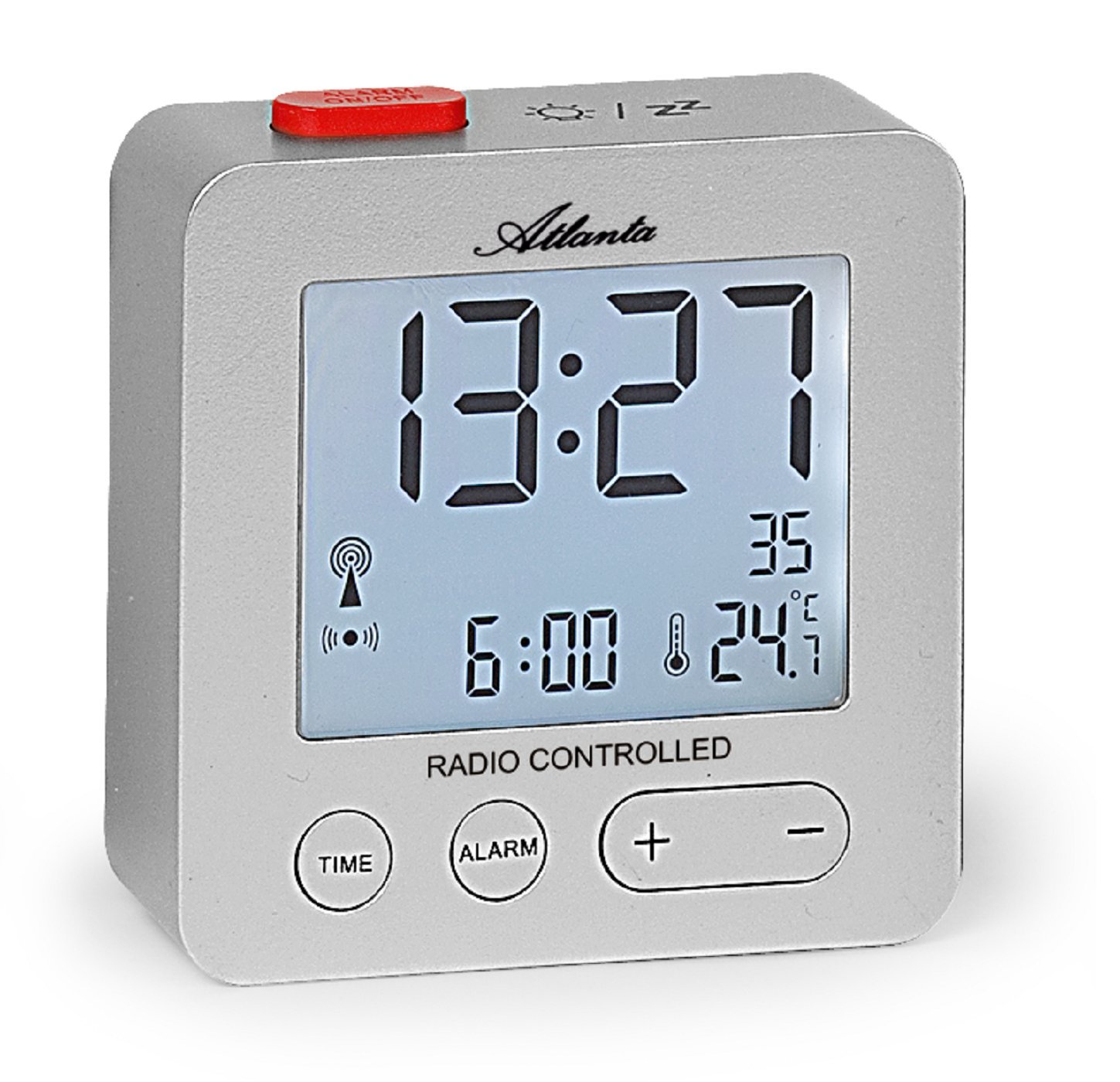
Figure 1: Front view of the Atlanta 1882-19 Digital LCD Alarm Clock. The display shows the time, date, and temperature, along with a radio signal indicator. A red button for alarm on/off is visible on top.
2. Package Contents
- Atlanta 1882-19 Digital LCD Alarm Clock
- User Manual (this document)
Note: Batteries are not included and must be purchased separately.
3. Setup
3.1 Battery Installation
- Locate the battery compartment cover on the back of the alarm clock.
- Slide or unclip the cover to open the compartment.
- Insert the required batteries (typically 2x AAA, not included) according to the polarity indicators (+ and -) inside the compartment.
- Replace the battery compartment cover, ensuring it is securely closed.

Figure 2: Rear view of the alarm clock, illustrating the battery compartment and the 'WAVE' button for radio signal reception.
3.2 Initial Power On and Radio Signal Reception
Upon battery installation, the clock will automatically attempt to receive the DCF77 radio signal to set the time. This process may take several minutes. Ensure the clock is placed away from electronic devices that may cause interference and near a window for optimal signal reception.
- A radio signal icon will appear on the display when the clock is attempting to receive the signal.
- Once the signal is successfully received, the time will automatically set, and the icon will stabilize.
- If the signal is not received after a prolonged period, try relocating the clock or manually setting the time (refer to section 4.1).
4. Operating Instructions
4.1 Setting Time Manually
In areas with poor radio signal reception, the time can be set manually.
- Press and hold the TIME button (located on the front) for a few seconds until the time display starts flashing.
- Use the + and - buttons to adjust the hours.
- Press the TIME button again to switch to minutes adjustment. Use + and - to set minutes.
- Continue pressing TIME to cycle through year, month, and day settings, adjusting each with + and -.
- Press TIME one last time or wait a few seconds for the settings to be saved.
4.2 Setting the Alarm
- Press and hold the ALARM button (located on the front) for a few seconds until the alarm time display starts flashing.
- Use the + and - buttons to adjust the alarm hours.
- Press the ALARM button again to switch to alarm minutes adjustment. Use + and - to set minutes.
- Press ALARM one last time or wait a few seconds for the alarm setting to be saved.
- To activate or deactivate the alarm, briefly press the red ALARM ON/OFF button on the top of the clock. An alarm icon will appear on the display when the alarm is active.
4.3 Snooze Function
When the alarm sounds, press the red ALARM ON/OFF button on the top of the clock to activate the snooze function. The alarm will temporarily stop and sound again after a few minutes (typically 5-10 minutes, depending on the model's default setting).
4.4 Display Backlight
To illuminate the display with a blue backlight, briefly touch the top of the clock. The backlight will remain on for a few seconds, providing temporary visibility in the dark.
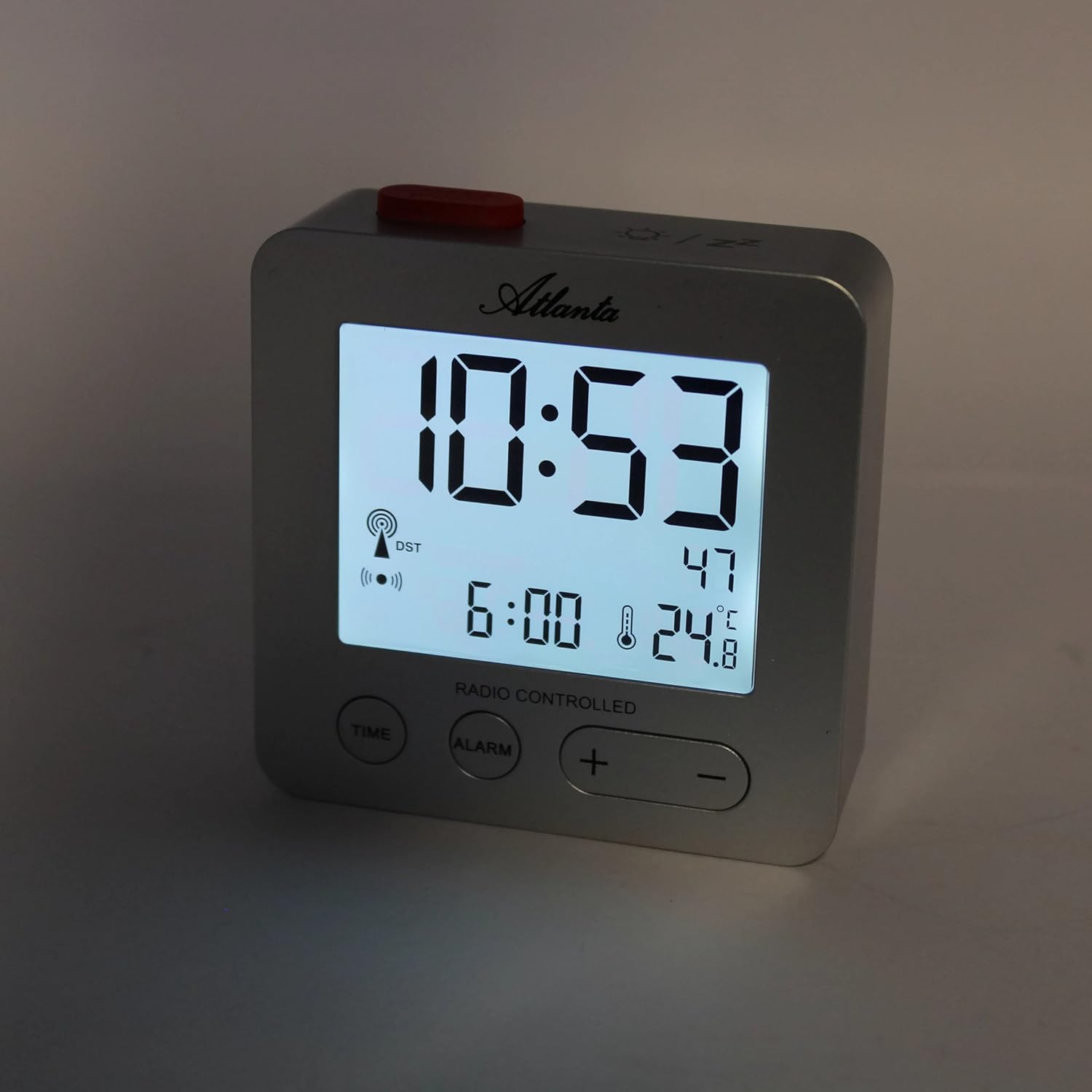
Figure 3: The alarm clock display with the blue backlight activated, enhancing readability in low light.
4.5 Temperature and Date Display
The clock continuously displays the indoor temperature and the current date alongside the time. No specific action is required to view these details.
5. Maintenance
- Cleaning: Wipe the clock with a soft, dry cloth. Do not use abrasive cleaners or solvents.
- Battery Replacement: Replace batteries when the display dims or the clock functions become unreliable. Always replace all batteries at the same time with new ones of the same type.
- Storage: If storing the clock for an extended period, remove the batteries to prevent leakage.
6. Troubleshooting
- Clock not setting time automatically:
Ensure the clock is placed in an open area, away from electronic interference (e.g., TVs, computers, mobile phones). Try placing it near a window. If the issue persists, manually set the time as described in section 4.1. - Alarm not sounding:
Verify that the alarm is activated (alarm icon visible on display). Check battery levels and replace if necessary. - Display is dim or blank:
Replace the batteries. Ensure batteries are inserted with correct polarity. - Incorrect temperature reading:
Ensure the clock is not exposed to direct sunlight or placed near heat sources/vents, which can affect the sensor.
7. Specifications
| Model Number | 1882/19 |
| Brand | Atlanta |
| Display Type | Digital LCD |
| Special Features | Temperature Display, Alarm, Snooze, Radio-Controlled (DCF77), Backlight |
| Dimensions (L x W x H) | 7 x 3.81 x 7 cm (approx. 2.76 x 1.5 x 2.76 inches) |
| Weight | 65 grams (approx. 2.3 ounces) |
| Power Source | Battery Powered (Batteries not included) |
| Material | Plastic (Acrylonitrile Butadiene Styrene) |
| Color | Silver |
8. Warranty and Support
This product comes with a standard manufacturer's warranty. For detailed warranty information, please refer to the packaging or contact Atlanta customer support. For technical assistance or further inquiries, please visit the official Atlanta website or contact their customer service department.