
1. Introduction
The Huawei E8372H-927 Wi-Fi Wingle is a portable 4G LTE USB modem that also functions as a Wi-Fi hotspot. This device allows multiple users to connect to the internet via a cellular network, providing connectivity for laptops, tablets, smartphones, and other Wi-Fi enabled devices. It supports various network standards including 4G LTE, 3G, and 2G.
2. Product Overview
The E8372H-927 Wingle offers convenient internet access and Wi-Fi sharing capabilities. It is designed for ease of use, plugging directly into a USB port for power and data transmission.
Key Features:
- LTE+ Wi-Fi Sharing: Connect directly to a laptop's USB port to transmit data and share LTE+ Wi-Fi with up to 10 devices simultaneously.
- High-Speed Connectivity: Supports LTE CAT4, offering download speeds up to 150Mbps and upload speeds up to 50Mbps (at 20M BW).
- Vehicle Connectivity: Can be powered by a car charger, providing a Wi-Fi environment within your vehicle.
- Huawei HiLink App: Manage device settings and monitor usage via the Huawei HiLink mobile application.
- Operating System Compatibility: Compatible with Windows XP SP3, Windows Vista SP1/SP2, Windows 7, Windows 8, Windows 8.1 (excluding Windows RT), and Mac OS X 10.6, 10.7, and 10.8 with the latest upgrades.
Device Components:
The device typically includes a USB connector, a SIM card slot, a microSD card slot, and LED indicators for network status and Wi-Fi activity.
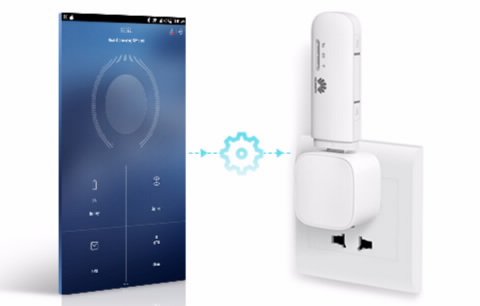
Image: The Huawei E8372H-927 Wi-Fi Wingle shown wirelessly connecting to various devices such as a smartphone, laptop, and desktop computer.
3. Setup Guide
3.1 Inserting the SIM Card
- Locate the SIM card slot on the side or back of the device.
- Carefully insert your 4G/3G/2G SIM card into the slot with the gold contacts facing down and the notched corner aligned correctly. Ensure it clicks into place.
3.2 Powering On the Device
The E8372H-927 Wingle is powered via its USB connector.
- Plug the device into any standard USB port, such as on a laptop, desktop computer, USB wall adapter, or car charger.
- The device will automatically power on. Wait for the LED indicators to show a stable connection (typically a solid blue or green light for network status).
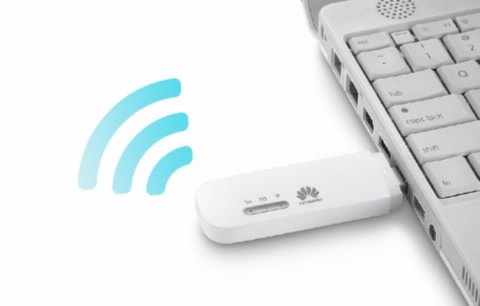
Image: The Huawei E8372H-927 Wi-Fi Wingle is shown plugged into the USB port of a white laptop, indicating its power and data connection method.
3.3 Initial Wi-Fi Connection
- On your Wi-Fi enabled device (laptop, smartphone, tablet), search for available Wi-Fi networks.
- Locate the network name (SSID) of your Huawei Wingle, which is usually printed on a label on the device or its packaging.
- Enter the Wi-Fi password (WPA/WPA2 key) also found on the device label.
- Once connected, you can access the internet.
4. Operating Instructions
4.1 Connecting Multiple Devices
The E8372H-927 supports up to 10 simultaneous Wi-Fi connections. Simply follow the initial Wi-Fi connection steps (Section 3.3) for each device you wish to connect.
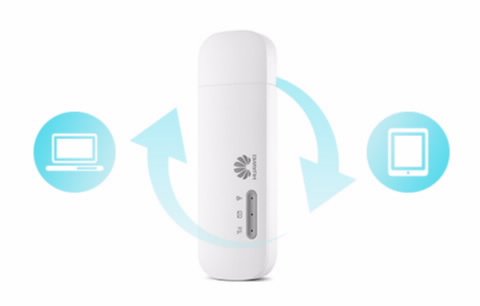
Image: The Huawei E8372H-927 Wi-Fi Wingle is centrally positioned, with arrows indicating data flow and sharing between a laptop and a tablet.
4.2 Managing Settings (Huawei HiLink App / Web Interface)
For advanced settings, network monitoring, and SMS management, you can use the Huawei HiLink App or access the device's web interface.
- Huawei HiLink App: Download the app from your device's app store. Connect your smartphone to the Wingle's Wi-Fi, then open the app to manage settings.
- Web Interface: Open a web browser on a connected device and enter the default IP address (e.g., 192.168.8.1) or URL provided in the device documentation. Log in using the default username and password (also found on the device label).
4.3 Using in a Vehicle
The E8372H-927 can provide Wi-Fi connectivity in your car. Simply plug the Wingle into a compatible USB car charger. Ensure the car charger provides sufficient power for stable operation.
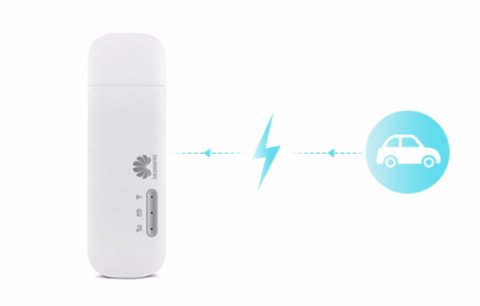
Image: The Huawei E8372H-927 Wi-Fi Wingle is shown with a lightning bolt icon connecting it to a car icon, illustrating its use as an in-car Wi-Fi hotspot.
5. Maintenance
- Cleaning: Use a soft, dry cloth to clean the device. Avoid using liquid cleaners or solvents.
- Software Updates: Periodically check for firmware updates via the Huawei HiLink App or web interface to ensure optimal performance and security.
- Storage: When not in use, store the device in a cool, dry place away from direct sunlight and extreme temperatures.
- Avoid Overheating: Ensure proper ventilation when the device is in use, especially when connected for extended periods.
6. Troubleshooting
Common Issues and Solutions:
| Issue | Possible Cause | Solution |
|---|---|---|
| No network signal / Cannot connect to internet | SIM card not inserted correctly, no network coverage, incorrect APN settings. | Check SIM card insertion. Move to an area with better network coverage. Verify APN settings via the web interface or HiLink App. |
| Slow internet speed | Weak signal, network congestion, too many connected devices. | Relocate the device for better signal. Reduce the number of connected devices. |
| Cannot connect to Wi-Fi | Incorrect Wi-Fi password, Wi-Fi disabled, device not powered on. | Ensure the device is powered on. Verify the Wi-Fi password. Check Wi-Fi status via LED indicators or web interface. |
| Device not recognized by computer | Driver issue, faulty USB port. | Try a different USB port. Ensure necessary drivers are installed (usually automatic upon first connection). |
Resetting the Device:
If issues persist, you may perform a factory reset. Locate the reset button (often a small pinhole) on the device. Use a pin to press and hold the button for approximately 5-10 seconds until the indicators flash, then release. This will restore the device to its factory default settings, including Wi-Fi name and password.
7. Specifications
| Feature | Detail |
|---|---|
| Model Number | E8372H-927 |
| Communication System | LTE/DC-HSPA+/HSPA+/HSPA/UMTS/EDGE/GPRS/GSM |
| 4G LTE Speed (FDD LTE Cat4) | 150Mbps (Download) / 50Mbps (Upload) @20M BW |
| HSPA+ Speed | 42/5.76 Mbps, 21/5.76 Mbps |
| HSPA Speed | 14/5.76 Mbps, 7.2/5.76 Mbps |
| Wi-Fi Protocol | IEEE 802.11b/g/n |
| Max Wi-Fi Connections | Up to 10 simultaneous users/devices |
| Power Supply | USB power supply |
| MicroSD Card Slot | Yes |
| External Antenna Interface | TS-5 |
| Dimensions (L x W x H) | Approximately 94mm x 30mm x 14mm |
| Item Weight | Approximately 150 g |
| Operating Systems | Windows XP SP3, Vista SP1/SP2, 7, 8, 8.1 (not RT); Mac OS X 10.6, 10.7, 10.8 |
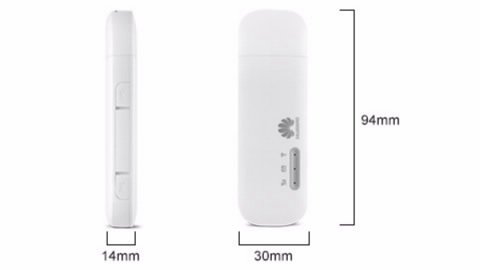
Image: A diagram illustrating the physical dimensions of the Huawei E8372H-927 Wi-Fi Wingle, showing its length (94mm), width (30mm), and thickness (14mm).
8. Warranty and Support
Warranty Information:
This Huawei E8372H-927 Wi-Fi Wingle typically comes with a 1-year manufacturer's warranty. Please refer to your purchase documentation or contact your retailer for specific warranty terms and conditions.
Technical Support:
For technical assistance, troubleshooting beyond this manual, or warranty claims, please contact Huawei customer support or your authorized service provider. Keep your proof of purchase and device serial number readily available when seeking support.


