
FreedConn T-COM SC
FreedConn TCOM-SC Motorcycle Intercom System User Manual
Model: T-COM SC
1. Product Overview
The FreedConn TCOM-SC is a versatile Bluetooth intercom system designed for motorcycle riders, offering seamless communication and entertainment on the road. It supports 2-3 riders for intercom functionality (with 2 riders communicating simultaneously), hands-free calls, stereo music playback, FM radio, and GPS voice prompts. Equipped with advanced noise control technology, it ensures clear audio quality even at high speeds. The unit features an LCD screen for convenient operation and is designed to be water-resistant for various weather conditions.

Figure 1.1: Two FreedConn TCOM-SC intercom units, showcasing their compact design and LCD screens.

Figure 1.2: Key features of the TCOM-SC system, highlighting its capabilities for communication and entertainment.

Figure 1.3: The TCOM-SC's LCD screen, providing clear visual feedback on current settings and status.
2. What's in the Box
The FreedConn TCOM-SC package includes all necessary components for installation and immediate use. Please verify all items are present upon unboxing.
- 2x FreedConn TCOM-SC Motorcycle Intercom System Units
- 2x Stereo Headphones (including changeable hard mic and soft mic)
- 2x Screw Drivers
- 2x Sticky Clamps
- 2x Headsets Clips
- 2x USB Cables
- 1x User Manual
- 8x Felted Adhesive Earphone Pads
Note: Power adapter is NOT included. The unit can be charged by any standard phone adapter.

Figure 2.1: All components included in the FreedConn TCOM-SC package.
3. Setup and Installation
Proper setup and installation are crucial for optimal performance and user safety. Follow these steps carefully.
3.1 Charging the Device
Before first use, fully charge the TCOM-SC unit. Connect the provided USB cable to the charging jack on the unit and plug the other end into a standard USB power adapter (not included). The LCD screen will indicate charging status. A full charge takes approximately 2.5 hours.

Figure 3.1: Battery life and charging specifications for the TCOM-SC.
3.2 Installing the Headset to Helmet
The TCOM-SC can be installed on most motorcycle helmets using either the sticky clamp or the headset clip. Choose the method most suitable for your helmet type.
- Choose Microphone Type: Select either the hard mic cord (for modular and half helmets) or the soft mic cord (for full face helmets).
- Attach Clamp: Securely attach the chosen clamp or clip to the side of your helmet. Ensure it is firmly in place.
- Mount Intercom Unit: Slide the TCOM-SC unit onto the attached clamp/clip until it clicks into place.
- Position Speakers: Place the stereo headphones inside the helmet, ensuring they are positioned directly over your ears for optimal sound. Use the felted adhesive earphone pads if needed for a secure fit.
- Route Microphone: Route the microphone towards your mouth, ensuring it is close enough for clear voice pickup but not obstructing your vision or helmet closure.
- Connect Cables: Plug the headphone/microphone cable into the corresponding jack on the TCOM-SC unit.

Figure 3.2: Step-by-step guide for easy installation of the intercom system into a helmet.
4. Operating Instructions
4.1 Basic Operations
- Power On/Off: Long press the power/intercom button until the LCD screen lights up/turns off.
- Volume Control: Turn the jog wheel (multi-functional button) clockwise to increase volume, counter-clockwise to decrease volume.
- Music Play/Pause: Press the multi-functional button once.
- Next/Previous Track: Turn the jog wheel to skip tracks.

Figure 4.1: Overview of the TCOM-SC unit's buttons and their corresponding functions.
4.2 Bluetooth Pairing (Mobile Phone/GPS/MP3)
To connect your TCOM-SC to a mobile phone, GPS, or MP3 player:
- Ensure the TCOM-SC unit is powered on.
- Press and hold the 'A' button for 5 seconds until the LCD screen displays "PAIRING".
- On your mobile device, go to Bluetooth settings and search for available devices.
- Select "T-COM" from the list of found devices.
- Once connected, the LCD screen will show "CONNECTED". You can now enjoy music, GPS voice prompts, and hands-free calls.

Figure 4.2: Bluetooth pairing diagram for connecting the TCOM-SC to various devices.
Video 4.1: Demonstrates the process of pairing the FreedConn TCOM-SC with a mobile phone for music playback and call functions.
4.3 Intercom Pairing (Device to Device)
The TCOM-SC supports intercom communication between two units. For optimal performance, clear previous pairing information before starting.
- Clear Pairing History: With both units powered on, press and hold the power/on/off button for 8 seconds until "CLEARED" appears on the LCD screen. This ensures a clean pairing process.
- Enter Pairing Mode: On both TCOM-SC units (Unit A and Unit B), long press the power/intercom button until "PAIRING" is displayed on both screens.
- Initiate Pairing: Short press the power/intercom button on one of the units (e.g., Unit A). The units will automatically search and connect to each other.
- Connection Confirmation: Once connected, the LCD screen will show "INTERCOM". You can now communicate directly between the two units.
- Disconnect Intercom: To end the intercom conversation, short press the power/intercom button on either unit. The screen will display "CALL END".

Figure 4.3: Illustration of universal pairing between two TCOM-SC units for rider-to-rider communication.
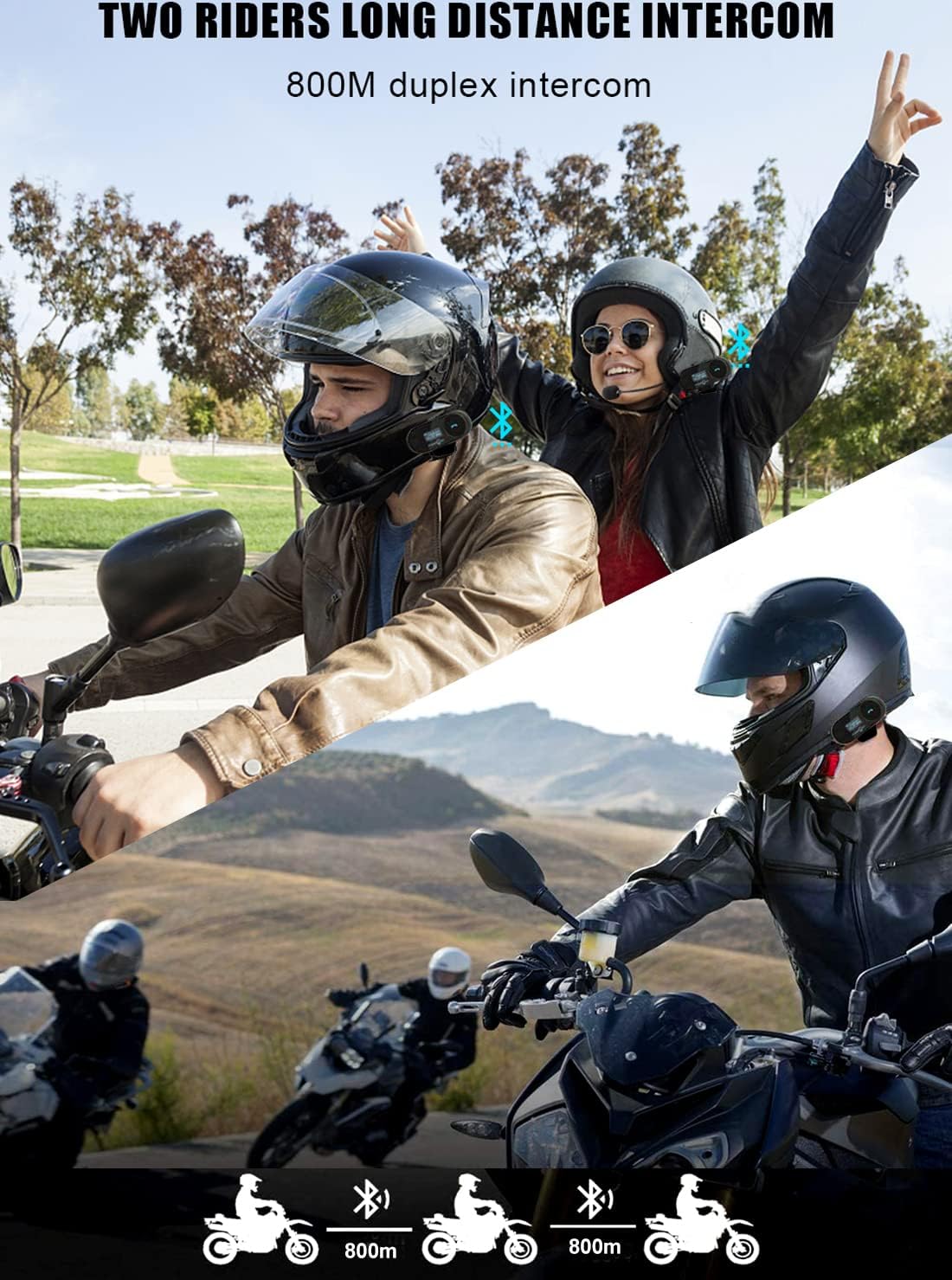
Figure 4.4: The TCOM-SC supports two-rider long-distance intercom communication up to 800 meters.
4.4 Music Sharing
The TCOM-SC allows music sharing between two paired units, enabling both riders to enjoy the same audio source simultaneously.
- Ensure your primary TCOM-SC unit (Unit A) is paired with your mobile phone and music is playing.
- Ensure the second TCOM-SC unit (Unit B) is powered on.
- Double-click the power/on/off button on Unit A to activate music sharing.
- Both units will now play the music from the connected mobile phone.

Figure 4.5: Music sharing feature allows both riders to enjoy the same audio.
Video 4.2: Demonstrates how to enable music sharing between two FreedConn TCOM-SC units after mobile pairing.
4.5 FM Radio Function
The TCOM-SC includes a built-in FM radio for listening to music, news, and traffic information.
- Turn On/Off FM Radio: Double press the MFB (Multi-Function Button) to toggle FM radio on or off.
- Change Station: Turn the jog wheel to switch between FM radio channels.
4.6 Phone Call Functions
When connected to a mobile phone, the TCOM-SC allows for convenient call management.
- Answer Call: Press the MFB once.
- Reject Call: Press the MFB once.
- Hang Up Call: Press the MFB once during a call.
- Redial Last Number: Hold the MFB for 2 seconds.
- Voice Dialing: Supported (if your phone supports it).
- Auto-Receiving Calls: The unit can be set to automatically answer incoming calls.
5. Maintenance
To ensure the longevity and optimal performance of your FreedConn TCOM-SC intercom system, follow these maintenance guidelines:
- Cleaning: Wipe the unit with a soft, damp cloth. Do not use harsh chemicals or abrasive cleaners.
- Storage: Store the device in a cool, dry place away from direct sunlight and extreme temperatures.
- Water Resistance: While water-resistant, avoid submerging the unit in water. Ensure the charging port cover is securely closed when not charging.
- Battery Care: For long-term storage, charge the battery to about 50% every few months to prevent deep discharge.
- Cable Management: Handle cables carefully to prevent damage. Avoid sharp bends or excessive pulling.
6. Troubleshooting
If you encounter issues with your TCOM-SC unit, refer to the following common problems and solutions:
| Problem | Possible Cause | Solution |
|---|---|---|
| No sound from speakers / Only one side has sound | Loose speaker connection; Damaged speakers. | Ensure speaker port is tightly plugged in. If issue persists, contact support for new speakers. Ensure speakers are placed directly on ears. |
| Cannot achieve 3-person intercom | TCOM-SC supports 3 riders pairing but only 2 riders intercom simultaneously. | This is a design limitation. The system supports 3 riders pairing, but only 2 can actively communicate via intercom at any given time. |
| Device not pairing with mobile phone | Incorrect pairing procedure; Previous pairing data interference. | Clear headset's history pairing information (long press power button for 8 seconds until "CLEARED"). Ensure device is in pairing mode (hold 'A' for 5 seconds until "PAIRING"). Check mobile phone's Bluetooth settings. |
| Intercom disconnects frequently | Out of range; Obstructions; Interference. | Ensure units are within 800m (open space). Minimize physical obstructions. Check for other strong wireless signals. |
| Poor audio quality / Noise interference | Microphone position; Environmental noise; DSP not active. | Adjust microphone position closer to mouth. Ensure DSP echo cancellation and noise suppression technology is active (automatic). Reduce external noise where possible. |
| Battery not holding charge | Battery degradation; Improper charging. | Ensure using a compatible charger. Fully charge the unit. If battery life significantly degrades, it may need replacement. |
7. Specifications
- Model: T-COM SC
- Bluetooth Version: 5.0 (with A2DP, HSP, HFP)
- Intercom Range: Up to 800m (875 yards) in open space (rider to rider)
- Intercom Support: 3 riders pairing, 2 riders simultaneous intercom
- Mobile Phone Range: Up to 10 meters
- Working Time: Up to 10 hours (Phone), 7 hours (Intercom)
- Standby Time: Up to 300 hours
- Charging Time: Approximately 2.5 hours
- Battery: 400mAh Lithium Polymer (included)
- Dimensions: 81mm (L) × 31mm (W) × 25mm (H)
- Weight: 45 grams (excluding accessories)
- Water Resistance: Water Resistant (IPX5)
- Noise Control: DSP echo cancellation and noise suppression technology
- Additional Features: LCD Screen, FM Radio, Music Sharing, Auto-receiving calls, Last number redial, Voice dialing.

Figure 7.1: Technical details including DSP noise reduction and battery performance.
8. Warranty and Support
FreedConn products are designed for durability and performance. For any warranty claims or technical support, please refer to the contact information provided with your purchase or visit the official FreedConn website.
Safety Information: Follow instructions in user manual for safe usage and disposal. Do not expose to extreme temperatures or humidity. Keep away from water and other liquids. Do not dispose of in fire. Do not mix with other types of batteries. Follow local regulations for battery disposal.
For further assistance, please contact FreedConn customer service.