
1. Introduction
This manual provides detailed instructions for the setup, operation, and maintenance of your Symcode Omnidirectional Hands-Free USB Barcode Scanner (Model MJ-8200-W). This device is designed for efficient and accurate scanning of both 1D and 2D barcodes from various sources, including paper labels and digital screens. Its plug-and-play USB interface ensures broad compatibility with Windows, Linux, and other operating systems, making it ideal for mobile payment, point-of-sale, and inventory management applications.
2. Product Overview
The Symcode MJ-8200-W barcode scanner is a compact and robust device built for daily use. Below are the key components and their functions:

Figure 2.1: Front-side view of the Symcode MJ-8200-W Barcode Scanner, showcasing its compact design and scanning window.

Figure 2.2: The scanner actively reading a barcode displayed on a mobile phone screen, demonstrating its screen scanning capability.

Figure 2.3: Detailed analysis diagram highlighting key components: LED lights, Scan window, Buzzer, and the Switch button/Indicator light on top.
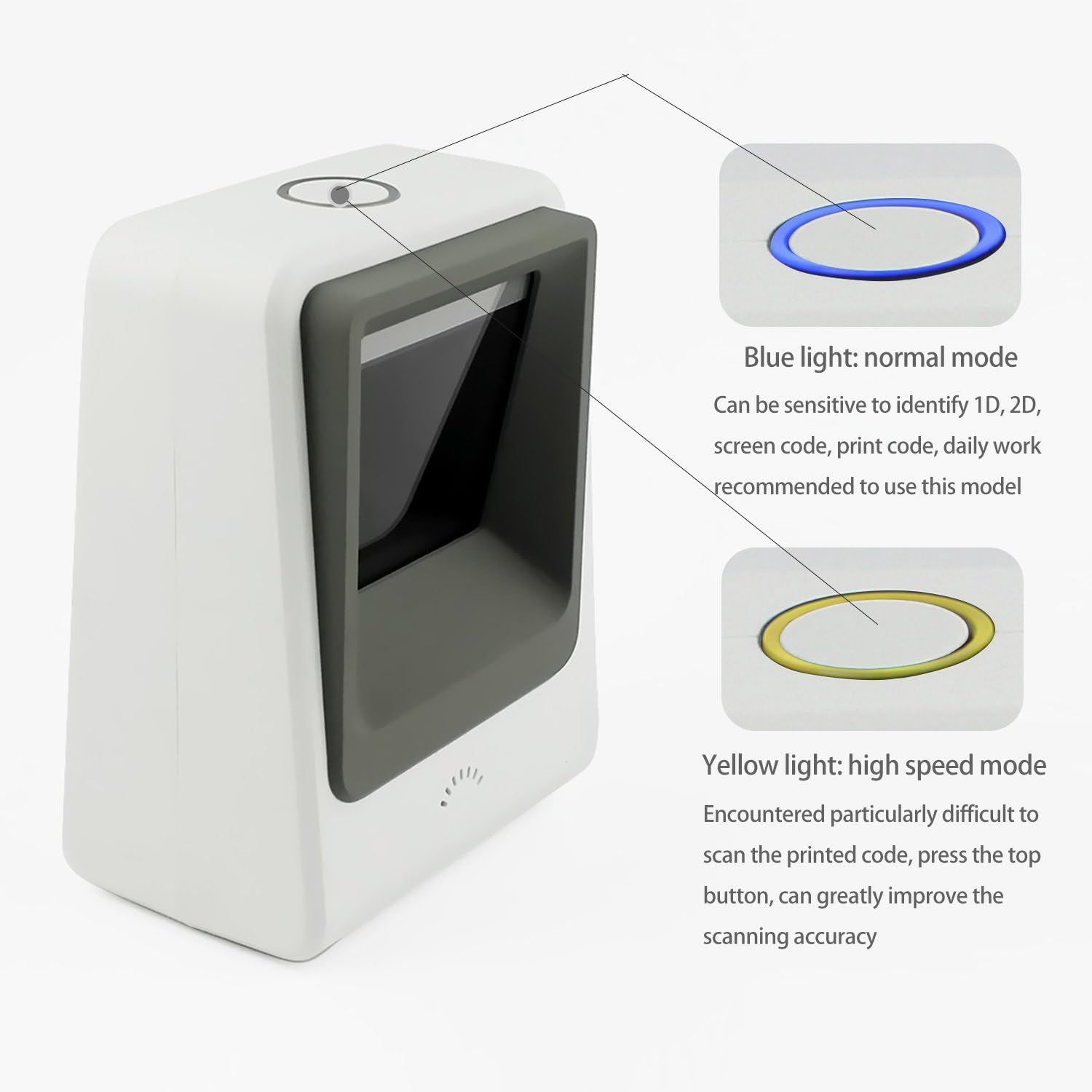
Figure 2.4: Illustration of the two scanning modes: Blue light for normal mode (sensitive to 1D, 2D, screen code, print code) and Yellow light for high-speed mode (for difficult printed codes).
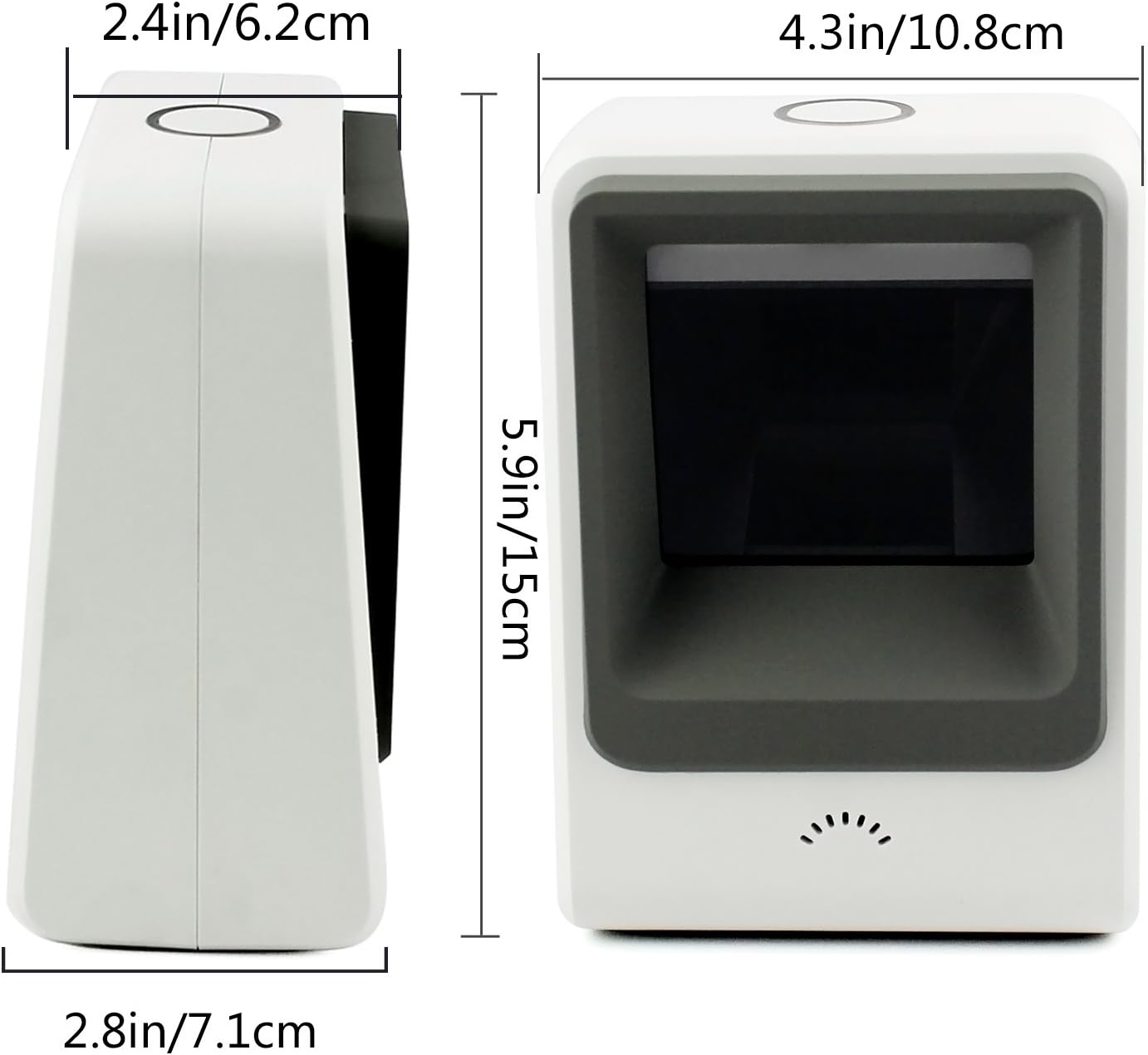
Figure 2.5: Dimensional overview of the scanner, showing its height (5.9in/15cm), width (4.3in/10.8cm), and depth (2.8in/7.1cm).

Figure 2.6: Package contents including the barcode scanner unit, USB cable, and user manual.
3. Setup
The Symcode MJ-8200-W barcode scanner is designed for simple plug-and-play operation. No driver installation is typically required for most operating systems.
- Connect the USB Cable: Locate the USB port on the back of the scanner. Insert the provided USB cable into this port.
- Connect to Computer: Plug the other end of the USB cable into an available USB port on your computer (Desktop, Laptop, or POS system).
- System Recognition: Your operating system (Windows, Linux, etc.) should automatically detect and install the necessary drivers. This process usually takes a few seconds.
- Ready for Use: Once the scanner is recognized, it is ready to begin scanning. The scanner will automatically activate when a barcode is presented to its scanning window.
4. Operating Instructions
The Symcode MJ-8200-W offers hands-free operation and intelligent scanning modes.
4.1 Scanning Modes
The scanner features two primary scanning modes, indicated by the color of the top indicator light, which can be switched using the button on top of the unit:
- Normal Scanning Mode (Blue Light): This is the default mode, sensitive to identifying 1D and 2D barcodes from various sources, including computer screens, mobile phone displays, and standard printed codes. This mode is recommended for daily general use.
- 1D Fast Scanning Mode (Yellow Light): When encountering particularly difficult-to-scan printed barcodes, press the top button to switch to this mode. This mode is optimized for faster and more accurate reading of challenging 1D printed codes, significantly improving scanning accuracy.
4.2 Hands-Free and Auto-Sense Operation
The scanner is designed for hands-free use, allowing users to handle items with both hands. It features an auto-sense design:
- The scanner automatically activates its scanning beam when a barcode is presented within its field of view.
- When no barcode is detected for a period, the scanner will enter a power-saving mode, turning off its illumination light. It will reactivate instantly upon detection of a barcode.
4.3 Supported Barcode Types
The Symcode MJ-8200-W supports a wide range of 1D and 2D barcode symbologies:
- 1D Barcodes: EAN-8, EAN-13, Codabar, CODE 39, CODE 93, CODE 128, China Post, GS1-128, UPC-A, UPC-E, ISBN/ISSN, ISBT, Interleaved 2 of 5, Standard 2 of 5, Matrix 2 of 5, Industrial 2 of 5, MSI, RSS, ITF14, Telepen, etc.
- 2D Barcodes: QR Code, Micro QR Code, Data Matrix, PDF417, Micro PDF417, Maxicode, Aztec, Hanxin, etc.
4.4 Screen Scanning Technology
Utilizing CCD Optical Imaging Scanning Technology, this scanner can effectively identify barcodes from digital screens, including those that are incomplete or fuzzy. This technology compensates for common issues encountered when scanning from displays, ensuring reliable performance.
5. Maintenance
Proper maintenance ensures the longevity and optimal performance of your barcode scanner.
- Cleaning the Scan Window: Regularly clean the scan window with a soft, lint-free cloth. For stubborn smudges, slightly dampen the cloth with water or a mild, non-abrasive cleaner. Avoid using harsh chemicals or abrasive materials that could scratch the window.
- General Cleaning: Wipe the exterior of the scanner with a dry or slightly damp cloth to remove dust and dirt.
- Cable Care: Ensure the USB cable is not kinked, pinched, or subjected to excessive strain. Damaged cables can affect performance.
- Handling: While the scanner is designed to be robust and can survive falls from up to 5ft/1.5m, avoid unnecessary drops or impacts to prevent potential damage.
- Storage: When not in use for extended periods, store the scanner in a clean, dry environment away from extreme temperatures.
6. Troubleshooting
If you encounter issues with your Symcode barcode scanner, refer to the following common troubleshooting steps:
- Scanner Not Responding/No Light:
- Ensure the USB cable is securely connected to both the scanner and the computer.
- Try plugging the USB cable into a different USB port on your computer.
- Verify that your computer is powered on and functioning correctly.
- Scanner Not Reading Barcodes:
- Ensure the barcode is clean, clear, and not excessively damaged.
- Check the distance and angle at which you are presenting the barcode to the scanner. Try adjusting the position.
- Clean the scanner's optical window as described in the Maintenance section.
- If scanning a barcode from a screen, ensure the screen brightness is adequate and there is no glare.
- Try switching between Normal (Blue Light) and 1D Fast (Yellow Light) scanning modes using the top button.
- Incorrect Data Output:
- Ensure your computer's keyboard layout matches the expected output.
- Verify that the application you are scanning into is active and ready to receive input.
- Scanner Remains On (No Off Switch):
- This model does not feature a physical on/off switch. It enters a power-saving mode when idle. To completely power off the device, disconnect the USB cable from the computer.
If these steps do not resolve the issue, please contact Symcode customer support for further assistance.
7. Specifications
Detailed technical specifications for the Symcode MJ-8200-W Barcode Scanner:
| Feature | Specification |
|---|---|
| Model Number | MJ-8200-W |
| Type | 2D CMOS Wired Barcode Scanner |
| Dimensions (L x W x H) | 6.34 x 4.41 x 4.02 inches (71.5mm x 108mm x 150mm) |
| Item Weight | 11.9 ounces (480g) |
| Material | ABS |
| Color | White |
| Interface | USB Cable |
| Light Source | 617nm LED (aimer); 6500K LEDs (illumination) |
| Image Sensor | 640*480 CMOS |
| Processor | ARM32-bit |
| Scan Speed | 200 times/second |
| Power | DC 5V |
| Current | 400mA±5% |
| Compatible Devices | Desktop, Laptop, POS |
| Operating Systems | Windows, Linux, and other systems |
| Drop Resistance | Designed to survive from fall height of 5ft/1.5m |
8. Warranty and Support
Warranty Information: Specific warranty details for your Symcode MJ-8200-W barcode scanner are typically provided with your purchase documentation or can be found on the official Symcode website. Please retain your proof of purchase for warranty claims.
Customer Support: For technical assistance, troubleshooting beyond this manual, or warranty inquiries, please contact Symcode customer support. You can usually find contact information on the product packaging, the Symcode official website, or through the retailer where you purchased the product.
