
1. Product Overview
The deleyCON CAT6 network patch cables are designed for high-speed data transmission in network environments. These U-UTP RJ45 cables facilitate reliable connections between various network-compatible devices, supporting Gigabit LAN speeds.
Each cable features gold-plated contact surfaces for optimal conductivity and signal integrity, minimizing interference and data loss. The robust construction with copper internal conductors ensures stable performance over time.

Image 1: A deleyCON CAT6 network cable featuring an RJ45 connector, highlighting its design for high-speed data transfer.
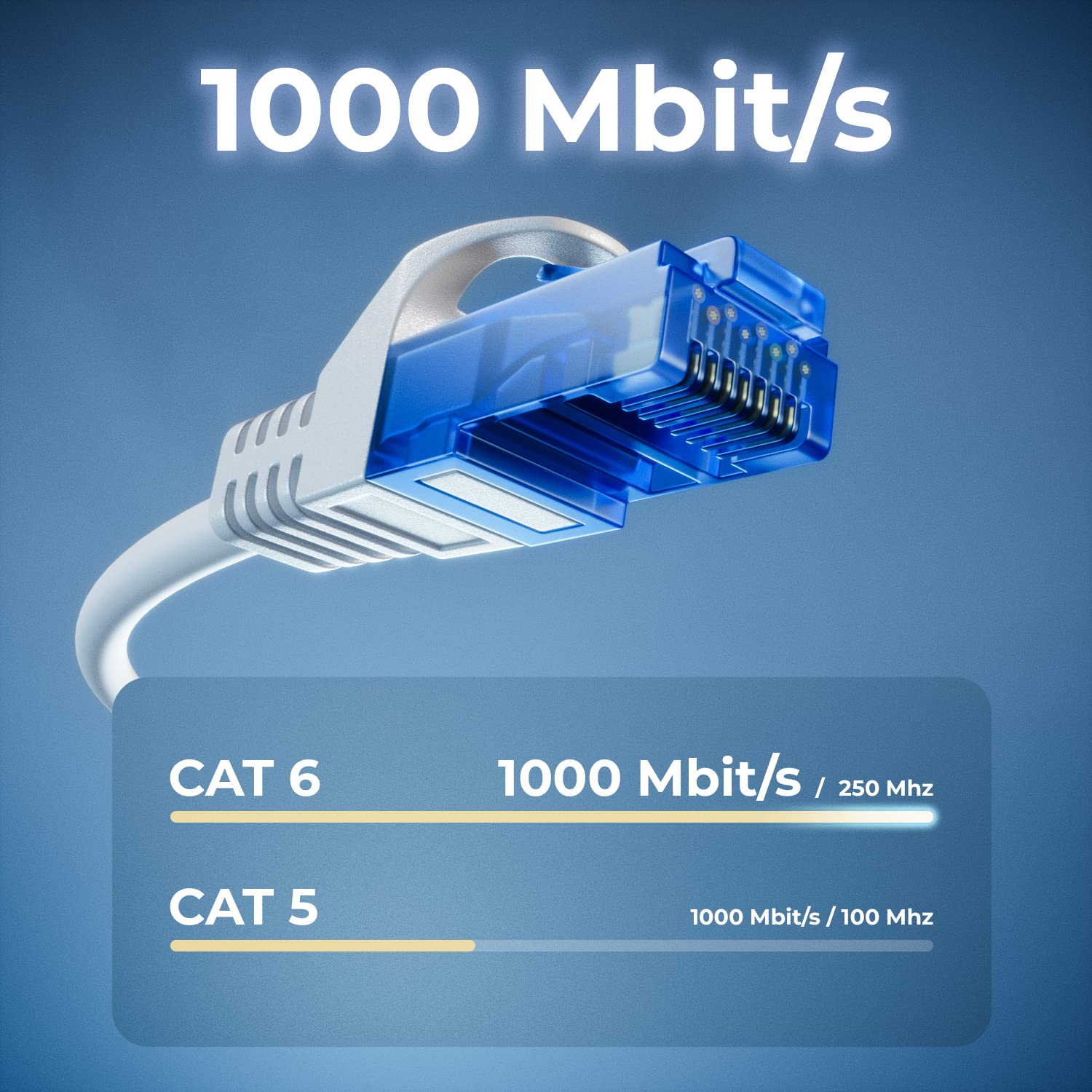
Image 2: A visual comparison illustrating the superior data transfer capabilities of CAT6 cables (1000 Mbit/s at 250 MHz) compared to CAT5 cables (1000 Mbit/s at 100 MHz).
2. Setup Instructions
Setting up your deleyCON CAT6 network cables is a straightforward process. Follow these steps to establish a network connection:
- Identify Devices: Ensure you have two network-compatible devices that you wish to connect, such as a computer, laptop, modem, router, switch, network camera, or smart TV.
- Locate RJ45 Ports: Find the RJ45 Ethernet ports on both devices. These ports are typically rectangular and slightly larger than a phone jack.
- Connect Cable: Insert one end of the deleyCON CAT6 network cable into the RJ45 port of the first device. Ensure it clicks securely into place.
- Connect Second Device: Insert the other end of the network cable into the RJ45 port of the second device. Again, ensure a secure click.
- Verify Connection: Most devices will indicate a successful network connection with an LED light near the RJ45 port. Check your device's network settings to confirm connectivity.

Image 3: A deleyCON CAT6 cable connecting a laptop to a router, illustrating a typical network setup for high-speed data transfer.
3. Operating Instructions
Once connected, the deleyCON CAT6 network cables operate automatically to facilitate data transfer.
- High-Speed Data Transfer: These cables support Gigabit LAN (10/100/1000 Mbit) for fast and efficient data exchange between connected devices.
- Network Stability: The U-UTP shielding and copper conductors ensure a stable connection, reducing signal degradation and maintaining consistent network performance.
- Broad Compatibility: The standardized RJ45 connectors ensure broad compatibility with a wide range of network devices.

Image 4: A diagram illustrating the versatility of deleyCON CAT6 cables, connecting various devices such as PCs, servers, gaming consoles, laptops, printers, switches, and routers.
4. Maintenance
Proper care and maintenance will extend the lifespan and ensure optimal performance of your deleyCON CAT6 network cables.
- Avoid Bending: Do not excessively bend or crimp the cables, especially near the connectors, as this can damage the internal conductors and shielding.
- Protect Connectors: The cables feature bend protection and latch protection on both sides. Avoid pulling the cable by the wire; always grasp the connector housing when plugging or unplugging.
- Keep Clean: Keep the RJ45 connectors free from dust and debris. Use a soft, dry cloth to gently clean them if necessary.
- Storage: Store cables in a cool, dry place, away from direct sunlight and extreme temperatures. Avoid tangling cables to prevent damage.
5. Troubleshooting
If you encounter issues with your network connection, consider the following troubleshooting steps:
- No Network Connection:
- Ensure both ends of the cable are securely plugged into the RJ45 ports. Listen for a click.
- Try using a different port on your router/switch or device.
- Test the connection with another known working network cable to rule out device issues.
- Restart your network devices (modem, router, switch, computer).
- Slow Network Speed:
- Verify that both connected devices support Gigabit Ethernet (1000 Mbit).
- Ensure the cable is not excessively long for your setup, although CAT6 cables are designed for performance over standard lengths.
- Check for other network congestion or issues with your internet service provider.
- Inspect the cable for visible damage or kinks.
- Intermittent Connection:
- Ensure the cable is not loose in the port.
- Check for electromagnetic interference from other electronic devices.
- Replace the cable if you suspect it is faulty.
6. Specifications
| Model Number | MK2246 |
| Cable Category | CAT 6 |
| Shielding | U/UTP |
| Connector Type | RJ45 (Male to Male) |
| Data Transfer Speed | Gigabit LAN (10/100/1000 Mbit) |
| Frequency Tested | Up to 250 MHz |
| Internal Conductor Material | CU (Copper) |
| Contact Surfaces | Gold-plated |
| Special Features | Flame retardant, Halogen-free, Bend protection, Latch protection |
| Color (Variant Specific) | White |
| Length (Variant Specific) | 0.25 meters (25 cm) |
| Quantity (Variant Specific) | 10 pieces per set |
| Compatible Devices | PC, Laptop, Modem, Router, Switch, Network Cameras, Printers, Gaming Consoles, Smart TV, Internet Radios, Hifi Receivers, Media Players, VoIP Phones, PoE devices, Patch Panels, NAS devices, Powerlan, TV set-top boxes, etc. |
7. Warranty and Support
deleyCON products are manufactured to high-quality standards. For information regarding warranty terms and conditions, please refer to the purchase documentation or contact your retailer.
For technical support or further inquiries, you may contact deleyCON directly:
- Email: info@deleycon.de
- Address: deleyCON, 13581 Berlin, Germany
Please retain your proof of purchase for any warranty claims.
