
LUCKY FF916
Lucky Smart Fish Finder User Manual
Model: FF916 | Brand: LUCKY
1. Introduction
The Lucky Smart Fish Finder (Model FF916) is a portable, Wi-Fi enabled sonar device designed to enhance your recreational fishing experience. It provides real-time underwater information directly to your smartphone or tablet, making it ideal for fishing from docks, shores, banks, kayaks, or boats. This manual will guide you through the setup, operation, maintenance, and troubleshooting of your device.

Figure 1: Lucky Smart Fish Finder and Packaging
The package includes: 1 Monitor (Fish Finder device), 2 Covers, 1 Bag, 1 USB cable, and 1 User manual.
2. Setup Guide
2.1 Charging the Device
Ensure your Lucky Smart Fish Finder is fully charged before first use. The device is powered by a 3.7V built-in lithium battery. Use the provided USB cable to charge it via a computer or other electrical device. A 5V, 1A charger is recommended. The charge indicator light will be red during charging.
2.2 App Installation
Download the official "WIFI fish finder" app from the iOS App Store or Google Play Store. Ensure you download the correct app, as shown in Figure 2.
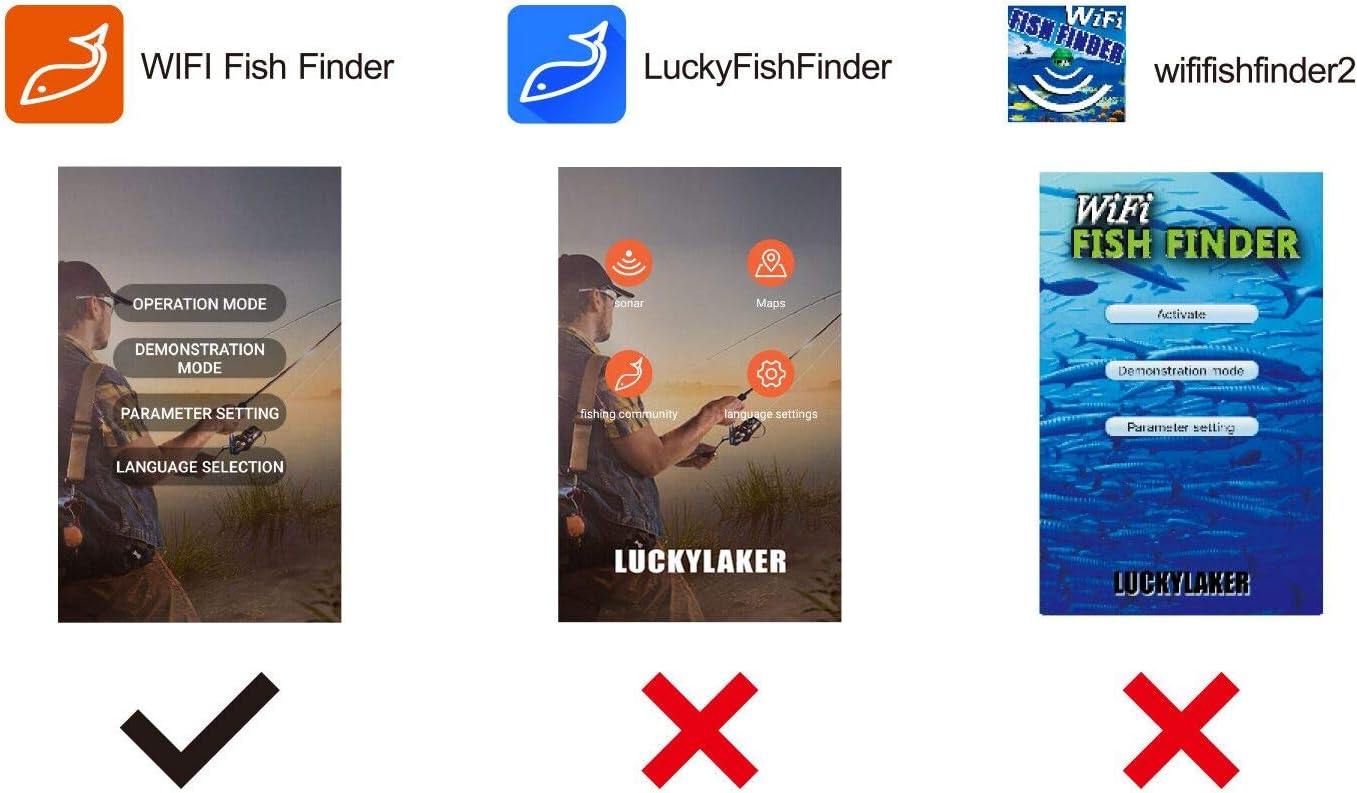
Figure 2: Correct "WIFI Fish Finder" App Icon (left)
2.3 Device Activation
To activate the fish finder, unscrew the top cap. Locate the press button and push it. A light will come on, indicating the device is active. After activation, securely screw the cap back on tightly to ensure water resistance before placing it in water.

Figure 3: Device Power Button Location
2.4 Connecting to the App
- Turn off mobile data on your smartphone. For iOS devices, turn off "Wi-Fi Assist". For Android devices, turn off "Smart Network Switch", "Auto Network Switch", or "Wifi+".
- Go to your phone's Wi-Fi settings.
- Look for the fish finder's Wi-Fi network (e.g., "FishFinder3") and connect to it. The default password is 12345678.
- Launch the "WIFI fish finder" app. The app will not show any signal without a Wi-Fi connection to the device.
For a visual guide on setup and connection, please watch the official user guide video below:
Video 1: User Guide on Lucky Smart Fishing Sonar. This video demonstrates how to power on the device, connect it to your smartphone via Wi-Fi, and begin using the app to view underwater information.
3. Operating Your Fish Finder
3.1 Casting and Sonar Function
The Lucky Smart Fish Finder is a high castable sonar device. Once connected, cast the device into the water. It will automatically begin scanning the underwater environment. The sonar operates at a frequency of 125kHz with a detection angle of 90 degrees.
3.2 Understanding the App Display
The app on your smartphone will display real-time information, including:
- Depth: The depth detection range is up to 147 feet (45 meters).
- Water Temperature: Built-in sensor provides accurate water temperature readings.
- Fish Location: The app will indicate fish presence and give a fish alarm when detected.
- Bottom Contour: Visual representation of the underwater terrain.
You can adjust units (feet/meters, ℃/℉) within the app settings to your preference.

Figure 4: App Display Interface

Figure 5: Depth Capacity and Wi-Fi Range Diagram
3.3 Usage Environments
This portable fish finder is versatile and can be used in various environments:
- Ocean, river, or lake.
- From a dock, shore, or bank.
- From a kayak or boat.
The Wi-Fi range is approximately 70 meters (229 feet). It is designed for both amateur and professional anglers.

Figure 6: Fishing from a Dock
4. Maintenance
4.1 Charging
The device provides up to five hours of operation on a full charge. Recharge the device using the provided USB cable and a 5V, 1A charger. Avoid overcharging.
4.2 Cleaning
After each use, especially in saltwater, rinse the fish finder with fresh water to remove any salt, dirt, or debris. Wipe it dry with a soft cloth. Ensure the charging port and power button area are clean and dry before re-screwing the cap.
4.3 Storage
Store the fish finder in a cool, dry place away from direct sunlight and extreme temperatures. Ensure the cap is securely fastened during storage.
5. Troubleshooting
5.1 Connection Issues
- No Wi-Fi Signal: Ensure the fish finder is powered on and fully charged. Verify that mobile data, Wi-Fi Assist (iOS), or Smart Network Switch/Auto Network Switch/Wifi+ (Android) are turned off on your phone.
- Incorrect Password: The default Wi-Fi password is 12345678.
- App Not Displaying Data: The app requires a direct Wi-Fi connection to the fish finder. Ensure your phone is connected to the fish finder's Wi-Fi network.
- App Outdated: Make sure to keep the "WIFI fish finder" app up to date.
5.2 Sonar Performance Issues
- No Readings: The device works in waters deeper than 3.3 feet (1 meter). Do not test the fish finder in shallow environments like swimming pools, bathtubs, buckets, or fish tanks, as it requires sufficient water depth for proper operation.
- Ice Fishing: This model is not intended for use in ice fishing due to its wide 90-degree cone and floating design.
6. Specifications
| Feature | Specification |
|---|---|
| Model Number | FF916 |
| Item Weight | 2.82 ounces (0.08 kg) |
| Product Dimensions | 2.76 x 2.76 x 2.76 inches |
| Batteries | 1 Lithium Polymer (included) |
| Battery Life | Up to 5 hours |
| Depth Detection Range | 147 feet (45 meters) |
| Sonar Frequency | 125kHz |
| Detection Angle | 90 degrees |
| Wi-Fi Frequency | 2.4 GHz |
| Wi-Fi Range | 70 meters (229 feet) |
| Charger Input | 5 V, 1 A |
| Manufacturer | JINHUA LUCKY ET MANUFACTURER CO.,LTD. |

Figure 7: Product Dimensions
7. Warranty and Support
For detailed warranty information and further technical support, please refer to the official user manual PDF or contact LUCKY customer service directly.
You can access the full User Manual (PDF) here.
For additional assistance, please visit the LUCKY Store on Amazon.
Related documentsFF916


Ask a question about this manual
Ask about setup, troubleshooting, compatibility, parts, safety, or missing instructions. Manuals+ will review the question and use this page’s manual context to help answer it.