
1. Introduction
This manual provides essential information for the safe and efficient operation of your DNP DS820A Professional Dye-Sublimation Printer. The DS820A is designed for high-quality photo printing, offering a resolution of 300 x 600 dpi and supporting various print sizes up to 8x32 inches. It features a high-speed print mode, producing 8x10 inch glossy photos in approximately 29.3 seconds, and supports multiple surface options including Glossy, Luster, Matte, and Fine Matte.
Please read this manual thoroughly before using the printer to ensure proper setup, operation, and maintenance.

Figure 1: Front angled view of the DNP DS820A printer.
2. Safety Information
Observe the following safety precautions to prevent injury and damage to the printer:
- Always connect the printer to a grounded power outlet.
- Do not block ventilation openings on the printer. Ensure adequate space around the unit for proper airflow.
- Keep the printer away from water or excessive humidity.
- Do not attempt to disassemble or repair the printer yourself. Refer to qualified service personnel.
- Use only DNP-approved media and ribbons.
3. Package Contents
Verify that all items are present in the package:
- DNP DS820A Printer Unit
- Power Cable
- USB Cable
- Media Tray
- Quick Start Guide and Documentation
Media (paper and ribbon) is typically sold separately.
4. Setup
4.1 Unpacking and Placement
- Carefully remove the printer from its packaging.
- Place the printer on a stable, level surface with sufficient space for ventilation and media loading/unloading.
- Remove all protective tapes and packing materials.
4.2 Connecting the Printer
- Connect the power cable to the printer's power input and then to a grounded electrical outlet.
- Connect the USB cable to the printer's USB port and to your computer.
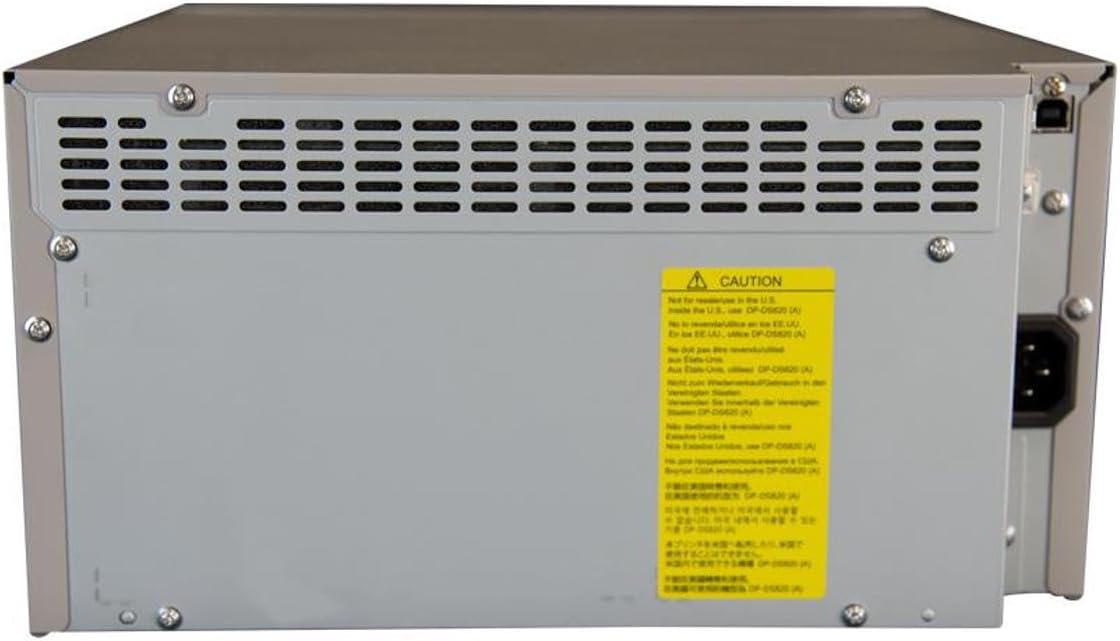
Figure 2: Rear view of the DNP DS820A, highlighting connectivity ports.
4.3 Driver Installation
Install the latest printer drivers from the DNP website. The printer is compatible with Windows and Mac OS X/macOS operating systems.
4.4 Loading Media (Paper and Ribbon)
The DS820A uses a roll-fed media system. Refer to the specific instructions provided with your DNP media for detailed loading procedures. Generally, this involves opening the front panel, inserting the ribbon cassette, and then loading the paper roll into its designated slot.
5. Operating Instructions
5.1 Powering On/Off
Locate the power switch on the front or side of the printer. Flip the switch to the 'On' position to power on the printer. To power off, flip the switch to the 'Off' position.
5.2 Indicator Lights
The printer features several indicator lights on the front panel to communicate its status:
- POWER: Indicates the printer is powered on.
- ON/STANDBY: Indicates operational status or standby mode.
- RIBBON: Illuminates when the ribbon needs replacement or is incorrectly installed.
- PAPER: Illuminates when paper needs replacement or is incorrectly loaded.
- ERROR: Indicates a general error. Refer to the troubleshooting section or driver software for details.

Figure 3: Front control panel with status indicator lights.
5.3 Printing Process
- Ensure the printer is powered on and connected to your computer.
- Open the image or document you wish to print on your computer.
- Select the DNP DS820A from your printer options.
- Adjust print settings such as print size, resolution (300x600 dpi recommended for color), and surface type (Glossy, Luster, Matte, Fine Matte) in the printer driver settings.
- Initiate the print job. The printer will process and output the photo.
6. Maintenance
6.1 Cleaning the Printer
Regular cleaning helps maintain print quality and extends printer life.
- Exterior: Wipe the exterior with a soft, dry, lint-free cloth. Do not use abrasive cleaners or solvents.
- Interior: Periodically open the front panel and gently remove any dust or debris from the media path using a soft brush or compressed air.
6.2 Media Replacement
When the RIBBON or PAPER indicator lights illuminate, it's time to replace the respective media. Open the front access panel to replace the ribbon cassette and paper roll according to the instructions provided with the DNP media.
7. Troubleshooting
This section addresses common issues you might encounter.
| Problem | Possible Cause | Solution |
|---|---|---|
| Printer not powering on | Power cable disconnected; Power switch off | Check power cable connection; Ensure power switch is ON. |
| RIBBON light on | Ribbon empty or incorrectly installed | Replace ribbon; Reinstall ribbon correctly. |
| PAPER light on | Paper roll empty or incorrectly loaded | Replace paper roll; Re-load paper correctly. |
| ERROR light on | General printer error | Turn printer off and on; Check computer for specific error messages; Consult DNP support. |
| Poor print quality | Dirty print head; Incorrect driver settings; Low quality image source | Clean printer interior; Verify print settings (DPI, media type); Use high-resolution images. |
If you encounter issues not covered here, or if solutions do not resolve the problem, contact DNP customer support.
8. Specifications
| Feature | Specification |
|---|---|
| Model Name | DS820A |
| Printing Technology | Dye Sublimation |
| Maximum Color Print Resolution | 300 x 600 dpi |
| Maximum Black and White Print Resolution | 300 x 300 dpi or 300 x 600 dpi |
| Supported Media Sizes | 5 x 7 inches, 8 x 10 inches, 8 x 12 inches, up to 8 x 32 inches (panoramic) |
| Print Media Types | Glossy photo paper, Luster, Matte, Fine Matte |
| Print Speed (8x10 Glossy) | Approximately 29.3 seconds |
| Max Input Sheet Capacity | 250 sheets (depending on media type) |
| Output Sheet Capacity | 250 sheets |
| Number of Trays | 2 |
| Connectivity Technology | USB 2.0 |
| Hardware Interface | USB |
| Control Method | App |
| Printer Output | Color; Monochrome |
| Item Weight | 36 pounds (16.33 kg) |
| Product Dimensions (L x W x H) | 19.25 x 17.25 x 12 inches (48.9 x 43.8 x 30.5 cm) |
| Manufacturer | DNP |
| UPC | 650415905867 |
9. Warranty and Support
The DNP DS820A printer comes with a full warranty. For specific warranty terms and conditions, please refer to the documentation included with your product or visit the official DNP website.
For technical assistance, troubleshooting beyond this manual, or to inquire about service, please contact DNP customer support directly. Contact information can typically be found on the DNP website or in your product's packaging.


