
Introduction
Thank you for purchasing the Ezonetronics 1DIN Car Stereo, Model RM-CW9601. This unit features a 7-inch retractable touchscreen, Bluetooth connectivity, FM radio, and multimedia playback capabilities. This manual provides essential information for installation, operation, and maintenance to ensure optimal performance and user satisfaction. Please read this manual thoroughly before using the product.
Safety Information
- Do not operate the unit in a manner that distracts you from driving. Always prioritize road safety.
- Ensure proper installation by a qualified professional to prevent damage to the unit or vehicle.
- Avoid exposing the unit to extreme temperatures, direct sunlight for prolonged periods, or moisture.
- Do not attempt to disassemble or modify the unit. This may void the warranty and pose safety risks.
- Keep the volume at a level that allows you to hear external traffic sounds.
Package Contents
Verify that all items are present in the package:
- Ezonetronics 1DIN Car Stereo Unit (RM-CW9601)
- Power and Speaker Wiring Harness
- Remote Control
- User Manual (this document)
- Mounting Accessories (brackets, screws)
- Optional: Rearview Camera (if included in your specific package)
Product Overview
The Ezonetronics RM-CW9601 features a single DIN chassis with a motorized retractable 7-inch touchscreen display. The front panel includes essential controls and ports for easy access.

Figure 1: Front view of the Ezonetronics RM-CW9601 car stereo, illustrating the 7-inch screen in both retracted and extended positions, along with front panel controls and ports.
Front Panel Controls and Ports:
- Power/Mode Button: Press to turn on/off, short press to change mode.
- Volume Knob: Rotate to adjust volume. Press to mute/unmute.
- USB Port: For media playback from USB drives.
- SD Card Slot: For media playback from SD cards.
- AUX Input: 3.5mm jack for external audio devices.
- Reset Button: Small button to reset the unit (requires a pointed object).
- Screen Retract/Extend Button: Controls the motorized screen movement.
Setup
1. Installation
The RM-CW9601 is designed for a standard 1DIN car stereo opening. Professional installation is highly recommended. Ensure the vehicle's battery is disconnected before starting installation.
- Remove the existing car stereo from the dashboard.
- Connect the wiring harness to the vehicle's wiring.
- Secure the unit into the dashboard using the provided mounting brackets and screws.
- Reconnect the vehicle's battery and test the unit.
2. Wiring Diagram (General)
Refer to the detailed wiring diagram included with your product packaging for specific connections. Below are common connections:
- Yellow Wire: Constant 12V (Battery)
- Red Wire: Switched 12V (Accessory/Ignition)
- Black Wire: Ground
- Orange Wire: Illumination (Optional)
- Blue Wire: Power Antenna / Amplifier Remote Turn-On
- Speaker Wires: Connect to vehicle speakers (e.g., White/White-Black for Front Left, Grey/Grey-Black for Front Right, Green/Green-Black for Rear Left, Purple/Purple-Black for Rear Right).
- Reverse Camera Input: Connect to the rearview camera video output and reverse trigger wire.
- Steering Wheel Control Input: Connect to vehicle's steering wheel control wires (if applicable).

Figure 2: Illustration of USB connection points, relevant for media input and smartphone integration.
Operating Instructions
1. Basic Operation
- Power On/Off: Press the power button on the front panel or remote control.
- Volume Adjustment: Rotate the volume knob or use the remote control.
- Mode Selection: Short press the power/mode button to cycle through available modes (Radio, USB, SD, Bluetooth, AUX, CarPlay/Android Auto).
- Screen Control: Use the dedicated button to retract or extend the 7-inch display.
2. Bluetooth Function
The unit supports Bluetooth for hands-free calling and wireless audio streaming.
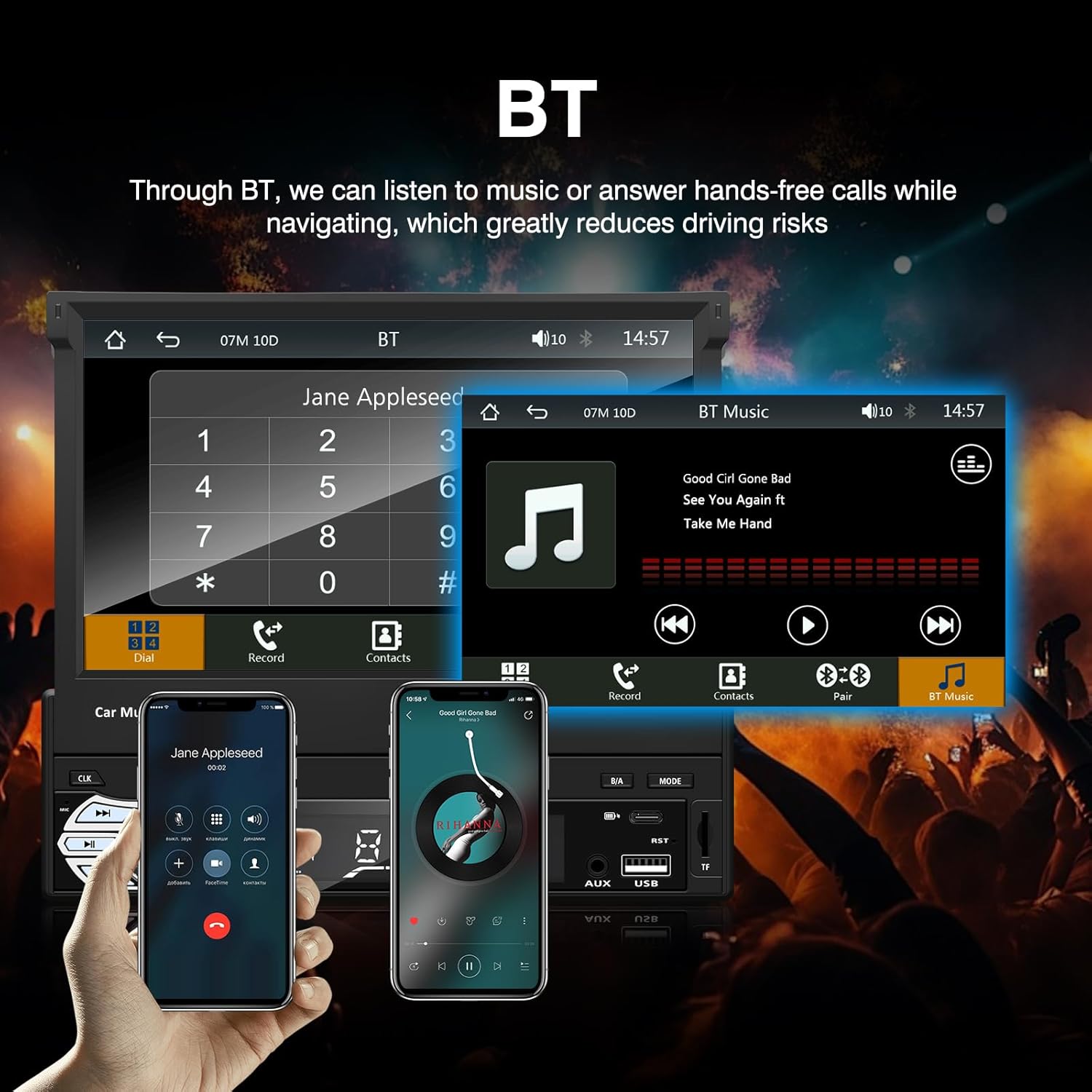
Figure 3: Bluetooth interface for hands-free calls and music streaming, showing a dial pad and music controls.
- Pairing: Enable Bluetooth on your mobile device. Search for available devices and select "Ezonetronics" or similar. Enter PIN "0000" if prompted.
- Hands-Free Calling: Once paired, you can make and receive calls directly through the car stereo. Use the touchscreen or remote to dial, answer, or end calls.
- Audio Streaming (A2DP): Play music from your paired device wirelessly. Control playback (play/pause, skip) from the car stereo or your device.
3. USB/SD Media Playback
Insert a USB drive or SD card into the respective slot. The unit will automatically switch to USB/SD mode and begin playing compatible media files.

Figure 4: Icons indicating support for Bluetooth, Auxiliary input, TF (SD) Card, and USB connections for media playback.
- Supported formats include RM, RMVB, ASF, MKV, DIVX, MPEG4, AVI, VOB for video, and MP3/MP4 for audio.
- Navigate through folders and files using the touchscreen interface.
4. FM Radio
Access the FM radio mode to listen to local broadcasts.

Figure 5: FM Radio interface with frequency display and equalizer settings for audio customization.
- Auto Scan: Automatically search and save strong stations.
- Manual Tuning: Fine-tune frequencies using the touchscreen.
- Presets: Save your favorite stations for quick access (up to 18 preset stations).
5. Apple CarPlay / Android Auto
Connect your compatible smartphone via USB to access Apple CarPlay or Android Auto features directly on the stereo's display.

Figure 6: Wired Apple CarPlay interface, displaying phone applications like navigation, music, and messages on the car stereo screen.

Figure 7: Wired Android Auto interface, displaying Android applications like Google Maps, Spotify, and phone calls on the car stereo screen.
- Ensure your phone has CarPlay or Android Auto enabled.
- Use a high-quality USB cable for a stable connection.
- Access navigation, music, messages, and other compatible apps safely while driving.
6. Mirror Link
Mirror Link allows you to display your smartphone's screen content directly onto the car stereo's display via a USB data cable.

Figure 8: Mirror Link function demonstrating a smartphone screen being projected onto the car stereo display.
- Connect your smartphone to the USB port using a data cable.
- Follow the on-screen prompts on both the stereo and your phone to establish the connection.
- Note: Functionality may vary depending on your smartphone model and operating system.
7. Rearview Camera Input
When a rearview camera is connected and the vehicle is shifted into reverse, the stereo automatically displays the camera feed.

Figure 9: Reversing display showing the view from a rearview camera with parking assistance lines, providing an intuitive aid for parking.
- Ensure the rearview camera is properly installed and connected to the dedicated input.
- The display will automatically switch to the camera view when the reverse gear is engaged.
8. Steering Wheel Control
The unit supports connection to your vehicle's existing steering wheel controls for convenient operation. Refer to your vehicle's manual and the stereo's wiring diagram for proper connection and configuration.
Maintenance
- Cleaning the Screen: Use a soft, lint-free cloth to gently wipe the touchscreen. Do not use abrasive cleaners or solvents.
- General Cleaning: Wipe the unit's exterior with a dry, soft cloth.
- Avoid Liquids: Do not spray liquids directly onto the unit.
- Temperature: Avoid prolonged exposure to extreme heat or cold, which can affect the unit's lifespan.
Troubleshooting
| Problem | Possible Cause | Solution |
|---|---|---|
| Unit does not power on. | Incorrect wiring; Blown fuse; Vehicle battery issue. | Check power connections (Yellow, Red, Black wires). Inspect vehicle fuses. Ensure battery is charged. |
| No sound. | Volume too low; Mute activated; Incorrect speaker wiring. | Increase volume. Check if mute is active. Verify speaker connections. |
| Bluetooth not connecting. | Bluetooth not enabled on phone; Incorrect pairing process. | Ensure phone's Bluetooth is on and discoverable. Re-attempt pairing. |
| USB/SD media not playing. | Unsupported file format; Corrupted media; Drive/card not inserted correctly. | Check file formats. Try a different USB drive/SD card. Ensure proper insertion. |
| Rearview camera not displaying. | Camera not connected; Reverse trigger wire not connected. | Verify camera video input and reverse trigger wire connection. |
If problems persist, consult a qualified technician or contact customer support.
Specifications
- Brand: EZoneTronics
- Model Number: RM-CW9601
- Color: Black
- Screen: 7-inch Capacitive Touchscreen, Retractable
- Connectivity Technology: Bluetooth, USB, SD, AUX, RCA
- Bluetooth: Integrated Bluetooth 2.0 with A2DP/Hands-free
- Compatible Devices: Smartphone
- Audio Output Mode: Stereo
- Video Encoding Support: RM, RMVB, ASF, MKV, DIVX, MPEG4, AVI, VOB
- USB/SD Support: Up to 32GB max.
- Special Features: Touchscreen, Steering Wheel Control Support, Rear Camera Input, Apple CarPlay, Android Auto, Mirror Link
- Manufacturer: Rhythm Electronics Limited
Warranty and Support
This product comes with a limited manufacturer's warranty.
- Main Unit Warranty: 12 months for defective items (excluding damaged or misused items after receipt).
- Accessories Warranty: 3 months for accessories.
For warranty claims or technical support, please contact your retailer or the manufacturer directly. Keep your purchase receipt as proof of purchase.


