
1. Introduction and Overview
The Epson Expression Home XP-440 is a compact, wireless all-in-one printer designed for home use, offering versatile printing, scanning, and copying functionalities. It features a 2.7-inch color LCD for intuitive navigation and supports wireless printing from various devices, including smartphones and tablets. Its space-saving design and individual ink cartridges make it a practical choice for everyday tasks.
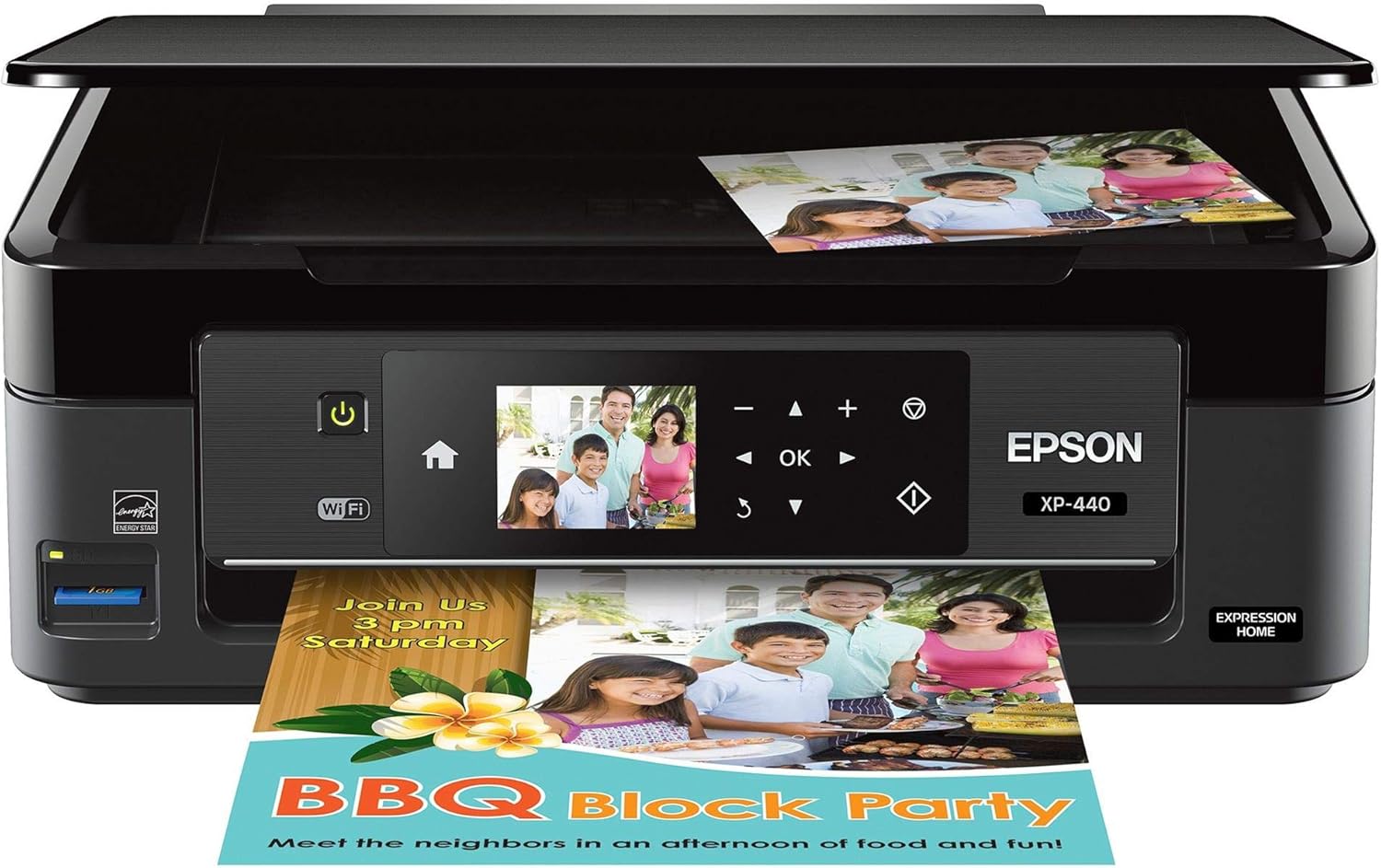
Image 1.1: Front view of the Epson Expression Home XP-440 printer, showcasing its compact design and the control panel with a color LCD. A printed document is shown exiting the printer.
2. Setup Guide
2.1 Unpacking and Contents
Carefully remove all components from the packaging. Ensure all protective materials are removed from the printer. The box should contain the following items:
- Epson Expression Home XP-440 Small-in-One printer
- Instruction booklets
- CD-ROM with drivers
- Power cord
- 4 DURABrite Ultra Ink cartridges (1x Black, 1x Cyan, 1x Magenta, 1x Yellow)

Image 2.1: A visual representation of the items included in the Epson Expression Home XP-440 product box, including the printer, ink cartridges, power cord, and documentation.
2.2 Power Connection
Connect the power cord to the printer and then to a wall outlet. Press the power button to turn on the printer.
2.3 Ink Cartridge Installation
Install the included DURABrite Ultra Ink cartridges into their respective slots. This printer is designed to function exclusively with genuine Epson ink cartridges. Using non-Epson branded or altered cartridges may result in improper function or damage.

Image 2.2: The Epson Genuine Ink Promise, emphasizing the use of authentic Epson ink for optimal performance and warranty coverage.
2.4 Software and Driver Installation
Insert the provided CD-ROM into your computer's drive and follow the on-screen instructions to install the necessary drivers and software. Alternatively, visit the official Epson support website to download the latest drivers for your operating system.
2.5 Wireless Setup
Follow the instructions on the printer's 2.7-inch color LCD to connect the printer to your wireless network. The printer supports Wi-Fi Direct for network-free printing from compatible devices. Ensure your router operates on a 2.4 GHz frequency for optimal compatibility.
3. Operating the Printer
3.1 Loading Paper
The printer has a 100-sheet paper capacity. Load paper into the rear paper feeder, adjusting the guides to fit the paper size. Supported paper sizes include 3.5" x 5", 4" x 6", 5" x 7", 8" x 10", Letter, Legal, A4, B5, A5, A6, half letter, executive, and user-definable sizes.
3.2 Printing Documents and Photos
You can print from a computer, smartphone, or tablet via the wireless connection. Use the Epson Creative Print mobile app for creating custom borderless photo collages and printing stationery. The built-in memory card slot allows for PC-free borderless photo printing directly from a memory card, with tools for red-eye removal and photo restoration available on the printer's LCD.

Image 3.1: An overview of the Epson Expression Home XP-440's key features, including wireless connectivity, print, copy, scan, photo capabilities, and a 2.7-inch color LCD.

Image 3.2: Detailed view of the Epson Expression Home XP-440 highlighting its SD card slot, 100-sheet paper capacity, smartphone/tablet printing capabilities, and Amazon Alexa compatibility.
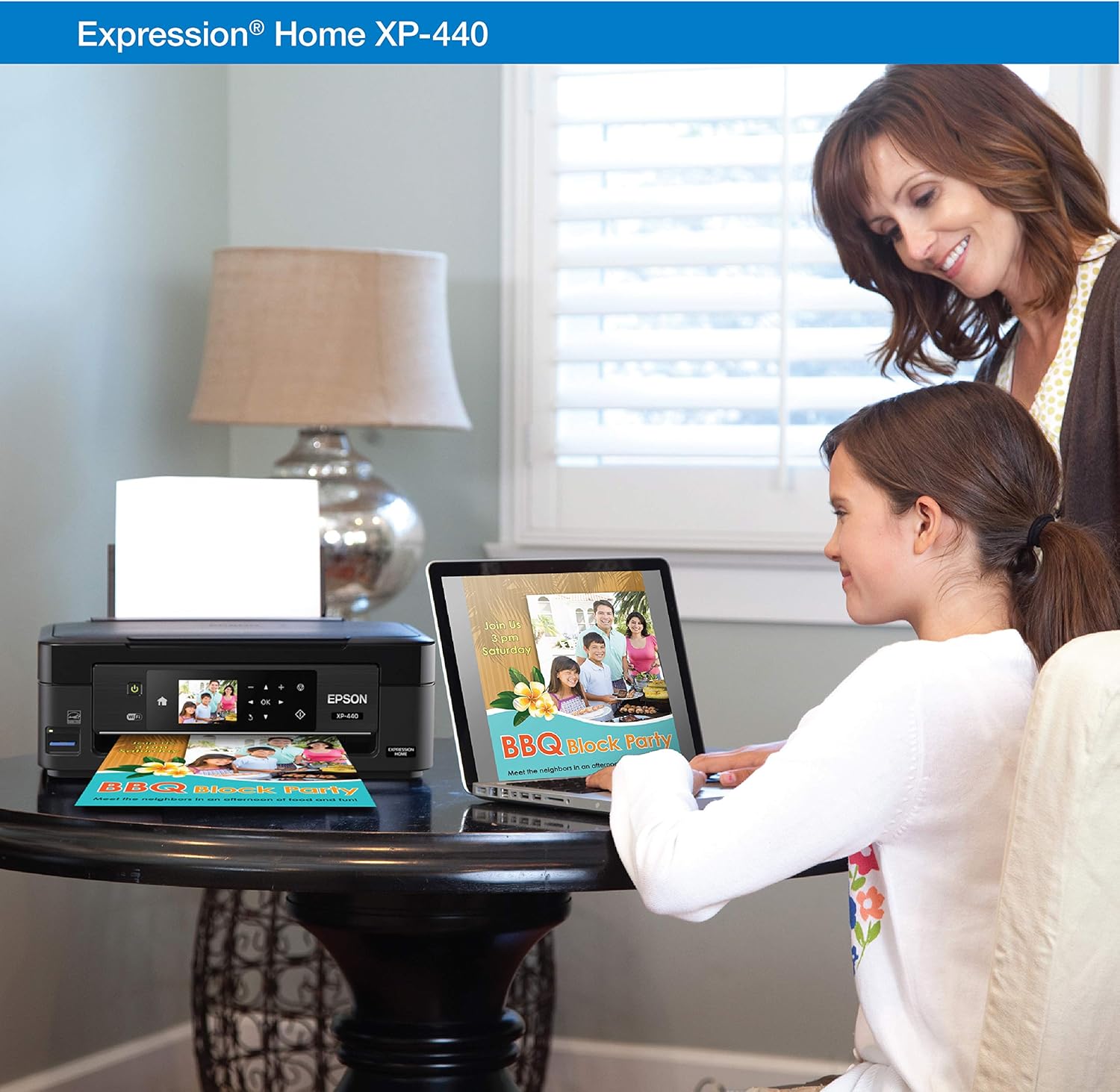
Image 3.3: A user wirelessly printing a document from a laptop to the Epson Expression Home XP-440 printer, demonstrating its ease of use in a home environment.
3.3 Scanning
Place your document or photo on the scanner glass. Use the printer's control panel or the installed software on your computer to initiate a scan. The printer includes bonus software to automatically scan to Facebook and cloud services.
3.4 Copying
Place the document on the scanner glass. Use the printer's control panel to select copy options such as number of copies, color or black and white, and paper size. Press the copy button to begin.
4. Maintenance
4.1 Replacing Ink Cartridges
The XP-440 uses individual ink cartridges (Black, Cyan, Magenta, Yellow). Replace only the cartridge that runs out. Follow the instructions on the printer's LCD or in the user guide for safe and proper replacement. Always use genuine Epson DURABrite Ultra Ink cartridges.
4.2 Cleaning the Printer
Periodically clean the exterior of the printer with a soft, damp cloth. Refer to the detailed user guide for instructions on cleaning the print head or other internal components if print quality issues arise.
5. Troubleshooting
If you encounter issues with your Epson Expression Home XP-440, consider the following basic troubleshooting steps:
- No Power: Ensure the power cord is securely connected to both the printer and a working electrical outlet.
- Printing Issues: Check ink levels, ensure paper is loaded correctly, and verify the printer is connected to your network or computer. Perform a nozzle check and head cleaning from the printer's maintenance menu if print quality is poor.
- Wireless Connectivity: Restart your router and printer. Re-run the wireless setup wizard on the printer's LCD. Ensure your device is connected to the correct network.
- Software Problems: Reinstall printer drivers and software from the Epson website.
For more detailed troubleshooting, refer to the official User Guide PDF linked in the "Warranty and Support" section.
6. Specifications
| Feature | Detail |
|---|---|
| Model Name | XP-440 |
| Functions | Print, Scan, Copy |
| Connectivity Technology | Wi-Fi, USB |
| Printer Output | Color |
| Printing Technology | Inkjet |
| Max Print Speed (Monochrome) | 10 ppm |
| Max Print Speed (Color) | 4.5 ppm |
| Max Print Resolution (Black & White) | 5760x1440 dpi |
| Max Print Resolution (Color) | 9600 dpi |
| Scanner Type | Photo |
| Max Copy Resolution (Black & White) | 600 dpi |
| Max Copy Resolution (Color) | 300 dpi |
| Max Input Sheet Capacity | 100 sheets |
| Duplex Printing | Yes |
| Product Dimensions | 15.4"D x 20.8"W x 11"H |
| Item Weight | 9.5 pounds |
| Included Components | Printer, 4 Ink Cartridges, CD-ROM, Power Cord, Instruction Booklets |
7. Warranty and Support
7.1 Warranty Information
The Epson Expression Home XP-440 comes with a Limited Warranty. For specific terms and conditions, please refer to the warranty documentation included with your product or visit the official Epson website.
7.2 Additional Resources and Support
For further assistance, detailed instructions, or technical support, please refer to the following resources:
- Installation Manual (PDF)
- User Guide (PDF)
- Visit the official Epson support website for FAQs, driver downloads, and contact information.


