
1. Product Overview
The GW Security 8-Channel 4K NVR Security System provides comprehensive surveillance with high-definition video and audio capabilities. This system includes an 8-channel Network Video Recorder (NVR) with a pre-installed 2TB hard drive and six 5MP Power over Ethernet (PoE) bullet cameras. Each camera features a built-in microphone for audio monitoring and is designed for weatherproof outdoor or indoor use.
Key features include:
- 8-Channel 4K NVR: Supports up to 8.0 Megapixel Full HD real-time recording.
- Six 5MP PoE Bullet Cameras: Delivers 1920P resolution with built-in microphones and wide-angle lenses.
- Power over Ethernet (PoE): Simplifies installation by providing power and data through a single network cable.
- AI Human Detection: Advanced technology to identify human movement, reducing false alarms.
- H.265 Video Compression: Efficiently stores video, saving hard drive space and bandwidth.
- Remote Viewing: Access your system from computers, smartphones, and tablets via a dedicated app and QR code scan.
- Pre-installed 2TB Hard Drive: Ready for immediate recording.

Image 1.1: Overview of the GW Security 8-Channel NVR system, including the NVR unit, six bullet cameras, and a hard drive.
2. What's in the Box
Please verify that all components are present upon unboxing:
- 1 x GW42-4108P: 8 Channel 4K NVR with pre-installed 2TB Hard Drive
- 6 x GW5037IP: 5MP Outdoor/Indoor Security Cameras
- 3 x GWCAT100: 100ft Cat5e Cables
- 3 x GWCAT60: 60ft Cat5e Cables
- Quick Guide, User Manual, all Necessary Hardware and Software Included
3. Setup Guide
3.1 System Connection
The Power over Ethernet (PoE) feature simplifies installation. A single Ethernet cable connects each IP camera to the NVR, providing both power and video signal. No separate power cables are needed for the cameras.
- Connect the IP cameras to the NVR's PoE ports using the provided Cat5e cables.
- Connect the NVR to a monitor using an HDMI or VGA cable.
- Connect the NVR to your network router using an Ethernet cable for remote access.
- Connect the NVR to a power source using the included power adapter.
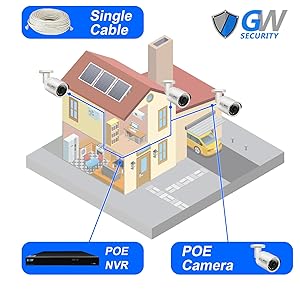
Image 3.1: Illustration of a typical PoE system connection, demonstrating how cameras connect directly to the NVR with a single cable.
3.2 Mobile App Setup for Remote Viewing
The system supports remote viewing via a smartphone app. Follow these steps for quick setup:
- Download the official GW Security smartphone application (e.g., "GWVIEW") from your device's app store.
- Open the app and select the option to add a new device.
- Scan the QR code located on the NVR unit or enter the device's serial number manually.
- Follow the on-screen prompts to complete the setup and begin live viewing.

Image 3.2: The NVR's rear panel, highlighting the network ports, video outputs, and the QR code for mobile application setup.
4. Operating Instructions
4.1 Recording Modes
The NVR supports various recording modes to suit your surveillance needs:
- Manual Recording: Start and stop recording manually.
- Time Scheduled Recording: Set specific times for continuous recording.
- Alarm Triggered Recording: Recording starts when an alarm event (e.g., motion detection) is triggered.
- Motion Detect Recording: Recording starts automatically when motion is detected by the cameras.
4.2 AI Human Detection
The system features advanced AI Human Detection technology. This function helps to distinguish human shapes from other moving objects, significantly reducing false alarms caused by animals, vehicles, or environmental changes. When a human is detected, the system can trigger recording and send alerts to your mobile device.

Image 4.1: An example of AI Human Detection, where the system accurately identifies and highlights a person in the camera's view.

Image 4.2: Demonstrates human detection alerts on a smartphone and the smart playback interface for reviewing recorded events.
4.3 Playback and Backup
Access recorded footage through the NVR interface or the mobile app. The NVR supports USB backup for transferring important video files.
5. Camera Features
5.1 5MP High Definition Video
Each bullet camera captures video at 5.0 megapixels (2592 x 1920 pixels), providing significantly sharper and larger images compared to 1080p cameras. This higher resolution ensures clearer details for surveillance.

Image 5.1: A visual comparison illustrating the enhanced clarity and detail of 5MP (1920P) resolution over standard 1080P.
5.2 Built-in Microphone for Audio Monitoring
The 5MP bullet cameras include a built-in microphone, enabling simultaneous audio and video recording. This feature provides additional context and information for surveillance footage.

Image 5.2: Depicts a security camera with its built-in microphone feature, capable of capturing audio alongside video.
5.3 Wide Angle Lens
The cameras are equipped with a 3.6mm wide-angle lens, providing approximately a 100-degree field of view. This allows for broader coverage, suitable for monitoring larger areas up to 400 square feet.

Image 5.3: A visual comparison demonstrating the expanded field of view provided by a wide-angle lens (3.6mm) compared to a narrower lens (6mm).
5.4 H.265 Video Compression
The system utilizes H.265 video compression technology. This advanced compression standard offers several benefits over older standards like H.264:
- Lower Storage Costs: H.265 requires less storage space for the same video quality, extending recording time on the 2TB hard drive.
- Faster Loading Speeds: Reduced file sizes contribute to quicker video loading and streaming.
- Reduced Bandwidth Consumption: More efficient data transfer, beneficial for remote viewing.

Image 5.4: An infographic illustrating the advantages of H.265 compression, including reduced storage and bandwidth usage compared to H.264.
5.5 Weatherproof Design and Night Vision
The bullet cameras are designed to be weatherproof, suitable for both indoor and outdoor installations. They also feature low-light technology for night vision, ensuring continuous surveillance in various lighting conditions.
6. Maintenance
Regular maintenance helps ensure optimal performance and longevity of your security system:
- Clean Cameras: Periodically clean camera lenses with a soft, damp cloth to remove dust, dirt, or water spots that may obscure the view.
- Check Connections: Ensure all cable connections (Ethernet, power, video outputs) are secure and free from damage.
- Monitor Hard Drive Space: Regularly check the NVR's hard drive capacity to ensure sufficient space for recordings. Configure older footage to be overwritten or back up important data.
- Firmware Updates: Check the manufacturer's website for any available firmware updates for the NVR and cameras. Updates can improve performance, add features, or fix bugs.
- Power Supply: Ensure the NVR is connected to a stable power supply. Consider a UPS (Uninterruptible Power Supply) for continuous operation during power outages.
7. Troubleshooting
This section addresses common issues you might encounter with your GW Security system.
7.1 No Video Display on Monitor
- Check Cables: Ensure the HDMI or VGA cable connecting the NVR to the monitor is securely plugged in at both ends.
- Monitor Input: Verify the monitor is set to the correct input source (HDMI/VGA).
- NVR Power: Confirm the NVR is powered on and its indicator lights are active.
7.2 Cameras Not Displaying Video
- PoE Connection: Ensure the Ethernet cable for the affected camera is securely connected to both the camera and the NVR's PoE port.
- Cable Integrity: Inspect the Ethernet cable for any visible damage. Try a different cable if available.
- NVR PoE Ports: Check if the NVR's PoE port indicator light for that channel is active.
- Camera Power Cycle: Disconnect and reconnect the camera's Ethernet cable to power cycle it.
7.3 No Recording / "No Hard Disk" Error
- Hard Drive Status: Access the NVR's menu (typically under Storage or HDD Management) to check the status of the pre-installed 2TB hard drive. Ensure it is detected and initialized.
- Recording Schedule: Verify that recording schedules are properly configured for the desired channels and times.
- Hard Drive Health: If the hard drive is not detected or shows errors, it may be faulty. Contact technical support.
7.4 Poor Night Vision Quality
- Clean Lens: Ensure the camera lens is clean and free from smudges or dirt.
- IR Obstructions: Check for any objects close to the camera that might be reflecting the infrared (IR) light back into the lens, causing glare.
- External Lighting: While cameras have night vision, additional ambient light can improve image quality.
7.5 Remote Access Issues
- Network Connection: Ensure the NVR is connected to the internet and has a stable network connection.
- App Login: Verify your login credentials for the mobile application.
- QR Code/Serial Number: Re-scan the QR code or re-enter the serial number in the app to ensure correct device registration.
- Router Settings: In some cases, router settings (e.g., firewall, port forwarding) might need adjustment. Consult your router's manual or technical support.
8. Specifications
| Feature | Specification |
|---|---|
| Brand | GW Security |
| Model Number | VD6C8CH5037IP |
| Connectivity Technology | Ethernet (PoE) |
| Video Capture Resolution | 1920p, 5MP |
| Special Feature | Smart AI Human Detection |
| Number of Channels | 8 |
| Memory Storage Capacity | 10 TB (NVR comes with 2TB pre-installed) |
| Power Source | Power Over Ethernet |
| Item Dimensions (L x W x H) | 15 x 10 x 10 inches |
| Compatible Devices | Cameras, Laptops, Personal Computers, Smartphones, TV, Tablets |
| Other Camera Features | Microphone Camera, Smart AI Human Detection Camera |
| Low Light Technology | Night Vision |
| Frame Rate | 30 fps |
| Recording Mode | Manual, Time Scheduled, Alarm Triggered, Motion Detect |
| Total USB Ports | 1 |
| Hardware Interface | 3.5mm Audio, Ethernet, HDMI, USB 3.0, VGA |
| Lens Type | Wide Angle |
| Video Input | Ethernet |
| Item Weight | 25 pounds |
9. Warranty and Support
Your GW Security system comes with a Two Years Warranty. For any technical assistance or inquiries, GW Security provides US-based Free Phone & Email Tech Support.
9.1 Contacting Technical Support
Highly-trained technical support staff are available to assist you with any issues that may arise. Please have your model number (VD6C8CH5037IP) and purchase information ready when contacting support.
- Operating Hours: Monday - Friday, 9am - 5:30pm PST
- Contact Information: Refer to the Quick Guide or GW Security's official website for current phone numbers and email addresses.

Image 9.1: The GW Security technical support team, available to assist with product inquiries and troubleshooting.


