
1. Introduction
This manual provides detailed instructions for the setup, operation, maintenance, and troubleshooting of your Fanvil X3G Enterprise IP Phone. Please read this manual thoroughly before using the device to ensure proper functionality and to prevent damage.
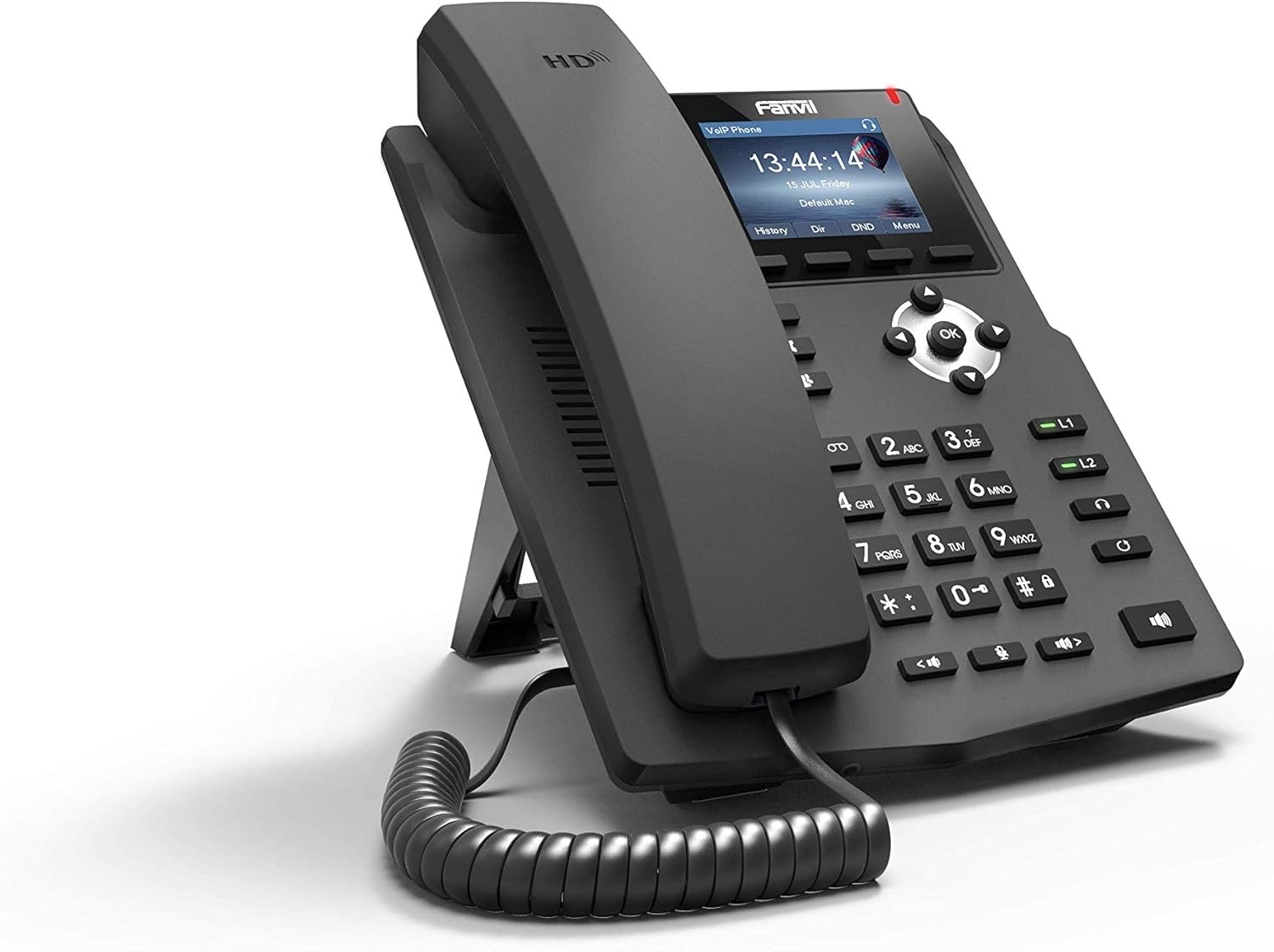
Image 1.1: Front angled view of the Fanvil X3G Enterprise IP Phone.
2. Package Contents
Verify that all items are present in the package:
- Fanvil X3G IP Phone Unit
- Handset
- Handset Cord
- Ethernet Cable
- Stand
- Quick Installation Guide (this document)
3. Setup
3.1 Assembling the Phone
- Attach the stand to the back of the phone unit. The stand allows for desktop placement at an optimal viewing angle or can be configured for wall-mount installation.
- Connect the coiled handset cord to the handset and the designated handset port on the phone unit.
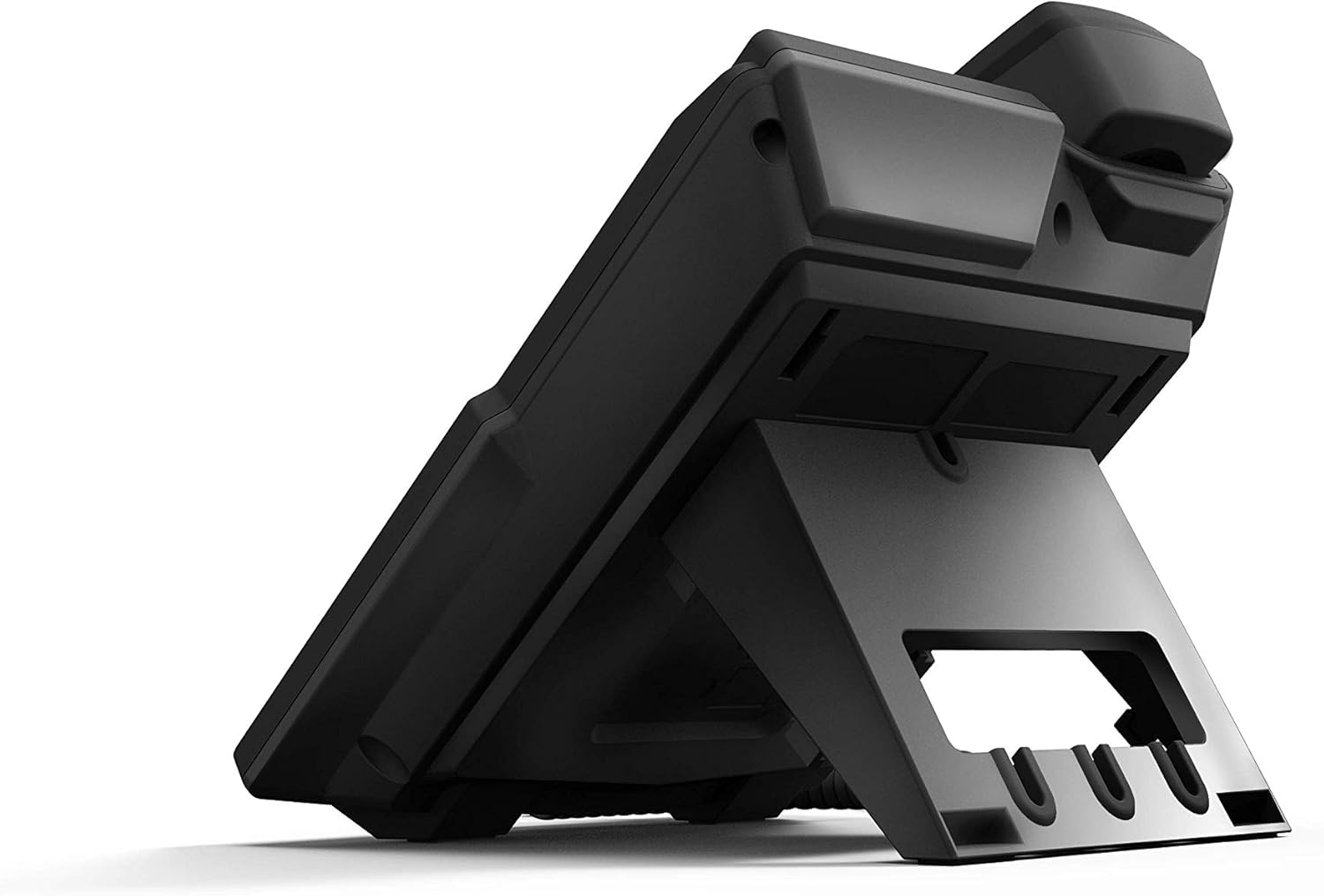
Image 3.1: Rear view of the Fanvil X3G IP Phone with stand and connection ports.
3.2 Connecting the Phone
- Network Connection: Connect one end of the Ethernet cable to the LAN port on the phone and the other end to a network switch or router. If your network supports Power over Ethernet (PoE), the phone will power on automatically.
- Power Connection (if not using PoE): If PoE is not available, connect a compatible power adapter (not included) to the power port on the phone and then to an electrical outlet.
- Headset Connection (Optional): For hands-free operation, connect a compatible headset to the headset port. The phone supports EHS (Electronic Hook Switch) for Plantronics headsets.
The phone will initiate its boot sequence upon receiving power. The display will show the Fanvil logo and then proceed to load the operating system.
4. Operating Instructions
4.1 Basic Call Functions

Image 4.1: Front view of the Fanvil X3G IP Phone, highlighting the display and keypad.
- Making a Call:
- Pick up the handset, press the speakerphone button, or press the Headset button.
- Dial the desired number using the keypad.
- Press the Dial soft key or the # key.
- Answering a Call:
- Pick up the handset, press the speakerphone button, or press the Headset button.
- Alternatively, press the Answer soft key.
- Ending a Call:
- Hang up the handset, press the speakerphone button again, or press the Headset button again.
- Alternatively, press the End Call soft key.
4.2 Call Features
- HD Voice: The Fanvil X3G supports HD Voice for superior audio clarity during calls.
- Speakerphone: Press the Speaker button to toggle speakerphone mode.
- Headset Mode: Press the Headset button to use a connected headset.
- Mute: Press the Mute button to mute your microphone during a call. Press again to unmute.
- Volume Adjustment: Use the Volume buttons to adjust the handset, speaker, or headset volume during a call, or the ringer volume when idle.
- 2 SIP Lines: The phone supports two independent SIP lines, allowing you to manage multiple calls simultaneously. Use the line keys (L1, L2) to switch between lines.
- 3-Way Conference Call:
- Establish a call with the first party.
- Press the Conf soft key. The first party is put on hold.
- Dial the second party's number and press Dial.
- Once connected to the second party, press the Conf soft key again to join all three parties in a conference call.
5. Maintenance
Proper maintenance ensures the longevity and optimal performance of your Fanvil X3G IP Phone.
- Cleaning: Use a soft, dry cloth to clean the phone's surface. For stubborn marks, slightly dampen the cloth with water. Avoid using harsh chemicals, abrasive cleaners, or solvents, as these can damage the finish.
- Environment: Keep the phone in a dry environment, away from direct sunlight, excessive heat, and moisture.
- Cables: Ensure all cables are securely connected and not strained or kinked.
6. Troubleshooting
If you encounter issues with your Fanvil X3G IP Phone, refer to the following common troubleshooting steps:
- No Power/Phone Does Not Turn On:
- Check if the Ethernet cable is securely connected to the LAN port and the network switch/router.
- If not using PoE, ensure the power adapter (if applicable) is correctly connected to the phone and a working electrical outlet.
- Verify that the network switch/router is powered on and functioning.
- No Dial Tone:
- Ensure the phone is properly registered with your VoIP service provider. Check the display for registration status.
- Verify network connectivity.
- Restart the phone by disconnecting and reconnecting the power/Ethernet cable.
- Poor Call Quality (Echo, Static):
- Check your network connection for stability and bandwidth.
- Ensure the handset cord is securely connected.
- If using a headset, try using the handset to determine if the issue is headset-related.
- Cannot Make/Receive Calls:
- Confirm that the phone is registered with your SIP server.
- Check network settings and ensure the phone has an IP address.
- Contact your VoIP service provider or network administrator for assistance with SIP registration or network configuration.
7. Specifications
Technical specifications for the Fanvil X3G Enterprise IP Phone:
| Feature | Detail |
|---|---|
| Brand | Fanvil |
| Model Number | H3 PHONE (also known as X3G) |
| Product Dimensions | 1 x 1 x 1 inches (2.54 x 2.54 x 2.54 cm) |
| Item Weight | 1.95 pounds (0.88 kg) |
| ASIN | B06VX2V8B2 |
| Telephone Type | Corded |
| Power Source | Corded Electric (PoE capable) |
| Dialer Type | Single Keypad |
| Answering System Type | Digital |
| Conference Call Capability | 3-way |
| Caller Identification | No |
| UPC | 756676089350 |
| SIP Lines | 2 |
| HD Voice | Yes |
| Headset Support | EHS support for Plantronics headsets |
| Installation Options | Desktop / Wall-mount |
8. Warranty and Support
For warranty information, please refer to the documentation provided at the time of purchase or contact your reseller. For technical support, please reach out to your service provider or the Fanvil customer support team through their official website.


