1. Introduction and Overview
The Redragon H301 SIREN2 is a 7.1 channel surround stereo gaming headset designed for an immersive audio experience. It features individual vibration for enhanced bass feedback, noise-canceling capabilities, and integrated LED lighting. The headset is built with a durable metal frame and soft ear pads for comfort during extended use.

Figure 1: Key features of the Redragon H301 SIREN2 headset.

Figure 2: The ergonomic and adaptive headband design for comfortable fit.
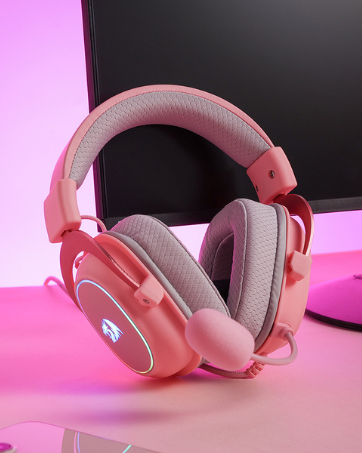
Figure 3: Illustration of the speaker drivers providing powerful stereo and bass.
2. Setup Instructions
Follow these steps to connect your Redragon H301 SIREN2 headset to your device:
- Identify Connectors: The headset features a 3.5mm audio jack for sound, a 3.5mm microphone jack, and a USB connector for power (required for LED lights and vibration function).
- Connect Audio: Plug the 3.5mm audio jack into your device's headphone port.
- Connect Microphone: Plug the 3.5mm microphone jack into your device's microphone port.
- Connect USB: Plug the USB 2.0 connector into an available USB port on your PC or laptop. This connection powers the LED lighting and the individual vibration feature.
- Driver Installation (PC): For 7.1 surround sound and advanced features, it is recommended to install the latest drivers from the official Redragon website. Follow the on-screen instructions during installation.
Figure 4: The USB 2.0 connector and inline control unit for the headset.

Figure 5: The inline control unit, featuring volume and vibration adjustment dials.
3. Operating Instructions
The Redragon H301 SIREN2 headset provides intuitive controls for an optimized gaming and audio experience.
3.1. Audio Control
- Volume Dial: Use the volume dial on the inline control unit to adjust the overall audio output level. Rotate clockwise to increase volume, counter-clockwise to decrease.
- 7.1 Surround Sound: Ensure drivers are installed for full 7.1 channel surround sound functionality. This feature enhances spatial audio awareness in games.
3.2. Microphone Usage
- Microphone Mute Switch: The inline control unit includes a switch to quickly mute or unmute the microphone. This is useful for privacy or when communication is not needed.
- Microphone Placement: The microphone is integrated into the earcup. Ensure your device's microphone input settings are correctly configured for optimal voice pickup.
3.3. Vibration Function
- Vibration Dial: Adjust the intensity of the individual vibration feature using the dedicated dial on the inline control unit. This feature provides tactile feedback for deep bass sounds and explosions, enhancing immersion.
- USB Power: The vibration function requires the USB connector to be plugged in.
3.4. LED Lighting
- Power On: The integrated LED lights on the earcups will illuminate automatically when the USB connector is plugged into a powered USB port.

Figure 6: The Redragon H301 SIREN2 headset with its illuminated logo.
4. Maintenance
Proper maintenance ensures the longevity and performance of your headset.
- Cleaning Ear Pads: Gently wipe the ear pads with a soft, damp cloth. Avoid harsh chemicals or abrasive materials.
- Cable Care: Avoid sharp bends or excessive pulling on the braided cable to prevent internal damage. Store the cable neatly when not in use.
- General Cleaning: Use a dry, soft cloth to clean the exterior surfaces of the headset. Do not immerse the headset in water or any liquids.
- Storage: Store the headset in a cool, dry place away from direct sunlight and extreme temperatures.
5. Troubleshooting
If you encounter issues with your Redragon H301 SIREN2 headset, refer to the following common solutions:
5.1. No Sound or Low Volume
- Ensure both the 3.5mm audio jack and USB connector are fully plugged into the correct ports.
- Check the volume dial on the inline control unit and your device's system volume settings.
- Verify that the headset is selected as the default audio output device in your operating system's sound settings.
- Test the headset on another device to rule out a device-specific issue.
5.2. Microphone Not Working
- Ensure the microphone mute switch on the inline control unit is in the 'unmuted' position.
- Verify that the 3.5mm microphone jack is securely connected.
- Check your device's sound settings to ensure the headset microphone is selected as the default input device and its volume is not muted or too low.
- Test the microphone with a different application or on another device.
5.3. Vibration or LED Lights Not Functioning
- Confirm that the USB connector is securely plugged into a powered USB 2.0 port.
- For vibration, ensure the vibration dial on the inline control unit is turned up.
- If using a USB hub, try connecting directly to a port on your computer.
6. Specifications
| Feature | Detail |
|---|---|
| Model Name | H301 |
| Connectivity Technology | Wired |
| Headphones Jack | 3.5mm + USB |
| Compatible Devices | PC, Laptops, Audio Devices with USB Port, Devices with 3.5mm Audio Jack |
| Control Type | Volume Control, Vibration Control, Microphone Mute |
| Noise Control | Active Noise Cancellation |
| Special Feature | Lightweight, Noise Canceling, Surround Stereo, Individual Vibration, LED Light |
| Item Weight | 1.57 pounds |
| Product Dimensions | 11 x 5.1 x 9.4 inches |
| Cable Feature | Braided, Retractable (referring to the headband adjustment) |
| Ear Placement | Over Ear |
| Hardware Platform | PC |
7. Warranty and Support
For warranty information and technical support regarding your Redragon H301 SIREN2 Gaming Headset, please visit the official Redragon website or contact their customer service directly. Keep your purchase receipt as proof of purchase for any warranty claims.


