
1. Introduction
This manual provides instructions for the installation and use of the SOUND OFF Nissan Navigation External Input VTR Adapter, model MM316D-W (VTR-06-8P). This adapter enables the connection of external audio/video devices with RCA output to compatible genuine Nissan navigation systems.
Compatible external devices include, but are not limited to, terrestrial digital tuners, game consoles, music players, and DVD players. When connected, video content will display on the navigation screen, and audio will play through the vehicle's in-car speaker system.

Figure 1: The SOUND OFF Nissan Navigation External Input VTR Adapter, showing the main cable with a white multi-pin connector on one end and three RCA plugs (red, white, yellow) on the other.
2. Compatibility Information
This product is designed for specific genuine Nissan navigation systems, particularly dealer-option models. It is crucial to verify your vehicle's navigation system type before installation.
- Dealer Option Navigation Systems: These are typically installed by the dealer. The model number of the navigation unit is usually displayed on its front panel or in the instruction manual.
- Manufacturer Option Navigation Systems: These are factory-installed during vehicle manufacturing. The navigation unit's model may not be visible on the front panel. For these systems, please refer to the product page for specific vehicle compatibility information, including installation location.
Always check your vehicle's model, year, and the specific model of your navigation unit to ensure compatibility. Refer to your vehicle's invoice or certificate for accurate details.
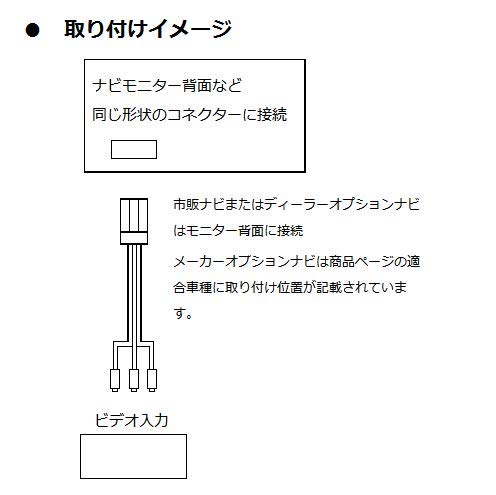
Figure 2: Illustrative diagram showing general connection points for navigation systems. It indicates connecting to the rear of the monitor for dealer-option units and refers to product-specific information for manufacturer-option units.
3. Installation Instructions
Installation of the VTR adapter is designed to be straightforward, utilizing genuine connectors to avoid complex wiring procedures.
- Locate the Navigation System: Access the rear of your genuine Nissan navigation system.
- Identify the Input Port: Locate the compatible input port on the back of the navigation system. This port will match the white multi-pin connector of the VTR adapter.
- Connect the Adapter: Firmly plug the white multi-pin connector of the VTR adapter into the identified port on the navigation system. Ensure a secure connection.

Figure 3: Close-up view of the white multi-pin connector, which connects directly to the rear of the factory navigation system.
No cutting or splicing of wires is required, as the adapter uses genuine connectors identical to those used by the automobile manufacturer.

Figure 4: Close-up view of the red, white, and yellow RCA plugs, ready for connection to an external device.
4. Operation
Once the VTR adapter is installed, you can connect your external RCA output device.
- Connect External Device: Plug the RCA output cables from your external device (e.g., DVD player, game console) into the corresponding red (right audio), white (left audio), and yellow (video) RCA input jacks on the VTR adapter.
- Select Input on Navigation System: Turn on your Nissan navigation system. Navigate through the system's menu to select the external input source (often labeled as 'AUX', 'VTR', or 'External Input'). The exact steps may vary depending on your navigation system model.
- Enjoy Content: Once the correct input is selected, video from your external device will display on the navigation screen, and audio will play through your car's speakers.
5. Care and Maintenance
To ensure the longevity and proper functioning of your VTR adapter, follow these general care guidelines:
- Keep the adapter and its connectors clean and free from dust or debris.
- Avoid exposing the adapter to extreme temperatures, direct sunlight, or excessive moisture.
- Handle the connectors gently when plugging or unplugging to prevent damage to the pins or cables.
- Ensure cables are not pinched or excessively bent during installation or use.
6. Troubleshooting
If you encounter issues with your VTR adapter, consider the following troubleshooting steps:
- No Video/Audio Output:
- Ensure all connections (adapter to navigation system, external device to adapter) are secure and fully inserted.
- Verify that the correct external input source is selected on your Nissan navigation system.
- Check that your external device is powered on and functioning correctly, and its RCA output is active.
- Confirm that the RCA cables from your external device are connected to the correct color-coded inputs on the VTR adapter (yellow for video, red for right audio, white for left audio).
- Poor Video/Audio Quality:
- Inspect all cables and connectors for any signs of damage or corrosion.
- Ensure the external device is providing a clean output signal.
If problems persist after following these steps, please contact your retailer or the manufacturer for further assistance.
7. Product Specifications
| Feature | Specification |
|---|---|
| Model Name | VTR-06-8P-057 |
| Brand | SOUND OFF |
| Connector Type | RCA |
| Cable Type | RCA |
| Compatible Devices | DVD Player, Terrestrial Digital Tuners, Game Consoles, Music Players (with RCA output) |
| Item Weight | 0.03 Kilograms |
| Package Dimensions | 15.1 x 11.4 x 1.9 cm |
| Number of Items | 1 |
8. Warranty and Support
This SOUND OFF VTR Adapter comes with a 1-year warranty from the date of purchase. This warranty covers manufacturing defects under normal use.
For warranty claims, technical support, or any inquiries regarding the product, please contact the retailer from whom you purchased the adapter or refer to the manufacturer's official support channels.


