Introduction
The ASUS ROG Maximus IX Hero is an ATX motherboard designed for 7th generation Intel Core processors. It features an LGA1151 socket, DDR4 memory support, and various connectivity options including DisplayPort, HDMI, M.2 slots, and USB 3.1. This motherboard provides a robust foundation for building a high-performance personal computer.

Image: Top-down view of the ASUS ROG Maximus IX Hero motherboard, showcasing its layout, CPU socket, RAM slots, and various expansion slots.
What's in the Box
Verify that all components listed below are included in your package:
- User guide
- Support DVD
- I/O Shield
- 2-in-1 SATA 6Gb/s cables (2)
- SLI™ HB Bridge (2-way-M)
- Q-Connector
- ROG Coaster
- 3D printing mount
- 10-in-1 ROG cable label
- CPU Installation Tool
- 2-in-1 M.2 Screw set
- ROG sticker
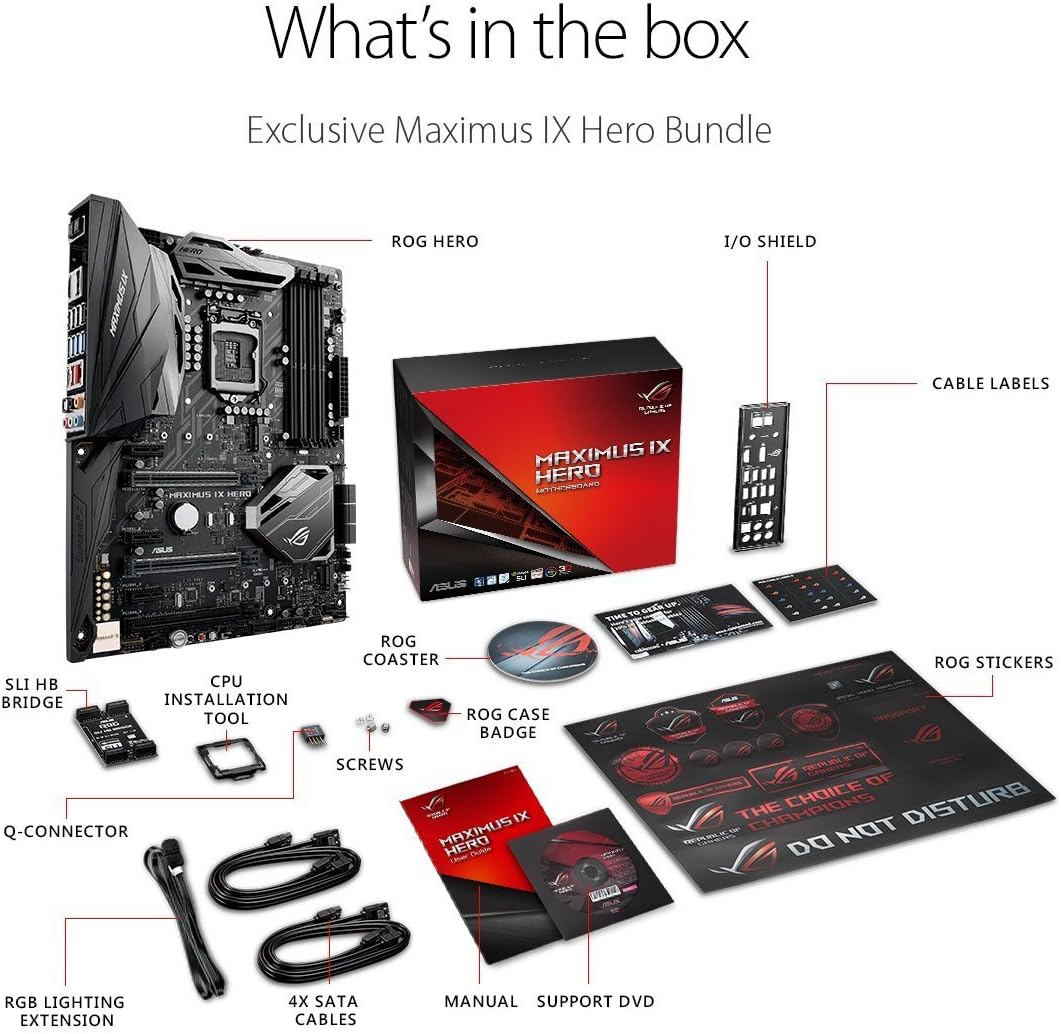
Image: A visual representation of the ASUS ROG Maximus IX Hero motherboard and its included accessories, such as cables, manuals, and installation tools.
Key Features
- Supports 7th generation Intel Core processors, enhancing connectivity and speed with Dual M.2 slots, front panel USB 3.1, and Intel Optane Memory compatibility.
- Includes 5-Way Optimization with Auto-Tuning and FanXpert 4 for automated overclocking profile adjustments and dynamic system cooling.
- Features ASUS AURA Sync RGB lighting and a 3D-printing friendly mount for customization.
- Equipped with two Patent-pending Safe Slots, which integrate metal framing for enhanced support and rigidity of large graphics processing units (GPUs).
- Provides industry-leading 8-channel HD audio through the ROG exclusive SupremeFX S1220, powered by Japanese capacitors.
Setup and Installation
This section provides general guidelines for installing your ASUS ROG Maximus IX Hero motherboard. Refer to the detailed user guide for specific instructions and safety precautions.
1. Initial Inspection
Before installation, carefully inspect the motherboard for any physical damage. Ensure the CPU socket pins are not bent.
2. CPU Installation (LGA1151)
- Open the CPU socket lever.
- Align the notches on your 7th generation Intel Core processor with the socket.
- Gently place the CPU into the socket without forcing it.
- Close the socket lever to secure the CPU.
3. RAM Installation (DDR4)
- Open the clips on the DDR4 DIMM slots.
- Align the notch on the DDR4 memory module with the key in the DIMM slot.
- Press down firmly on both ends of the memory module until the clips snap into place.
- The motherboard supports up to 64GB of DDR4 memory across four slots.
4. M.2 SSD Installation
The motherboard features dual M.2 slots for high-speed storage. Refer to the user guide for specific M.2 slot locations and screw set usage.
- Locate an available M.2 slot.
- Insert the M.2 SSD into the slot at an angle.
- Gently push down the SSD and secure it with the provided M.2 screw.
5. PCIe Card Installation (Safe Slots)
The motherboard includes reinforced Safe Slots for graphics cards and other PCIe devices.
- Align your PCIe card with an available PCIe slot.
- Press down firmly until the card is fully seated and the retention clip engages.
6. Connecting Power and Front Panel Headers
Connect the 24-pin ATX power connector and the 8-pin CPU power connector from your power supply to the motherboard. Connect the front panel headers (power button, reset button, HDD LED, power LED, USB ports, audio) according to the motherboard manual's pinout diagram.
7. Rear I/O Connections
Connect your peripherals to the rear I/O ports. This includes USB devices, display cables (HDMI, DisplayPort), Ethernet, and audio devices.

Image: Close-up view of the rear input/output panel of the ASUS ROG Maximus IX Hero motherboard, showing various ports including USB, HDMI, DisplayPort, Ethernet, and audio jacks.
8. RGB Lighting Setup
The motherboard features integrated AURA Sync RGB lighting. Additional RGB LED strips can be connected to the dedicated RGB LED headers for expanded lighting control.
9. Liquid Cooling Integration
For custom liquid cooling setups, the motherboard includes H2O sensor headers to monitor temperature and flow within your cooling loop.
Product Overview Video
Video: An overview of the ASUS ROG Maximus IX Hero motherboard, highlighting its key features, connectivity options, and design elements. This video provides a visual guide to the board's components and capabilities.
Operating Instructions
1. Initial Boot-up
After completing hardware installation, connect your display, keyboard, and mouse. Power on your system. The system should display the BIOS/UEFI interface or begin the operating system installation process.
2. BIOS/UEFI Configuration
Press the designated key (usually DEL or F2) during boot-up to enter the BIOS/UEFI setup. Here you can configure boot order, system time, enable/disable features, and apply overclocking settings. The 5-Way Optimization feature can assist with automated tuning.
3. Driver Installation
Install all necessary drivers for the motherboard chipset, audio, LAN, and other integrated components. These can typically be found on the included Support DVD or downloaded from the ASUS official website.
4. Software Utilities
Utilize ASUS software utilities such as AURA Sync for RGB lighting control and FanXpert 4 for fan speed management to optimize your system's performance and aesthetics.
Maintenance
1. Keep Clean
Regularly clean dust from the motherboard and connected components using compressed air. Ensure the system is powered off and unplugged before cleaning.
2. BIOS/UEFI Updates
Periodically check the ASUS support website for BIOS/UEFI updates. Updates can improve system stability, compatibility, and performance. Follow the update instructions carefully to avoid system damage.
3. Driver Updates
Keep your system drivers updated to ensure optimal performance and compatibility with new hardware and software.
Troubleshooting
1. No Power/No Boot
- Verify all power cables (24-pin ATX, 8-pin CPU) are securely connected.
- Ensure the power supply is switched on.
- Check front panel power button connection.
- Try booting with minimal components (CPU, one RAM stick, GPU if no integrated graphics).
2. No Display Output
- Ensure the monitor is connected to the correct graphics output (either motherboard or dedicated GPU).
- Reseat the graphics card and memory modules.
- Test with a different display cable or monitor.
3. System Instability/Crashes
- Check CPU and GPU temperatures.
- Ensure all drivers are up to date.
- If overclocked, revert to default settings to test stability.
- Run memory diagnostic tools to check RAM integrity.
Specifications
| Feature | Detail |
|---|---|
| Brand | ASUS |
| Model Name | ROG MAXIMUS IX HERO |
| CPU Socket | LGA 1151 |
| Compatible Processors | 7th Generation Intel Core |
| Chipset Type | Intel Z270 |
| RAM Memory Technology | DDR4 |
| Memory Slots Available | 4 |
| Maximum RAM Size | 64 GB |
| Graphics Card Interface | PCI Express |
| Total HDMI Ports | 1 |
| Total USB Ports | 2 (USB 3.1 Type-A, USB 3.1 Type-C on rear I/O) |
| System Bus Standard Supported | SATA 3 |
| Item Weight | 2.9 Pounds |
Warranty and Support
This product comes with a 3 Year Warranty from ASUS. For technical support, driver downloads, and further assistance, please visit the official ASUS support website or the ASUS Store.


