
1. Introduction
Thank you for choosing the Cable Matters Braided USB C to Micro USB Cable. This manual provides essential information for the proper use, maintenance, and troubleshooting of your new cable. This cable is designed to bridge the gap between modern USB-C devices and legacy Micro USB 2.0 peripherals, offering reliable charging and data transfer capabilities.
2. Key Features
- Versatile Connectivity: Connects USB-C devices (laptops, smartphones, wall chargers, power banks) to Micro USB 2.0 devices (smartphones, tablets, gaming controllers, digital cameras, dash cams, USB-DAC audio).
- High-Speed Data Transfer: Supports USB 2.0 data transfer speeds up to 480 Mbps.
- Efficient Charging: Delivers up to 3A/15W charging for compatible devices.
- Durable Construction: Features a reinforced braided jacket for enhanced durability and tangle resistance.
- Reliable Connectors: Equipped with gold-plated connectors and molded strain relief for frequent use and a secure connection.
- Reversible USB-C: The USB-C connector allows for effortless plugging in any orientation.
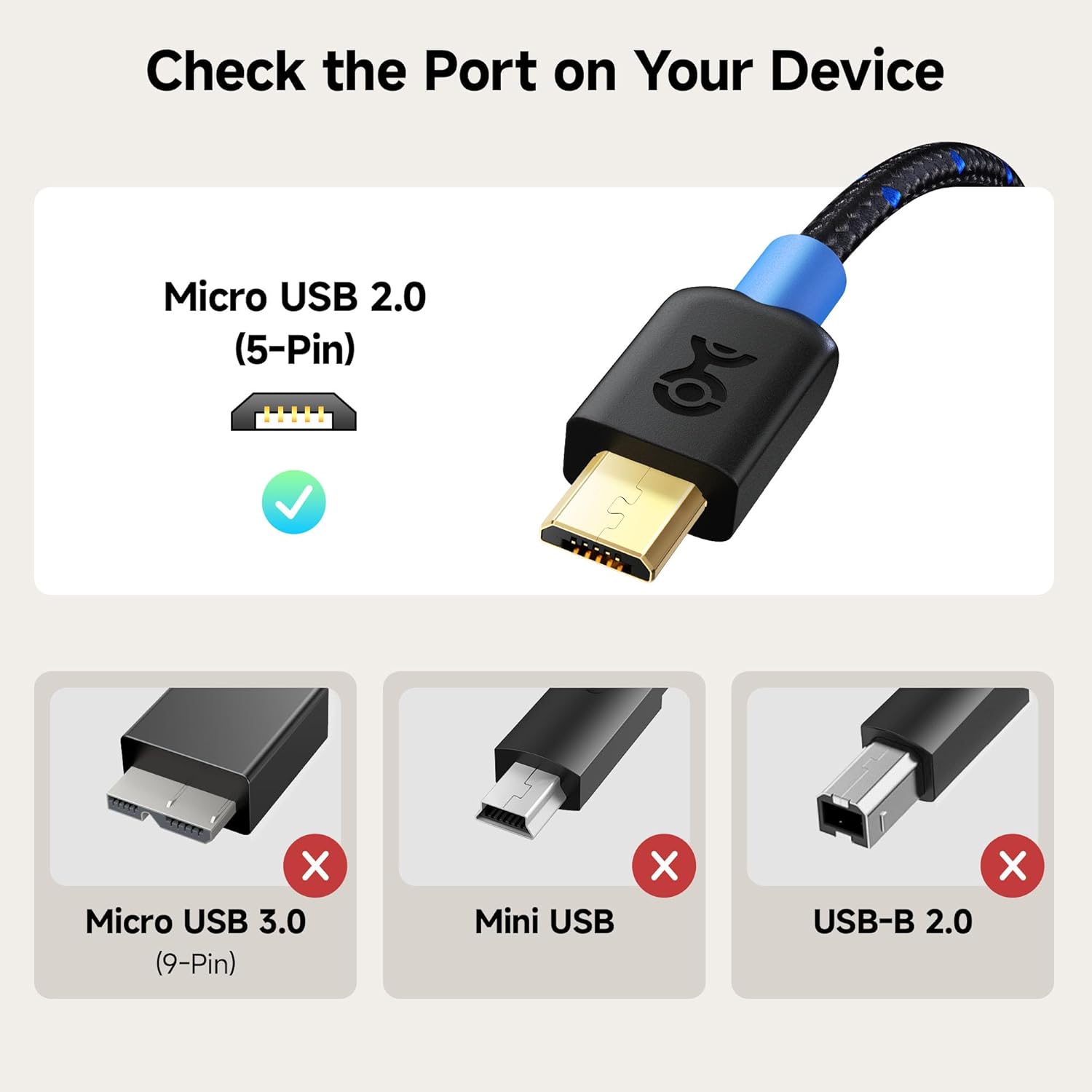
Figure 2.1: Ensure your device has a Micro USB 2.0 (5-Pin) port for compatibility.

Figure 2.2: The cable supports USB 2.0 data transfer rates up to 480 Mbps.
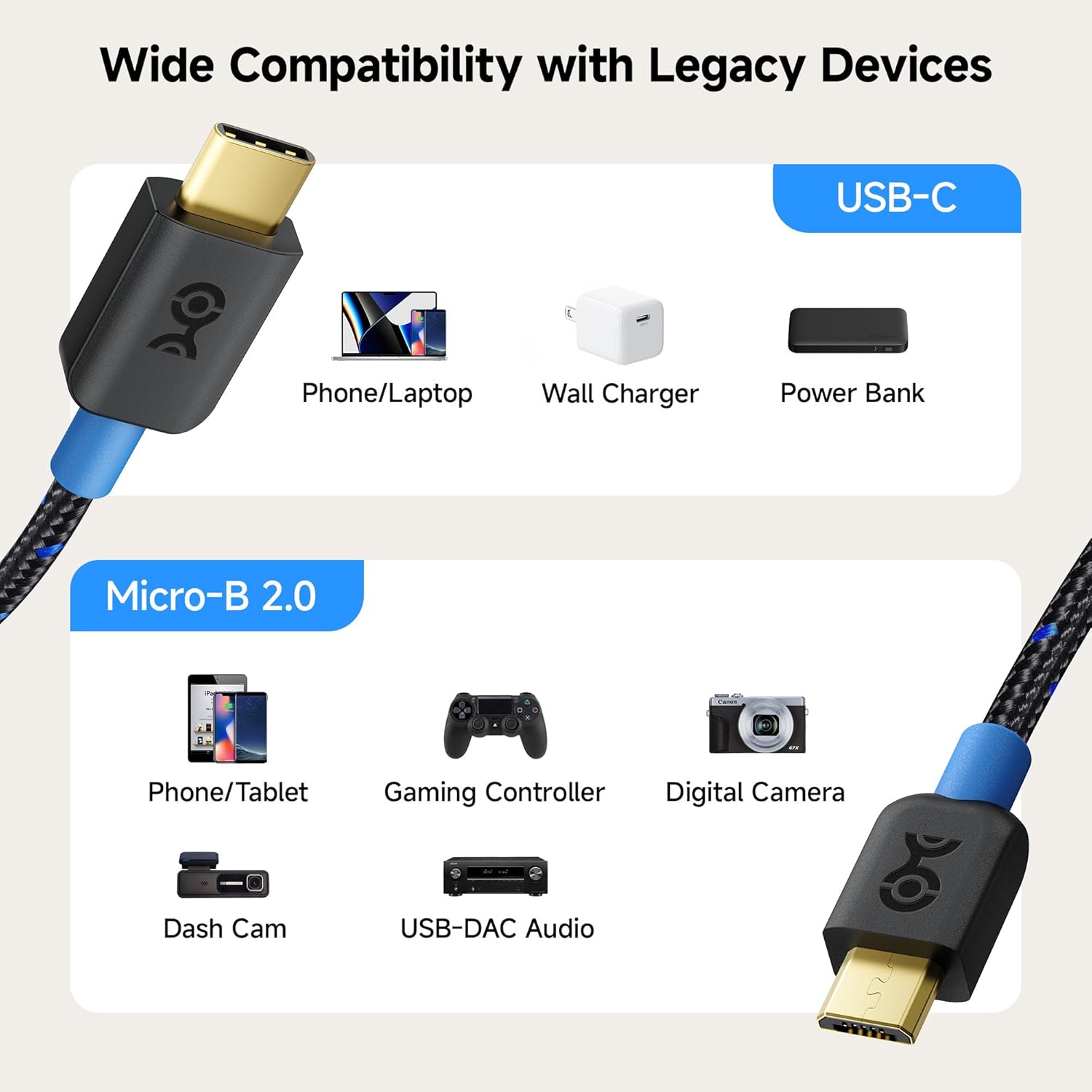
Figure 2.3: Wide compatibility with various USB-C and Micro-B 2.0 devices.

Figure 2.4: Built to last with premium components and design.
3. Setup
The Cable Matters Braided USB C to Micro USB Cable is designed for plug-and-play functionality. No drivers or software installation are required.
- Identify the Micro USB 2.0 port on your legacy device (e.g., smartphone, tablet, camera).
- Insert the Micro USB connector of the cable firmly into your legacy device's port.
- Identify the USB-C port on your modern device (e.g., laptop, wall charger, power bank).
- Insert the USB-C connector of the cable firmly into your modern device's port. The reversible design of the USB-C connector means it can be inserted in either orientation.
Once connected, your devices should recognize each other for charging or data transfer, depending on the device's capabilities and settings.
4. Operating Instructions
4.1. Charging Devices
To charge a Micro USB device using a USB-C power source:
- Connect the Micro USB end of the cable to your Micro USB device (e.g., phone, power bank).
- Connect the USB-C end of the cable to a USB-C wall charger, power bank, or laptop with a USB-C port.
- Ensure the power source is active. Your Micro USB device should begin charging.
4.2. Data Transfer
To transfer data between a USB-C device and a Micro USB device:
- Connect the Micro USB end of the cable to your Micro USB device (e.g., camera, older smartphone).
- Connect the USB-C end of the cable to your USB-C computer or laptop.
- On your Micro USB device, you may need to select the 'File Transfer' or 'MTP' (Media Transfer Protocol) option from the notification shade or settings to allow the computer to access its storage.
- Your computer should now recognize the connected device, allowing you to transfer files at USB 2.0 speeds (up to 480 Mbps).

Figure 4.1: Powering a gaming controller while playing.

Figure 4.2: Ideal for connecting legacy devices to modern setups or in a car.
5. Maintenance
To ensure the longevity and optimal performance of your Cable Matters Braided USB C to Micro USB Cable, follow these simple maintenance guidelines:
- Storage: Store the cable in a cool, dry place away from direct sunlight and extreme temperatures. Use the included hook-and-loop cable tie to keep it neatly coiled when not in use.
- Cleaning: If the cable or connectors become dirty, gently wipe them with a soft, dry, lint-free cloth. Avoid using harsh chemicals or abrasive materials.
- Handling: Always grasp the connector housing when plugging or unplugging the cable. Avoid pulling directly on the cable itself, as this can damage the internal wires or strain relief.
- Avoid Bending: Do not excessively bend or crimp the cable, especially near the connectors, to prevent internal wire damage.
6. Troubleshooting
If you encounter issues with your Cable Matters Braided USB C to Micro USB Cable, please refer to the following common troubleshooting steps:
- Device Not Charging:
- Ensure both ends of the cable are fully and securely inserted into their respective ports.
- Verify that the power source (wall charger, power bank, laptop) is functioning correctly and providing power.
- Check if your Micro USB device's charging port is clean and free of debris.
- Test the cable with another compatible device and power source to isolate the issue.
- Slow Charging:
- Ensure your power adapter provides sufficient output for your device. While the cable supports 3A/15W, the actual charging speed depends on the power source and the device's charging capabilities.
- Avoid using the device heavily while charging, as this can slow down the process.
- Data Transfer Issues / Device Not Recognized:
- Confirm that the cable is connected to a data-enabled USB-C port on your computer (not just a charging port).
- On your Micro USB device, check the notification panel for USB connection options and select 'File Transfer' or 'MTP'.
- Restart both the computer and the connected device.
- Try a different USB-C port on your computer.
- Intermittent Connection:
- Inspect the connectors for any visible damage or bent pins.
- Ensure the ports on your devices are clean and free of lint or dust.
- Avoid excessive movement or strain on the cable during use.
If these steps do not resolve your issue, please contact Cable Matters customer support for further assistance.
7. Specifications
| Attribute | Detail |
|---|---|
| Model Number | 201003-BLK-0.3m |
| Connector Type | USB Type C to Micro USB 2.0 |
| Data Transfer Speed | Up to 480 Mbps (USB 2.0) |
| Charging Output | Up to 3A / 15W |
| Cable Length | 1 Foot (0.3 meters) |
| Color | Black |
| Finish Type | Matte |
| Compatible Devices | Laptop, PC, Tablet, Smartphone (with USB-C or Micro USB 2.0 ports) |
8. Warranty and Support
The Cable Matters Braided USB C to Micro USB Cable comes with a Lifetime Warranty, ensuring peace of mind regarding its quality and durability. If you experience any issues or have questions about your product, please do not hesitate to contact Cable Matters customer support.
For support, visit the official Cable Matters website or refer to the contact information provided with your product packaging.