
Logitech G 920-008084
Logitech G213 Prodigy Gaming Keyboard User Manual
Model: 920-008084
1. Introduction
The Logitech G213 Prodigy Gaming Keyboard is designed to enhance your gaming and typing experience with its responsive keys, customizable RGB lighting, and dedicated media controls. This manual provides detailed instructions for setting up, operating, maintaining, and troubleshooting your new keyboard.
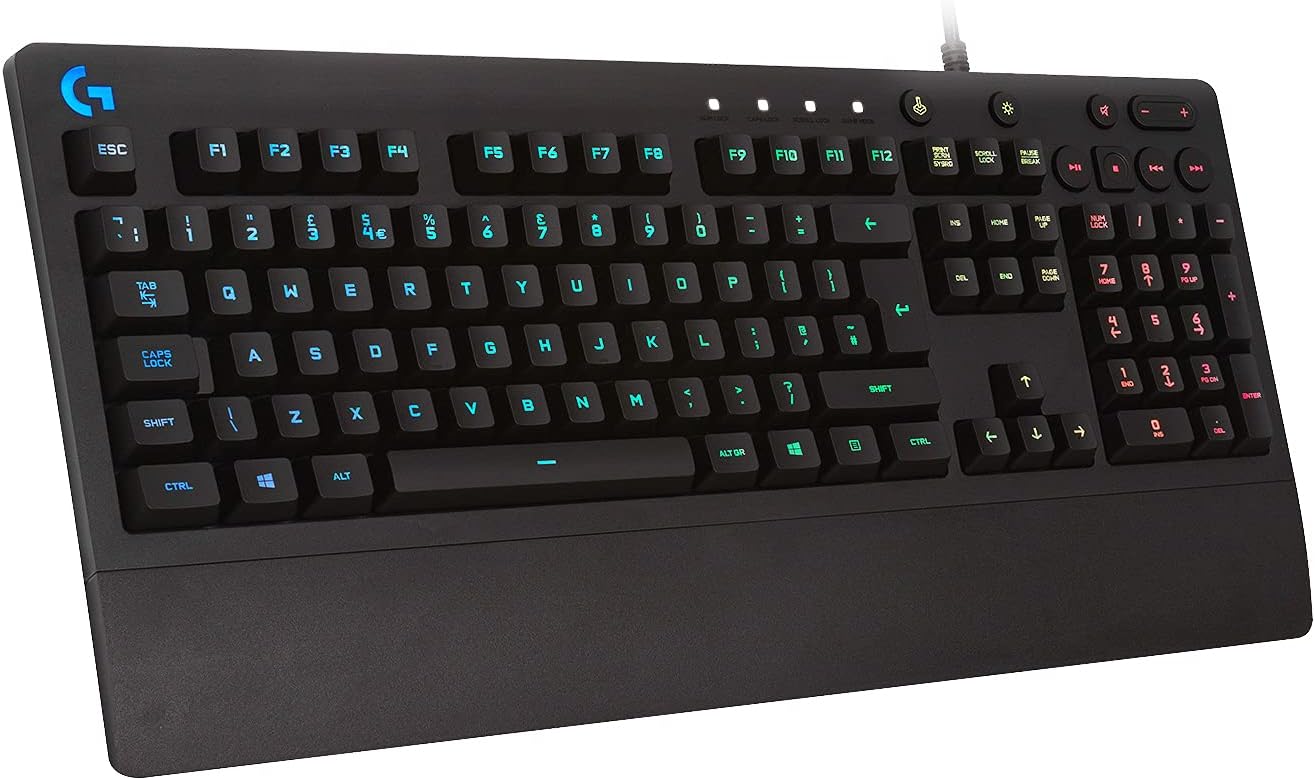
Image: Logitech G213 Prodigy Gaming Keyboard. This image displays the full layout of the keyboard, highlighting its sleek black design and the integrated palm rest.
2. Setup
2.1 Package Contents
- Logitech G213 Prodigy Gaming Keyboard
- User Documentation (this manual)
2.2 System Requirements
- Windows 10, Windows 8.1, Windows 8, Windows 7
- USB port
- Internet connection for optional Logitech G HUB software (for advanced customization)
2.3 Connecting the Keyboard
- Unpack the keyboard from its packaging.
- Locate an available USB port on your computer.
- Plug the USB connector of the Logitech G213 keyboard into the USB port.
- Your operating system will automatically detect and install the necessary drivers.
- For advanced customization of lighting and key assignments, download and install the Logitech G HUB software from the official Logitech website.

Image: Logitech G213 Prodigy Keyboard showing integrated palm rest and adjustable feet. This image illustrates the ergonomic design of the keyboard, including the non-removable palm rest and the two-level adjustable feet for comfortable positioning.
3. Operation
3.1 Key Features
- Mech-Dome Keys: Optimized for tactile feedback and fast response, offering performance up to 4 times faster than standard keyboards.
- LIGHTSYNC RGB Lighting: Five individual lighting zones with a spectrum of approximately 16.8 million colors.
- Integrated Palm Rest: Provides comfort during extended use.
- Adjustable Feet: Two-level angle adjustment for optimal typing position.
- Dedicated Media Controls: Instant access to play, pause, mute, and volume controls for music and videos.
- Game Mode Button: Disables Windows key and other unwanted keys during gaming sessions to prevent accidental interruptions.
3.2 RGB Lighting Customization
The G213 Prodigy features LIGHTSYNC RGB lighting across five distinct zones. To customize the lighting effects, colors, and brightness, you must install the Logitech G HUB software. The software allows for a wide range of personalization options, including static colors, breathing effects, color cycles, and audio visualizers.

Image: Logitech G213 Prodigy Keyboard showcasing RGB LIGHTSYNC illumination. This image highlights the vibrant, customizable RGB lighting zones across the keyboard's keys.
3.3 Dedicated Media Controls
Located in the upper right corner of the keyboard, the dedicated media controls allow you to manage your audio and video playback without interrupting your game or work. These controls include:
- Volume Roller: Adjusts system volume up or down.
- Mute Button: Mutes or unmutes audio.
- Play/Pause Button: Starts or pauses media playback.
- Previous Track Button: Skips to the previous track.
- Next Track Button: Skips to the next track.
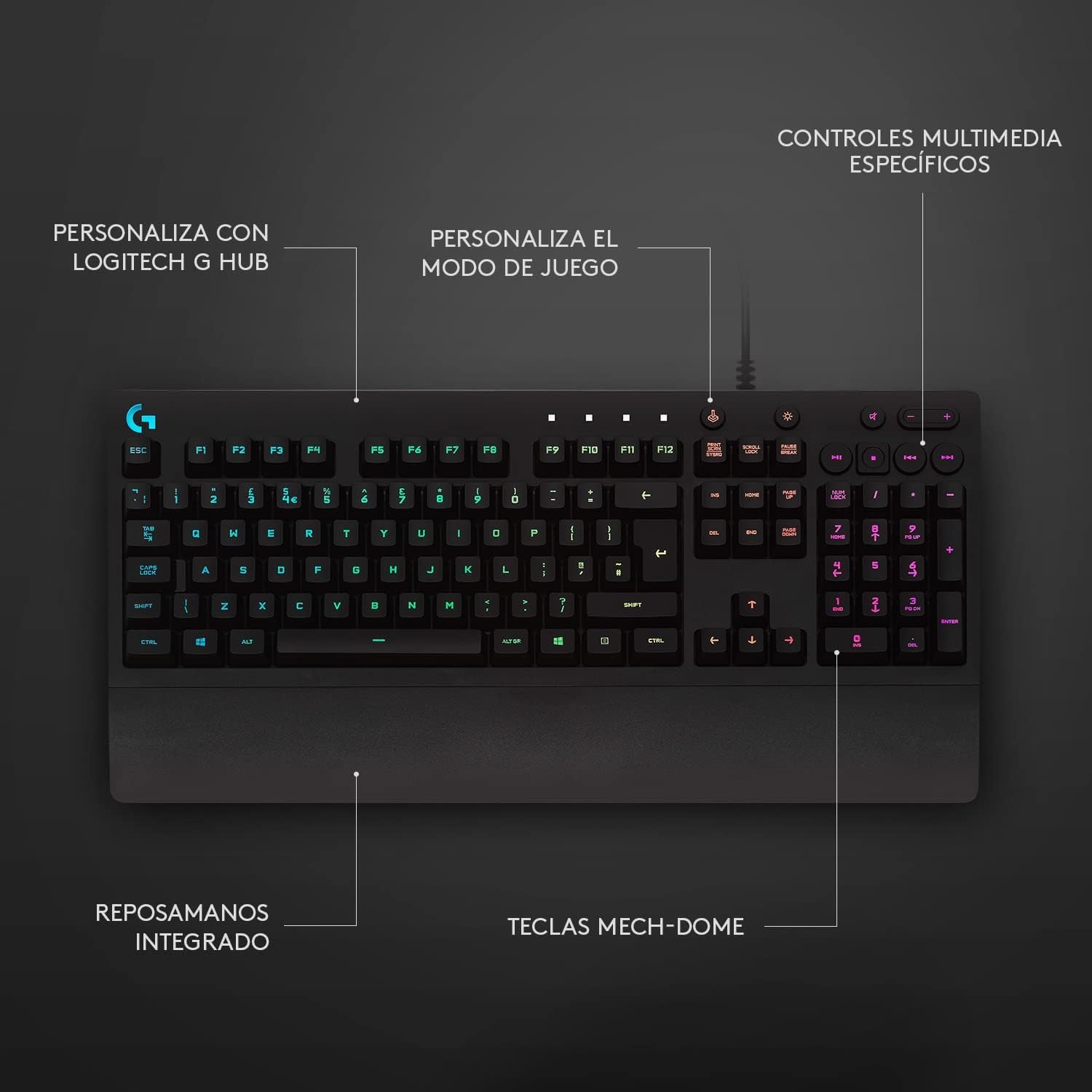
Image: Logitech G213 Prodigy Keyboard highlighting specific media controls and customization points via Logitech G HUB. This image points out the dedicated media keys, the Game Mode button, and the areas for G HUB software customization.
3.4 Gaming Performance
The G213 Prodigy is engineered for gaming performance. Its keys are designed for rapid response and anti-ghosting, ensuring that every command is registered accurately, even during intense gaming sessions. The integrated palm rest and adjustable feet contribute to comfort during long periods of use.

Image: People engaged in gaming, using Logitech G213 Prodigy keyboards. This image visually represents the keyboard's intended use for gaming performance.
4. Maintenance
4.1 Cleaning the Keyboard
To keep your keyboard in optimal condition, follow these cleaning guidelines:
- Disconnect the keyboard from your computer before cleaning.
- Use a soft, lint-free cloth slightly dampened with water or a mild cleaning solution.
- Avoid using harsh chemicals, abrasive cleaners, or solvents, as these can damage the keyboard's surface and keycaps.
- For dust and debris between keys, use compressed air.
4.2 Spill Resistance
The Logitech G213 Prodigy keyboard is designed to be spill-resistant, tested with up to 60 ml of liquid. While it can withstand minor spills, it is not waterproof. In case of a spill:
- Immediately disconnect the keyboard from your computer.
- Wipe off any liquid from the surface with a clean, dry cloth.
- Allow the keyboard to air dry completely before reconnecting it. Do not use external heat sources to dry it.

Image: Logitech G213 Prodigy Keyboard demonstrating its spill-resistant feature with water splashing over it. This image visually confirms the keyboard's durability against liquid spills.
5. Troubleshooting
| Problem | Possible Cause | Solution |
|---|---|---|
| Keyboard is not responding. | Loose USB connection, incorrect USB port, driver issue. |
|
| RGB lighting is not working or not customizable. | Logitech G HUB software not installed or running, lighting disabled. |
|
| Media keys are not functioning. | Software conflict, G HUB not running. |
|
| Keys feel sticky or unresponsive after a spill. | Liquid residue inside the keyboard. |
|
6. Specifications
| Feature | Detail |
|---|---|
| Brand | Logitech G |
| Model Number | 920-008084 |
| Color | Black |
| Dimensions (L x W x H) | 45 x 21.8 x 1 cm |
| Weight | 1 kg |
| Connectivity Technology | USB Wired |
| Key Type | Mech-Dome (Membrane) |
| Backlight Color Support | RGB (LIGHTSYNC) |
| Number of Keys | 104 (English Layout) |
| Spill Resistance | Tested with 60 ml liquid spills |
| Compatible Operating Systems | Windows 10, Windows 8.1, Windows 8, Windows 7 |
7. Warranty & Support
7.1 Warranty Information
Logitech G products typically come with a limited hardware warranty. The exact duration and terms of the warranty may vary by region and product. Please refer to the warranty information included with your product packaging or visit the official Logitech G website for detailed warranty terms and conditions.
7.2 Customer Support
For technical assistance, troubleshooting, or product inquiries, please visit the official Logitech G support website:
You can find FAQs, driver downloads (Logitech G HUB), and contact information for customer service on their website.
Related documents920-008084


Ask a question about this manual
Ask about setup, troubleshooting, compatibility, parts, safety, or missing instructions. Manuals+ will review the question and use this page’s manual context to help answer it.