
Introduction
The Forever BS 400 is a portable Bluetooth speaker designed for versatile audio playback. It features Bluetooth connectivity, an integrated FM radio, hands-free calling, and multiple input options including USB, MicroSD, and AUX. Its compact design and long-lasting battery make it suitable for various environments, from office to outdoor use.
Package Contents
Please check the box for the following items:
- 1 x Forever BS 400 Portable Bluetooth Speaker
- 1 x Micro USB Charging Cable
- 1 x 3.5mm Audio Cable (AUX)
- 1 x User Manual (this document)
Product Overview
Familiarize yourself with the speaker's controls and ports.
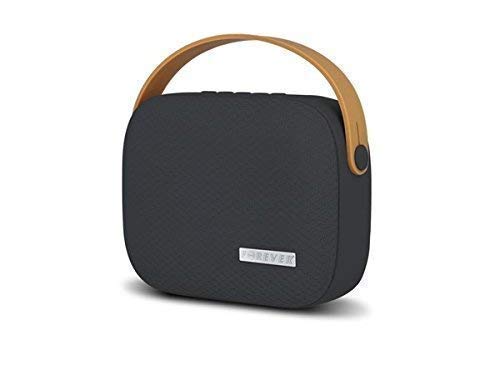
Image: Front view of the Forever BS 400 speaker, showing the control panel with buttons for call, mode, volume down/previous track, volume up/next track, and power.
- Call Button: For answering/ending calls in hands-free mode.
- M (Mode) Button: Switches between Bluetooth, FM Radio, USB, MicroSD, and AUX input modes.
- - (Minus) Button: Short press for volume down, long press for previous track.
- + (Plus) Button: Short press for volume up, long press for next track.
- Power Button: Long press to power on/off the speaker.

Image: Side view of the Forever BS 400 speaker, illustrating the various input ports including Micro USB, USB, MicroSD card slot, and AUX input.
- Micro USB Port: For charging the speaker.
- USB Port: For playing audio from a USB flash drive.
- MicroSD Card Slot: For playing audio from a MicroSD card (up to 32GB).
- AUX Input (3.5mm Jack): For connecting external audio devices via an audio cable.
Setup
1. Charging the Speaker
Before first use, fully charge the speaker. Connect the supplied Micro USB cable to the speaker's Micro USB port and the other end to a USB power adapter (not included) or a computer's USB port. The charging indicator (if present, not explicitly mentioned but standard) will show charging status. A full charge provides up to 8 hours of playback.
2. Powering On/Off
To power on the speaker, press and hold the Power Button until you hear an audible prompt or see an indicator light. To power off, press and hold the Power Button again.
3. Bluetooth Pairing
- Ensure the speaker is powered on and in Bluetooth mode. If not, press the M (Mode) Button to switch to Bluetooth mode. The speaker will indicate it is ready for pairing (e.g., a flashing LED or audible prompt).
- On your mobile device (smartphone, tablet, computer), enable Bluetooth and search for available devices.
- Select "BS 400" from the list of found devices.
- Once paired, the speaker will confirm the connection (e.g., a solid LED or audible prompt). You can now play audio from your device through the speaker.
The Bluetooth range is approximately 10 meters (33 feet) in open areas.
Operating Instructions
Playing Audio
Use the M (Mode) Button to switch between different audio sources:
- Bluetooth Mode: After pairing, audio from your connected device will play automatically.
- USB Mode: Insert a USB flash drive into the USB port. The speaker will automatically switch to USB mode and begin playing audio files.
- MicroSD Mode: Insert a MicroSD card (up to 32GB) into the MicroSD card slot. The speaker will automatically switch to MicroSD mode and begin playing audio files.
- AUX Mode: Connect an external audio device (e.g., MP3 player, laptop) to the AUX input using the 3.5mm audio cable. Switch the speaker to AUX mode using the M (Mode) Button.
- FM Radio Mode: Switch to FM Radio mode using the M (Mode) Button. The speaker will automatically scan and save available radio stations. Use the + and - buttons to navigate between stations.
Volume Control
Press the + Button to increase volume and the - Button to decrease volume.
Track Navigation (Bluetooth, USB, MicroSD Modes)
Long press the + Button to skip to the next track. Long press the - Button to go to the previous track.
Hands-Free Calling
When a call comes in while connected via Bluetooth, the music will pause. Press the Call Button to answer the call. Press it again to end the call. The built-in microphone allows for hands-free communication.
Maintenance
- Cleaning: Use a soft, dry cloth to clean the speaker's surface. Do not use abrasive cleaners or solvents.
- Storage: Store the speaker in a cool, dry place away from direct sunlight and extreme temperatures.
- Battery Care: To prolong battery life, avoid fully discharging the speaker frequently. Charge it regularly, even if not in use for extended periods.
- Water Resistance: This speaker is not waterproof. Avoid exposure to water or excessive moisture.
Troubleshooting
| Problem | Solution |
|---|---|
| Speaker does not power on. | Ensure the battery is charged. Connect the speaker to a power source using the Micro USB cable. |
| No sound. | Check the volume level on both the speaker and the connected device. Ensure the correct input mode (Bluetooth, AUX, USB, MicroSD) is selected. |
| Cannot pair via Bluetooth. | Ensure the speaker is in Bluetooth pairing mode. Turn off and on Bluetooth on your device. Move the speaker closer to your device. Clear previous Bluetooth connections on your device if necessary. |
| FM radio reception is poor. | Move the speaker to a location with better signal. The charging cable can sometimes act as an antenna; try connecting it. |
Specifications
| Feature | Detail |
|---|---|
| Model Name | BS 400 |
| Connectivity Technology | Bluetooth, Auxiliary |
| Wireless Technology | Bluetooth |
| Bluetooth Range | Up to 10 meters (33 feet) |
| Speaker Output Power | 5 Watts |
| Battery Capacity | 2000 mAh |
| Average Battery Life | Up to 8 hours |
| Power Source | Battery Powered |
| Compatible Devices | MP3 Player, Laptop, Smartphone, Tablet |
| Special Features | Bluetooth, FM Radio, Hands-free Function, USB Playback, MicroSD Playback, AUX Input |
| Material | Soft plastic, high-quality fabric cover, metal speaker grille |
| Color | Black |
| Dimensions (approx.) | 20 x 20 x 20 cm |
| Weight (approx.) | 150 grams |
Warranty and Support
For warranty information and technical support, please refer to the documentation provided with your purchase or contact the manufacturer directly. Keep your proof of purchase for warranty claims.


