1. Introduction
This manual provides detailed instructions for the installation, operation, and maintenance of the ASUS PRIME B250M-C/CSM motherboard. This motherboard is designed to support 7th generation Intel Core processors and features a B250 chipset, offering a robust foundation for personal computer systems.
For optimal performance and system stability, please read this manual thoroughly before proceeding with installation or configuration.
2. Safety Information
Always observe the following safety precautions to prevent damage to the motherboard and injury to yourself:
- Disconnect the power cord from the wall outlet before touching any component.
- Wear an anti-static wrist strap or frequently touch a grounded object to discharge static electricity before handling components.
- Handle components by their edges to avoid touching sensitive parts.
- Ensure all cables are correctly connected before powering on the system.
- Keep the motherboard away from moisture and extreme temperatures.
3. Package Contents
Verify that all items are present in your motherboard package:
- ASUS PRIME B250M-C/CSM Motherboard
- User's manual
- Serial ATA 6.0Gb/s cables (2)
- I/O Shield
- M.2 screws (2)
- Support DVD
4. Product Overview
The ASUS PRIME B250M-C/CSM is a micro-ATX motherboard featuring the Intel B250 chipset. It is designed for Intel LGA1151 processors (6th and 7th Generation Core i3/i5/i7/Pentium/Celeron). Key features include:
- Dual M.2 Slots: For high-speed NVMe or SATA M.2 SSDs, compatible with Intel Optane Memory.
- 5X Protection III: Hardware-level safeguards for component longevity and reliability.
- FanXpert 2: Advanced fan control for dynamic cooling.
- 8-Channel Audio: On-board audio with premium Japanese capacitors for clear sound.
- Front Panel USB 3.0: For convenient access and accelerated data transfers.

Figure 4.1: Top-down view of the ASUS PRIME B250M-C/CSM motherboard, highlighting the CPU socket, DIMM slots, PCIe slots, and M.2 slots.

Figure 4.2: Angled view of the ASUS PRIME B250M-C/CSM motherboard, showing various components and connectors from a different perspective.
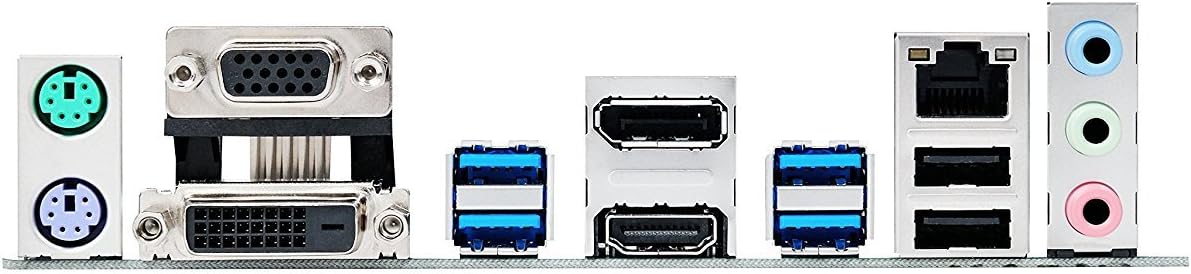
Figure 4.3: Close-up of the rear I/O panel, displaying the PS/2 ports, VGA, DVI, HDMI, USB 3.0, LAN, and audio jacks.
5. Setup and Installation
Follow these steps for proper installation of your motherboard and components.
5.1. CPU Installation
- Open the CPU socket lever and lift the load plate.
- Carefully align the CPU with the socket, ensuring the golden triangle on the CPU matches the triangle on the socket.
- Gently place the CPU into the socket. Do not force it.
- Close the load plate and push down the lever until it locks into place.
- Install the CPU cooler according to its manufacturer's instructions.
5.2. Memory (RAM) Installation
This motherboard supports DDR4 memory modules. Refer to the motherboard's QVL (Qualified Vendor List) for compatible memory.
- Open the clips at both ends of the DIMM slot.
- Align the notch on the DDR4 memory module with the key in the DIMM slot.
- Insert the module firmly into the slot until the clips snap into place.
- Ensure both clips are fully closed.
5.3. Storage Device Installation (SATA and M.2)
The motherboard provides SATA 6Gb/s ports and two M.2 slots.
- SATA Drives: Connect SATA data cables from your SSDs/HDDs to the SATA ports on the motherboard. Connect power cables from your power supply to the drives.
- M.2 SSDs:
- Locate the M.2 slot(s) on the motherboard.
- Insert the M.2 SSD into the slot at a 30-degree angle.
- Gently push down the M.2 SSD and secure it with the provided M.2 screw.
- Note: Using a SATA-based M.2 SSD in M.2_1 slot may disable SATA port 1. Consult the full manual for specific port sharing details.
5.4. Expansion Card Installation
Insert PCIe expansion cards (e.g., graphics cards, network cards) into the appropriate PCIe slots. Ensure they are fully seated and secured with a case screw.
5.5. Power Connections
Connect the main 24-pin ATX power connector and the 8-pin (or 4-pin) CPU power connector from your power supply to the corresponding ports on the motherboard.
5.6. Front Panel Connectors
Connect the cables from your PC case's front panel (power button, reset button, USB ports, audio jacks, power LED, HDD LED) to the corresponding headers on the motherboard. Refer to the motherboard's full manual for detailed pin assignments, as labels on the board can be small.
6. Operating System and Drivers
After hardware installation, proceed with installing your operating system and drivers.
- BIOS Setup: Power on your system and press the DEL key during startup to enter the BIOS/UEFI setup. Configure boot order and other system settings as needed.
- Operating System Installation: Install your preferred operating system (e.g., Windows 10).
- Note on Windows 7: While some documentation may suggest Windows 7 compatibility, users have reported significant challenges with driver availability and stability for Windows 7 on this B250 chipset motherboard. It is highly recommended to use Windows 10 or a newer operating system for full compatibility and driver support.
- Driver Installation: Install all necessary drivers from the included Support DVD or download the latest versions from the official ASUS support website. This includes chipset drivers, audio drivers, LAN drivers, and any other peripheral drivers.
7. Maintenance
Regular maintenance helps ensure the longevity and stable operation of your motherboard.
- BIOS Updates: Periodically check the ASUS support website for BIOS updates. BIOS updates can improve compatibility, stability, and performance. Follow ASUS's instructions carefully when updating the BIOS.
- Driver Updates: Keep your drivers updated by regularly checking the ASUS support website.
- Physical Cleaning:
- Ensure the system is powered off and unplugged before cleaning.
- Use compressed air to remove dust from fans, heatsinks, and other components.
- Use a soft, lint-free cloth to gently wipe surfaces. Avoid using liquid cleaners directly on components.
8. Troubleshooting
This section addresses common issues you might encounter.
- System Does Not Power On:
- Verify that the 24-pin ATX and 8-pin (or 4-pin) CPU power connectors are securely attached to the motherboard.
- Ensure the power supply is switched on and the power cord is firmly connected to both the power supply and the wall outlet.
- Check that the front panel power button cable is correctly connected to the motherboard header.
- No Display Output:
- Ensure your monitor is connected to the correct video output port (VGA, DVI, HDMI) on the motherboard or dedicated graphics card.
- Verify that the graphics card (if installed) is properly seated in its PCIe slot and has adequate power connected.
- Check that RAM modules are correctly installed. Reseat them if necessary.
- Operating System Installation Issues (Windows 7):
- If attempting to install Windows 7, be aware of potential driver compatibility issues, especially for USB and graphics. ASUS provides specific instructions for Windows 7 installation on their support site, often requiring driver integration into the installation media. Consider using Windows 10 for a smoother experience.
- SATA Port Disabled After M.2 Installation:
- If you install a SATA-based M.2 SSD into the M.2_1 slot, it may share bandwidth with and disable one of the SATA 6Gb/s ports (typically SATA_1). If you experience a missing SATA drive, try connecting it to a different SATA port.
9. Specifications
| Feature | Specification |
|---|---|
| Brand | ASUS |
| Model Name | ASUS COMPUTER INTL (PRIME B250M-C/CSM) |
| CPU Socket | LGA 1151 |
| Compatible Processors | 7th Generation Intel Core |
| Chipset Type | Intel B250 |
| RAM Memory Technology | DDR4 |
| Memory Clock Speed | 2400 MHz |
| Number of USB 2.0 Ports | 2 (rear I/O) |
| Product Dimensions (LxWxH) | 10.24 x 2.03 x 10.63 inches |
| Item Weight | 1.28 pounds |
| Compatible Devices | Personal Computer |
10. Warranty and Support
For warranty information, technical support, or further assistance, please refer to the warranty card included in your product package or visit the official ASUS support website. The website provides access to drivers, BIOS updates, FAQs, and contact information for customer service.
ASUS Support Website: www.asus.com/support/


