
1. Product Overview
The GIGABYTE GA-B250M-D2V is a Micro ATX motherboard designed to support 7th and 6th Generation Intel Core processors in the LGA1151 package. It features the Intel B250 Express Chipset, providing a stable and efficient platform for personal computing. Key features include dual-channel non-ECC unbuffered DDR4 memory support, high-quality audio capacitors with LED trace path lighting, GbE LAN with cFosSpeed Internet Accelerator Software, and Smart Fan 5 for advanced cooling control.
This motherboard is built with GIGABYTE's Ultra Durable design, ensuring longevity and reliability. It offers essential connectivity and expansion options for a balanced system build.
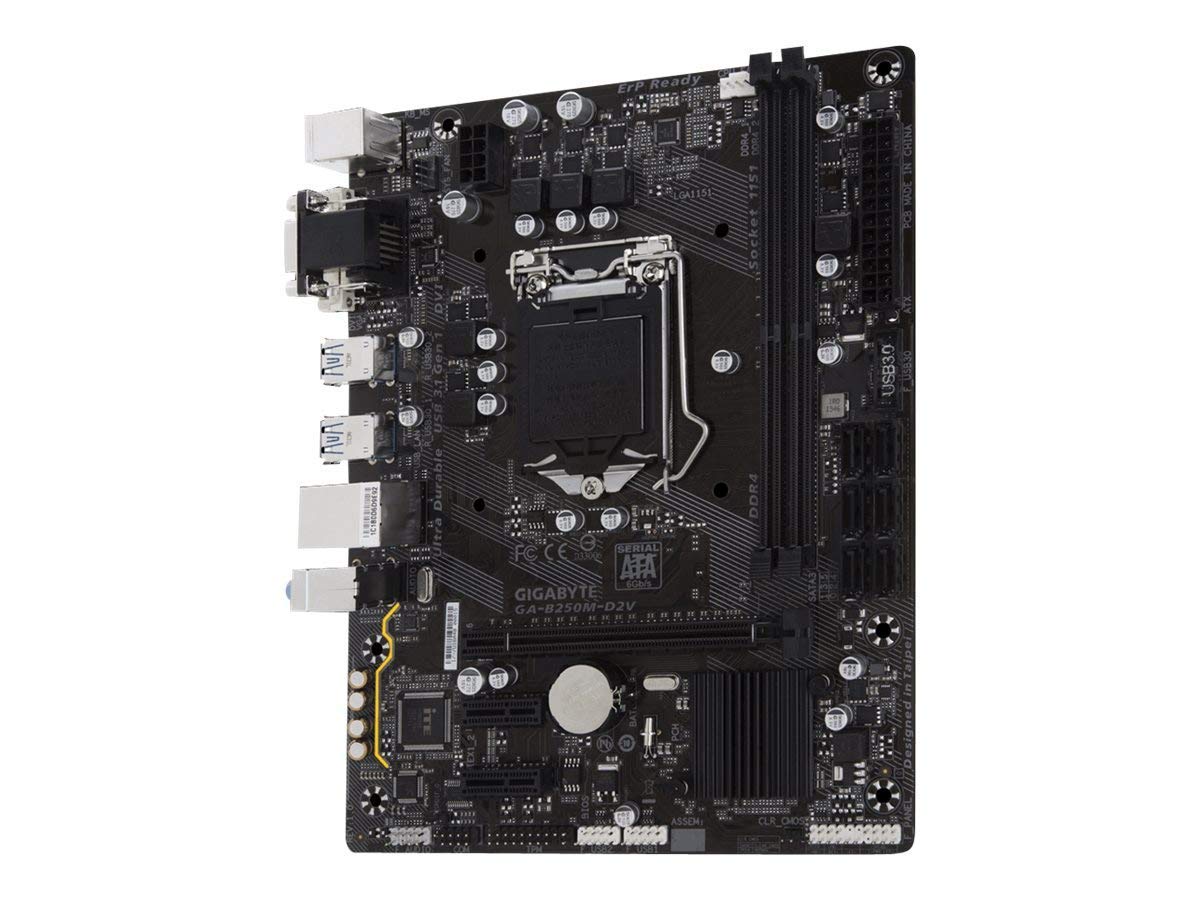
Image 1.1: Top-down view of the GIGABYTE GA-B250M-D2V motherboard, showing the CPU socket, RAM slots, and various connectors.
2. Setup and Installation
Proper installation is crucial for the stable operation of your system. It is highly recommended to have this motherboard installed by a trained professional to prevent damage and ensure correct configuration.
2.1. Pre-Installation Checklist
- Ensure you have a compatible CPU (7th/6th Gen Intel Core, Pentium, Celeron LGA1151).
- Acquire compatible DDR4 RAM modules (Non-ECC Unbuffered).
- Prepare a suitable Micro ATX compatible PC case.
- Gather necessary tools: screwdriver, thermal paste, anti-static wrist strap.
2.2. Component Installation Steps
- CPU Installation: Carefully open the CPU socket lever. Align the CPU with the socket, ensuring the gold triangle on the CPU matches the mark on the socket. Gently place the CPU into the socket without force. Close the lever to secure the CPU.
- CPU Cooler Installation: Apply thermal paste to the CPU (if not pre-applied on the cooler). Mount the CPU cooler according to its manufacturer's instructions. Connect the CPU fan cable to the "CPU_FAN" header on the motherboard.
- RAM Installation: Open the clips on both ends of the DDR4 memory slots. Align the notch on the RAM module with the key in the slot. Press down firmly on both ends of the RAM module until the clips snap into place. Install modules in matching slots for dual-channel performance (refer to motherboard manual for specific slot pairing).
- Motherboard Mounting: Install standoffs in your PC case that align with the motherboard's screw holes. Carefully place the motherboard into the case, aligning the I/O shield with the case opening. Secure the motherboard with screws.
- Power Connections: Connect the 24-pin ATX main power connector and the 8-pin (or 4-pin) ATX 12V CPU power connector from your power supply to the motherboard.
- Storage Devices: Connect SATA data cables from your storage drives (HDDs/SSDs) to the SATA ports on the motherboard. Connect SATA power cables from your power supply to the drives.
- Front Panel Connectors: Connect the front panel cables (Power SW, Reset SW, HDD LED, Power LED, USB, Audio) from your case to the corresponding headers on the motherboard. Refer to the detailed diagram in the full manual for correct pin assignments.
- Expansion Cards: Install any graphics cards or other PCI Express expansion cards into the appropriate PCIe slots. Secure them with the case's retention mechanism and connect any necessary PCIe power cables from the power supply.

Image 2.1: Close-up view of the motherboard's I/O panel and internal connectors, including USB 3.0 headers and SATA ports.
3. Operating Instructions
3.1. First Boot and BIOS Setup
After assembling your system, connect a monitor, keyboard, and mouse. Power on the system. During startup, repeatedly press the DEL key to enter the BIOS (Basic Input/Output System) setup utility. The GIGABYTE UEFI BIOS provides a graphical interface for configuration.
- Boot Order: Configure the boot order to prioritize your operating system installation media (USB drive or DVD-ROM).
- Date and Time: Set the correct system date and time.
- SATA Mode: Ensure SATA mode is set to AHCI for optimal SSD performance, unless installing an older operating system that requires IDE mode.
- Fan Control: Utilize the Smart Fan 5 features within the BIOS to customize fan curves and monitor temperatures for efficient cooling.
- Save and Exit: After making changes, save your settings and exit the BIOS. The system will restart.
3.2. Operating System Installation
Insert your operating system installation media (e.g., Windows, Linux) and follow the on-screen prompts to install the OS on your storage drive. After installation, install the necessary drivers for the motherboard components (chipset, audio, LAN, graphics) from the GIGABYTE support website or the included driver CD (if applicable).
3.3. GIGABYTE APP Center
The GIGABYTE APP Center provides a unified interface for various GIGABYTE utilities, including Cloud Station Utility, system monitoring tools, and BIOS update utilities. Install it from the GIGABYTE website for enhanced system management.
4. Maintenance
Regular maintenance helps ensure the longevity and optimal performance of your motherboard and system.
- Dust Removal: Periodically clean dust from inside your PC case, especially from fans, heatsinks, and vents. Use compressed air for best results. Ensure the system is powered off and unplugged before cleaning.
- BIOS Updates: Check the GIGABYTE website for the latest BIOS updates. BIOS updates can improve system stability, compatibility, and performance. Follow the update instructions carefully to avoid system damage.
- Driver Updates: Keep your motherboard drivers (chipset, audio, LAN) updated to ensure compatibility and optimal performance with your operating system and other hardware.
- Cable Management: Ensure internal cables are neatly routed to improve airflow and prevent interference.
5. Troubleshooting
This section provides solutions to common issues you might encounter.
5.1. No Power / System Does Not Turn On
- Verify that the power supply is connected to the motherboard (24-pin ATX and 8-pin/4-pin CPU power).
- Ensure the power supply switch is in the "ON" position.
- Check that the front panel power switch cable is correctly connected to the motherboard header.
- Test the power supply with another system or a power supply tester.
5.2. No Display / No POST (Power-On Self-Test)
- Ensure the monitor is connected to the correct video output (motherboard integrated graphics or discrete graphics card).
- Reseat the RAM modules. Try booting with only one RAM module installed.
- Reseat the graphics card (if applicable) and ensure its power cables are connected.
- Clear the CMOS by removing the CMOS battery for a few minutes or using the CLR_CMOS jumper (refer to the full manual for location).
- Check for any diagnostic LEDs or beep codes from the motherboard, which can indicate specific issues.
5.3. Operating System Issues
- If the OS fails to boot, check the boot order in BIOS.
- Ensure all storage drives are properly connected and detected in BIOS.
- Reinstall or update motherboard drivers if experiencing instability or peripheral issues.
6. Specifications
| Feature | Specification |
|---|---|
| Brand | GIGABYTE |
| Model | GA-B250M-D2V |
| CPU Socket | LGA 1151 |
| Compatible Processors | 7th/6th Generation Intel Core i7/i5/i3/Pentium/Celeron Processors |
| Chipset | Intel B250 Express Chipset |
| RAM Memory Technology | DDR4 |
| Memory Slots | 2 x DDR4 DIMM sockets, up to 32 GB (Dual Channel, Non-ECC Unbuffered) |
| Graphics Card Interface | PCI Express (1 x PCIe x16, 2 x PCIe x1) |
| Form Factor | Micro ATX (24.4cm x 19.5cm) |
| USB Ports | Total 12 (various USB 3.0/2.0 ports) |
| Audio | High Quality Audio Capacitors and Audio Noise Guard |
| LAN | GbE LAN with cFosSpeed Internet Accelerator Software |
| Dimensions (LxWxH) | 24.4 x 4 x 30.5 cm |
| Item Weight | 300 g |
7. Warranty and Support
7.1. Warranty Information
All GIGABYTE motherboards are manufactured by Gigabyte Technology Co., Ltd. Taiwan. For specific warranty terms and conditions, please refer to the warranty card included with your product or visit the official GIGABYTE website. Any unauthorized duplication or modification may void the warranty and attract legal jurisdiction.
7.2. Technical Support
For technical assistance, driver downloads, BIOS updates, and further product information, please visit the official GIGABYTE support website. You can typically find support resources by searching for your specific model number (GA-B250M-D2V) on their site.
GIGABYTE Official Website: www.gigabyte.com


