
OnePlus A3010
Contents
OnePlus 3T A3010 User Manual
Comprehensive guide for your OnePlus 3T A3010 smartphone.
1. Introduction
The OnePlus 3T A3010 is designed to deliver a superior user experience through advanced hardware and refined software. This manual provides essential information for setting up, operating, and maintaining your device.

Figure 1: Front and back view of the OnePlus 3T A3010 smartphone, showcasing its sleek design and camera placement.
2. What's in the Box
Upon unboxing your OnePlus 3T A3010, ensure all the following items are present:
- OnePlus 3T A3010 Device
- USB Cable (Type-C)
- Dash Charger Adapter
- Documentation (Quick Start Guide, Safety Information)
3. Specifications
| Feature | Detail |
|---|---|
| Model Number | ONEPLUS A3003 (also known as A3010) |
| Operating System | OxygenOS based on Android Nougat (initially Android 6.0.1) |
| CPU | Qualcomm Snapdragon 821, Quad Core (2x 2.35 GHz, 2x 1.6 GHz) |
| RAM | 6GB LPDDR4 |
| Internal Storage | 64GB (available in 128GB variant) |
| Display | 5.5 Inches, 1440 x 720 Resolution |
| Cameras | 16MP Front and Rear Cameras |
| SIM Support | Dual SIM (Nano-SIM, dual stand-by) |
| Sensors | Fingerprint sensor, Hall sensor, Accelerometer, Gyroscope, Proximity sensor, Ambient light sensor, Electronic Compass |
| Connectivity | USB Type-C, 3.5mm Audio Jack, Cellular (GSM Unlocked), Wi-Fi, Bluetooth |
| Dimensions | 5.98 x 2.94 x 0.29 inches |
| Weight | 5.6 ounces |
| Battery | 1 Lithium Ion battery required, Dash Charge compatible |
4. Initial Setup
4.1 Inserting SIM Cards
The OnePlus 3T A3010 supports dual Nano-SIM cards. Locate the SIM tray on the side of the device. Use the provided SIM ejector tool to open the tray. Insert your Nano-SIM cards into the designated slots, ensuring they are correctly oriented. Gently push the tray back into the device until it clicks into place.
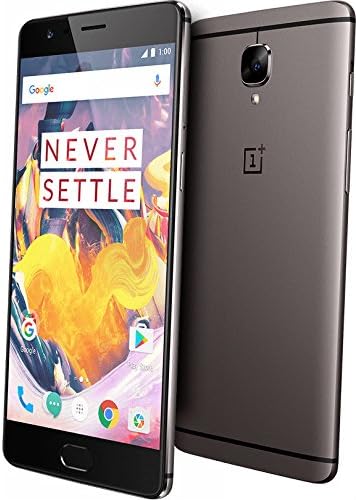
Figure 2: Side view of the OnePlus 3T A3010, highlighting the SIM card tray and physical buttons.
4.2 Powering On and Initial Configuration
Press and hold the Power/Lock switch located on the side of the phone until the OnePlus logo appears. Follow the on-screen prompts to select your language, connect to a Wi-Fi network, sign in with your Google account, and set up security features like the fingerprint scanner.
5. Operating Your Device
5.1 Navigation and Gestures
The OnePlus 3T A3010 features intuitive navigation. The fingerprint scanner on the bottom also serves as a home button. You can enable various screen-off gestures for quick access to functions:
- Double Tap to Wake: Tap the screen twice to wake up the device.
- Open Camera: Draw an 'O' on the screen to quickly launch the camera.
- Toggle Flashlight: Draw a 'V' to turn the flashlight on/off.
- Music Control: Draw '||' with two fingers to play/pause music, or '<' / '>' for previous/next track.
- Flip to Mute: Flip the device on an incoming call to mute it.
- Three-finger Screenshot: Swipe with three fingers on the screen to take a screenshot.
The dedicated Alert Slider on the side allows you to quickly switch between Ring, Do Not Disturb, and Silent modes without navigating through software settings.
5.2 Camera Functions
The device is equipped with 16MP front and rear cameras. You can access the camera quickly by double-clicking the Power/Lock button or by drawing an 'O' gesture on the screen when it's off. The camera offers various modes including standard photo, video, slow-motion, and time-lapse.
5.3 Gaming and Multimedia
With its powerful Qualcomm Snapdragon 821 processor and 6GB RAM, the OnePlus 3T A3010 provides a smooth experience for high-end mobile gaming and multimedia consumption. The 5.5-inch display offers vibrant visuals for browsing, watching videos, and playing games.
6. Maintenance
6.1 Battery Charging (Dash Charge)
Your OnePlus 3T A3010 supports Dash Charge technology, allowing for significantly faster charging speeds. Use only the provided Dash Charger adapter and USB Type-C cable for optimal charging performance. A short 10-minute charge can provide hours of battery life.
6.2 General Care
To ensure the longevity of your device, avoid exposing it to extreme temperatures, direct sunlight for prolonged periods, or liquids. Clean the screen and body with a soft, lint-free cloth. Do not use harsh chemicals or abrasive materials.
7. Troubleshooting
| Issue | Possible Solution |
|---|---|
| Phone not powering on | Ensure the battery is charged. Connect to the Dash Charger for at least 15 minutes before attempting to power on again. |
| Slow performance/App crashes | Close background applications. Clear app caches. Restart the device. Ensure OxygenOS is updated to the latest version. |
| Camera autofocus issues (especially in slow-motion) | Ensure adequate lighting. Tap on the screen to manually focus on the subject. Update camera software if available. |
| Muffled speaker sound during gaming | Adjust your grip to avoid covering the bottom-mounted speaker. Consider using headphones for an optimal audio experience. |
| No cellular network/LTE | Verify SIM card is correctly inserted. Check with your GSM carrier for band compatibility in your region. Ensure mobile data is enabled in settings. |
8. Warranty and Support
Please note that this is an International Model (A3010) and may not include a US warranty, as some manufacturers do not honor warranties for international items. For specific warranty information and support, please contact the seller directly or refer to the official OnePlus support channels in your region.
For further assistance, visit the official OnePlus Store on Amazon.
Documents and downloads
Ask a question about this manual
Ask about setup, troubleshooting, compatibility, parts, safety, or missing instructions. Manuals+ will review the question and use this page’s manual context to help answer it.