
Western Digital WD10S21X
Western Digital WD10S21X 1TB SSHD User Manual
Model: WD10S21X
1. Introduction
This user manual provides comprehensive instructions for the installation, operation, maintenance, and troubleshooting of your Western Digital WD10S21X 1TB Solid State Hybrid Drive (SSHD). Please read this manual carefully before installing and using your new drive to ensure optimal performance and longevity.
2. Product Overview
The Western Digital WD10S21X is a 1TB Solid State Hybrid Drive (SSHD) designed to offer a balance of capacity and speed. It integrates NAND flash SSD technology with traditional hard disk drive storage, aiming to provide quicker system boots, faster application loads, and improved responsiveness compared to conventional hard drives.
Key Features:
- Capacity: 1TB (1000GB)
- Buffer Size: 16MB Cache + 8GB NAND (Flash memory)
- Interface: SATA 6.0Gb/s (SATA III), 7mm height (Slim)
- Form Factor: 2.5" SSHD Hybrid Drive
- Optimal amount of built-in NAND flash for enhanced performance.
- Compatible with most configurations, including PC, Mac, laptop, PlayStation 3, and PlayStation 4.
Product Images:

Front view of the Western Digital WD10S21X 1TB SSHD, showing the "Slim" branding and WD logo.

The Western Digital WD10S21X 1TB SSHD sealed in its anti-static protective packaging.
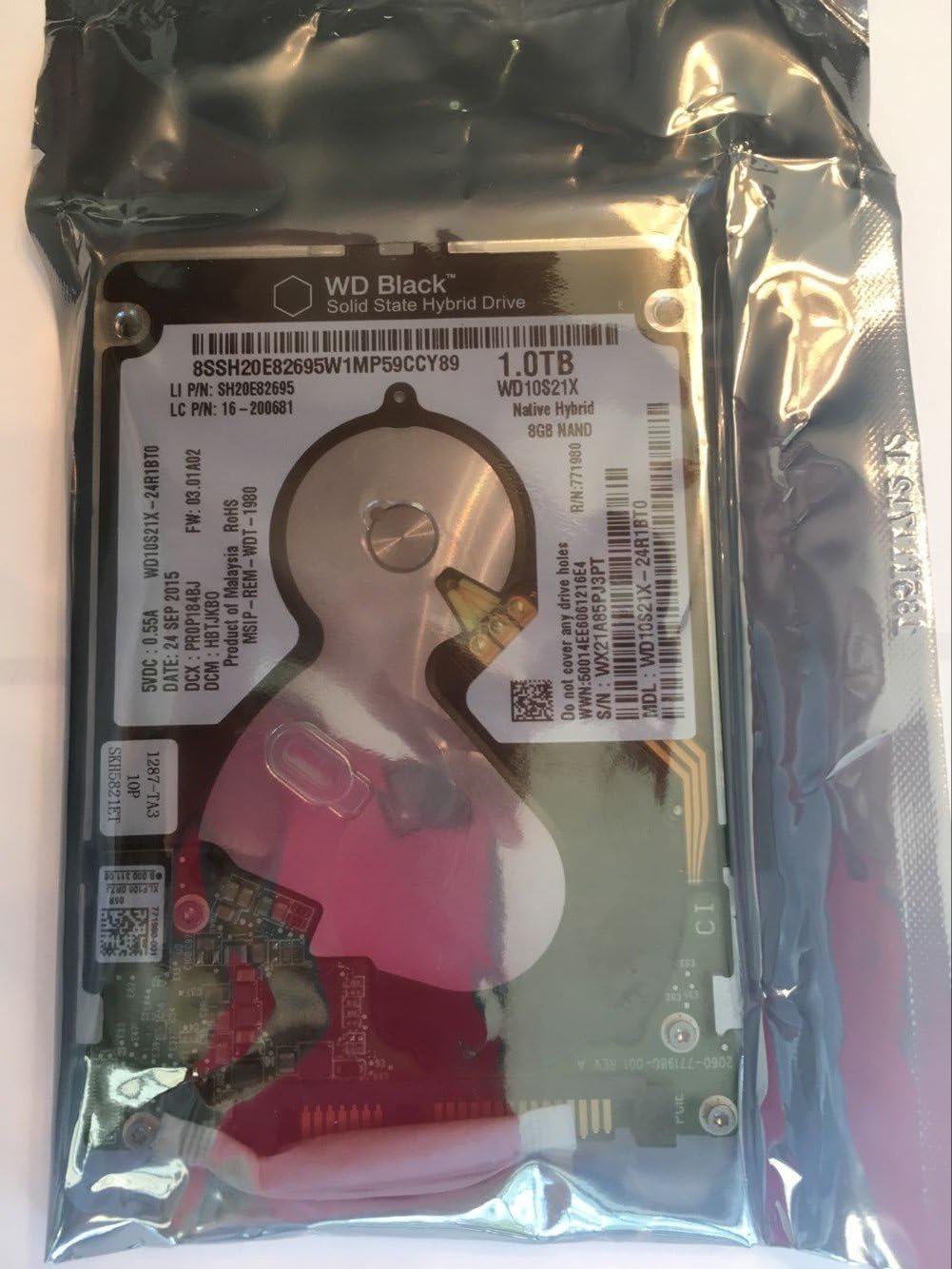
A close-up view of the product label on the Western Digital WD10S21X 1TB SSHD, visible through its anti-static bag. Key details like model number WD10S21X-24R1BT0 and serial number WX21A85PJ3PT are visible.

Another detailed view of the Western Digital WD10S21X 1TB SSHD label, highlighting the model number WD10S21X-24R1BT0 and serial number WX21A85PJ3PT.
3. Setup and Installation
This section outlines the general steps for installing your WD10S21X SSHD. Specific installation procedures may vary depending on your computer or console model. Always refer to your device's manufacturer manual for detailed instructions.
3.1 Before You Begin:
- Backup Data: If you are replacing an existing drive, ensure all important data is backed up to an external storage device or cloud service.
- Power Off: Completely shut down your computer or console and disconnect it from the power source.
- Static Precautions: Wear an anti-static wrist strap or frequently touch a grounded metal object (like the computer chassis) to discharge static electricity, which can damage electronic components.
- Tools: Gather necessary tools, typically a Phillips head screwdriver.
3.2 Physical Installation:
- Open Device: Carefully open your computer case or console according to its manufacturer's instructions.
- Locate Drive Bay: Identify an available 2.5-inch drive bay. If replacing an old drive, remove it first.
- Mount Drive: Slide the WD10S21X SSHD into the drive bay. Secure it with screws if required by your system's design.
- Connect Cables:
- Connect a SATA data cable from the drive to an available SATA port on your motherboard.
- Connect a SATA power cable from your power supply unit to the drive.
- Close Device: Carefully close your computer case or console.
3.3 Initial Software Setup (Windows/macOS):
- Power On: Reconnect power and turn on your computer.
- Access Disk Management (Windows):
- Right-click on the Start button and select "Disk Management".
- Your new drive should appear as "Unallocated Space".
- Right-click on the unallocated space and select "New Simple Volume" (or "Initialize Disk" if prompted, choose GPT for modern systems).
- Follow the wizard to format the drive and assign a drive letter.
- Access Disk Utility (macOS):
- Open "Disk Utility" from Applications > Utilities.
- Select your new drive from the sidebar.
- Click "Erase" and choose a format (e.g., APFS or Mac OS Extended (Journaled)) and a scheme (GUID Partition Map).
- Click "Erase" to format the drive.
- Operating System Installation (if applicable): If this is your primary drive, proceed with installing your operating system.
4. Operating Your SSHD
The WD10S21X SSHD intelligently manages data to optimize performance. Frequently accessed data is automatically moved to the faster NAND flash component, while less frequently accessed data resides on the higher-capacity HDD platters.
4.1 Performance Expectations:
- Adaptive Learning: The drive's performance will improve over time as it "learns" your usage patterns and caches frequently accessed files.
- Faster Boot Times: Expect quicker operating system boot times after a few restarts.
- Application Responsiveness: Applications you use regularly should launch and perform faster.
- Balance: While offering SSD-like speed for hot data, it retains the cost-effectiveness and large capacity of a traditional HDD. It will not match the sustained performance of a pure SSD for all operations.
4.2 General Usage Tips:
- Keep OS Updated: Ensure your operating system is up-to-date to benefit from the latest storage drivers and optimizations.
- Avoid Sudden Power Loss: Always shut down your system properly to prevent data corruption.
- Regular Backups: Continue to perform regular data backups.
5. Maintenance
Proper maintenance helps ensure the longevity and reliability of your WD10S21X SSHD.
5.1 Data Backup:
Regularly back up your important data. While SSHDs are reliable, no storage device is immune to failure. Consider using cloud storage, external hard drives, or network-attached storage (NAS) for your backup strategy.
5.2 Firmware Updates:
Occasionally, Western Digital may release firmware updates for your drive to improve performance, stability, or address specific issues. Check the official Western Digital support website for your model (WD10S21X) for any available firmware updates and follow their instructions carefully.
5.3 Physical Care:
- Temperature: Ensure your system has adequate ventilation to prevent the drive from overheating.
- Vibration: Avoid excessive vibration or sudden impacts to your computer or console, as this can damage the mechanical components of the HDD.
- Cleanliness: Keep the interior of your computer free from dust, which can impede airflow and lead to overheating.
6. Troubleshooting
This section provides solutions to common issues you might encounter with your WD10S21X SSHD.
6.1 Drive Not Detected:
- Check Cables: Ensure both the SATA data and power cables are securely connected to the drive and the motherboard/power supply.
- BIOS/UEFI Settings: Enter your system's BIOS/UEFI setup and verify that the SATA port the drive is connected to is enabled and that the drive is recognized.
- Power Supply: Confirm your power supply unit (PSU) has sufficient wattage and that the SATA power connector is functional.
- Another Port/Cable: Try connecting the drive to a different SATA port on the motherboard or using different SATA cables.
- Disk Management/Utility: As described in Section 3.3, check if the drive appears in Disk Management (Windows) or Disk Utility (macOS) as uninitialized or unallocated.
6.2 Slow Performance:
- Initial Learning Phase: Remember that SSHDs have an adaptive learning phase. Performance will improve as the drive identifies and caches frequently used data.
- SATA Mode: Ensure your motherboard's SATA controller is set to AHCI mode in the BIOS/UEFI for optimal performance.
- Drivers: Verify that your motherboard's chipset drivers are up-to-date.
- Disk Space: Ensure the drive is not excessively full. While SSHDs manage space, very low free space can impact performance.
- Background Processes: Check for any background applications or processes consuming significant disk I/O.
- Malware Scan: Run a full system scan for viruses or malware.
6.3 Unusual Noises:
While some clicking or whirring is normal for a mechanical hard drive, loud grinding, repetitive clicking, or scraping sounds can indicate a failing drive. Immediately back up any critical data and consider replacing the drive.
7. Specifications
| Feature | Detail |
|---|---|
| Hard Drive Capacity | 1 TB (1000 GB) |
| Buffer Size | 16MB Cache + 8GB NAND Flash |
| Interface | SATA 6.0Gb/s (SATA III) |
| Form Factor | 2.5 Inches (7mm height) |
| Series | WD Black |
| Model Number | WD10S21X |
| Hardware Platform Compatibility | Mac, PC, Laptop, PlayStation 3, PlayStation 4 |
| Item Weight | 4.2 ounces |
| Product Dimensions (LxWxH) | 0.39 x 3.94 x 2.76 inches |
| Color | Black |
| Manufacturer | Western Digital |
| First Available Date | December 23, 2016 |
8. Warranty and Support
8.1 Product Warranty:
The Western Digital WD10S21X SSHD typically comes with a 2-year warranty from the reseller. Please retain your proof of purchase for warranty claims. For specific warranty terms and conditions, refer to the documentation provided with your purchase or visit the official Western Digital website.
8.2 Data Recovery Plans:
Optional data recovery plans may be available for purchase separately, such as 2-Year or 3-Year Data Recovery Plans. These plans provide additional protection for your data in case of drive failure. Check with your retailer or Western Digital for details on these services.
8.3 Technical Support:
For technical assistance, troubleshooting beyond this manual, or warranty inquiries, please visit the official Western Digital support website. You can often find FAQs, knowledge base articles, driver downloads, and contact information for customer support there.
Western Digital Support Website: https://support.wdc.com
Western Digital Store: Western Digital Store on Amazon
Related documentsWD10S21X


Ask a question about this manual
Ask about setup, troubleshooting, compatibility, parts, safety, or missing instructions. Manuals+ will review the question and use this page’s manual context to help answer it.