
LAUNCH Creader 8021
LAUNCH Creader 8021 ABS SRS Scan Tool User Manual
Model: Creader 8021
Introduction
This manual provides detailed instructions for the operation and maintenance of the LAUNCH Creader 8021 ABS SRS Scan Tool. Please read this manual thoroughly before operating the device to ensure proper use and to prevent damage.
Product Overview
The LAUNCH Creader 8021 is a professional diagnostic tool designed for automotive technicians and enthusiasts. It offers comprehensive OBD2 functions, along with advanced diagnostic capabilities for ABS (Anti-lock Braking System) and SRS (Supplemental Restraint System). Additionally, it supports various reset functions including Oil Service Light, Electronic Parking Brake (EPB), Steering Angle Sensor (SAS), and Battery Management System (BMS).
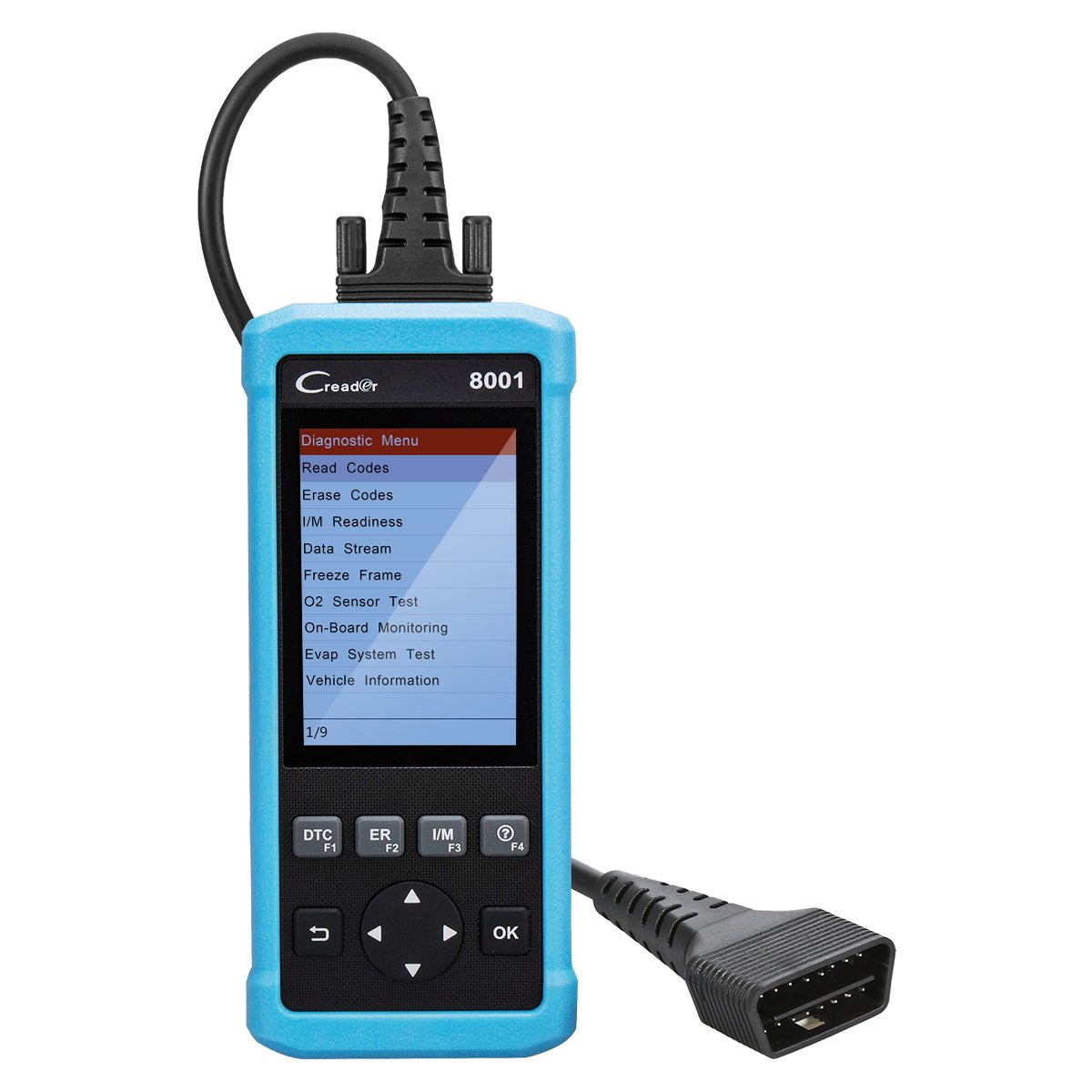
Figure 1: LAUNCH Creader 8021 Device Diagram. This image illustrates the main components of the Creader 8021, including the LCD screen, diagnostic cable, DB15 connector, and various control buttons such as I/M, Erase, DTC, ESC, Help, OK, and Selection buttons.
Key Features:
- ABS & SRS Diagnostics: Reads and clears DTCs, and reads data streams for Anti-lock Braking System and Supplemental Restraint System.
- Oil Reset: Resets the oil service light after an oil change.
- EPB Reset: Resets the Electronic Parking Brake system after brake pad replacement.
- SAS Reset: Clears faulty steering angle sensor memories and calibrates the steering angle sensor.
- BMS Reset: Performs a reset on the vehicle battery to clear fault information and re-match the battery.
- Full OBD2 Functions: Supports all 10 OBD2 test modes for comprehensive vehicle diagnostics.
- Data Recording & Review: Allows recording of real-time DTCs and data streams for later review.
- Extensive Vehicle Coverage: Compatible with 46 vehicle brands for ABS/SRS diagnostics (2006-2016 models) and 40 car brands for Oil/EPB resets. Full OBD2 functions cover most 1996 US-Based, 2001 EU-Based, and newer vehicles.
- Multi-language Support: English, Spanish, French, Russian, German, Portuguese, Japanese.
Package Contents
Upon opening the package, verify that all items are present and in good condition. If any items are missing or damaged, contact your vendor immediately.

Figure 2: Package Contents. The image displays the LAUNCH Creader 8021 diagnostic tool, a diagnostic cable, a USB cable for updates, a quick start guide, and a protective carrying case.
- LAUNCH Creader 8021 Main Unit
- Diagnostic Cable (DB15 to OBD2)
- USB Cable (for updates)
- Quick Start Guide
- Protective Carrying Case
Setup and Initial Use
- Power On: The Creader 8021 is powered directly from the vehicle's OBD2 port. No external power source is typically required during operation.
- Locate OBD2 Port: Identify the 16-pin Data Link Connector (DLC) in your vehicle. This port is usually located under the dashboard on the driver's side.
- Connect to Vehicle: Plug the diagnostic cable's DB15 connector into the Creader 8021 and the OBD2 connector into the vehicle's DLC. Ensure a secure connection.
- Device Initialization: Once connected, the Creader 8021 will automatically power on and initiate communication with the vehicle. The main menu will appear on the LCD screen.
- Language Selection: If prompted, select your preferred language from the available options (English, Spanish, French, Russian, German, Portuguese, Japanese).

Figure 3: Front and Rear Views of the Device. This image shows the front display and control buttons, along with the rear label containing serial number and input specifications.
Operating Instructions
Navigate through the menus using the directional buttons and confirm selections with the "OK" button. Use the "ESC" button to return to the previous screen.
1. OBD2 Diagnostics:
This function allows access to all 10 modes of OBD2 diagnostics for engine-related issues.
- Read Codes: Displays Diagnostic Trouble Codes (DTCs) stored in the vehicle's ECU.
- Erase Codes: Clears DTCs from the vehicle's ECU and turns off the Malfunction Indicator Lamp (MIL).
- I/M Readiness: Checks the readiness of the emission monitoring systems.
- Data Stream: Displays real-time data from the vehicle's sensors in text or graph format.
- Freeze Frame: Shows a snapshot of vehicle operating conditions at the time an emission-related fault occurred.
- O2 Sensor Test: Retrieves O2 sensor monitor test results.
- On-Board Monitoring: Retrieves results for on-board diagnostic monitoring tests of specific components/systems.
- Evap System Test: Initiates a test of the evaporative emission system.
- Vehicle Information: Retrieves vehicle identification number (VIN), calibration ID (CALID), and calibration verification number (CVN).
2. ABS & SRS System Diagnostics:
Access specific diagnostic functions for the Anti-lock Braking System and Supplemental Restraint System.
- Select "ABS System" or "SRS System" from the main menu.
- Choose "Read Codes" to view system-specific DTCs.
- Choose "Erase Codes" to clear system-specific DTCs.
- Choose "Data Stream" to view real-time data from ABS/SRS sensors.
3. Reset Functions:
The Creader 8021 supports several maintenance reset functions.
- Oil Reset: Follow on-screen prompts to reset the oil service light after an oil change.
- EPB Reset: Follow on-screen prompts to reset the Electronic Parking Brake system. This is crucial after replacing brake pads or performing maintenance on the EPB system.
- SAS Reset: Follow on-screen prompts to calibrate the Steering Angle Sensor. This is often required after steering system repairs or alignment.
- BMS Reset: Follow on-screen prompts to reset the Battery Management System. This is necessary when replacing the vehicle battery to ensure proper charging and monitoring.
Maintenance and Updates
Device Care:
- Keep the device clean and dry. Avoid exposure to extreme temperatures, moisture, or direct sunlight.
- Do not use abrasive cleaners or solvents. Wipe with a soft, damp cloth.
- Store the device in its protective carrying case when not in use.
Software Updates:
The LAUNCH Creader 8021 offers free lifetime software updates via the internet. Regular updates ensure compatibility with newer vehicle models and provide enhanced features.
- Download Update Tool: Visit the official LAUNCH website and download the update tool software to your computer.
- Install Software: Install the update tool on a computer running Windows 7, 8, 10, or XP.
- Connect Device: Connect the Creader 8021 to your computer using the provided USB cable.
- Run Update Tool: Launch the update tool and follow the on-screen instructions to register your device and download the latest software.
- Transfer Updates: The update tool will guide you through transferring the updates to the device's TF card.
Note: You may also remove the TF card from the device and use a card reader to update it directly on your computer, then reinsert the card into the device.
Troubleshooting
| Problem | Possible Cause | Solution |
|---|---|---|
| Device does not power on. |
|
|
| Communication error with vehicle. |
|
|
| Buttons are unresponsive. |
|
|
| Update process fails. |
|
|
Specifications
| Feature | Detail |
|---|---|
| Model | Creader 8021 |
| Display | 4-inch Color LCD |
| Input Voltage | 9-18V DC (via OBD2) |
| Operating Temperature | 0°C to 50°C (32°F to 122°F) |
| Storage Temperature | -20°C to 70°C (-4°F to 158°F) |
| Dimensions (L x W x H) | 26.16 x 19.3 x 8.38 cm (10.3 x 7.6 x 3.3 inches) |
| Weight | 458 g (1.01 lbs) |
| Connectivity | OBD2, Mini USB |
| Supported Protocols | ISO9141-2, ISO14230-4, SAEJ1850, ISO15765-4 |
| Update Method | Free internet update via USB |
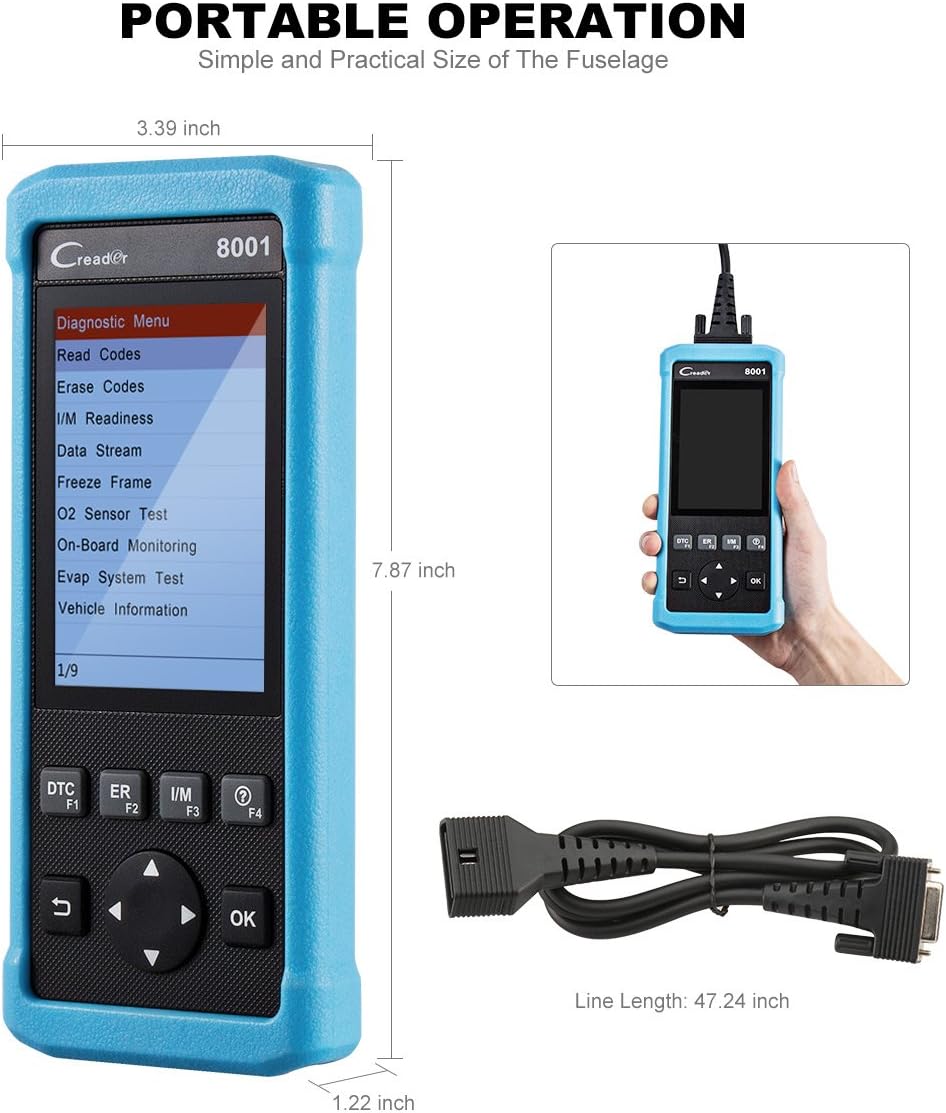
Figure 4: Product Dimensions. This image provides a visual representation of the Creader 8021's physical dimensions, including its length, width, and thickness, along with the length of the diagnostic cable.
Warranty and Support
Warranty Information:
The LAUNCH Creader 8021 comes with a 12-month warranty from the date of purchase. This warranty covers manufacturing defects and malfunctions under normal use. Please retain your proof of purchase for warranty claims.
The warranty does not cover damage caused by misuse, accidents, unauthorized modifications, or improper maintenance.
Technical Support:
For technical assistance, troubleshooting, or warranty inquiries, please contact LAUNCH customer support. Refer to the official LAUNCH website for the most current contact information.
When contacting support, please have your device's serial number and proof of purchase readily available.
Related documentsCreader 8021


Ask a question about this manual
Ask about setup, troubleshooting, compatibility, parts, safety, or missing instructions. Manuals+ will review the question and use this page’s manual context to help answer it.