
Introduction
This manual provides detailed instructions for the installation, operation, and maintenance of your CP PLUS 8 Channel 2 MP Digital Video Recorder (DVR) model CP-ER-H0804P1. Please read this manual thoroughly before using the product to ensure proper setup and functionality. Keep this manual for future reference.
1. Setup Guide
1.1 Unpacking and Inspection
Carefully unpack the DVR and all accessories. Verify that all components are present and undamaged. If any items are missing or damaged, contact your vendor immediately.
1.2 Connecting the DVR
Follow these steps to connect your DVR to cameras, a monitor, and the network:
- Camera Connection: Connect your 2 MP surveillance cameras to the 8 available BNC input ports on the rear panel of the DVR.
- Monitor Connection: Connect a monitor to the DVR using either the HDMI or VGA port. Ensure the monitor is powered on and set to the correct input source.
- Network Connection: Connect an Ethernet cable from your router or network switch to the LAN port on the DVR.
- USB Devices: Connect a USB mouse for navigation and a USB flash drive for data backup to the available USB ports.
- Power Connection: Connect the provided power adapter to the DVR's power input and then to a power outlet.
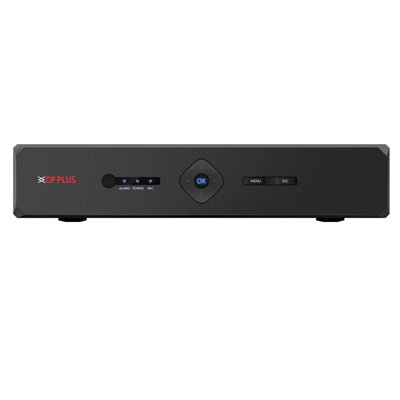
Image: Rear panel of the CP PLUS 8 Channel 2 MP DVR CP-ER-H0804P1, showing BNC camera inputs, HDMI and VGA video outputs, LAN port, USB ports, and power input. This illustrates the various connection points for setting up the DVR system.
1.3 Initial Power-On
After all connections are secure, power on the DVR. The system will boot up, and you should see the initial setup wizard on your connected monitor. Follow the on-screen prompts to configure basic settings such as language, date/time, and network parameters.
2. Operating Instructions
2.1 Basic Navigation
Use the connected USB mouse to navigate the DVR's graphical user interface (GUI). Left-click to select items and right-click to return to the previous menu or access quick menus.
2.2 Recording Management
The DVR supports real-time recording across all 8 channels. It also features a dual stream function, allowing for high-resolution recording for local storage and a lower-resolution stream for remote viewing, optimizing bandwidth usage.
- Schedule Recording: Access the 'Record' menu to set up continuous, motion-detection, or alarm-triggered recording schedules for each channel.
- Manual Recording: Initiate manual recording directly from the live view interface.
- Recording Settings: Adjust resolution, frame rate, and quality settings for each stream (main stream for recording, sub-stream for remote viewing).
2.3 Playback
To review recorded footage:
- From the main menu, select 'Playback'.
- Choose the desired date and channel(s).
- Use the timeline to select the specific time segment for playback. Controls for play, pause, fast forward, and rewind are available.
2.4 Network Configuration
Configure network settings for remote access and monitoring:
- Navigate to 'Network' settings in the main menu.
- Configure IP address settings (DHCP or Static IP).
- Set up port forwarding on your router if necessary for external access.
- Enable P2P or cloud services for easy remote viewing via mobile applications.
3. Maintenance
3.1 Regular Cleaning
Periodically clean the exterior of the DVR with a soft, dry cloth. Ensure ventilation openings are free from dust to prevent overheating.
3.2 Firmware Updates
Check the official CP PLUS website for firmware updates. Regularly updating the firmware can improve system stability, add new features, and enhance security. Follow the provided instructions carefully when performing updates.
3.3 Hard Drive Management
The DVR uses an internal Hard Disk Drive (HDD) for video storage. Ensure the HDD is functioning correctly. If the HDD fails, replace it with a compatible model. Regular backups of critical footage are recommended.
4. Troubleshooting
4.1 No Video Output on Monitor
- Check if the monitor is powered on and set to the correct input source (HDMI/VGA).
- Ensure the video cable is securely connected to both the DVR and the monitor.
- Try connecting to a different monitor or using a different video cable.
4.2 Recording Issues
- Verify that the internal HDD is installed, formatted, and healthy.
- Check recording schedules and ensure they are correctly configured.
- Ensure cameras are properly connected and providing a video signal.
4.3 Network Connection Problems
- Confirm the Ethernet cable is securely connected to the DVR and the network device.
- Check network settings in the DVR to ensure the IP address, subnet mask, and gateway are correct.
- Restart your router/switch and the DVR.
5. Product Specifications
| Feature | Specification |
|---|---|
| Brand | CP PLUS |
| Model | CP-ER-H0804P1 |
| Number of Channels | 8 |
| Video Input | 8 BNC Inputs |
| Video Output | HDMI, VGA |
| Recording Features | Real-time Recording, Dual Stream |
| Media Format Digital Video | HDD (Hard Disk Drive) |
| Package Dimensions | 35.99 x 30 x 11.99 cm |
| Item Weight | 1 kg 100 g |
| Batteries Included | No |
6. Warranty and Support
For warranty information and technical support, please refer to the warranty card included with your product or visit the official CP PLUS website. Contact details for customer service and support resources are typically available on the manufacturer's website.


