1. Introduction
The ViewSonic VA2419-SMH is a 24-inch monitor designed for home and office use, featuring an IPS panel with Full HD (1920x1080p) resolution. This monitor offers wide-angle viewing and flexible connectivity options, including HDMI and VGA inputs. Its frameless design is suitable for multi-monitor configurations. This manual provides essential information for the proper installation, operation, and maintenance of your monitor.
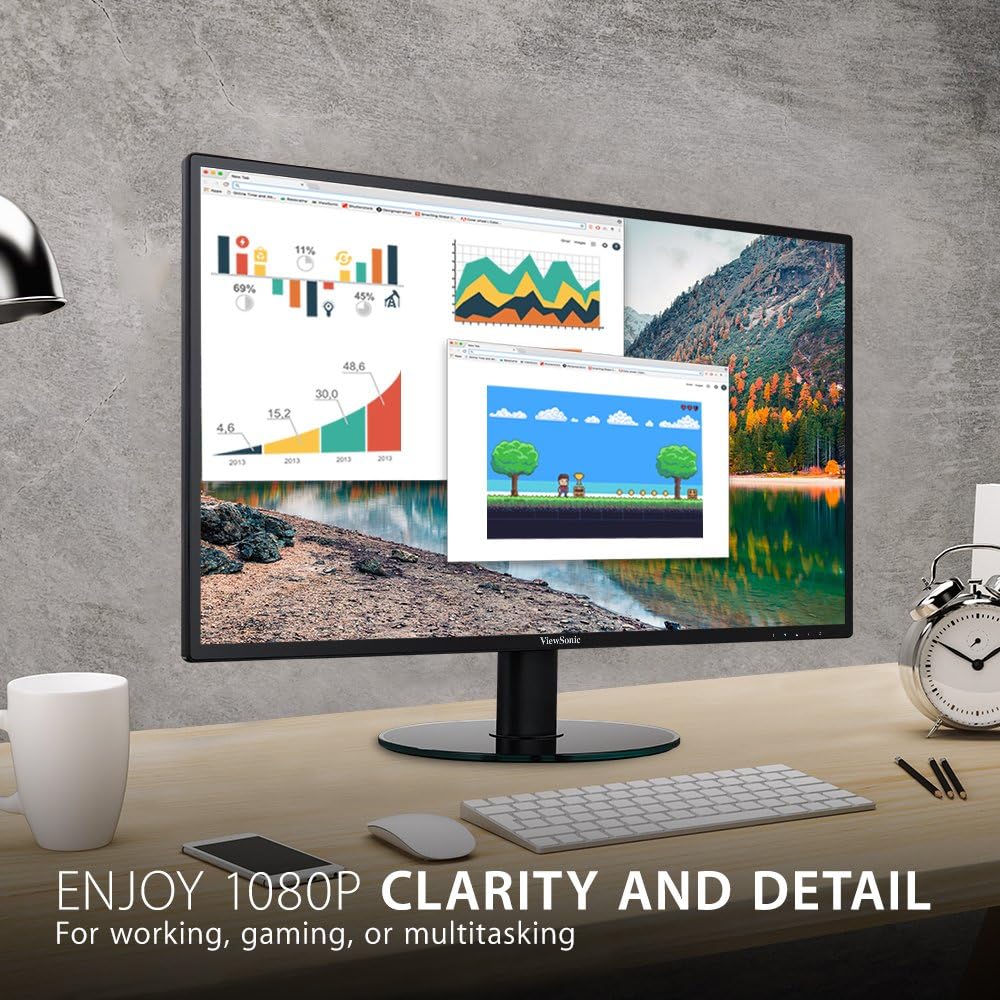
Image 1.1: The ViewSonic VA2419-SMH monitor in a typical desktop setup, showcasing its display clarity for various tasks.
2. Package Contents
Verify that all items listed below are present in your product packaging. If any items are missing or damaged, contact your retailer or ViewSonic customer support.
- ViewSonic VA2419-SMH LCD Monitor
- Power Cable (may vary by region)
- VGA Cable
- Audio Cable
- Quick Start Guide

Image 2.1: Visual representation of the items included in the ViewSonic VA2419-SMH monitor package.
3. Setup
3.1 Assembling the Stand
Carefully remove the monitor from its packaging. Attach the stand base to the stand neck, then secure the assembled stand to the back of the monitor. Ensure all screws are tightened appropriately to prevent instability.

Image 3.1: Front view of the ViewSonic VA2419-SMH monitor, showing the display and attached stand.
3.2 Connecting Cables
Before connecting any cables, ensure both the monitor and your computer are powered off. Connect the appropriate video cable (HDMI or VGA) from your computer to the corresponding input port on the monitor. Connect the audio cable if you intend to use the monitor's integrated speakers or pass audio through. Finally, connect the power cable to the monitor and then to a power outlet.

Image 3.2: Rear view of the monitor, illustrating the location for stand attachment and cable connections.

Image 3.3: Detailed view of the monitor's connectivity panel, highlighting HDMI, VGA, and audio ports.
3.3 Powering On
After all cables are securely connected, power on your computer. Then, press the power button on the monitor, typically located on the bottom right bezel, to turn it on. The monitor should automatically detect the input signal.
4. Operating the Monitor
4.1 On-Screen Display (OSD) Menu
The monitor features an On-Screen Display (OSD) menu for adjusting various settings. Use the control buttons, usually located on the bottom right of the monitor, to navigate the OSD menu. Common controls include:
- Menu Button: Activates the OSD menu.
- Up/Down or Left/Right Buttons: Navigate through menu options and adjust values.
- Select/Enter Button: Confirms selections.
- Exit Button: Closes the OSD menu.
4.2 Adjusting Display Settings
Within the OSD menu, you can modify settings such as:
- Brightness/Contrast: Adjust the overall luminance and difference between light and dark areas.
- Input Select: Manually switch between HDMI and VGA inputs if auto-detection fails or if you have multiple sources connected.
- Color Settings: Fine-tune color temperature, gamma, and individual RGB levels.
- Audio Settings: Control volume and mute functions for the integrated speakers.
- ViewMode: Select preset display modes optimized for different content types (e.g., Standard, Game, Movie, Web, Text, Mono).
5. Connectivity
The ViewSonic VA2419-SMH monitor offers versatile connectivity to various devices:
- HDMI 1.4 Input: For digital video and audio signals from PCs, laptops, gaming consoles, and other multimedia devices.
- VGA Input: For analog video signals from older PCs and laptops.
- Audio In/Out: Connect an external audio source or headphones. The monitor also features 2x 1.5-watt integrated speakers.
Ensure that the correct input source is selected via the OSD menu or the input select button on the monitor.
6. Maintenance
6.1 Cleaning the Screen
To clean the screen, power off the monitor and disconnect the power cable. Gently wipe the screen with a soft, lint-free cloth. For stubborn marks, lightly dampen the cloth with water or a mild, non-abrasive screen cleaner. Avoid using harsh chemicals, alcohol, or ammonia-based cleaners, as these can damage the screen surface.
6.2 Cleaning the Casing
Wipe the monitor casing with a soft, dry cloth. Do not use liquid cleaners directly on the casing to prevent liquid from entering internal components.
7. Troubleshooting
If you encounter issues with your monitor, refer to the table below for common problems and solutions.
| Problem | Possible Solution |
|---|---|
| No image on screen | Ensure the power cable is securely connected and the monitor is powered on. Check that the video cable (HDMI/VGA) is properly connected to both the monitor and the computer. Verify the correct input source is selected in the OSD menu. |
| Image is blurry or distorted | Check the video cable connection. For VGA, ensure the cable is tightened. Adjust the resolution settings on your computer to match the monitor's native resolution (1920x1080). Use the OSD menu to perform an auto-adjust if using VGA. |
| No audio from speakers | Ensure the audio cable is connected (if using VGA) or that HDMI audio is enabled on your computer. Check the volume settings in the OSD menu and on your computer. Ensure speakers are not muted. |
| Monitor flickers | Check for loose video cable connections. Ensure the refresh rate is set correctly in your computer's display settings. Test with a different video cable if possible. |
| Buttons not responding | Unplug the monitor's power cable, wait 30 seconds, then plug it back in and try again. This can reset the monitor's internal controls. |
8. Specifications
Key technical specifications for the ViewSonic VA2419-SMH monitor:
| Feature | Specification |
|---|---|
| Model Number | VA2419-SMH |
| Screen Size | 24 Inches |
| Panel Type | IPS |
| Native Resolution | 1920 x 1080 (Full HD) |
| Aspect Ratio | 16:9 |
| Connectivity | 1x HDMI 1.4, 1x VGA, 2x Audio (In/Out) |
| Integrated Speakers | 2x 1.5-watt |
| Product Dimensions (L x W x H) | 54.86 x 21.59 x 40.39 cm (21.6 x 8.5 x 15.9 inches) |
| Item Weight | 3.81 kg (8.4 lbs) |
| Color | Black |
| Screen Surface | Glossy |

Image 8.1: Dimensional overview of the ViewSonic VA2419-SMH monitor.
9. Warranty and Support
The ViewSonic VA2419-SMH monitor comes with a 3-year limited warranty. This warranty covers defects in materials and workmanship under normal use. For detailed warranty terms and conditions, please refer to the official ViewSonic website or the warranty card included with your product.
For technical assistance, troubleshooting, or to inquire about warranty service, please contact ViewSonic customer support. Contact information can typically be found on the ViewSonic official website or in the Quick Start Guide.


