
FEELWORLD F7 PLUS-OF-CA
Contents
FEELWORLD F7 Plus 7-Inch Field Monitor User Manual
Model: F7 PLUS-OF-CA
1. Introduction
The FEELWORLD F7 Plus is a high-brightness, 7-inch field monitor designed for DSLR cameras, camcorders, and other video equipment. It features a 1200nit daylight viewable touchscreen, 1920x1200 resolution, and supports 4K HDMI input and output, making it an essential tool for professional photography and videography.
Key features include HDR monitoring, 3D LUT support for real-time color grading, and a full range of professional auxiliary functions such as waveform, vector graph, and histogram. Its external NP-F power install kit allows for convenient mounting and powering of additional devices, simplifying your on-site setup.
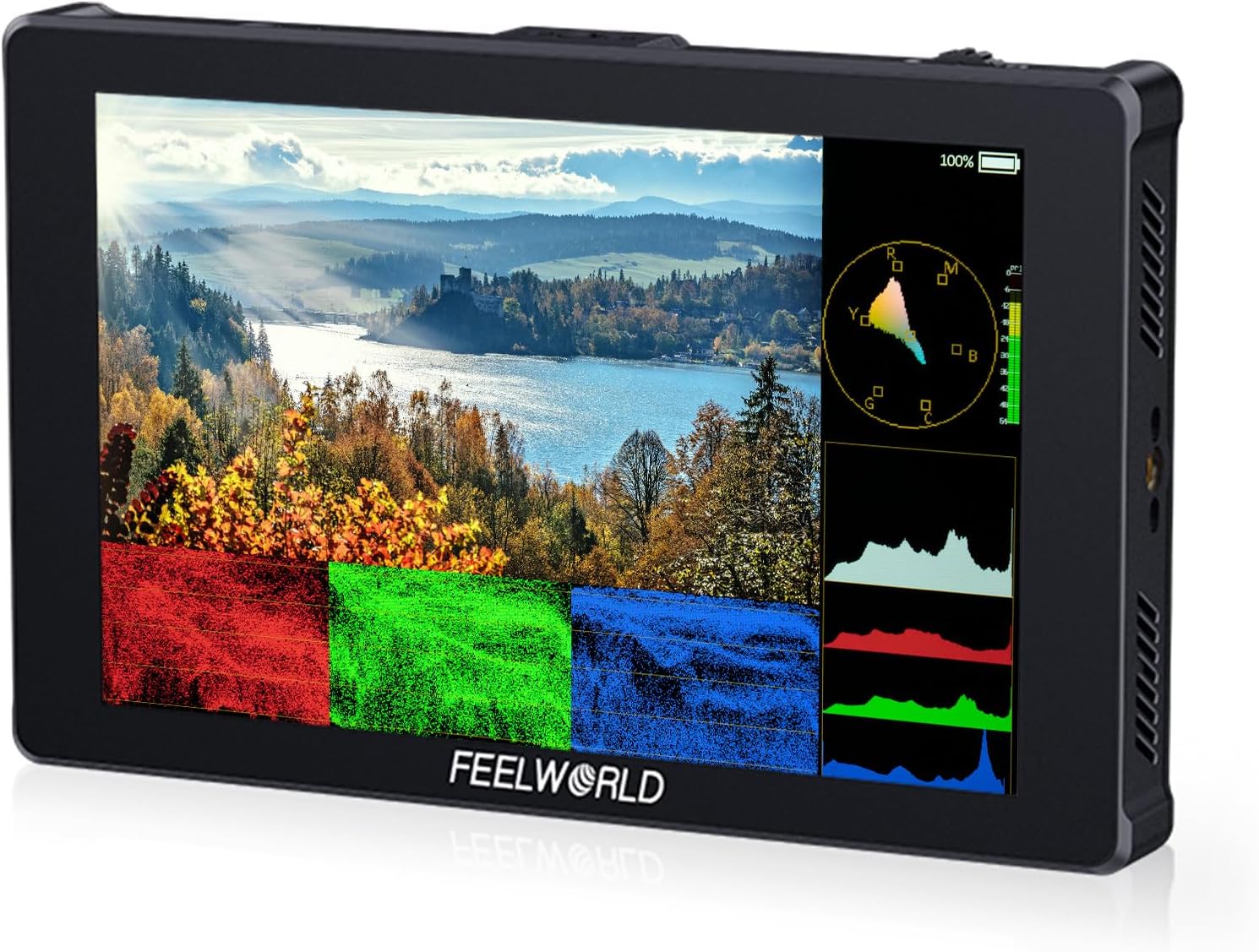
Figure 1.1: FEELWORLD F7 Plus Monitor with active display and monitoring overlays.
2. What's in the Box
Please check the contents of your package to ensure all items are present:
- 1 × FEELWORLD F7 Plus Monitor
- 1 × Standard HDMI Cable
- 1 × Micro HDMI Cable
- 1 × Mini Hot Shoe Mount + Hex Wrench
- 1 × Disassemble Wrench
- 1 × User Manual
Note: Battery and power adapter are not included.
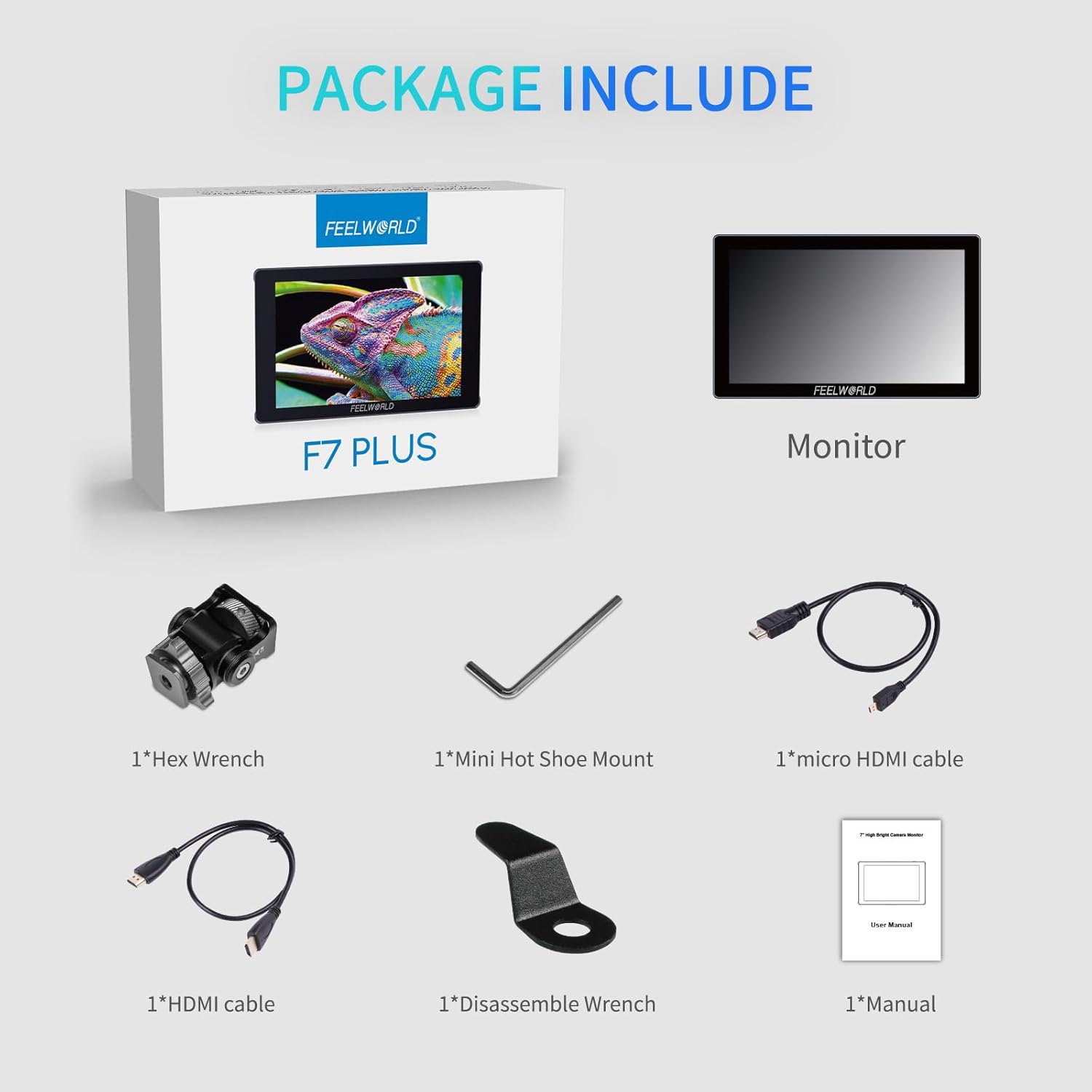
Figure 2.1: Package contents of the F7 Plus monitor.
3. Setup and Connections
3.1 Physical Installation
Attach the monitor to your camera rig using the included Mini Hot Shoe Mount or other compatible mounting solutions. The monitor features multiple 1/4-inch screw threads for flexible positioning.

Figure 3.1: Product instruction diagram with port and mounting details.
3.2 Powering the Monitor
The F7 Plus offers multiple power options:
- NP-F Battery: Insert a compatible NP-F series battery into the battery plate on the back of the monitor.
- DC Adapter: Connect a 12V DC power adapter (not included) to the DC 12V IN port.
- Type-C Power: Use a 5V 2A Type-C cable to power the monitor via the DC IN 5V (Type-C) port.

Figure 3.2: Multiple power supply options for the F7 Plus.
3.3 Connecting to Your Camera (HDMI)
Connect your camera's HDMI output to the monitor's HDMI IN port using the provided Standard or Micro HDMI cable. The monitor supports HDMI signals up to 4096x2160/60p & 3840x2160/60p.

Figure 3.3: 4K HDMI Input & Output ports.
3.4 External Device Installation (NP-F Kit)
The NP-F external power supply kit on the back allows you to mount and power devices like wireless transmitters or LED lights, eliminating extra wiring.

Figure 3.4: External Install and Power Design using the NP-F kit.
4. Operating Instructions
4.1 Touchscreen Control
The F7 Plus features a highly responsive touchscreen. All functions are at your fingertips, allowing for easy access and navigation. You can double-tap to bring up the menu or swipe up/down on the left half of the screen to adjust backlight brightness, and on the right half to adjust volume.

Figure 4.1: Convenient Touch Screen operation.

Figure 4.2: Touch Screen Control gestures.
4.2 1200nit Daylight Viewable Display
With 1200 nits of brightness, the F7 Plus ensures clear visibility even in bright daylight or outdoor environments, allowing you to accurately compose and monitor your shots.

Figure 4.3: 1200nits Daylight Viewable display in outdoor setting.
4.3 HDR Monitoring & 3D LUT
Experience incredible clarity and detail with HDR monitoring. The F7 Plus also supports loading up to 32 custom 3D LUT files via an SD card, allowing you to preview your filming look in real-time and maintain your creative vision from capture to post-production.

Figure 4.4: Customize 3D-LUT function with SD card slot.

Figure 4.5: How to Load LUTs.
4.4 Professional Monitoring Functions
The F7 Plus is equipped with a comprehensive suite of professional monitoring tools to assist with accurate exposure and focus:
- Waveform: Displays the luminance and chrominance levels of your video signal.
- Vector Scope: Shows the color information of your image.
- Histogram: Provides a graphical representation of the tonal distribution in your image.
- Peaking Filter: Highlights in-focus areas for precise manual focusing.
- False Color: Uses color overlays to represent different exposure levels.
- Exposure (Zebras): Indicates overexposed areas.
- Nine Grid: Assists with composition using a rule-of-thirds grid.
- Zoom-In: Magnifies a portion of the image for critical focus.
- Embedded Audio: Monitors audio levels.

Figure 4.6: Professional Monitoring Functions interface.

Figure 4.7: Visual examples of advanced monitoring tools.

Figure 4.8: Professional Real-Time Monitor Function (Histograms).
4.5 Language Settings
The F7 Plus supports up to 11 languages. Navigate to the System menu to change the display language to your preference.

Figure 4.9: Multiple Language Support.
4.6 Official Product Videos
Camera screen too small solution-F7 PLUS Field Monitor
This video demonstrates how the FEELWORLD F7 Plus monitor provides a larger, clearer view compared to a camera's built-in screen, enhancing the shooting experience.
Sharing Good Partner for My Camera
A video showcasing the F7 Plus as an ideal companion for various camera setups, highlighting its versatility and ease of integration.
FEELWORLD F7 Plus 7 Inch Camera Monitor with 3D Lut HDR
This video provides a detailed look at the 3D LUT and HDR capabilities of the F7 Plus, demonstrating how these features improve image quality and workflow.
Most important gear for filmmaker FEELWORLD F7 PLUS monitor
A filmmaker's perspective on why the F7 Plus is considered essential gear, highlighting its practical benefits during production.
Capturing the Beauty of Nature with the F7 PLUS Monitor
This video illustrates the F7 Plus's performance in outdoor natural settings, emphasizing its ability to capture detailed and beautiful footage.
5. Maintenance
To ensure the longevity and optimal performance of your FEELWORLD F7 Plus monitor, follow these maintenance guidelines:
- Cleaning: Use a soft, dry cloth to clean the monitor's exterior. For the screen, use a microfiber cloth specifically designed for electronics. Do not use liquid cleaners or abrasive materials.
- Storage: When not in use, store the monitor in a cool, dry place, away from direct sunlight and extreme temperatures. Use a protective case to prevent scratches and impacts.
- Handling: Handle the monitor with care to avoid dropping or subjecting it to strong impacts, which can damage internal components or the screen.
- Moisture: Keep the monitor away from water and high humidity. If it gets wet, power it off immediately and allow it to dry completely before using it again.
6. Troubleshooting
If you encounter issues with your FEELWORLD F7 Plus monitor, refer to the following common problems and solutions:
- No Power:
- Ensure the battery is fully charged and correctly inserted.
- Verify the DC power adapter or Type-C cable is securely connected and providing power.
- Check if the power button is pressed firmly.
- No Signal:
- Confirm the HDMI cable is properly connected to both the camera's output and the monitor's HDMI IN port.
- Check the camera's video output settings to ensure it's sending an HDMI signal.
- Try a different HDMI cable to rule out cable issues.
- Ensure the monitor's input source is set to HDMI.
- Screen Flickering/Distortion:
- Check the HDMI cable for damage or loose connections.
- Ensure the camera's output resolution and frame rate are compatible with the monitor (up to 4K 60Hz).
- Restart both the camera and the monitor.
- Touchscreen Unresponsive:
- Ensure the screen is clean and free of debris or moisture.
- Restart the monitor.
- If the issue persists, a factory reset might be necessary (refer to the on-screen menu for this option).
If these steps do not resolve the issue, please contact FEELWORLD customer support for further assistance.
7. Specifications
| Feature | Detail |
|---|---|
| Product Dimensions | 4.6 x 7.3 x 0.8 inches |
| Item Weight | 13.7 ounces |
| ASIN | B01N2S0WSQ |
| Item Model Number | F7 PLUS-OF-CA |
| Display Size | 7 Inch |
| Brightness | 1200 nit |
| Resolution | 1920 x 1200 |
| Viewing Angle | 160° |
| Contrast Ratio | 1200:1 |
| HDMI Support | Up to 4096x2160/60p & 3840x2160/60p |
| Power Input | NP-F Battery, DC 12V, Type-C 5V 2A |
| Manufacturer | FEELWORLD |
| Country of Origin | China |
8. Warranty and Support
FEELWORLD products are designed and manufactured to the highest quality standards. For information regarding product warranty, please refer to the warranty card included with your purchase or visit the official FEELWORLD website.
For technical support, troubleshooting assistance, or any inquiries about your F7 Plus monitor, please contact FEELWORLD customer service through their official channels. Contact information can typically be found on the product packaging or the official brand website.
Always ensure you are using official support channels for reliable assistance.
Ask a question about this manual
Ask about setup, troubleshooting, compatibility, parts, safety, or missing instructions. Manuals+ will review the question and use this page’s manual context to help answer it.